

Last week, we covered how you can share phone contacts on Android. If you missed it, you can find it here:
How To Share Phone Contact On Android
This week, I wanted to move over to Microsoft Windows. With AI taking over everything in our lives, it is nice to know you can disable some of it. ‘What are you talking about, Jason?’ Glad you asked. If you are using Windows, then you have seen Copilot, which is Microsoft’s AI. This is a little intrusive, according to me, and many others think so, too. The reason I bring this up is that I was working on a Word document and noticed Copilot trying to help me. That got me thinking if I could disable it in my Word 365 program. After a little research, I figured it out and wanted to share it with you. Before we start this lesson, make sure to check out these other articles I have written:
- How To Share Text Messages On Android
- How To Change Microsoft Account Picture
- How To Adjust Playback Speed On Facebook
- How To Stop TikTok AI Remixes
- How To Boost FPS: Disable Windows Game DVR
Time to learn how to disable some AI.
How To Disable Microsoft Copilot In Word
This will be shown on my Windows 11 laptop.
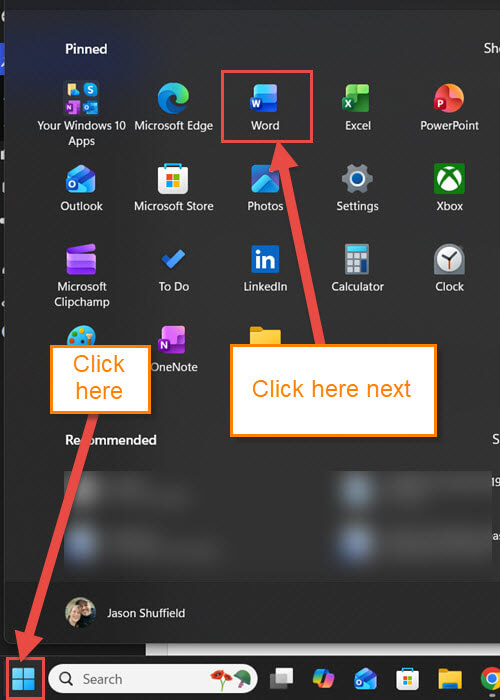
Step 1: Find the Start menu link, which is the Windows Icon. Click it and from that menu, find the Word App. Click it.
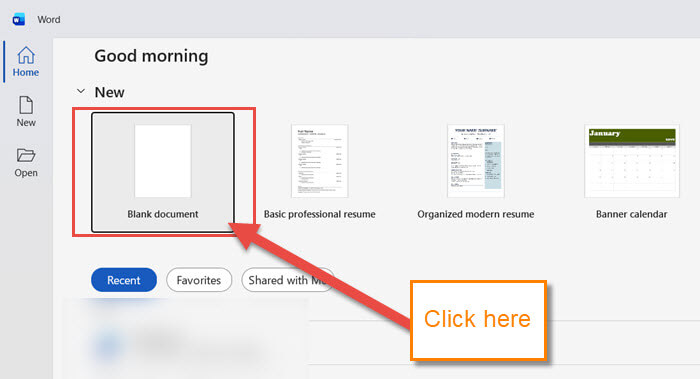
Step 2: Once the Word app opens up, choose a saved document or open a new one.
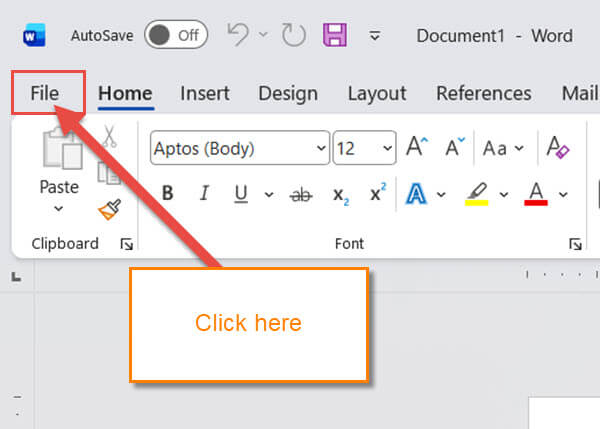
Step 3: Now that you are on your document, look to the top left for the File link. Click it.
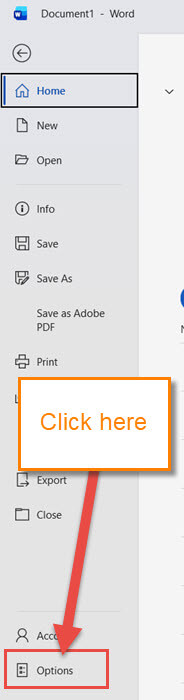
Step 4: The next screen will have a menu appear to the left of the screen. Look to the very bottom of the screen. You will see the link to Options. Click it.
Step 5: The Word options menu will appear, and you will most likely be on the General tab. Look down the left menu for Copilot. Click it.
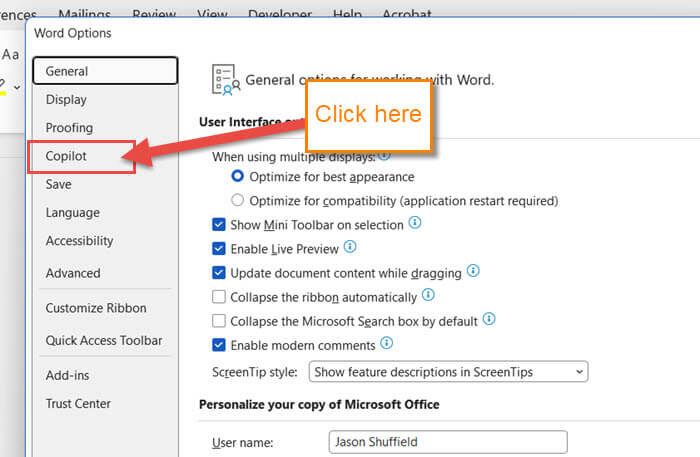
Step 6: You will now be on the Copilot options screen.
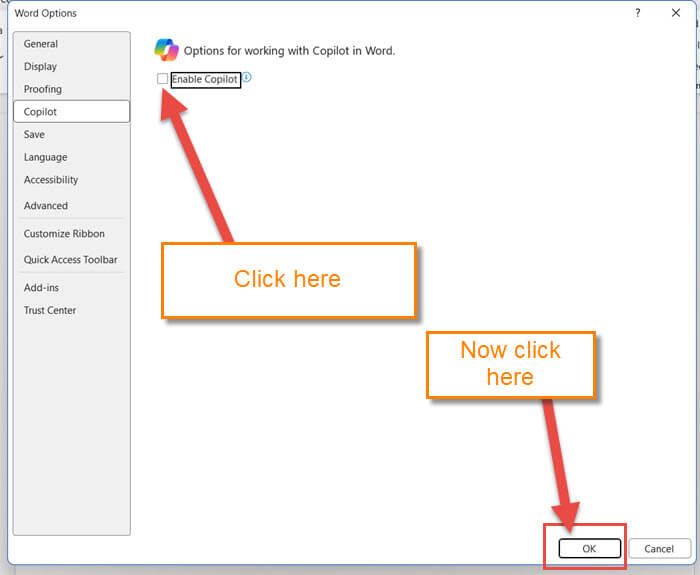
Options for working with Copilot in Word.
All you need to do here is uncheck the box to the left of Enable Copilot. Lastly, you will want to click the OK button at the bottom. You have now disabled Copilot on Word.
Side Note: There is no way of disabling this on the Online version of Word that I can find.
Now you know how to disable Copilot on the Desktop version of Word 365. Time to share your new knowledge with all your friends.
—

Thank you for the tip, but you forgyo yo tell us what Word or Office versions this can be applicable to