

If you were here last week, you learned how to stop AI Remixing Your TikTok Videos. Some of you might have missed that, so you can find it here:
This week, we are going to jump over to Facebook. I’m giving credit for this lesson to my wife. She was watching videos on Facebook and noticed that the playback speed was too fast. She then figured out that you can adjust the playback speed on the videos. Now that she has shown me how to do this, it is time for me to teach you. Before we start our new lesson, make sure to check out these other articles I have written for you:
- How To Boost FPS: Disable Windows Game DVR
- How To Manage Email Subscriptions In Gmail
- How To Stop Windows From Stealing Bandwidth
- How To Create QR Code In Word
- How To Manage Your Google Profile Visibility
It is time to start the class.
How To Adjust Playback Speed On Facebook
I will show you how to do this on the Facebook website and then on the app.
How To Adjust Playback Speed On Facebook Website
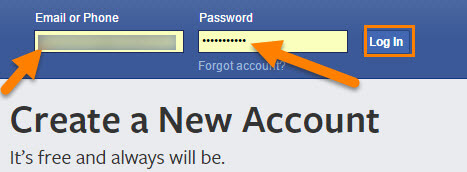
Step 1: Head over to the Facebook website using your Internet browser. Make sure to sign in to your account.
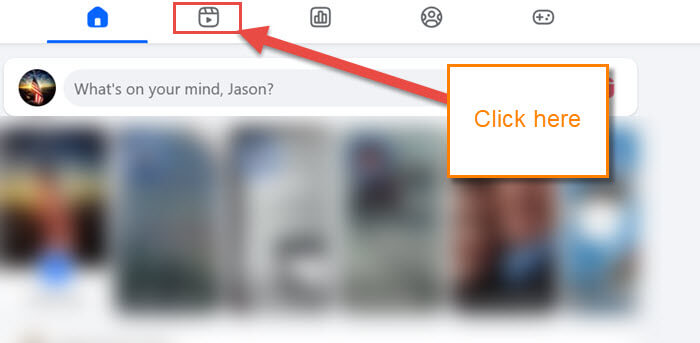
Step 2: Once on the home screen, look to the top, and you will see some Icons. Click the Video one to the left of the Home icon.
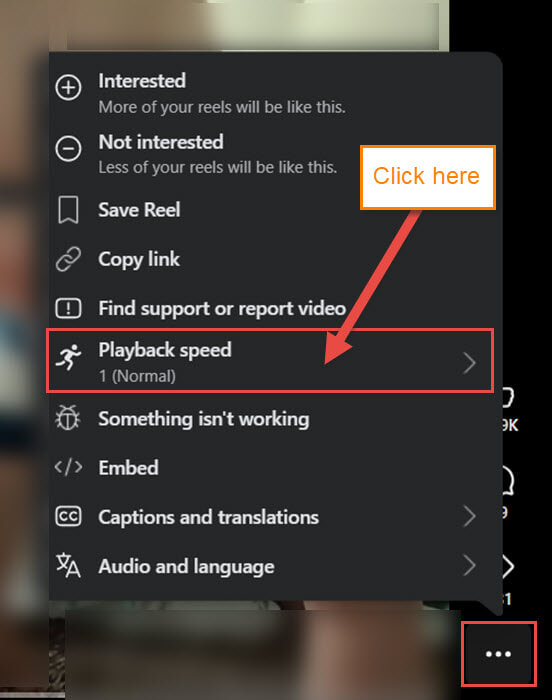
Step 3: This will bring up the Videos screen. Find the video that you want to fix the speed on. Look in the bottom-right corner for the 3 horizontal dots. Click it.

Step 4: A menu will pop up, and you will see an option called Playback speed. Click it.
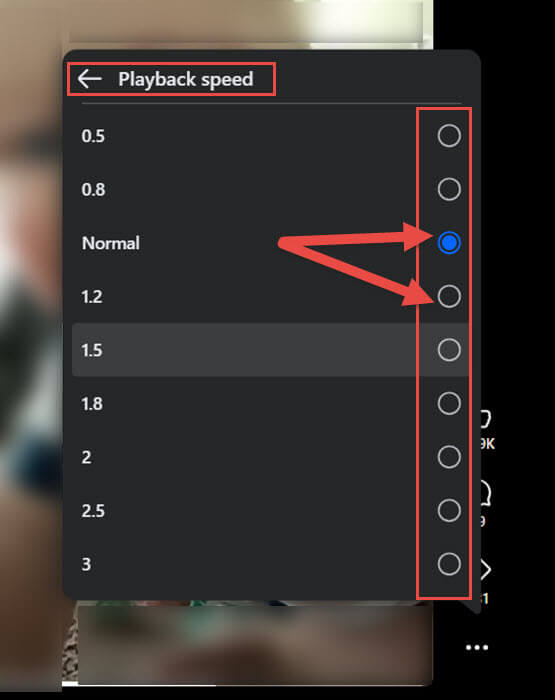
Step 5: After you click, you will be offered several playback speed options. The default should be normal (the speed at which they set the video when uploading it). If the video seems to be speaking fast, you can slow it down by selecting a slower speed. To select, click on the circle to the right of the option. DONE!
Since you know how to do this on the website, it’s time to show you how on the app.
How To Adjust Playback Speed On Facebook App
Step 1: Find the Facebook app on your device and tap on it.

Step 2: Once on the app, look to the top for the Videos icon. Tap it.
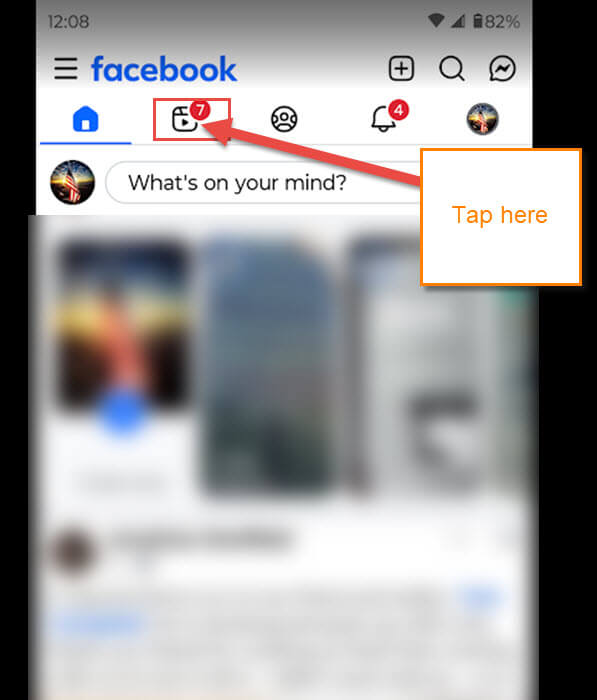
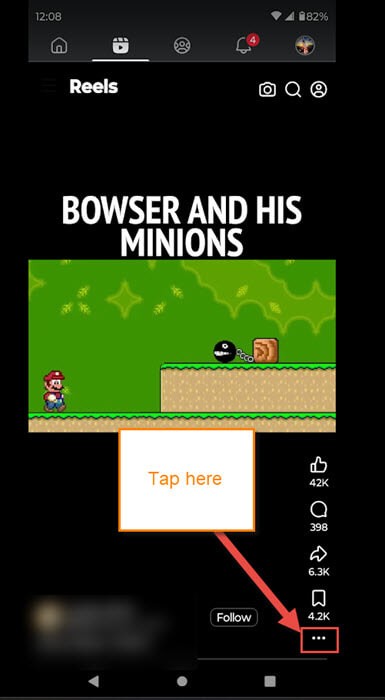
Step 3: This will bring up the Video/Reels on Facebook. Find the video and look to the bottom right for those 3 dots. Tap them.
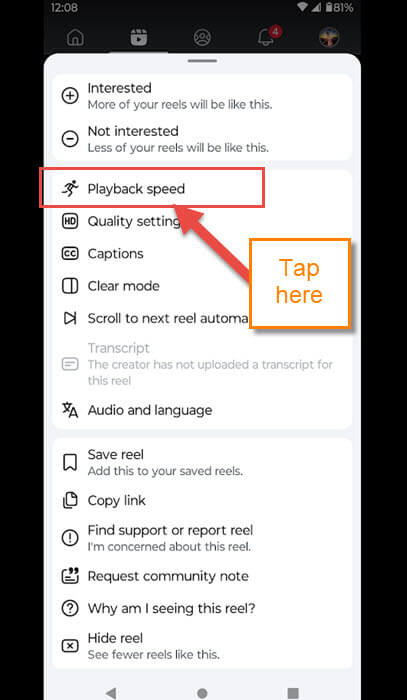
Step 4: A menu will pop up, and you are looking for the Playback speed option. Tap it.
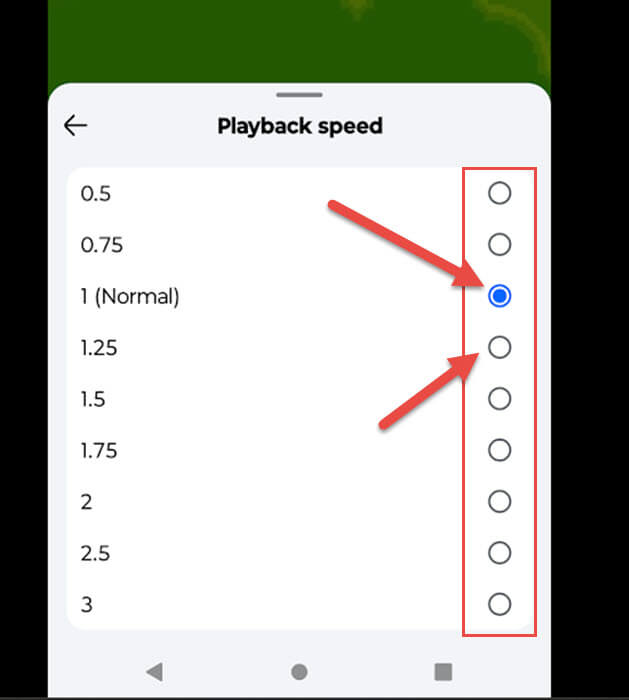
Step 5: This will give you the same choices of Playback Speed as the website did. Tap on the circle to the right of the one you choose. Done!
You now know how to do this on the website and the mobile app. Time to share this new knowledge with the world.
—
