

Last week, we talked about how you can change your Microsoft Account picture. If you missed that, you can find it here:
How To Change Microsoft Account Picture
This week, I wanted to change gears and talk about Android. ‘What specifically,’ you might be asking? During this last week, my wife needed someone’s information that was texted to me. This was a long message, so I was going to have to type it out, which takes time. Then my wife reminded me that I could share the message with her without typing it all out. After a little research, I figured out how you can do this. Before we start the class, please check out these other articles I have written for you:
- How To Adjust Playback Speed On Facebook
- How To Stop TikTok AI Remixes
- How To Boost FPS: Disable Windows Game DVR
- How To Manage Email Subscriptions In Gmail
- How To Stop Windows From Stealing Bandwidth
Time to start learning something useful.
How To Share Text Messages On Android Phone
This will be shown on my Motorola Edge Android phone.
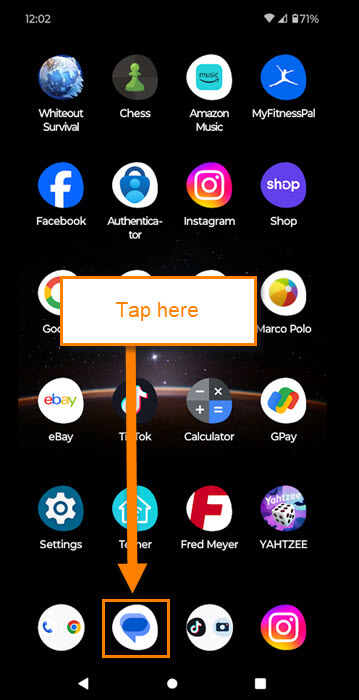
Step 1: Find your Messages app on your Android device and tap it.
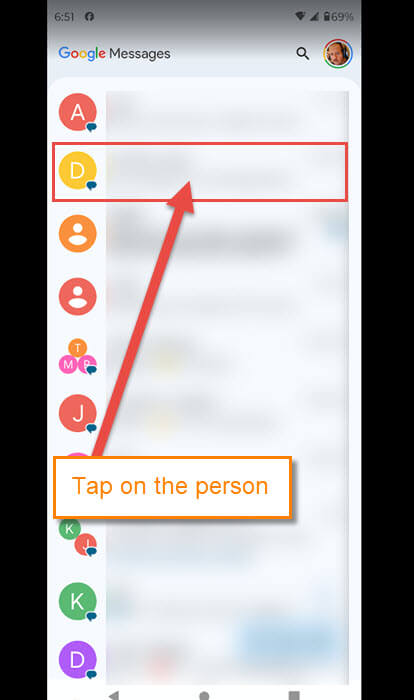
Step 2: Now find the the Contact that you received the message from and tap on their name. This will open all the messages you have with them.
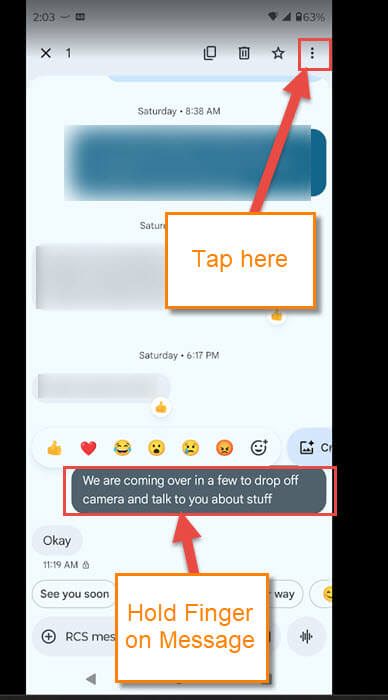
Step 3: Once you find the text message you want to share, hold your finger on the message, and at the top, some options will appear. Tap on the 3 dots.
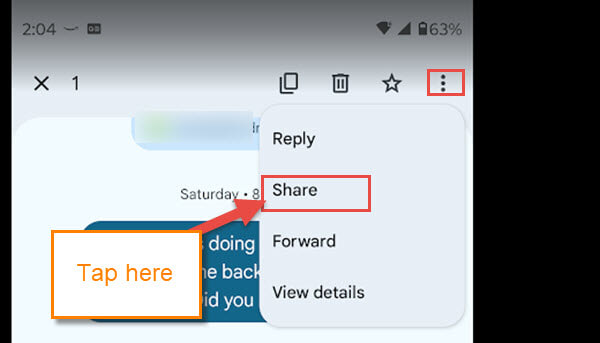
Step 4: A menu will appear with some options on it. The one we want is the Share option (No surprise). Tap it.
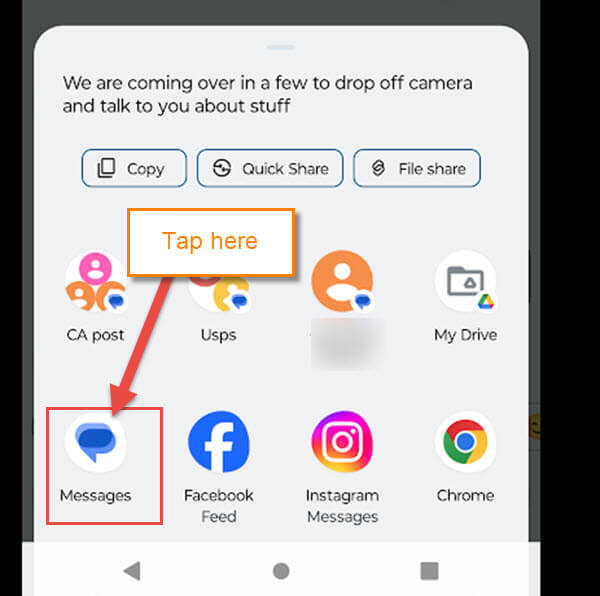
Step 5: The Share options will appear with the message that you are sharing at the top. They give you many options on how you can share the text:
- Messages (texting)
- Facebook Feed
- Instagram Messages Chrome
- And many others
For this article, we want to send it to another person from our contacts. Tap the Messages icon.
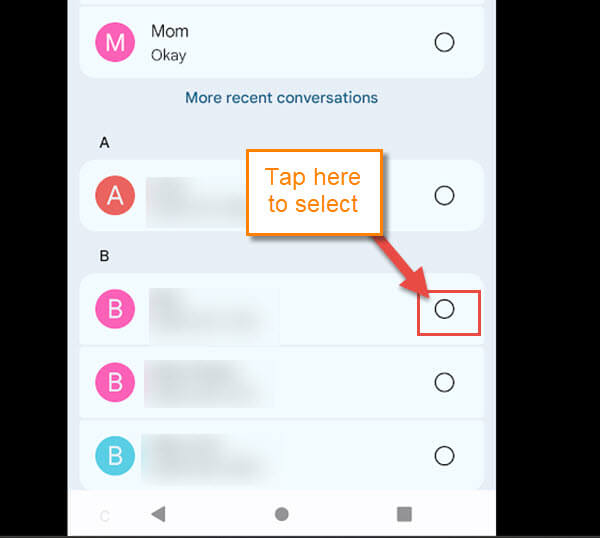
Step 6: Your Contacts will appear, and you will need to find the person you are sending it to. Tap the circle to the right of the person’s name.
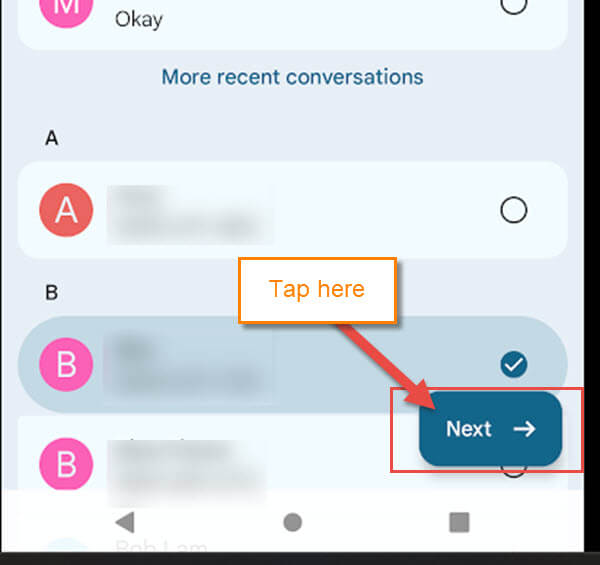
Step 7: After tapping the circle, you will need to tap on the Next button at the bottom.
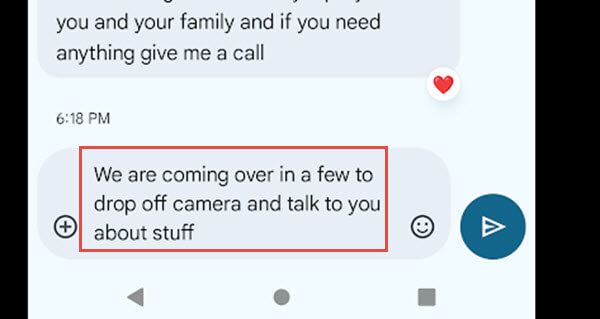
Step 8: This will take you to the Messaging screen for the person you chose. Now all you have to do is send the message.
You now know how you can share your text messages with whoever you want to. Time to share your new knowledge with the rest of the world.
—

I use “Chomp messages” and it has a “forward option” which is much easier than what you’ve described. Just saying!