

If you saw last week’s article, I taught you how to share text messages. Here is if you missed it:
How To Share Text Messages On Android
This week, I wanted to stick with our Android subject. ‘What will you teach me this time?’ Good question! I wanted to show how you can share contacts from an Android phone. My wife recently asked me for someone’s contact information from my phone. To do this, you usually have to grab their phone and type it all in. After some research, we found out you don’t have to do this. The phone actually has a Share Contact option. That is what I want to teach you today. Before we move forward, make sure to check out these other articles I have written:
- How To Change Microsoft Account Picture
- How To Adjust Playback Speed On Facebook
- How To Stop TikTok AI Remixes
- How To Boost FPS: Disable Windows Game DVR
- How To Manage Email Subscriptions In Gmail
Time to start our new lesson.
How To Share Phone Contact On Android
I will be showing how to do this on my Motorola Edge Android phone.
Step 1: Find your Phone app icon on your device and tap it.
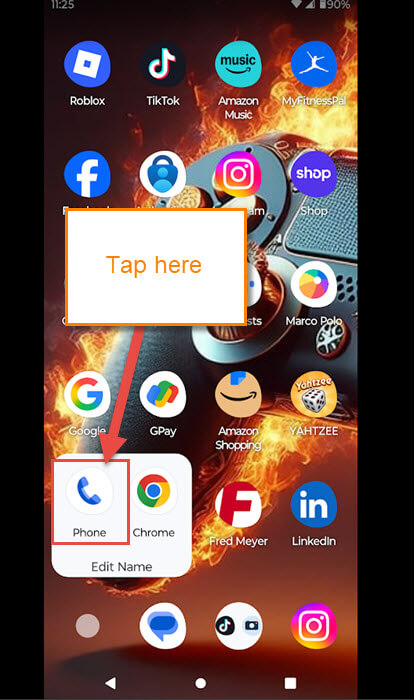
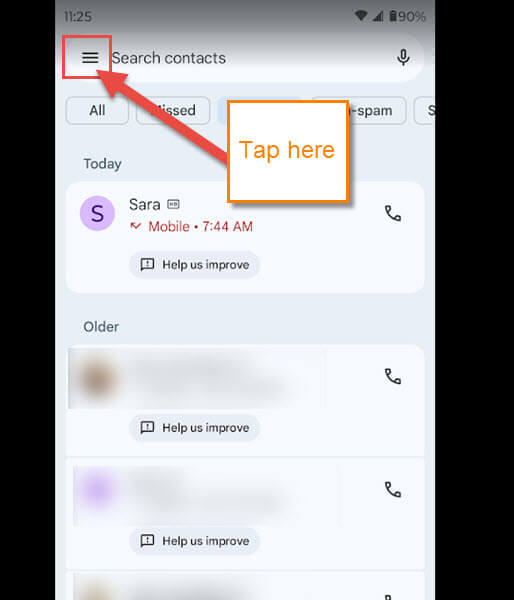
Step 2: Once on the app, look to the top left. You will see 3 horizontal lines, and you need to tap them.
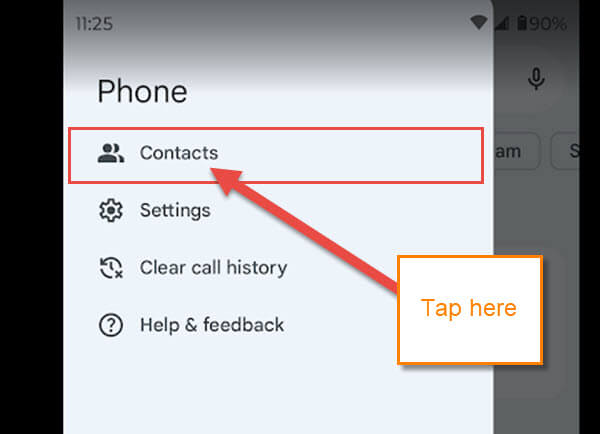
Step 3: The Phone app menu will appear, and you are looking for Contacts. Tap it.
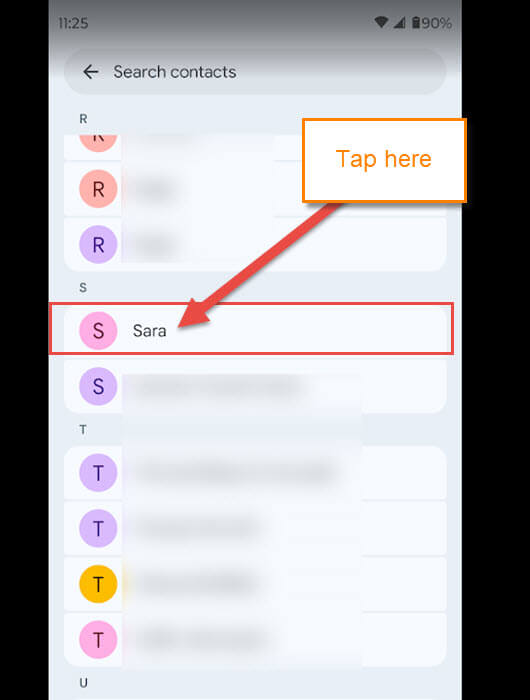
Step 4: All your contacts are on this screen. Search for the contact your are wanting to share and tap it.
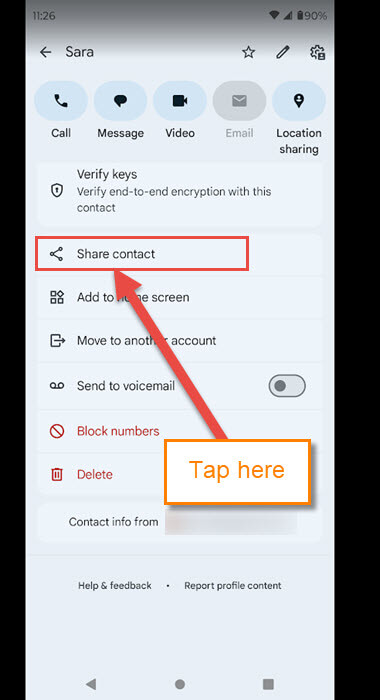
Step 5: The contact’s details will open up. Scroll down until you find the Share option (Share Contact). Tap it.
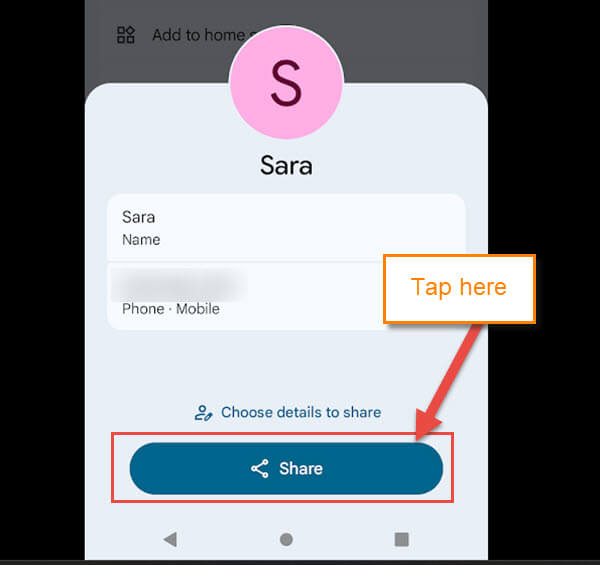
Step 6: A pop-up will appear, and you will need to tap on the Share button at the bottom.
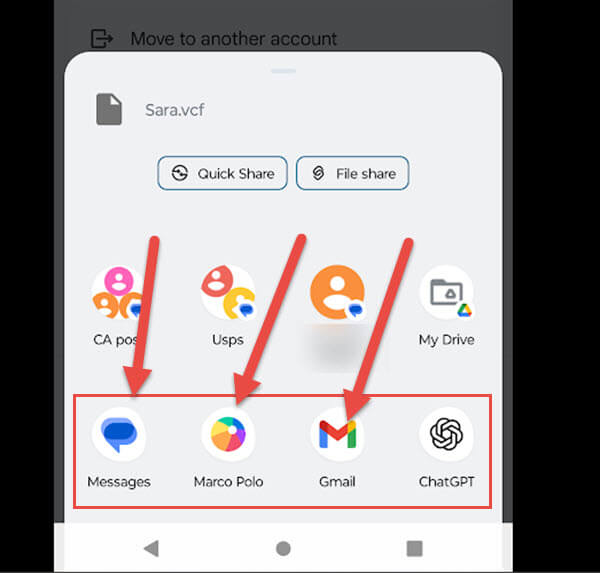
Step 7: Here is where they give you some options on how you want to share the contact:
- Quick Share
- File share
- Group text options
- My drive
- Messages
- Marco Polo (You might not have this option)
- Gmail
- And More
Usually, I use this to share on Messages, but have even used the Gmail option, too. After tapping one, it will open up that app, and you can share it from there. DONE!
Quick Bonus Tip: How to Share Phone Contact On Samsung
These are the steps on my wife’s Samsung Galaxy S22 Android Phone:
- Tap the Contact Icon on your device. This icon looks like a profile and is at the bottom
- Tap on the contact you wish to share
- At the bottom is the Share link, so tap on that. There are two options: one is vCard File (VSF) and the other option is text. My wife uses vCard
- This will bring up a window that is called Select Contact Info to Share. On this screen you can unselect items that you do not want to share
- Now tap on the Done button
- A new screen will appear, and it will show sharing options like on my Motorola phone
- Choose the one you want to use and share
Now you know how to do this on a Motorola Edge and a Samsung. Time to share your new knowledge with the world.
—

Excellent Jason! Thanks for putting that up here. Very helpful!
Excellent tutorial. I didn’t realise Samsung was so different to other Android phones, but I guess there’s a way for all of us to get the job done.