

Last week, I covered how to manage your email subscriptions in Gmail. If you missed that, you can find it here:
How To Manage Email Subscriptions In Gmail
This week, I’m changing gears and going to talk about a Windows setting. If you are a gamer, you will want to know about this setting. When playing games, the FPS (Frames Per Second) is very important. Why is this important?
Frames per second (FPS) measures how many unique consecutive images (frames) are captured or displayed per second to create the illusion of motion. Standard rates are 24fps (cinematic film), 30fps (TV/video), and 60+fps (smooth gaming/high-definition motion). Higher FPS delivers smoother, more detailed motion, while lower FPS offers a cinematic look. (AI Overview)
All you have to do is ask your teenage son/daughter, and they will agree with me. Windows has a setting that will cause your frame rate to dip, and I want to show you how to disable it. This way, you can enjoy your game more (or at least your kids can). Before we move forward with our lesson, make sure to check out these other articles I have written for you all:
- How To Stop Windows From Stealing Bandwidth
- How To Create QR Code In Word
- How To Manage Your Google Profile Visibility
- How To Remove Third-Party Apps from Google
- How To Enable Clipboard Alerts on Samsung
Guess it is time to start our class and make sure our games look good.
How To Boost FPS: Disable Windows Game DVR
I will be showing you this on my Windows 11 laptop.
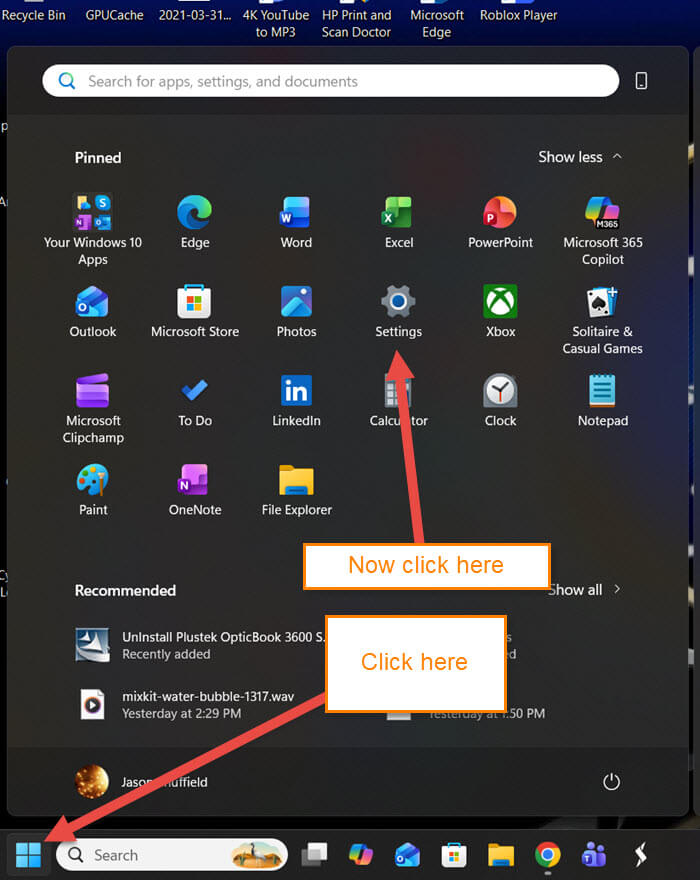
Step 1: On your Windows computer, look in the bottom-left or center. What you are looking for is the Windows icon. Click on that, and you will see this menu. Find the Settings gear icon and click that.
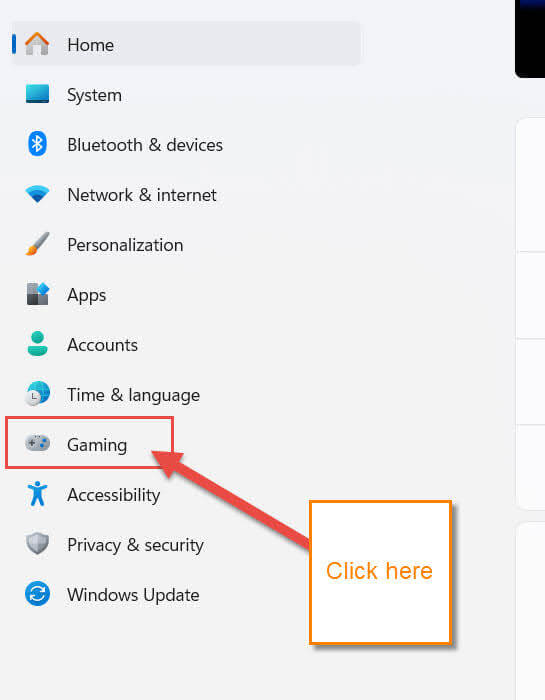
Step 2: On the Settings window, look at the left menu. You will need to find the Gaming option, which is right under the Time & Language option. Click that.
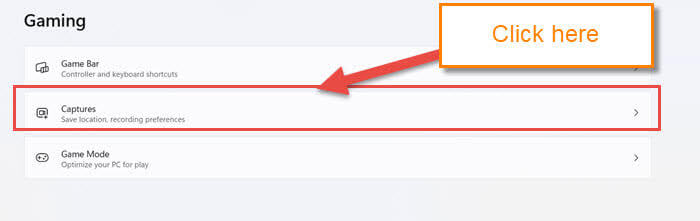
Step 3: The gaming screen gives you some choices that you can choose from:
- Game bar
- Captures
- Game mode
For this article, we want the second choice, which is Captures. Click it.
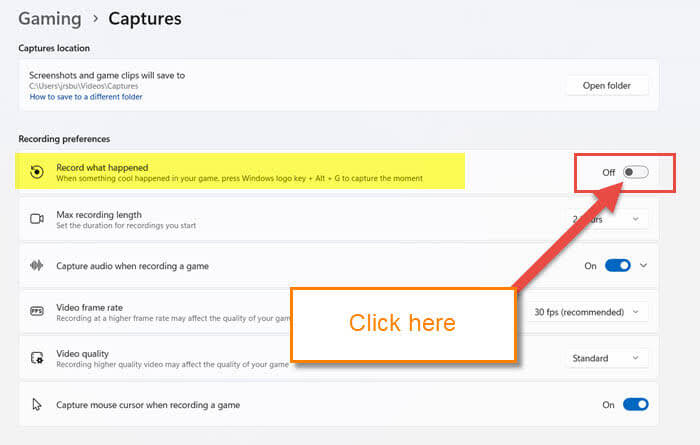
Step 4: The Gaming captures screen will appear. On this screen, look for the section Recording preferences. Under that, you will see many options that can be adjusted. The one we are looking for is this one:
- Record what happened (When something cool happened in your game, press Windows logo key + Alt + G to capture the moment.)
You will want to click the switch to the right of this option to turn it off. DONE!
Bonus Tip: How to find it on Windows 10
- Click on the Windows logo
- On the menu, click on the Settings icon
- On this screen, find the Gaming option. Click it
- On Windows 10, the menu on the left is where you will find the Captures option. Click it
- Here, you will want to find the section called Background recording. Under that, there is the “Record in the Background while I’m playing a game.” Click on the switch to turn it off
DONE!
Now you know how to do this on Windows 11 and 10. Time to share your new knowledge with your gaming friends.
—
