
Every week, I try to teach you something useful to help you with technology. Last week, I taught you how to boost your FPS (Frames Per Second) on your Windows laptop. If you missed that, you can find it here:
How To Boost FPS: Disable Windows Game DVR
This week, we are going to teach you how you can stop AI on TikTok from stealing your videos. Yes, they have added a feature that allows AI to remix the videos that you have created on your account. By default, this includes all videos that you have created.
TikTok’s “Allow AI to remix content” setting permits TikTok’s generative AI tools to use your videos as source material to create new, altered content. This enables the AI to modify your videos—such as changing backgrounds, voices, or appearances—often creating entirely new, transformed videos based on your original footage (AI Overview)
I’m going to show you how you can stop them from taking your creations. Before we start our lesson, make sure to check out these other articles I’ve written for you:
- How To Manage Email Subscriptions In Gmail
- How To Stop Windows From Stealing Bandwidth
- How To Create QR Code In Word
- How To Manage Your Google Profile Visibility
- How To Remove Third-Party Apps from Google
Time to get our class started.
How To Stop TikTok AI Remixes
This will be shown on my Motorola Edge Android Phone using the TikTok app.
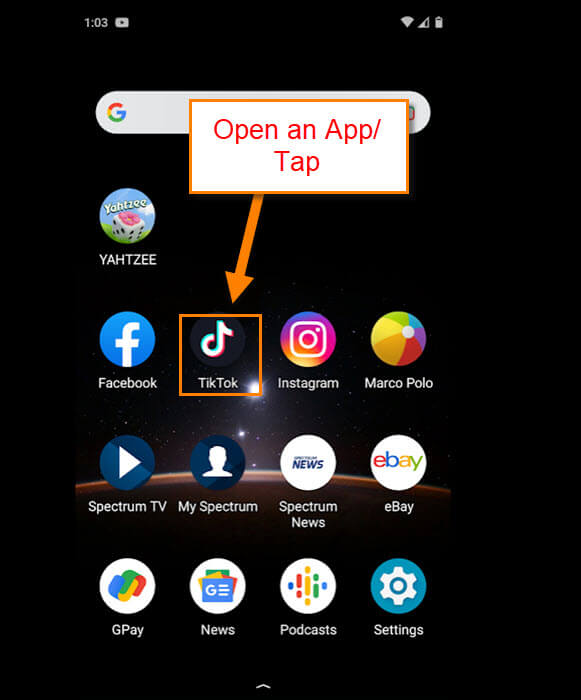
Step 1: Find the TikTok app on your phone. Tap it.
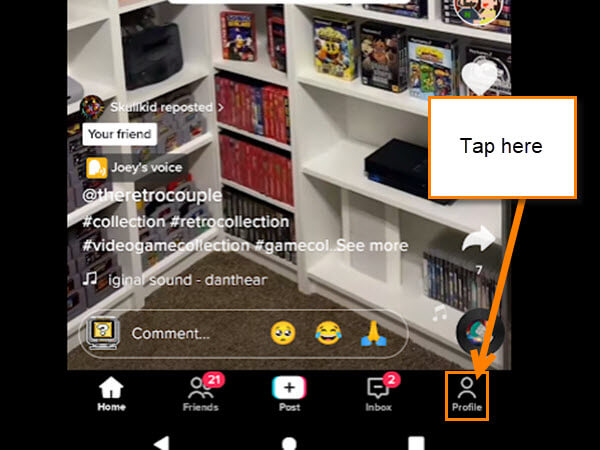
Step 2: Once on the app, look to the bottom right for your Profile link. Tap it.
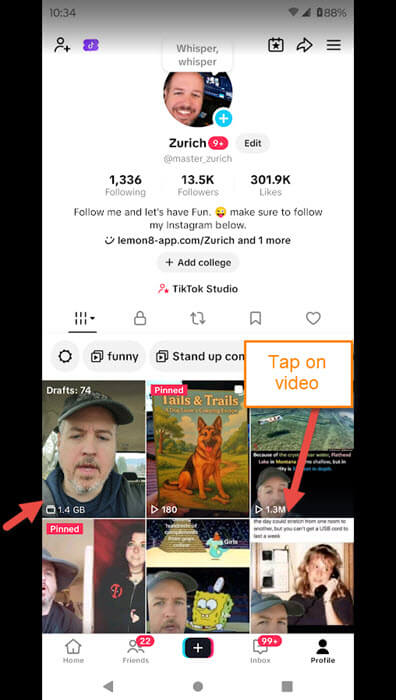
Step 3: On your Profile screen, you will see all the videos you have posted. Find the one that you want to stop AI on. Tap the video.
Step 4: Now that we are on the video, look at the lower right. You will see 3 dots that you will need to tap on.
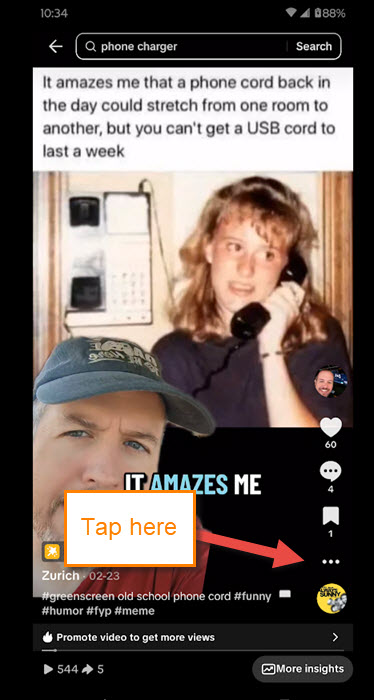
Step 5: A menu will appear at the bottom of the screen. Swipe until you find the option called Privacy and Security. This is the one with the Lock icon. Tap it.
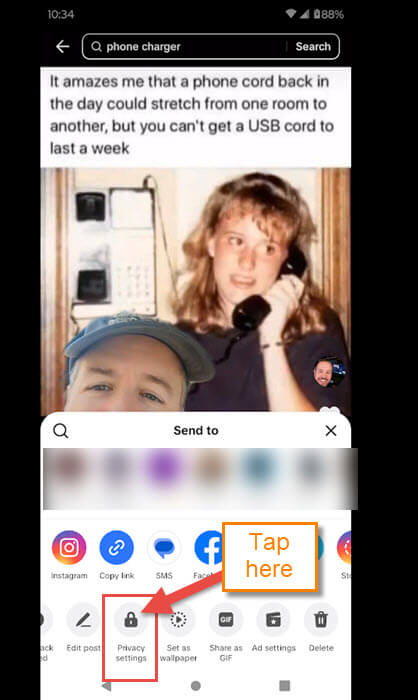
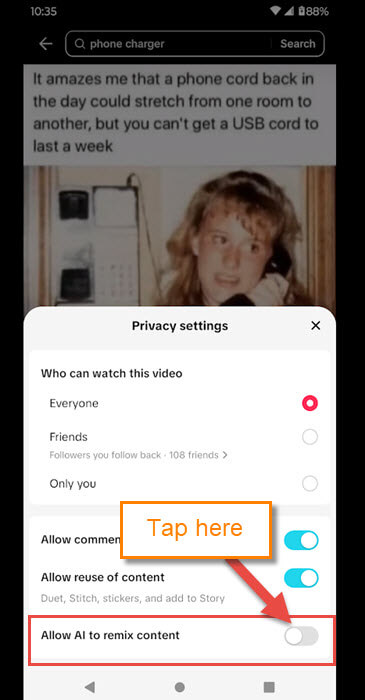
Step 6: The Privacy settings will appear, and you will be given some choices:
- Who can watch the video (Everyone, Friends, or Only you)
- Allow comments
- Allow reuse of content (Duet, Stitch, and add to story)
- Allow AI to remix content
The last one is the one we are looking for. Tap the switch to the right of it. This will disable this feature. DONE!
Side note: As of right now, you have to do this on each video you have posted to fix them. TikTok has not given a setting that would do this for all at once.
Now you know how you can turn this feature off on your videos. Time to share your knowledge with the world.
—
