
If you were here last week, you would have learned how to stop Samsung from draining your battery. You can find it right here if you missed it:
How To Stop Samsung Battery Drain
This week, I want to jump over to Google. Many of us use Google to save pictures, emails, and even to plan our calendars of events. I want to focus on the Google Calendar this week and teach you how to change the appearance. That is right, I love knowing how to change the appearance of any software, app, or website that allows me to. Since I think adding your personality to it, or at least saving your eyes from the bright white, I’m going to teach you what they allow you to change on the Appearance of your Calendar. Before we start this class, make sure to check out these other great articles:
- How To Download Marco Polo Videos
- How To Disable Microsoft Copilot In Word
- How To Share Phone Contact On Android
- How To Share Text Messages On Android
- How To Change Microsoft Account Picture
Guess it is time for you to pull out these note pads (Yes, I’m that old) and get this lesson started.
How To Change Google Calendar Appearance
I will show you how to do this on my Windows laptop using Google Chrome. Then I will show you how on my Motorola Edge Android phone.
How To Change Google Calendar Appearance On Chrome.
Step 1: Open your Google Browser and look to the top right. You might need a new tab opened to see the next step.
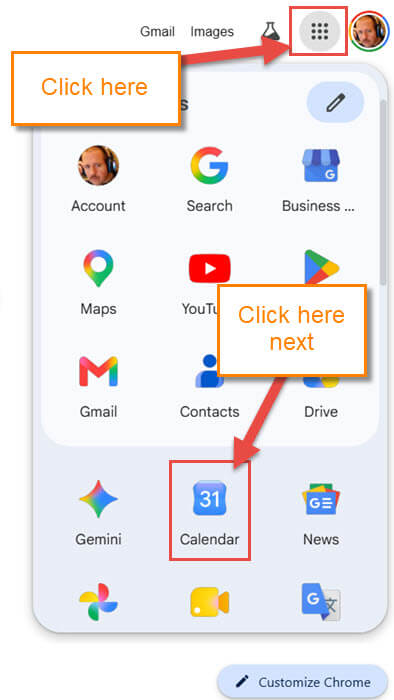
Step 2: At the top right, find the Google Apps Icon and click it. A menu of the apps will appear, and you will want to find the Calendar icon. Click it.
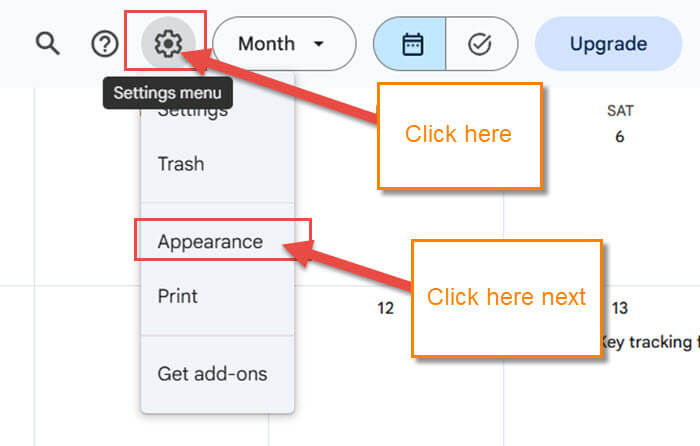
Step 3: We are now on the Google Calendar. Look to the top middle, and you should see the Gear icon. Click on that, then on the menu find the Appearance option. Click it.
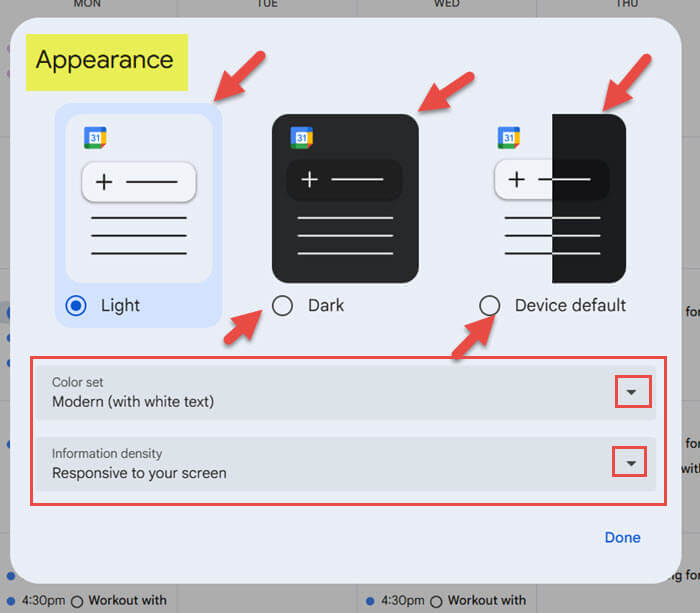
Step 4: The Appearance screen will appear, and you will be given some choices:
- Light, dark, and Device Default
- Color set
- Information density
The first option is asking you if you want to change the theme to dark or light. Click on the one you want and click done. The next option is Color set.
Step 5: Click on the down arrow to the right of the Color Option. You are given two choices to pick from:
- Modern (with white text)
- Classic (with black text)
Click on the one you want to choose, and it should automatically change. The next option we will move to is Information density. 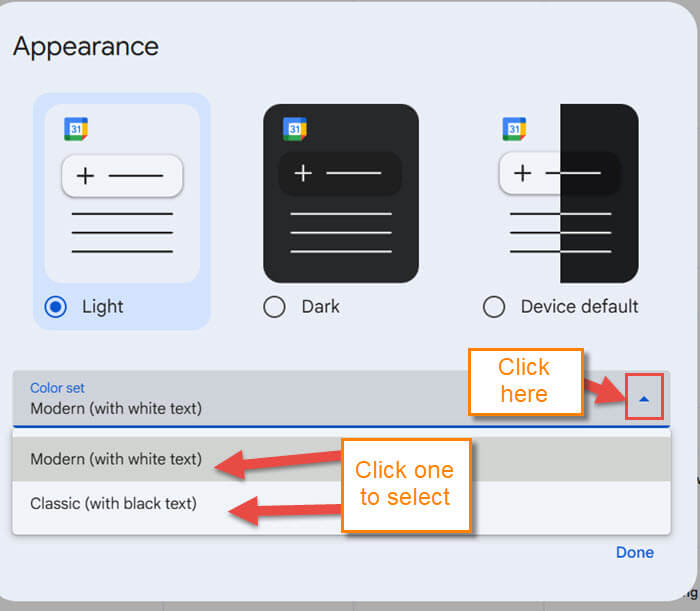
Step 6: This option is called Information density, and you are given two choices here, too:
- Responsive to your screen
- Compact
Click on the one you wish to use. Now all you have to do is click on the Done option at the bottom.
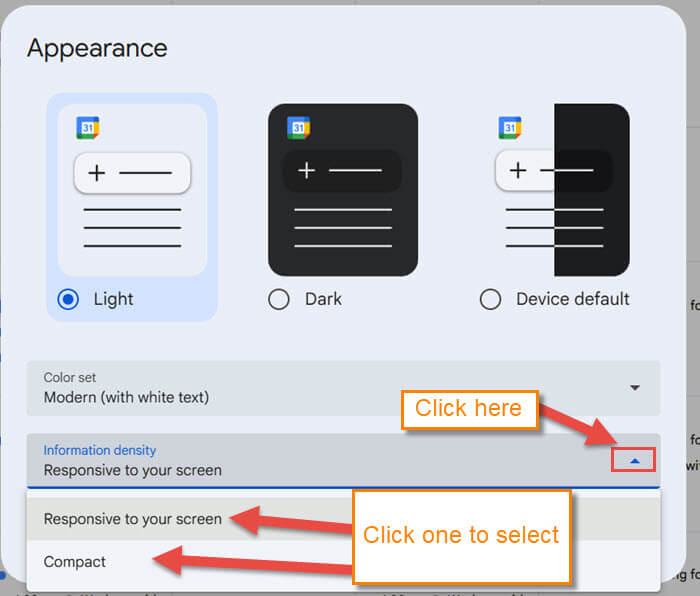
This is how you can change the appearance of your browser. Time to jump over to the app.
How To Change Google Calendar Appearance On Android App
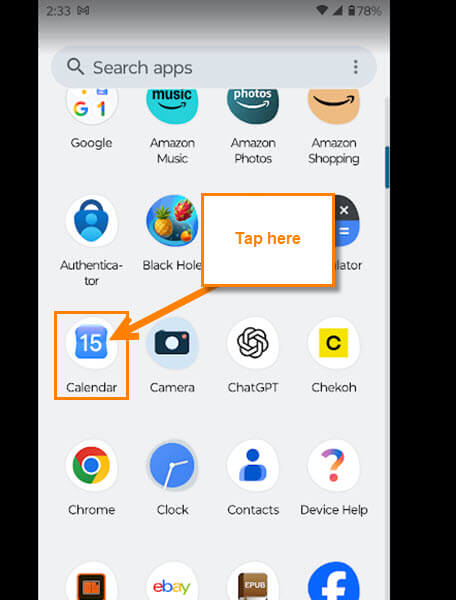
Step 1: Now we are on my Motorola Edge Android phone and need to find the Google Calendar app. Once you find it, tap it to open.
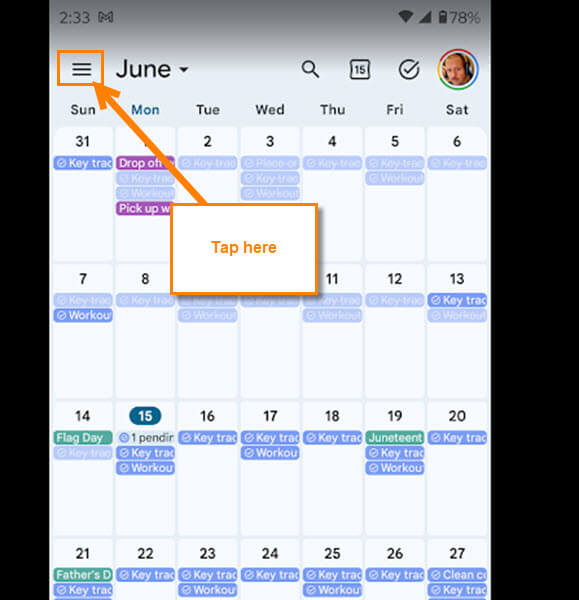
Step 2: Once the app is open, look to the top left and tap on the 3 horizontal lines.
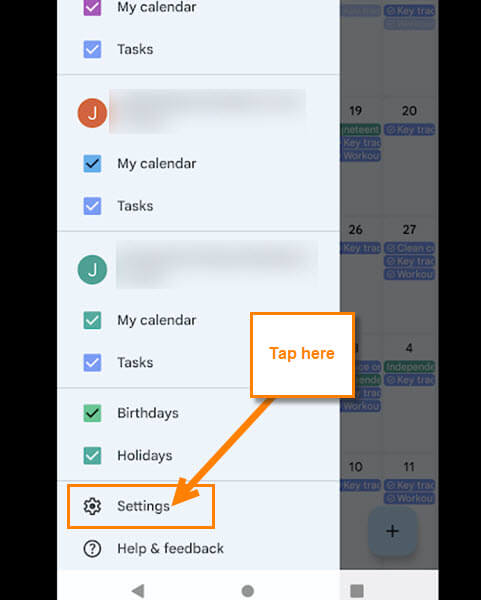
Step 3: The side menu will appear, and you will need to look at the bottom. There you will see Settings. Tap it.
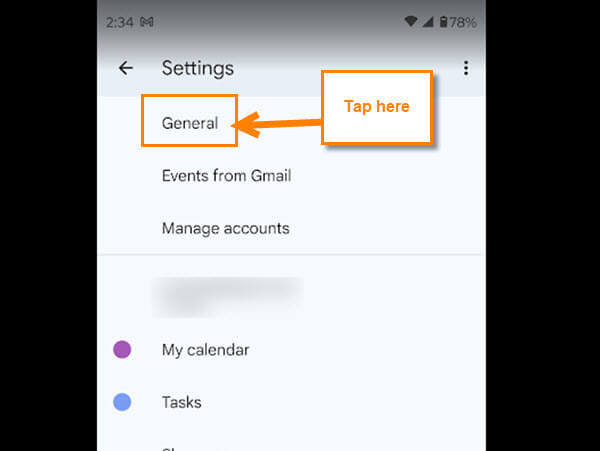
Step 4: Under the Settings screen at the top, you will see General. Tap it.
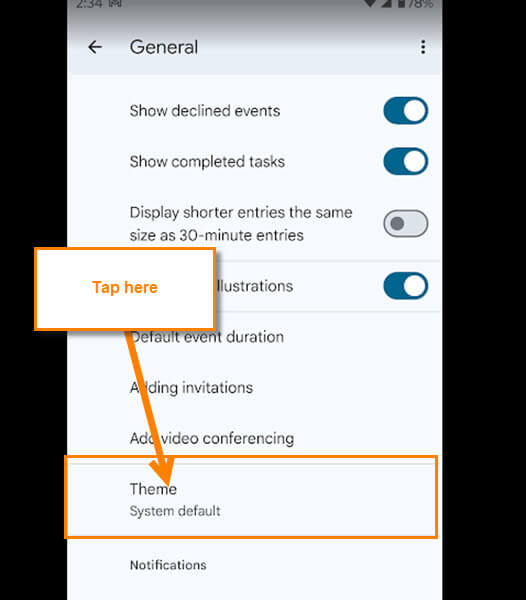
Step 5: Now, here you are looking for the option called Theme. Tap it.
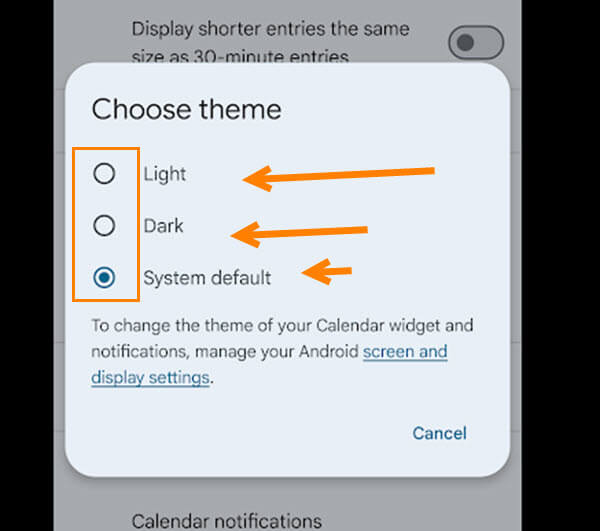
Step 6: The Choose Theme window will pop up and give you some choices:
- Light
- Dark
- System default
To change the theme of your calendar widget and notifications, manage your Android Screen and display settings.
All we want to do is tap the dark or light theme option. DONE!
You have now learned how to do this on both the browser and the app. Time to share your new knowledge with the world.
—
