

If you were here last week, you learned how to save your Marco Polo Video chats. You can find that article right here:
How To Download Marco Polo Videos
This week I’m jumping subjects to the Samsung Android phone. My wife was talking with me, and she told me about a battery-saving feature on her phone. ‘What is this battery saving hack that she told you?’ Great question. On your Samsung phone, you can put apps into deep sleep. It keeps them from working in the background of your phone, which in turn saves your battery life. Before we start this lesson, make sure to check out these other articles I have written for you:
- How To Disable Microsoft Copilot In Word
- How To Share Phone Contact On Android
- How To Share Text Messages On Android
- How To Change Microsoft Account Picture
- How To Adjust Playback Speed On Facebook
Pull out those Android phones so we can get the class started.
How To Stop Samsung Battery Drain
This will be shown using my wife’s Samsung Galaxy S22 Android phone.
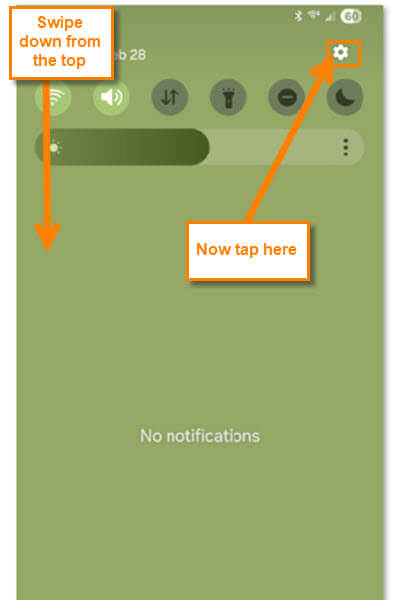
Step 1: On your phone, swipe down from the top. Look to the top right corner for the Settings icon (Gear). Tap it.
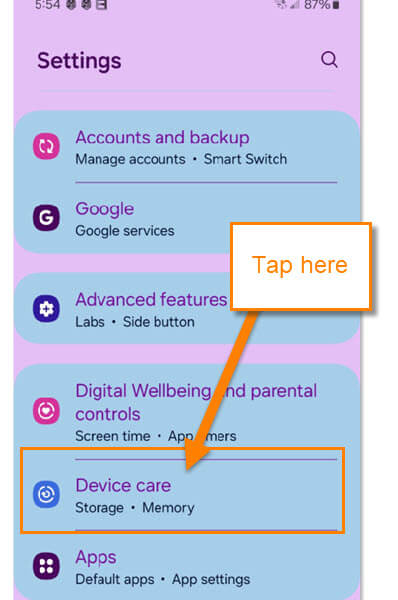
Step 2: The Settings menu will appear, and you are looking for Device Care. Tap it.
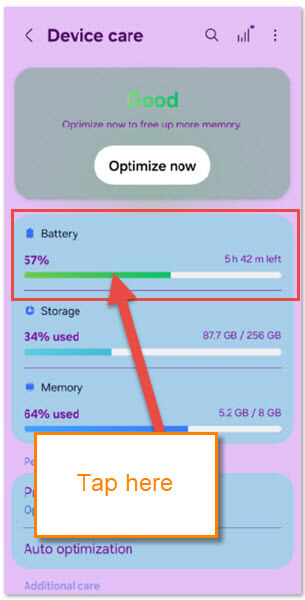
Step 3: The Device Care screen gives a few options:
- Battery
- Storage
- Memory
We want to use the Battery option. Tap it.
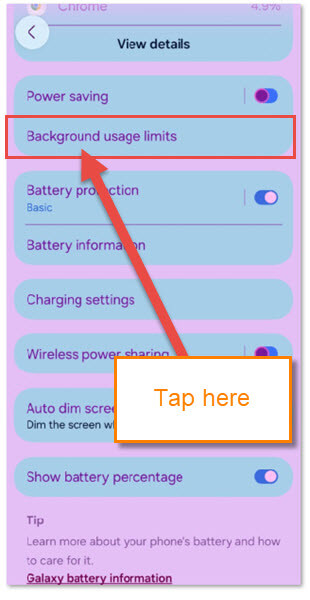
Step 4: On this screen, you will be looking for the Background usage limits. Tap it.
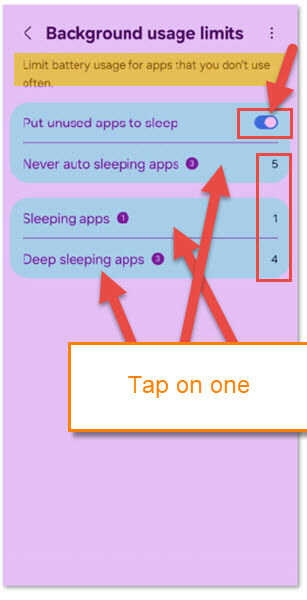
Step 5: Now we are on the screen where the magic happens.
Limit battery usage for apps that you don’t use often.
Here are the choices you have on this screen:
- Put unused apps to sleep (switch on the right turns the feature on or off)
- Never auto sleeping apps
- Sleeping apps
- Deep sleeping apps
So the top one is the one that controls if this is on or off. The ones below are the options you can adjust by adding or removing apps. Let’s tap on the Deep Sleeping apps
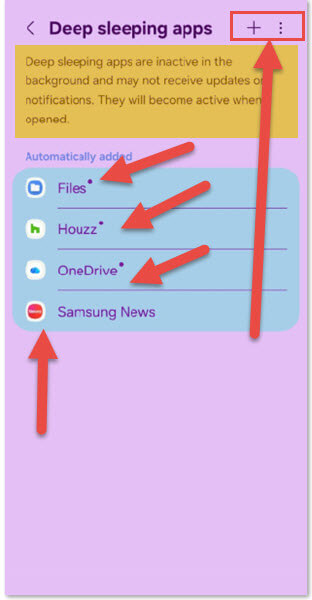
Step 6: You will see the apps that are set to Deep Sleeping.
Deep sleeping apps are inactive in the background and may not receive updates or notifications. They will become active when opened.
So you can see why this would help keep your battery alive longer. Look to the top, you are given two options:
- Plus sign (This is to add apps to deep sleep)
- 3 dots (This will give you the option to remove apps)
Let us tap on the plus sign first.
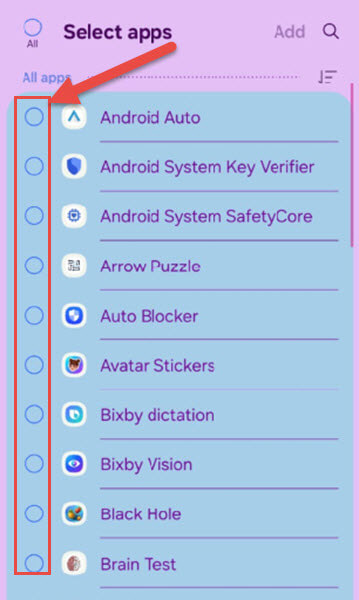
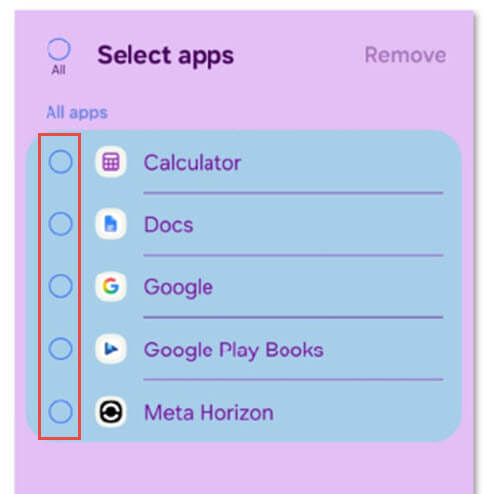
Step 7: This will bring up a screen with the apps that you can select. To select an app to add to this feature, tap the circle to the left. I should mention that after tapping the circle, it will give you a box at the top with all the selected apps. The Add link at the top will be ready to tap. Let us go back one screen and look at the 3-dot option.
Step 8: Tap the 3 dots on top and then tap remove. This will bring up the apps you have set.
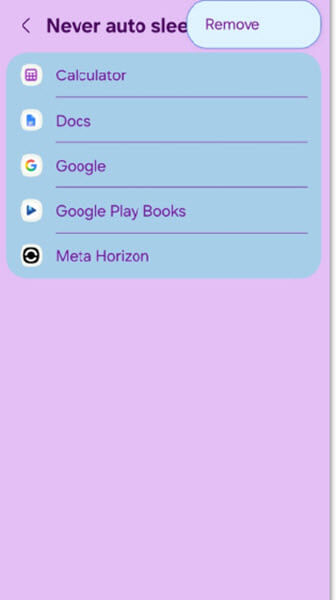
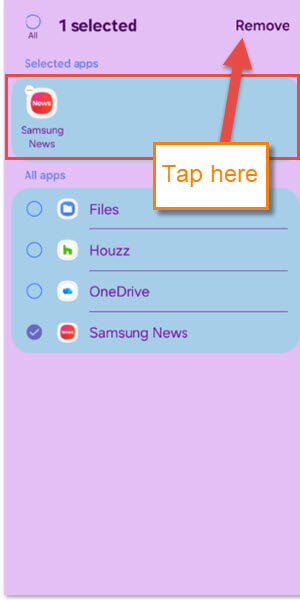
Step 9: As before, you will have the option to select the apps. Tap the circle to the left. As with the add option, after tapping the circle, it will give you a box at the top with all the selected apps. The Remove link at the top will be ready to tap. DONE!
Now you know how you can save some battery life by making sure your apps sleep when not needed. Time to share your new knowledge with your friends and family.
—
