

If you saw last week’s article, it was on how to disable Copilot in Microsoft Word. Here it is if you missed it:
How To Disable Microsoft Copilot In Word
This week, I wanted to go over an app that my brother and I have used for years. The app is called Marco Polo and is a great way to keep in contact when you live far from each other. You might be asking what I will be teaching on this. Well, when you use this video chat app, you might not realize that the videos you send do eventually expire and get deleted, unless you pay for the premium service. Since I have standard service, I will teach you how you can download all these videos easily. The reason I want to teach you this is that recently my brother passed away suddenly, and because we talked every day for the past 12 years on this app and those memories are important to me, I didn’t want to lose those memories of him. Therefore, I learned how to download and save those videos. Now that I know how to do this, I want to teach you. Before we jump into this lesson, make sure to check out these other articles:
- How To Share Phone Contact On Android
- How To Share Text Messages On Android
- How To Change Microsoft Account Picture
- How To Adjust Playback Speed On Facebook
- How To Stop TikTok AI Remixes
Time to teach you something new.
How To Download Marco Polo Videos
This will be shown on my Motorola Edge Android phone using the App.
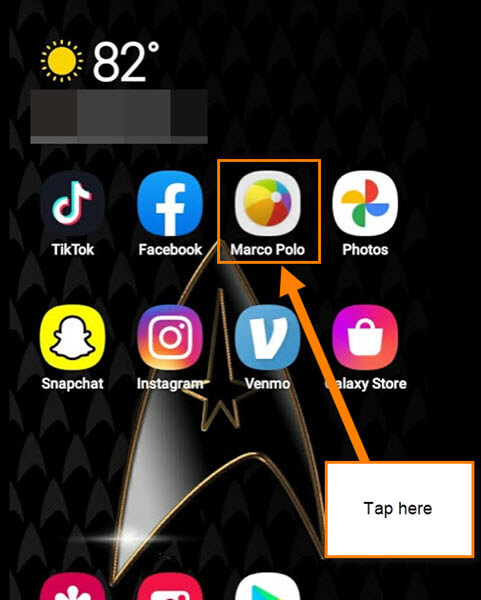
Step 1: Find the Marco Polo App on your device and tap it.
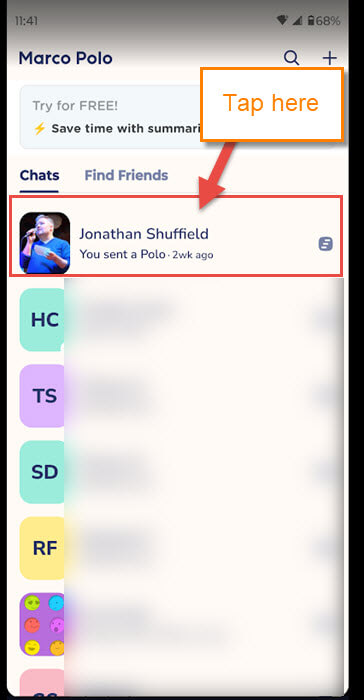
Step 2: Once on the app, you will be on the Home Screen. This is where you will see all your connections. Find the one you want to work with and tap it.
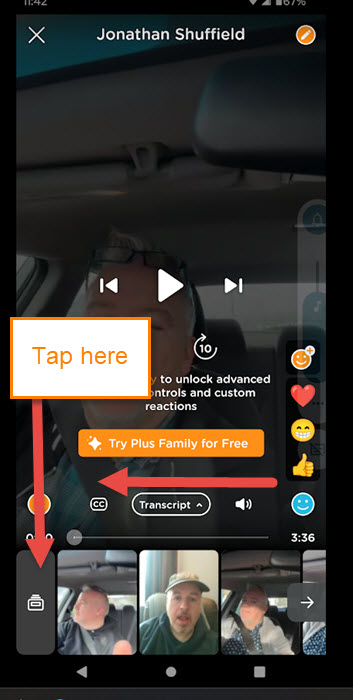
Step 3: Now that you are on the video page, swipe to the right. This will move down the list of your video messages. On the end (left side), you will see the archive link. Tap it.
Step 4: You are now on the Archive where all the videos reside. There are two ways you can do this:
- Download every video here all at once.
- Download one at a time.
We will start with the first option. Look to the top right for the 3 dots. Tap them.
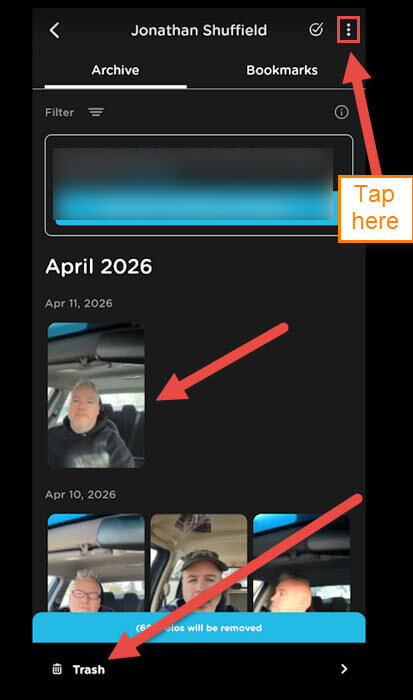
Step 5: This will bring up one option called Download. Tap it.
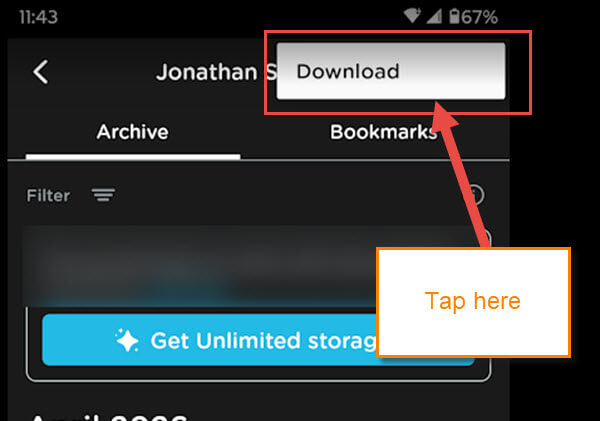
Step 6: A window will appear on the screen.
Download all Polos in the chat?
This confirms that you really want to do this. Tap OK.
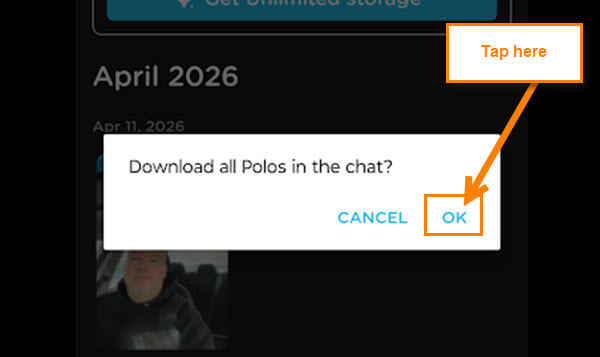
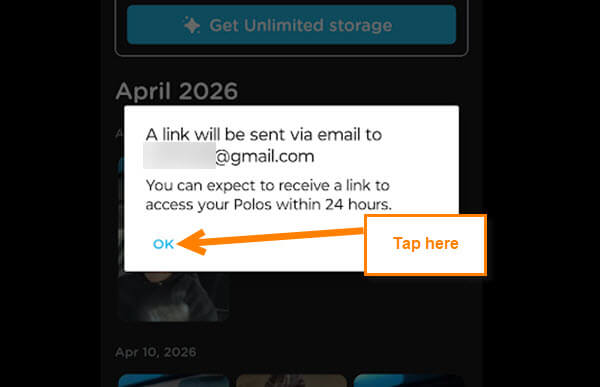
Step 7: The next window will appear confirming the download.
A link will be sent via email to (Email Address). You can expect to receive a link to access your Polos within 24 hours.
You will need to confirm your email address if you have not yet done that on your account. Now tap on OK. That is how you get all the videos at once.
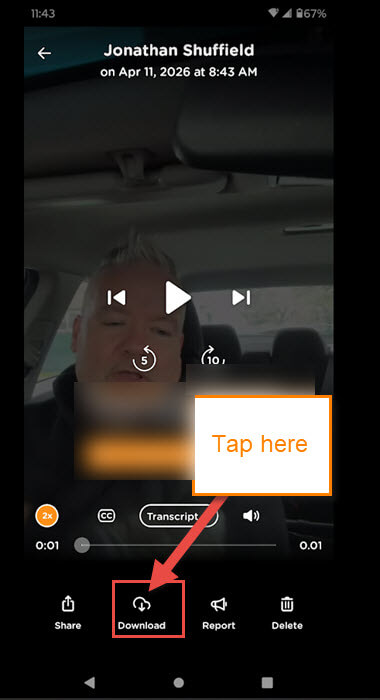
Step 8: Another way, if you only want a single one, is to tap on the video chat in the archives. Then, at the bottom, you can tap on the Download link. This will download the video straight to your device.
You now know how to get those memories/videos off of your Marco Polo account. Time to share your knowledge with family and friends.
—
