

Last week we talked about how to Copy and Paste faster. If you missed that article, you can find it here:
This week we are still talking about Microsoft Windows. ‘What else can you teach me, Jason?’ Great question. What I want to go over this time is how your computer likes to turn on late at night. You might think it is someone hacking your system or maybe it is a ghost, but most likely it is neither (we hope), and it could simply be your Windows running maintenance at 2 am. That would explain the screens turning on in the night and your computer revving up. If you did not know, this feature is sometimes set to be on automatically. I’m here to teach you how to find the setting and shut it down. Before we start our new lesson, make sure to check out these other articles I have written for you:
- How To Stop AI on Instagram
- How To Use TikTok Accessibility Features
- How To Clear TikTok Search History
- How To Find TikTok Comment History
- How To Change Google Calendar Appearance
Guess it is time to call the Ghost Catchers and fix this issue.
How To Turn Off Scheduled Maintenance – Windows 11
This will be shown using my Windows 11 laptop.
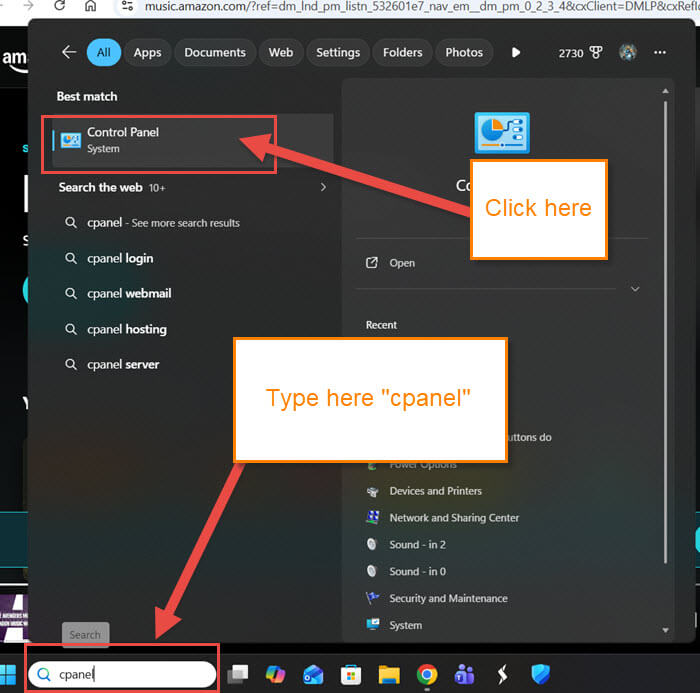
Step 1: There are a few ways to get there, but I like this method best. Look to the bottom of your screen for the Search Box. Type in CPANEL and you will see a Control Panel option under Best Matches. Click on it.
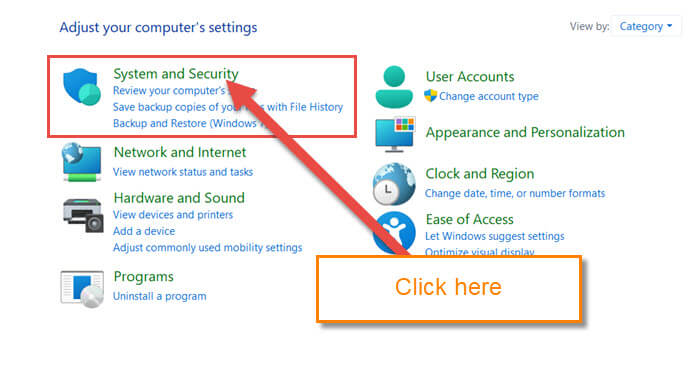
Step 2: Once we are on the cPanel menu screen, you have some choices. The one we are looking for is System and Security. Click it.
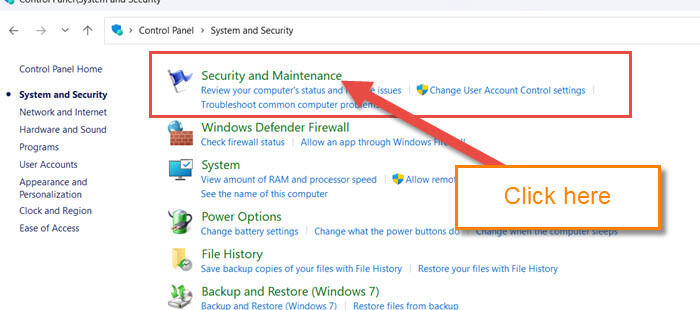
Step 3: Here we want to find Security and Maintenance, which is at the top of the list. Click it.
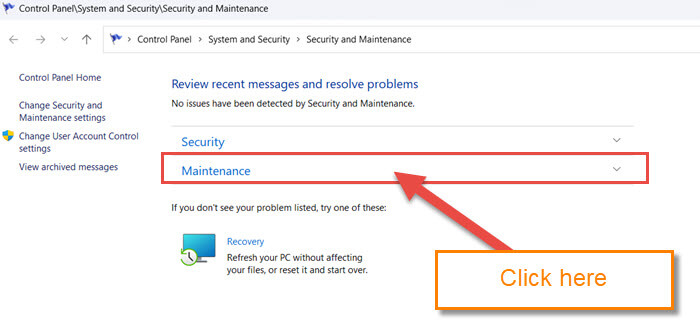
Step 4: Under Security and Maintenance, we are looking for the Maintenance link. It is sitting under Security in the middle of the screen. Click it.
Step 5: You are now shown all the Maintenance options. Look for the section called Scheduled Maintenance, and there you will see a link labeled “Change maintenance settings.” Click it.
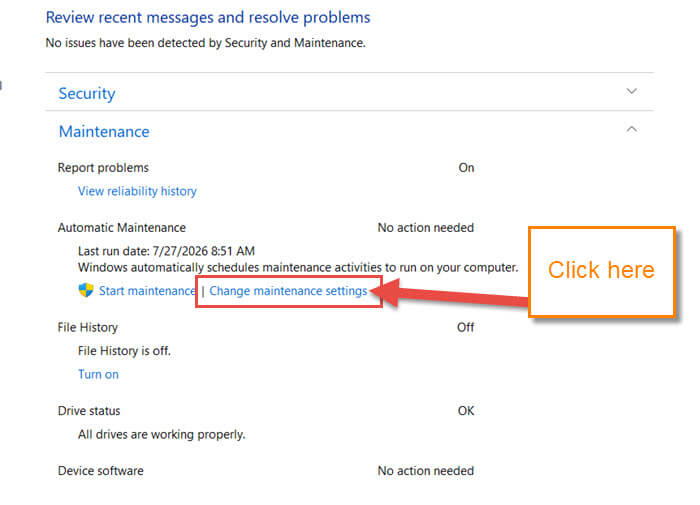
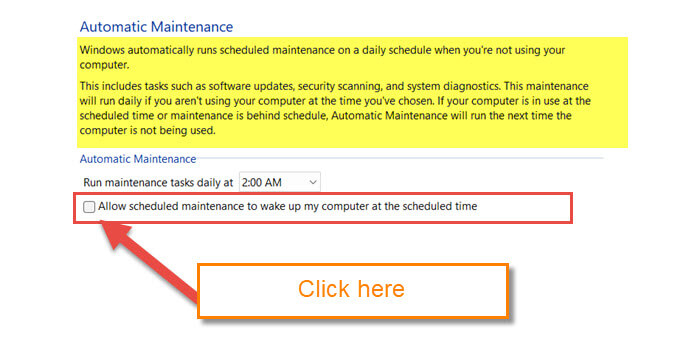
Step 6: Here is the magical screen that will allow us to fix our computer turning on by itself.
Windows automatically runs schedule maintenance on a daily schedule when you’re not using your computer. This includes tasks such as software updates, and system diagnostics. This maintenance will run daily if you aren’t using your computer at the time you’ve chosen. If your computer is in use at the scheduled time or maintenance is behind schedule, Automatic Maintenance will run the next time the computer is not being used.
Looking here, you will see a box that you can uncheck to disable this.
Allow scheduled maintenance to wake up my computer at the scheduled time
Uncheck the box, and you will disable it. You can see above this option that shows the time it would have run. The default is 2 AM, which tells me that there is no ghost. Done!
That is all you have to do to turn off the Scheduled Maintenance. Time to share your new knowledge with the world.
—
