

Last week, we covered how you could find your TikTok Comment History. If you missed that one, you can find it here:
How To Find TikTok Comment History
This week, I’m sticking with the TikTok subject. What other wonderful tip will I be teaching you today? Great question. Since we talked about finding the watch history, I should also teach you how to find and clear your search history. Yes, some of us don’t want our search history seen for many reasons. Not all are the ones you are thinking of, but privacy is important no matter the reason. In this lesson, I will show you how you can clear the search history easily on your account. Before we start the class, make sure to check out these other articles:
- How To Change Google Calendar Appearance
- How To Stop Samsung Battery Drain
- How To Download Marco Polo Videos
- How To Disable Microsoft Copilot In Word
- How To Share Phone Contact On Android
Time to pull out those mobile devices and get the class started.
How To Clear TikTok Search History
I will be showing you how to do this on my Motorola Edge Android phone using the TikTok App.
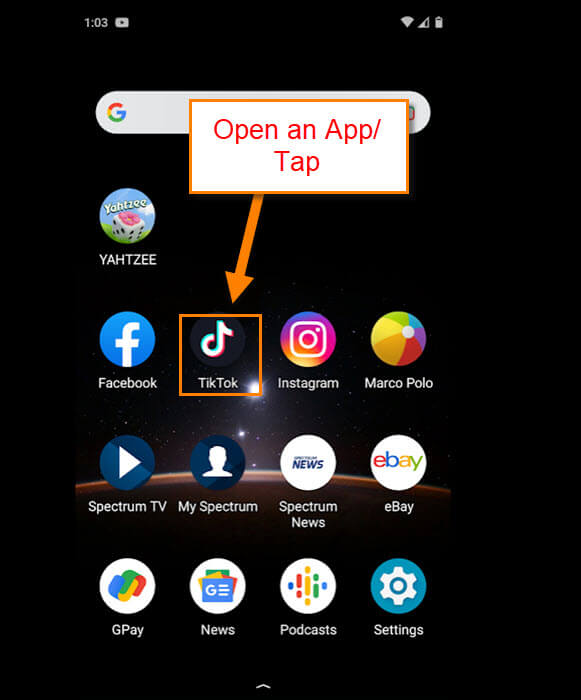
Step 1: Open your mobile device and find the TikTok app. Once you find it, tap it.
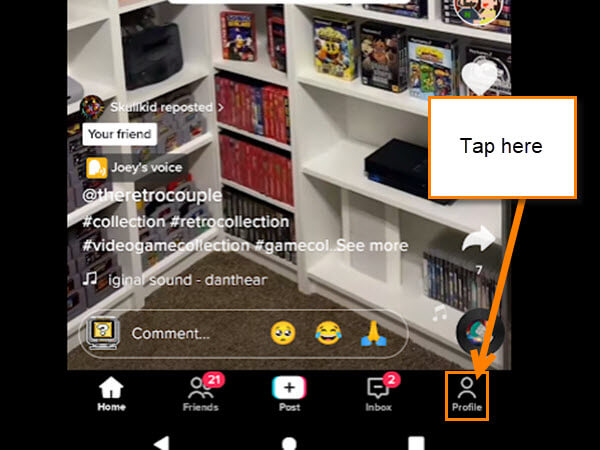
Step 2: Now that it is open, look to the bottom right. Here you will see your Profile link. Tap it.
Step 3: That will take you to your Profile screen. On here, look to the top right for the 3 horizontal menu lines. Tap them.

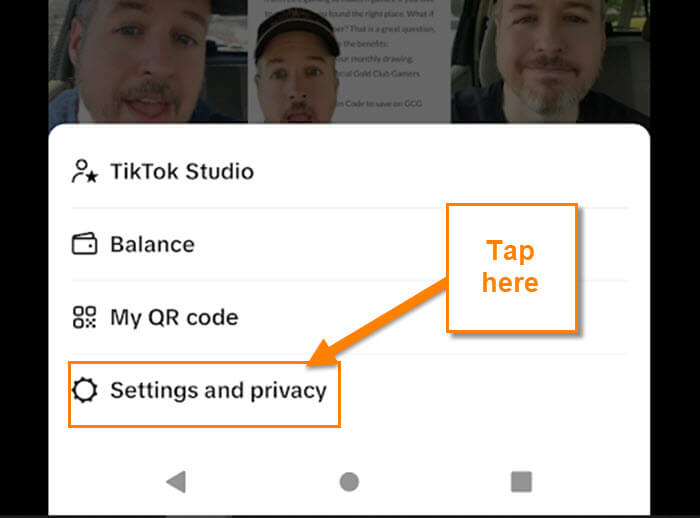
Step 4: A menu will pop up from the side of the screen. Tap on the Settings and privacy option.
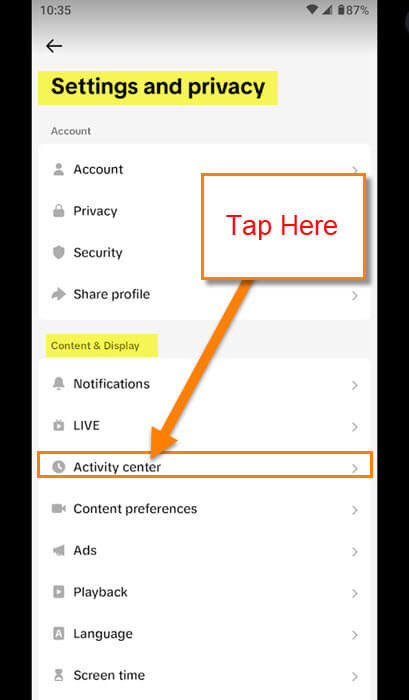
Step 5: The Settings and privacy menu will appear. Look for the section called Content and Display. Under this, you will find Activity center. Tap it.
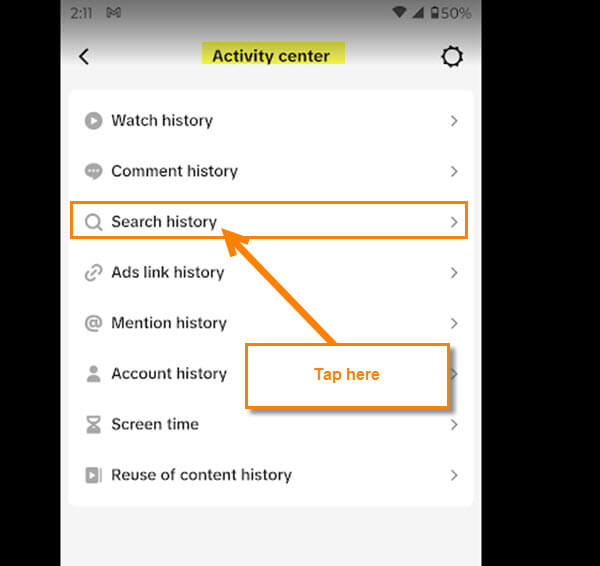
Step 6: On the Activity center screen, you are given many options. You might recognize this screen from last week’s article about Comment history. This time, we are looking for the Search history option. It is right under the Comment history. Tap it.
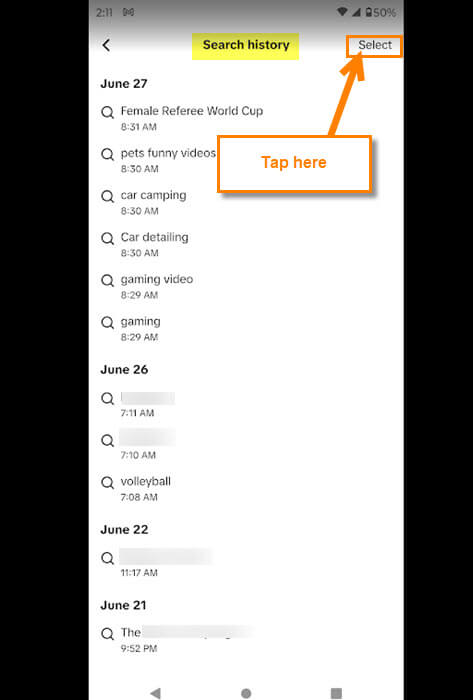
Step 7: Here is where all your Search history on TikTok resides. You can tap on the words in your search to see what search results come up. That is not what we are here for. Look to the top right and tap on Select.
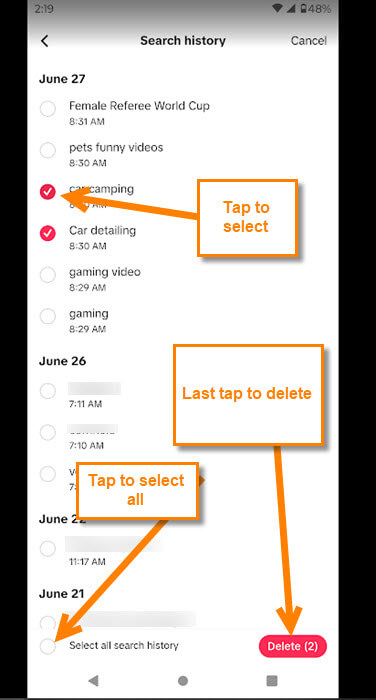
Step 8: After tapping the Select option, circles to the left of each search will appear. Tap the circles next to the ones you want to delete. At the bottom right, you can see the delete button with a count of how many you have selected. Once done selecting, all you need to do is tap the Delete button. Tap it.
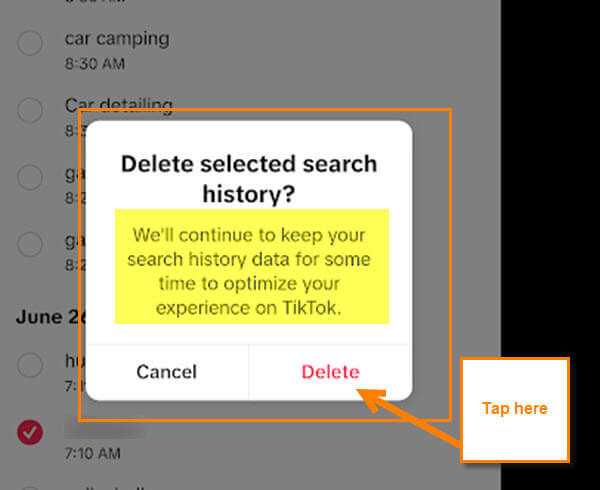
Step 9: Now, a Confirmation screen will pop up:
Delete selected search history?: We’ll continue to keep your search history data for some time to optimize your experience on TikTok. (button: Cancel, or Delete)
All you need to do now is tap Delete. Done!
BONUS TIP: If you want to delete all your history, on the bottom left, there is the option for Select All Search history. Tap the circle to the left of that and tap Delete.
Now you know how to delete your TikTok search history on your account. Time to share your new knowledge with the world.
—
