

If you were here last week, we had a class on how to stop AI on Instagram. You can find that article right here:
This week we are going to change the subject and talk about copy and paste. That is something we all have been using for most of our lives. Found out I have been doing this wrong for years. After some research, I learned a better way to copy and paste that will save you some time. Since I now know how to do this, I’m going to go over the steps with you. Before we start this week’s lesson, make sure to check out these other articles I have written:
- How To Use TikTok Accessibility Features
- How To Clear TikTok Search History
- How To Find TikTok Comment History
- How To Change Google Calendar Appearance
- How To Stop Samsung Battery Drain
The bell has rung, and it is time to start class.
How To Copy And Paste Faster
I will be showing you how to do this on my Windows 11 laptop.
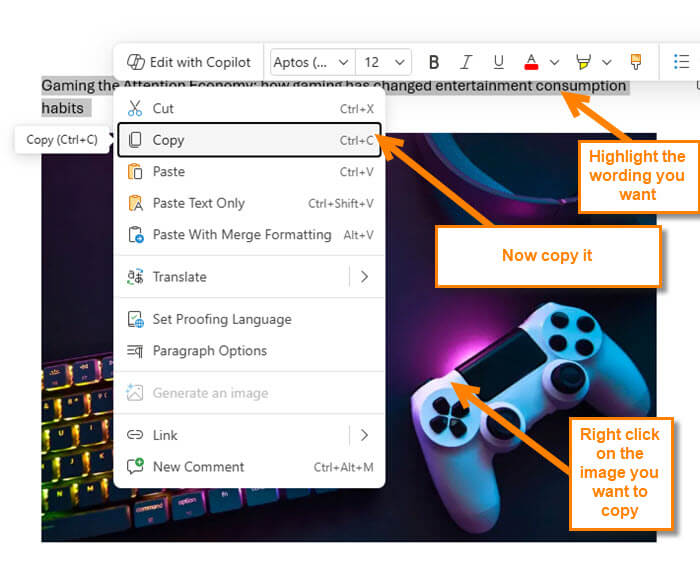
Step 1: The first step is for us to find the items we want to copy. This could be text or images from a website, Word document, or email. For this article, I will show how this works by copying some text and images I found online. You can copy as many items as you wish.
Step 2: Once you’ve copied the items, either open a program or an email you want to paste them into. I tested this on Word and Gmail, so for this article I will show you how to do this on Gmail.

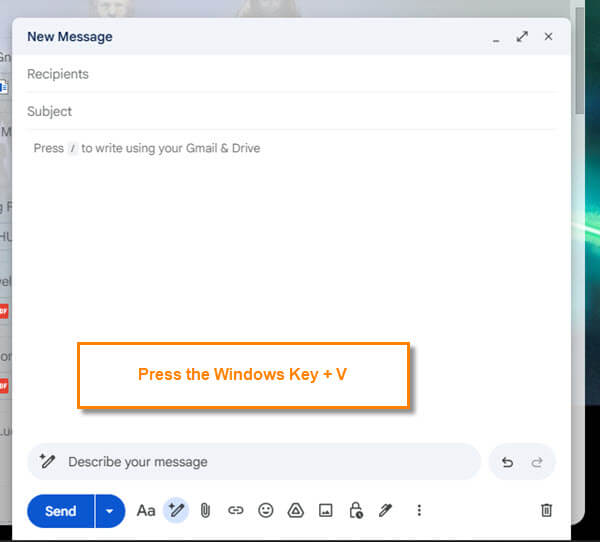
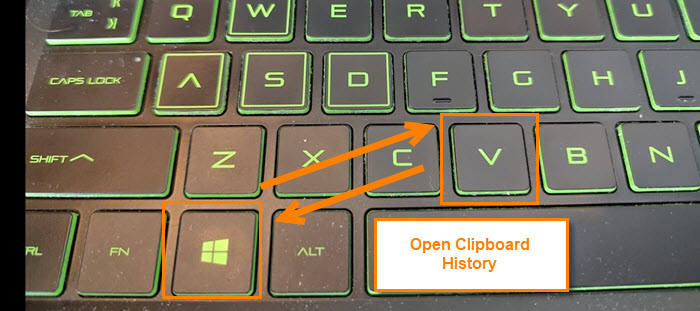
Step 3: Open a New message and click where you want the copied items to appear. Next, press the Windows key + V to open the clipboard history.
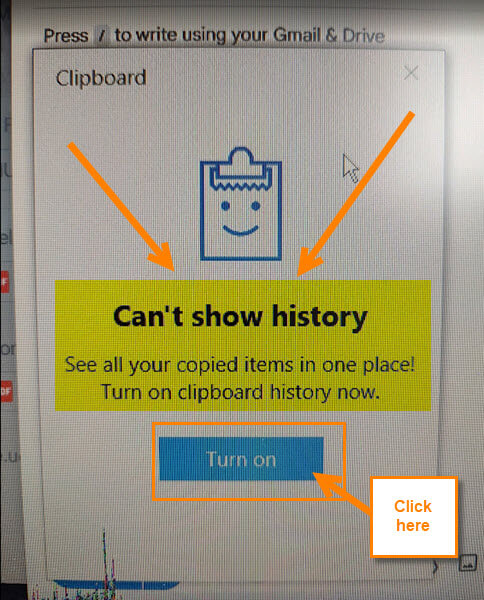
Step 4: If you have not turned on the Clipboard history feature, then this message will appear.
Can’t show history – See all your copied items in one place! Turn on clipboard history now.
Click the blue Turn on button at the bottom.
IMPORTANT: You will need to go back and copy those items again since this was not turned on beforehand.
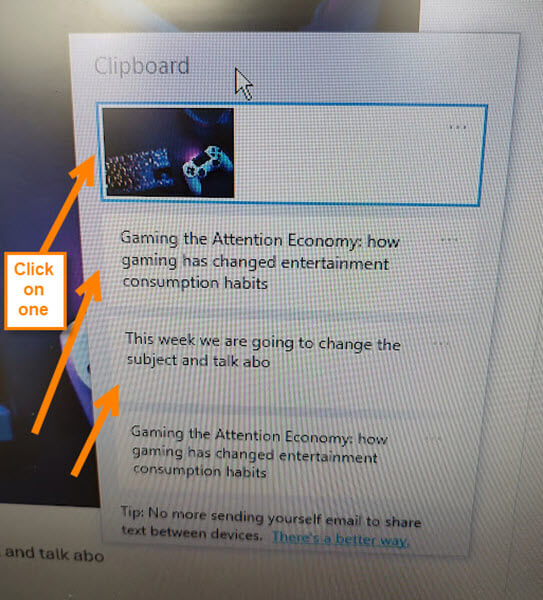
Step 5: Once you have copied everything you need, press the Windows Key + V on your keyboard. This will open the Clipboard History and show you all the items you copied. Click the item you want to use, and it will be pasted into your email. Continue doing this until everything is placed where you want it. You can also open Microsoft Word and paste the same copied items into a document.
As you can see, I have pasted all the items from my clipboard history. DONE!
Side Note: Windows (10 & 11): Stores the last 25 copied items (up to 4MB each). Older items are automatically deleted as you copy new ones, unless pinned. The history is cleared when your PC restarts, except for pinned items. Press Win + V to manage yours.

You now know how to copy and paste faster than you did before. Time to share your new knowledge with all your friends and family.
—

In Windows 11 I have found that it wants to store all of my information in the cloud, is the history stored on the computer or in the cloud?
Jason, It is nice you are educating the Dave’s Computer Tips world about this feature I have been using for years. I try to do my bit locally, but I find many that I show this to don’t even know you can copy with Ctrl-C or paste with Ctrl-V.
Where is Microsoft going wrong when so many users don’t know the basics?
Hi Tom. In reply to your question, it is Not Microsoft’s responsibility to educate. The Internet provides users with plenty of answers to questions, and YouTube has videos which can explain to newbies and advanced users.
If I compare buying a car, is the dealer responsible for making sure you know the rules of the road, how to drive, etc…
Lucky new drivers must pass a drivers course to obtain the permit. Hope I answered your question, Mindblower!
Hey Tom,
Some time back we published a number of articles detailing basic but important functions, including how to copy and paste:
https://davescomputertips.com/must-know-cut-copy-and-paste/
https://davescomputertips.com/how-to-drag-and-drop-files/
https://davescomputertips.com/how-to-create-new-folders/
https://davescomputertips.com/how-to-back-up-personal-data/
https://davescomputertips.com/how-to-resize-and-reposition-windows/
https://davescomputertips.com/create-desktop-shortcuts-in-windows-10/