

Last week, we covered how to clear TikTok search history. If you missed that one, you can find it here:
How To Clear TikTok Search History
This week, I wanted to stick with the TikTok subject. ‘What will we cover this week?’ Great question! We will be showing how the Accessibility Settings work on your TikTok account. That is right, I will go over what you can do with these settings. Everything from Text Size to Scroll Speed, I will teach you what can be done. Before we start our new lesson, make sure to check out these other articles that I have written:
- How To Find TikTok Comment History
- How To Change Google Calendar Appearance
- How To Stop Samsung Battery Drain
- How To Download Marco Polo Videos
- How To Disable Microsoft Copilot In Word
The class bell has rung, so it is time to start our lesson on TikTok.
How To Use TikTok Accessibility Features
I will be showing you how to do this on my Motorola Edge Android phone using the app.
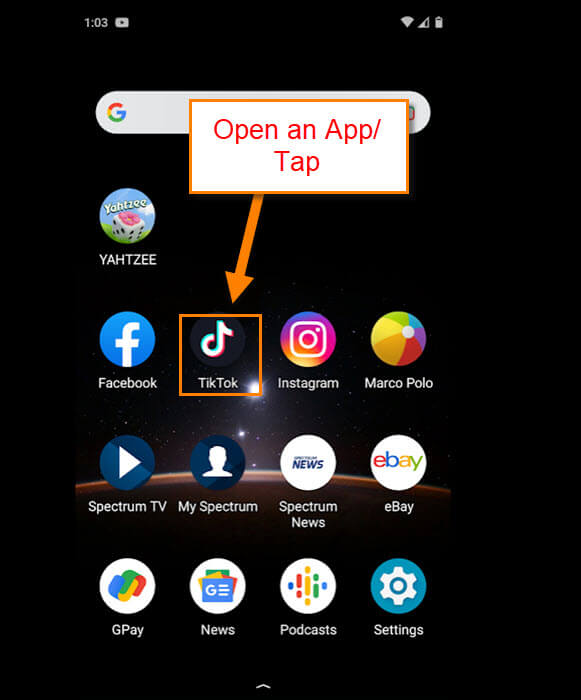
Step 1: Find the TikTok app on your mobile device. Tap it.
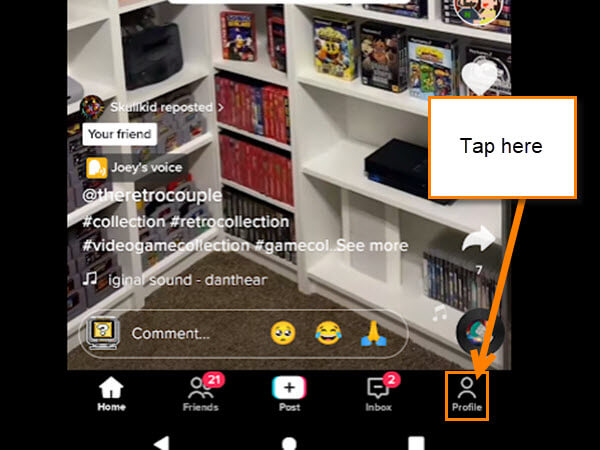
Step 2: Once on the app, look at the bottom-right corner. There you will see your Profile link. Tap it.
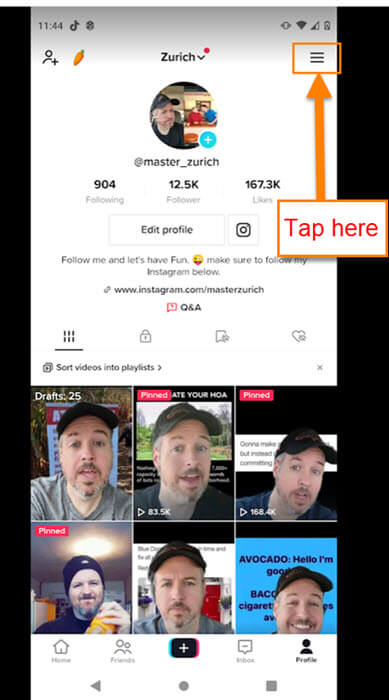
Step 3: Now that we are on your Profile screen, you want to look to the top right. Here you will see the 3 horizontal menu lines. Tap them.
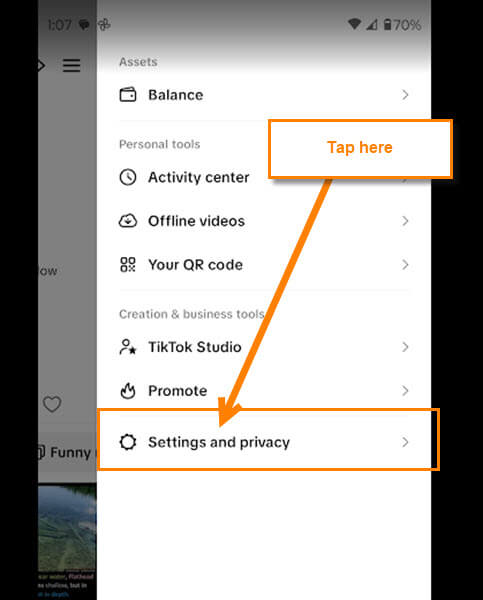
Step 4: A menu will appear from the right side of the screen. Look for the option called Settings and Privacy. Tap it.
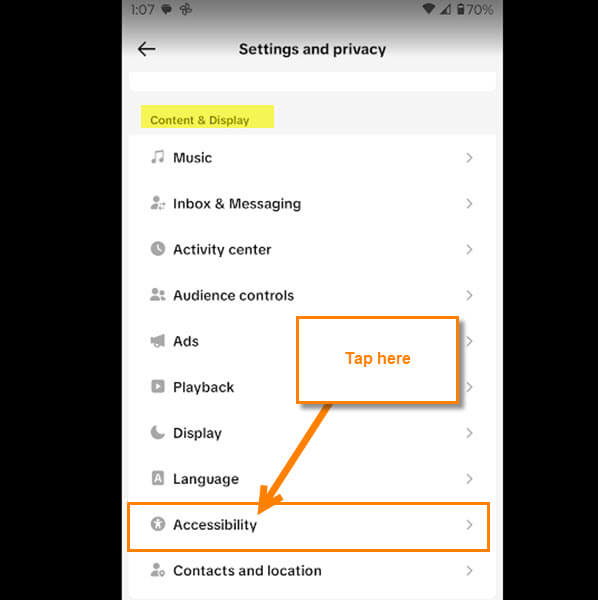
Step 5: On the Settings and privacy screen, look under the section called Content & Display. Under that, find Accessibility and tap on it.
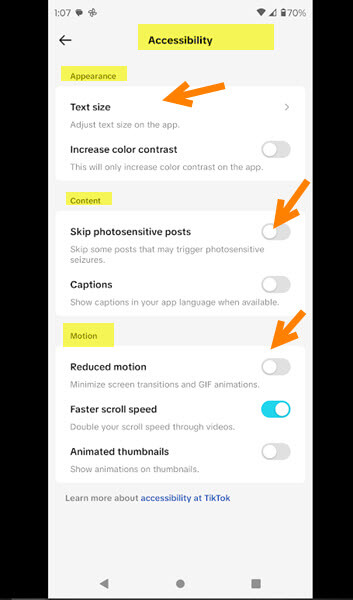
Step 6: This will open up all the Accessibility options for you.
Appearance:
- Text Size (Adjust text size on the app)
- Increase Color Contrast (This will only increase color contrast on the app)
Content:
- Skip photosensitive posts (Skip some posts that may trigger photosensitive seizures)
- Captions (Show captions in your app language when available)
Motion:
- Reduced motion (Minimize screen transitions and GIF animations)
- Faster scroll speed (Double your scroll speed through videos)
- Animated thumbnails (Show animations in thumbnails)
Most of these are straightforward in terms of how to enable or disable them. All you have to do is tap the switch to the right of each option. Only Text Size at the top does not have the switch. For that option, let’s tap it and show you how it works.
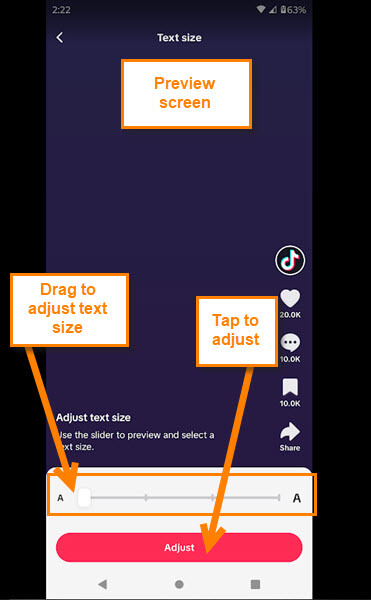
Step 7: This will bring up the Text Size Preview screen. On this screen, you are given a bar at the bottom to adjust the size of the text. Drag the bar to the right to increase the text size. Once you do that, it will show you on the screen what it will look like. Now that you have chosen your size, tap the Adjust button at the bottom of the screen. Done!
You now know what adjustments you can make on the accessibility screen on TikTok. Time to take this new knowledge and share it with all your friends.
—
