

If you were in class last week, we covered how to check your PC’s performance score. Make sure to read that one right here:
How To Check Performance Score Of Your PC
This week we are sticking with the Windows subject and teaching something new. During the week, I learned that you can have your Windows 11 computer free up storage space automatically. You heard me right; there is a setting that will clean up enough space to help your system run better. The best part is it will do it automatically, so you do not have to worry about it. Guess I should start our lesson, but before I do, make sure to check out these other articles I have written for you:
- How To Stop Edge From Slowing Your PC
- How To Quickly Find Your Mouse Pointer
- How To Clean Up Your Desktop
- How To Get Better Performance From Windows
- How To Check Battery Health In Windows 11
Time to get this class started.
How To Auto-Clean Windows 11 Storage
This will be shown using my Windows 11 laptop. The feature we will learn today is called Storage Sense.
Step 1: Turn on that Windows laptop.

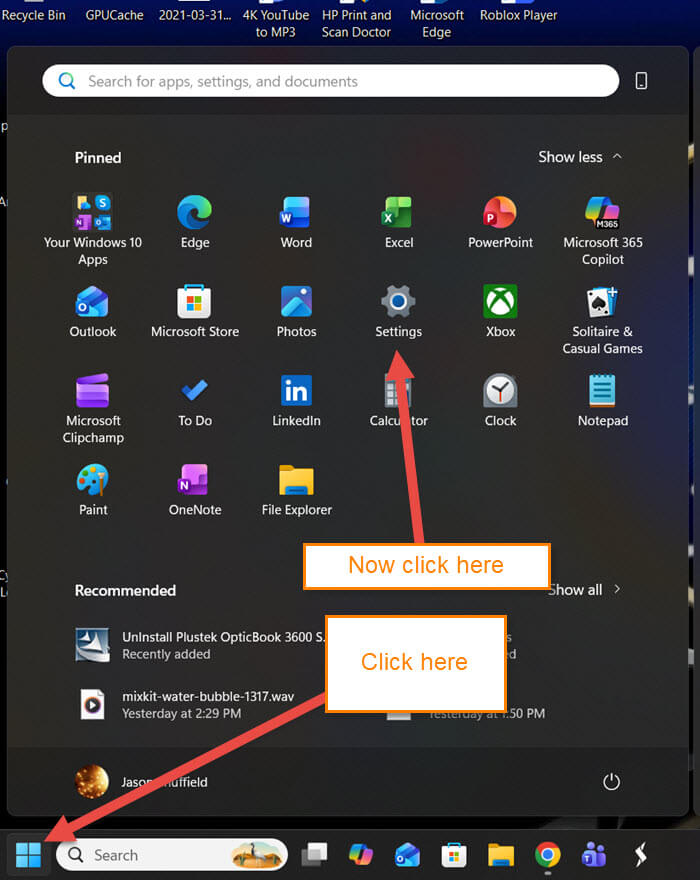
Step 2: Look at the bottom of the screen and click on the Windows Start Menu icon. From this screen, choose Settings (gear icon) and click it.
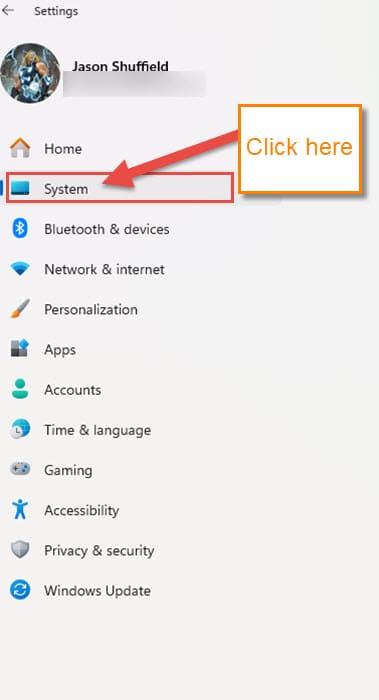
Step 3: On the left menu, click on the System option.
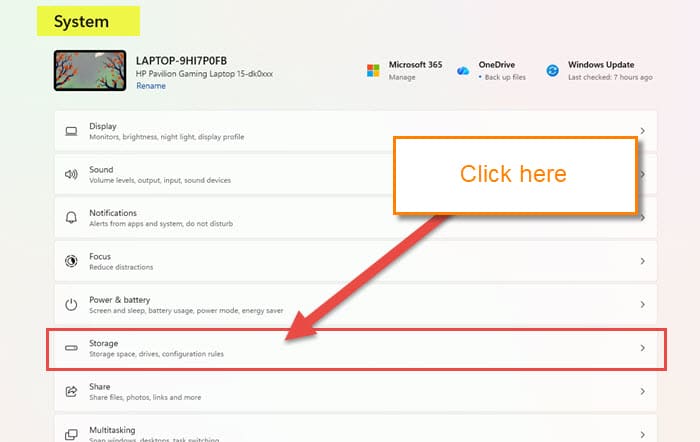
Step 4: After that, look to the middle of the System screen. Here you will want to find the Storage option. Click it.
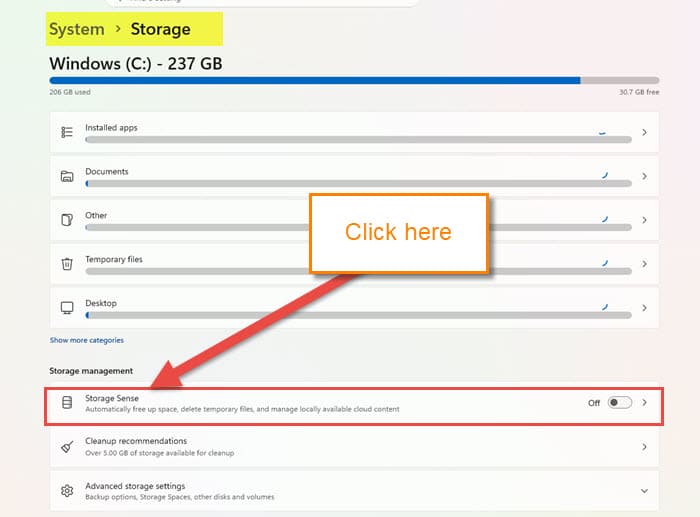
Step 5: On the following screen, look under the section called Storage Management. There you will see Storage Sense at the top, and you will want to click on it.
Storage Sense: Automatically free up space, delete temporary files, and manage locally available cloud content.
Now that you know, click on it.
Step 6: We are on the Storage Sense Settings screen. You could have turned this feature on at the last screen, but I wanted to show you all the Settings first. You can click the on switch at the top to get this enabled.
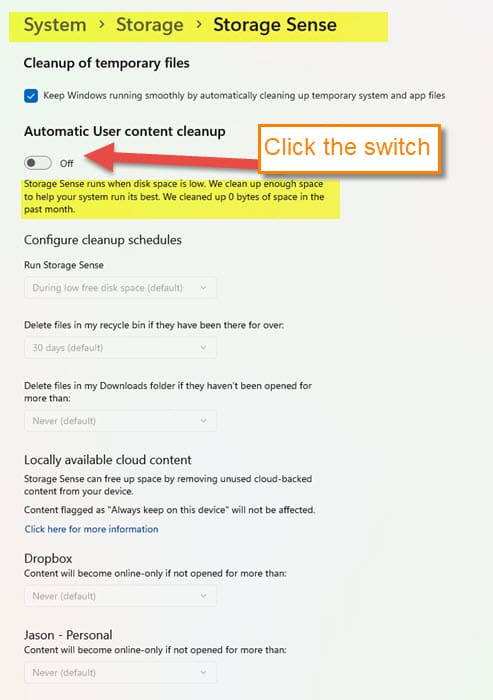
Step 7: Here is what it will do in more detail:
Storage Sense runs when disk space is low. We clean up enough space to help your system run its best. We cleaned up 0 bytes of space in the past month.
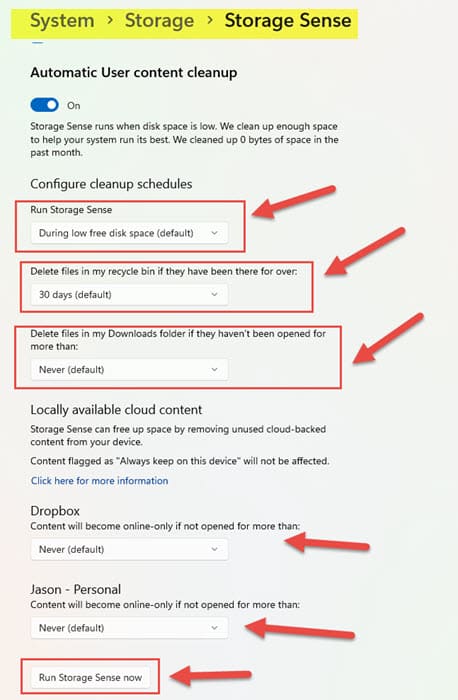
It shows 0 because I have not turned it on yet. Here are some settings you can adjust under Configure Cleanup schedules:
- Run Storage Sense (Here you can tell it when to run, from during low disk space to every month)
- Delete files in my Recycle Bin if they have been there for over (choose the amount of time from the menu)
- Delete files in my download folder if they haven’t been opened for more than ( I have this set as never)
There are a few more Settings you can check out yourself. This gives you a good idea of how this will work if you choose to enable it. There is a button at the bottom that will let you manually run it if you choose to do so. DONE!
You now know how to use this helpful feature on your Windows 11 computer. Time to share your new knowledge with all your friends.
—
