
Last week we covered how to clean up your desktop. If you missed that lesson, you can find it here:
We will be sticking with Windows and teaching you something new. ‘What are you teaching us this week, Jason?’ Great question! Recently, I installed a four-monitor setup at my home office. (One of the coolest things to have as a tech geek like me!) Having this many monitors helps me multitask and makes me feel powerful. The power feels great until you lose your mouse cursor. One minute you see it, and then you lose it. All of us have experienced that feeling when trying to find out where the cursor went. The good thing is that Windows 11 has a setting for your mouse to help you find that little arrow. Since I have this knowledge, I want to share it with you. Before I start our new lesson, make sure to check out these other articles I have written for you:
- How To Get Better Performance From Windows
- How To Check Battery Health In Windows 11
- How To Cast Your Computer To TV Wirelessly
- How To Disconnect App From Facebook
- How To Fix Missing Thumbnail Images In Windows
Guess it is time to show you how helpful this is.
How To Quickly Find Your Mouse Pointer
This will be shown on my Windows 11 laptop.
Step 1: Sign in to your Windows computer.

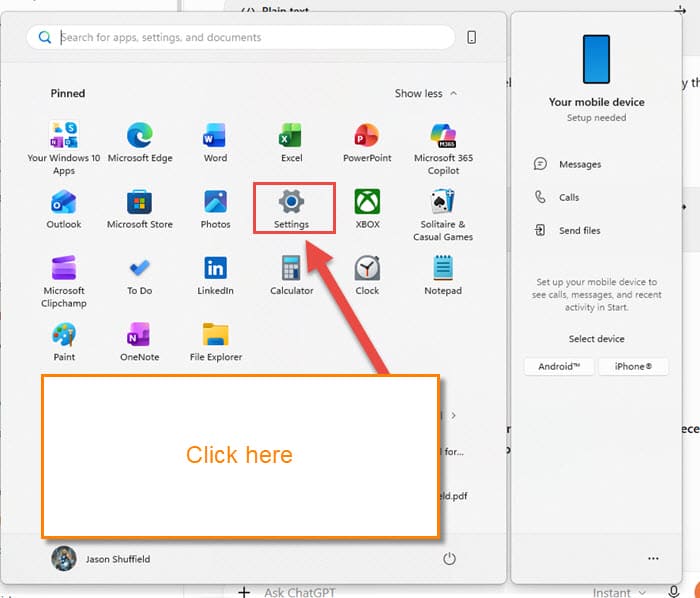
Step 2: Once you are in, we will need to find the Settings link. Go to the Windows icon (Start) and click on it. This brings up a Windows menu, and you will need to find the Settings gear icon. Click it.
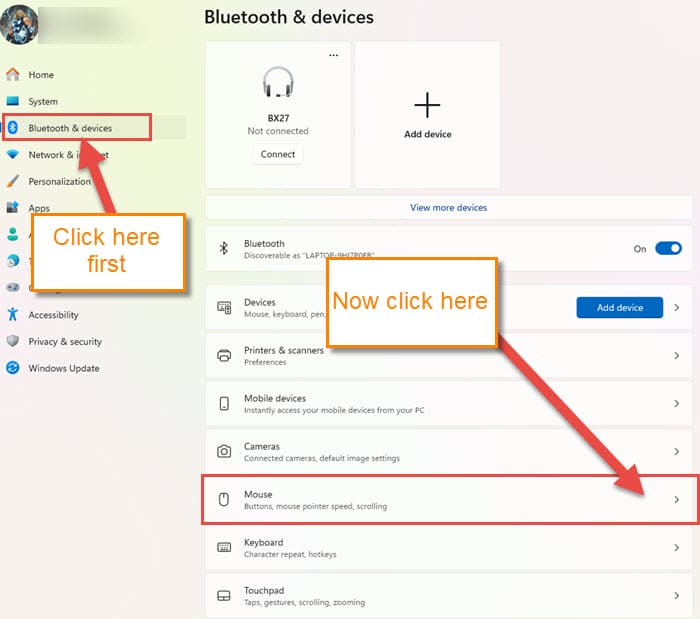
Step 3: Look to the left menu for the Bluetooth and devices link. Click on that, and a menu will appear in the middle for this section. On the menu, you will see the option Mouse. Click it.
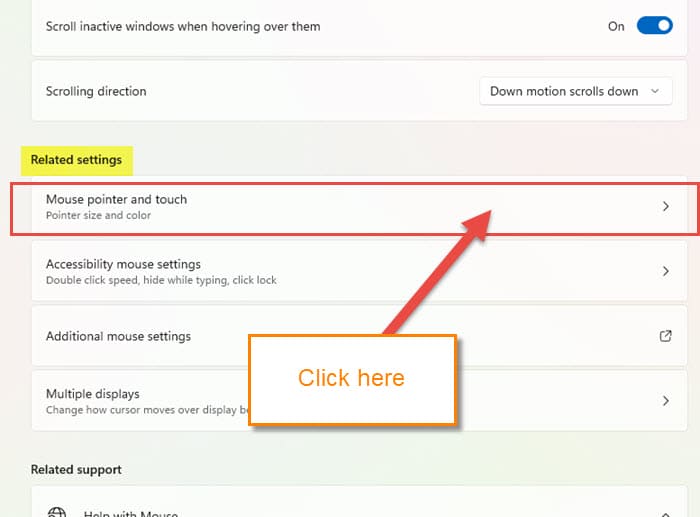
Step 4: On the Mouse settings screen, look for the section called Related settings. Under this section, click on the Mouse pointer and touch option at the top.
Step 5: On this screen, you will see something called Mouse indicator.
Show circle around the mouse pointer when I press Ctrl key.
All you will need to do is click the switch to the right to enable this feature. Now it is time to test this out.
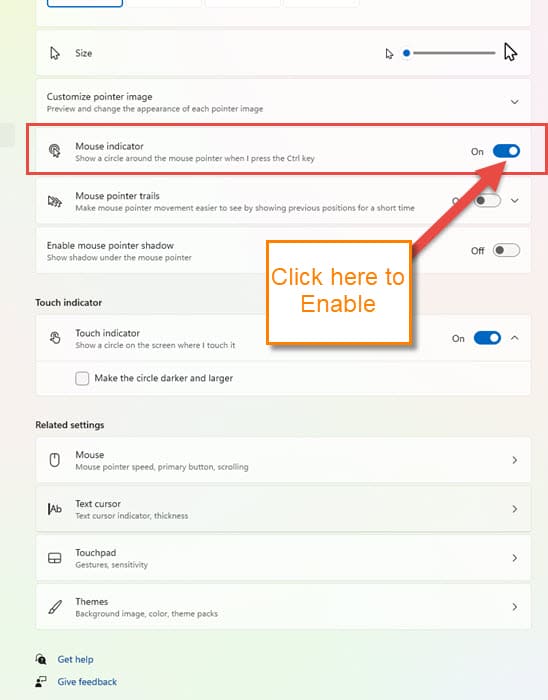
Step 6: On your keyboard, I want you to press the Ctrl key now. Every time you tap it, it will blink with a circle around it. Very helpful when you have multiple screens.
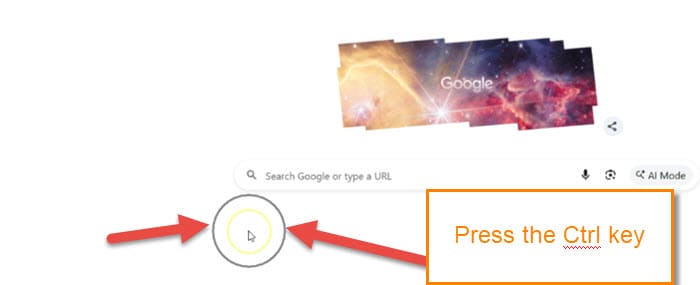
You have now learned an easy way to find that Mouse Pointer. It will cut down on the problem of trying to find it. Time to share your new knowledge with the world.
—

Out of frustration I thought I would see if my old W10 laptop had something similar.
No joy!
There are various settings but nothing to help me find that little monster when it disappears.
Oh well, such is life.
But thanks for your article Jason. If I ever buy another laptop I’ll be sure to make sure I can find that cursor.
It won’t be a mouse. It will just be the touchpad but same, same.
I’ve taught computer use before. Jason’s instructions are spot on. Excellent!