

Welcome Back! If you were here with me last week, we talked about connecting to our smart TV wirelessly. You can find that article right here:
How To Cast Your Computer To TV Wirelessly
This week we are going to change the subject a little. I’m still sticking with Windows but focusing on the laptop. Have you ever wondered what your battery health was? I know I have, and I did some research on how you can get a Battery Health Report in Windows 11. Yes, you heard me right! We are going to go over how to find out if your battery has any life left. My HP Pavilion Gaming Laptop will be our test subject. I will warn you that this is an old computer that is most likely going to need a new battery. Before we start this class, make sure to check out these other articles:
- How To Disconnect App From Facebook
- How To Fix Missing Thumbnail Images In Windows
- How To Delete Hidden Junk Files In Windows
- How To Stop Steam From Stealing FPS
- How To Use Windows Focus Sessions
Time to start our class project and find out if my laptop needs help.
How To Check Battery Health In Windows 11
As I said in the beginning, I will be showing you how to do this on my laptop.
Step 1: Pull out your Windows 11 laptop and sign in.

Step 2: Once on the Home Screen, we need to open the Command Prompt. The way I do this is by using the Search Box at the bottom left. Click in the box.
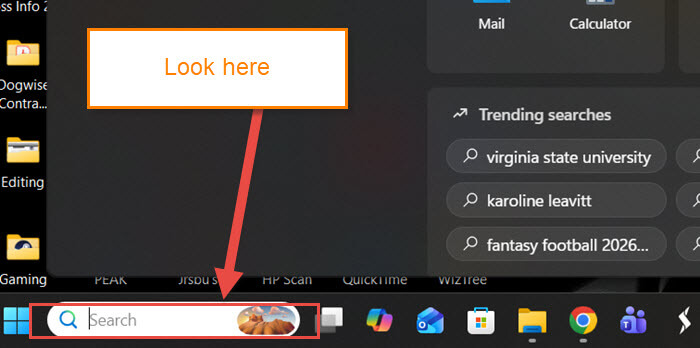
Step 3: In the Search Box, type “Command.”
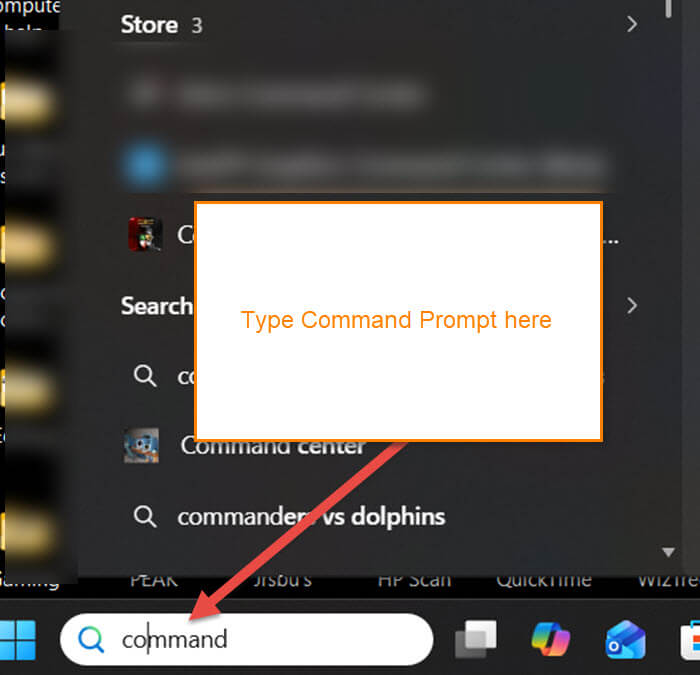
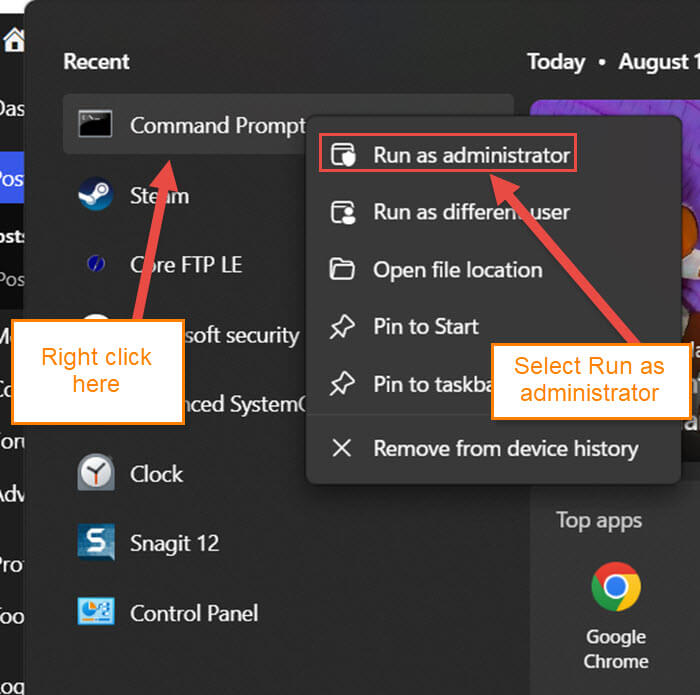
Step 4: You will now see the Command Prompt icon appear on the list above. Right-click on it and choose Run as Administrator.
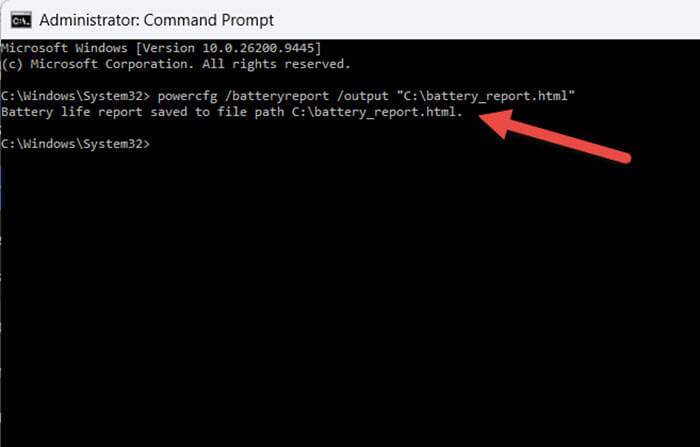
Step 5: The Command Prompt window will appear. Here you will need to type: powercfg /batteryreport /output “C:\battery_report.html”. As you can see, I decided to give it an output so I could choose where to save the file. Hit Enter.
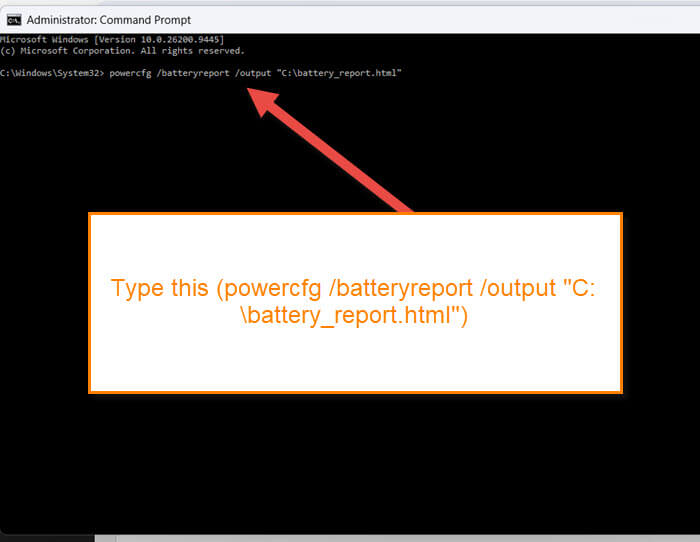
Step 6: After that, you will see a message saying the report was saved to that location.
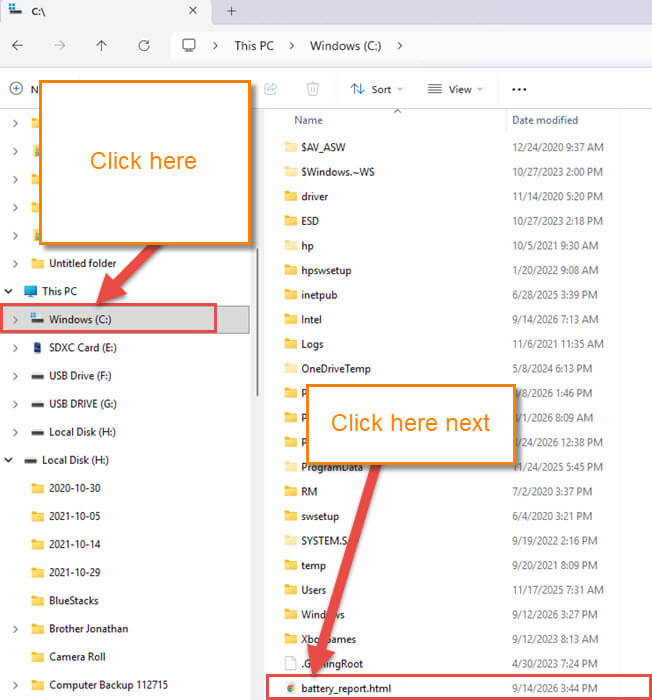
Step 7: Now we need to find that report. Open your File Explorer and select your Windows C: drive under This PC. Scroll to the very bottom, and you will find the Battery Report. Click it to open.
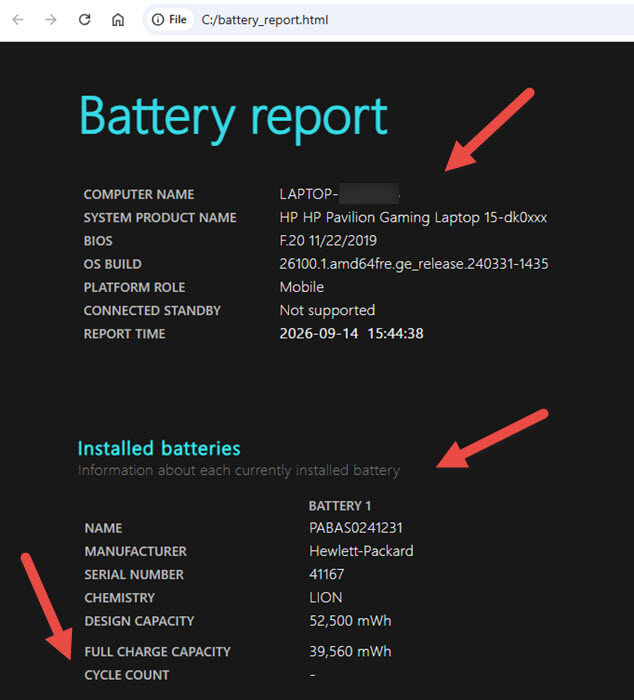
Step 8: A browser window will open where you can see the entire report. There are many parts to this, but I will show you the ones I think are important for this article. At the top, you are given the information about your computer and when the report was run. Below that, you will see some other important info.
Installed batteries: These are parts of information that mean the most here:
- Design Compacity = 52,500 mWh
- Full Charge Capacity = 39,560 mWh
- Cycle Count – Not all Laptops will show this for many reasons
There is a math problem you can do to find your battery health percentage:
39,560(Full Charge) ÷52,500(Design) =0.75350.7535×100= 75.35%
So my battery is still good to me. The rule is 80% or higher is good. 70-79% is still OK but might want to start planning for a replacement soon. Below 60%, the battery is too degraded, so replace it if you can. That is the important part to me.
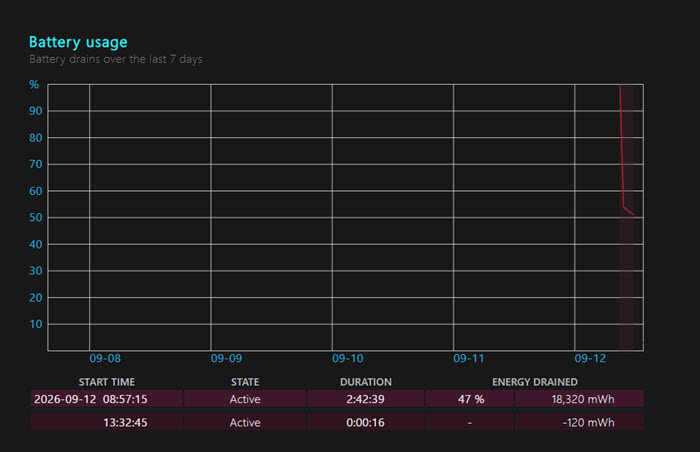
Step 9: Some other information you can find on this is the Battery Usage Graph. If you are into graphs, you will like this. Near the bottom of this report is the Battery Life Estimates based on observed drains. DONE!

Now you all know how to check your battery health. Plus, you know a little bit about how to read it. Share your new knowledge with the world.
—
