

Last week I talked to you about how you could stop Microsoft Edge from slowing your PC. If you missed that, you can find it here:
How To Stop Edge From Slowing Your PC
This week we are sticking to the Windows subject. We will be learning how to find out our computer’s performance score. That is right, you can run a command that will grade your PC. This is important if you like gaming and want to see if there might be something you need to update. Before we dive into this, make sure to check out these other articles I have written for you:
- How To Quickly Find Your Mouse Pointer
- How To Clean Up Your Desktop
- How To Get Better Performance From Windows
- How To Check Battery Health In Windows 11
- How To Cast Your Computer To TV Wirelessly
Guess it is time to start class and learn something new.
How To Check Performance Score Of Your PC
This will be shown using my Windows 11 laptop.
Step 1: Open your Windows laptop.
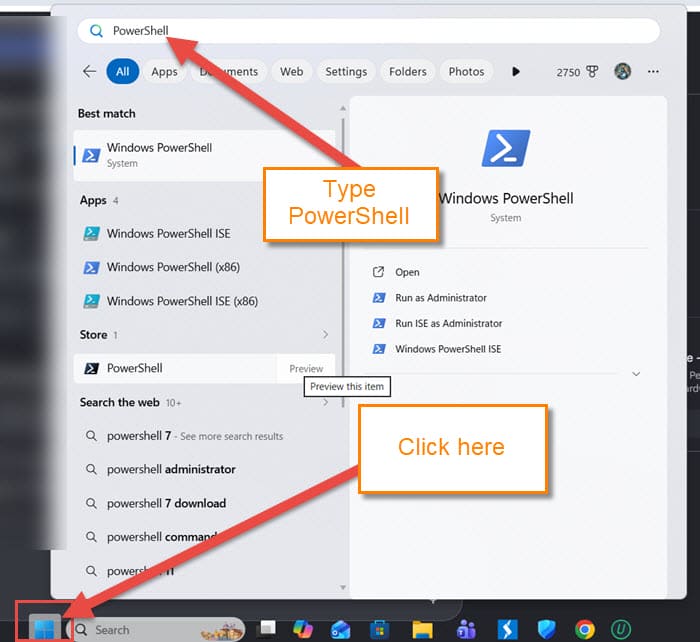
Step 2: Click on the Windows Start icon. This will bring up the Start menu. At the top, in the Search Box, type in PowerShell.
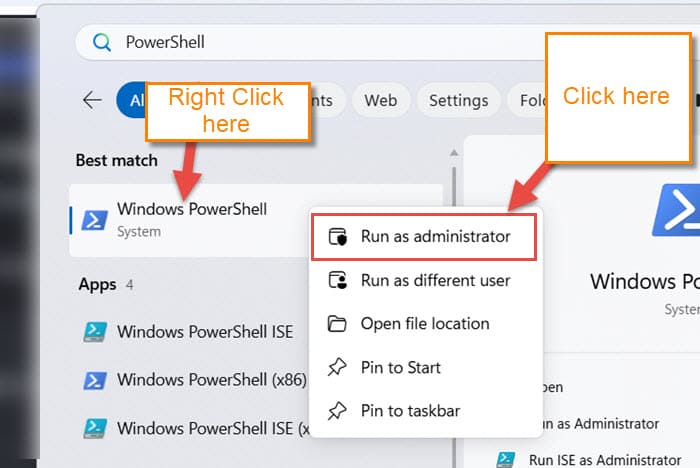
Step 3: You should now see the Windows PowerShell option at the top of the menu. Right-click on that, and another menu will appear. Click on Run as administrator.
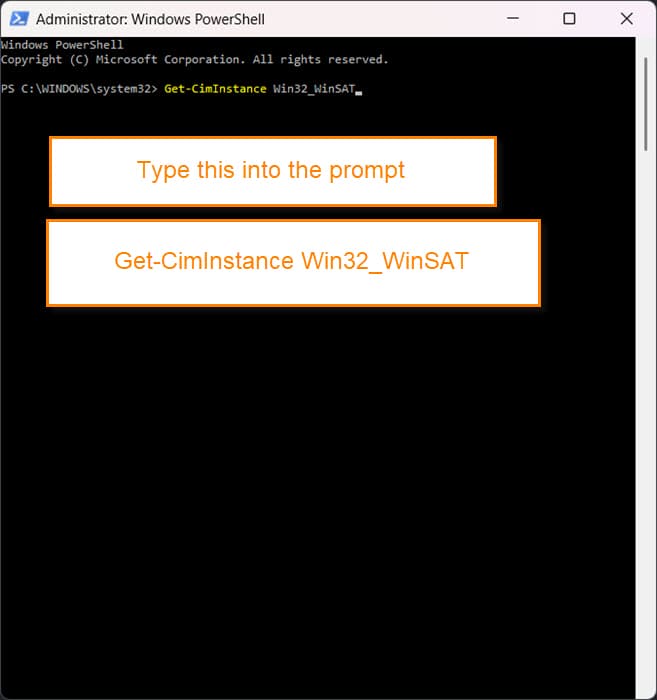
Step 4: Like when you open the Command Prompt, you will see a similar window. This is PowerShell, and here we will need to use a special command. You need to key in this:
Get-CimInstance Win32_WinSAT
After keying that in, hit Enter on your keyboard.
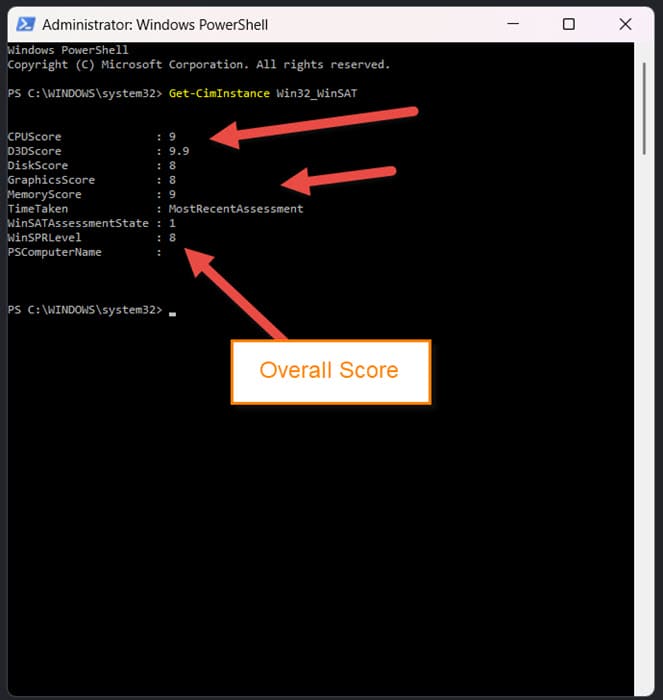
Step 5: That will start the process, and it will lay out the Performance Score for you. Here is how to read this:
- CPUScore: Processor speed/capabilities
- D3DSCore: 3D graphics (gaming)
- DiskScore: Reading/writing speeds of your storage drives (Hard Drive or SSD)
- GraphicsScore: General 2D graphical performance
- MemoryScore: RAM speed/memory access efficiency
- WinSPRLevel1: Your overall system score . As you might notice, this chooses the lowest score. This shows you what component is hurting your performance
These are the numbers that will help you figure out what you might need to change. I have an overall score of 8, which is good. The scoring starts at 1.1 and then goes up to 9.9. This is a great way to get an idea of whether your computer even has a chance to run a game you want. Now, if for some reason you are getting zeros or nothing at all, you might need to run the assessment so you get the most recent score.
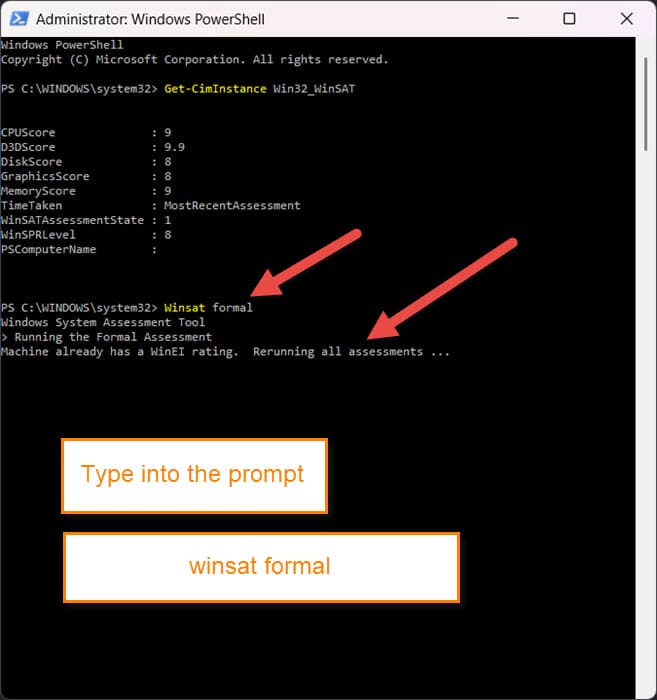
Step 6: To get the most updated assessment, you will need to type this in PowerShell:
winsat formal
After running that, you can key in the first prompt again, “Get-CimInstance Win32_WinSAT” and that should give you the score.
You now know how to check your Performance Score on your Windows PC. Time to share your new knowledge with all your friends.
—
