
In last week’s lesson, we covered how to get better performance from Windows. If you missed that one, you can find it here:
How To Get Better Performance From Windows
This week I’m staying on Windows since we are having so much fun! ‘What are you teaching us this week, Jason?’ Great question! During the last few months, I have realized that the Desktop on my computer is always messy. You might be thinking that all we need to do is delete all those apps or store them in a folder, and those are good ideas, but I’m going to show you an easier way to clean that Desktop up. Before we start this new lesson, make sure to check out these other articles I have written for you:
- How To Check Battery Health In Windows 11
- How To Cast Your Computer To TV Wirelessly
- How To Disconnect App From Facebook
- How To Fix Missing Thumbnail Images In Windows
- How To Delete Hidden Junk Files In Windows
Now it is time to learn more about Windows.
How To Clean Up Your Desktop
This will be shown on my Windows 11 laptop.
Step 1: You will want to log in to your Windows Laptop.
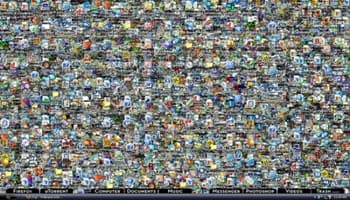
Step 2: You can see my Desktop is very cluttered with icons and apps. You might have the same issue on your computer. What you want to do is right-click on an empty part of your screen. A menu will appear, and you need to hover your mouse over the View option.

Step 3: Hovering your mouse over that option will make another menu appear. They give you some options to choose from:
- Large Icons
- Medium icons
- Small icons
- Auto arrange icons
- align icons
- Show desktop icons
We want to choose the bottom one called Show desktop icons. There is a checkmark next to that, showing it is enabled. Click on it to disable this feature. All your icons will be hidden from your desktop. Making it look cleaner, plus you don’t have to delete them and can still get them if you want them back.

Step 4: Another option you can choose to help clean up the Desktop a little is making the Taskbar transparent. The way to do this is to head over to the Microsoft Store and find the TranslucentTB app. Install this free app and then open it.
(Ed note: Windows 10 and Windows 11 both offer a transparency option in Background->Colors. This third-party software offers more choices.)

Step 5: As you can see below, the top one shows the Taskbar before you activated the TranslucentTB app. The bottom image shows the translucent Taskbar. It is a much cleaner look doing it this way.


Step 6: Here is the final look on my desktop. It looks much cleaner and not so cluttered. DONE!

Bonus tip: If you want to Turn Off the Transparent look, Follow These Steps
- Find the App on your computer. Right-click on it, and you will be given a Menu
- Click on the App Settings on that menu
- On the App Settings screen for the app, find Terminate. Click it
- This will disable the translucent look
- If you reboot the computer, it should turn back on
- If you no longer want this at all, uninstall the app
You now know how to clean up that Desktop screen. This is one of the easiest ways to do this. Time to share your new knowledge with the world.
—
