

Another week is here, and I’m going to teach you more about Windows. Before I talk about the new lesson, make sure to check out what we learned last week:
How To Quickly Find Your Mouse Pointer
Now that you have that knowledge, we can start the new lesson. I’m going to stay with Windows this week and talk about the Windows Edge app. Most of us only use the Edge browser to download other browsers like Firefox, Google, etc. Did you know that this app is hurting your computer’s performance? That is right! Even when you are not using the app, it is still using your computer’s resources. We can’t have that, so I’m going to show you how to fix it. Before I jump into that, make sure to review these other articles/lessons I have written for you:
- How To Clean Up Your Desktop
- How To Get Better Performance From Windows
- How To Check Battery Health In Windows 11
- How To Cast Your Computer To TV Wirelessly
- How To Disconnect App From Facebook
Guess it is time to start the class and teach you something useful.
How To Stop Edge From Slowing Your PC
This will be shown using my Windows 11 laptop.
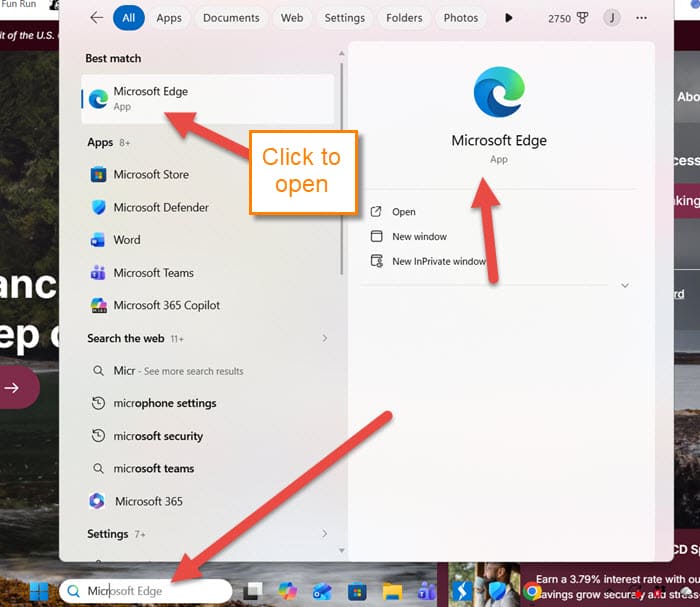
Step 1: Log in to your Windows computer and look to the Search Box. This is usually at the bottom of the screen. You are looking for the Microsoft Edge app, which you might have on your home screen, but I will type it into the Search Box to find it. Click on the app to open it.
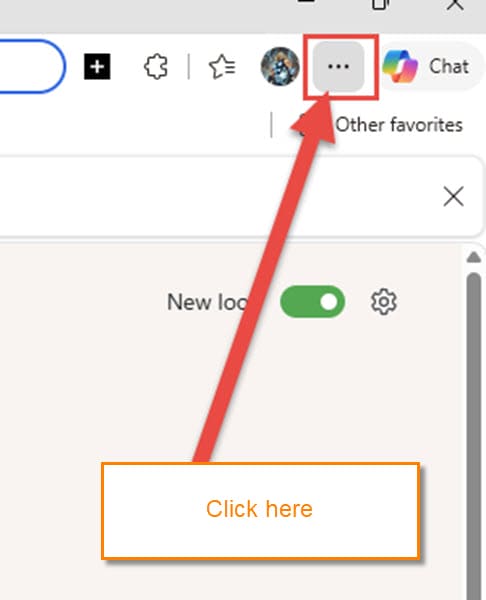
Step 2: Now that the app is open, look to the top right of the screen. Click on the 3 dots at the top.
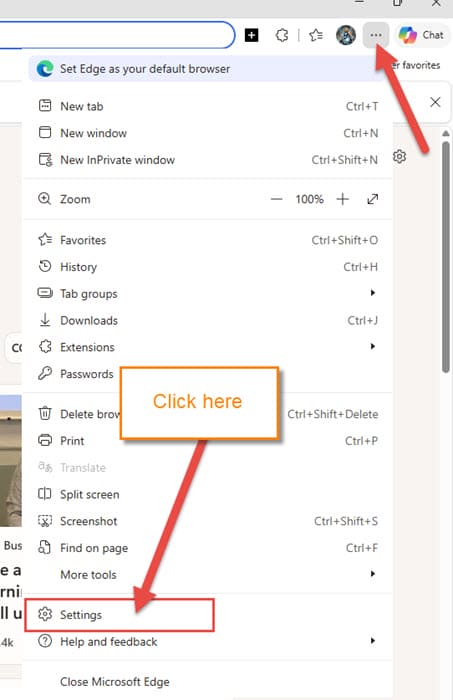
Step 3: A menu will appear, and you want to find Settings. Click it.
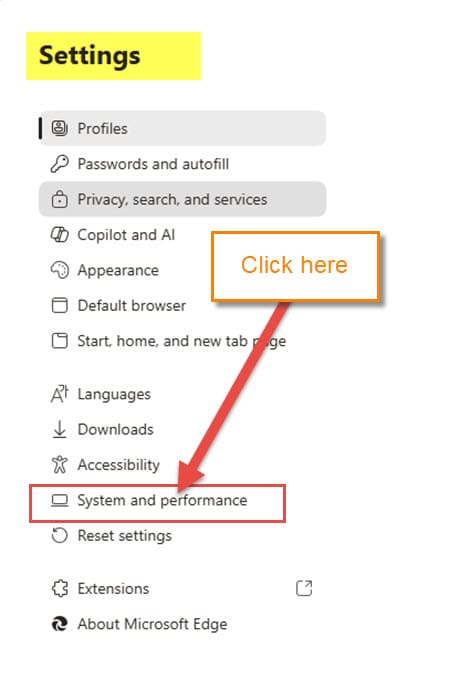
Step 4: The Settings window will appear, and you will need to look at the left menu. On this menu, find System and performance. Click it.
Step 5: After that opens, you will be on the System and performance Settings screen. On here, they give you some choices:
- System (Adjust system settings like background mode and graphics acceleration)
- Performance (Adjust performance settings like energy saver and sleeping tabs)
- Use F12 to open Desktop tools
- Manage printers
We will choose the top option, System. Click it.
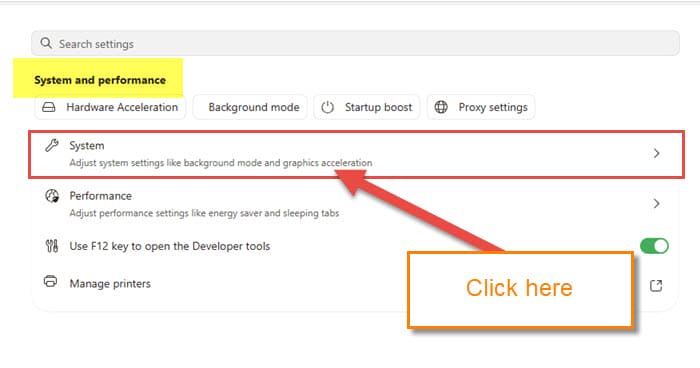
Step 6: On the next screen, you are given some options that we need to disable:
- Startup boost (Opens Edge faster when you start your device)
- Continue running background extensions and apps when Edge is closed
- Use graphics acceleration when available
Those are the ones we need to disable. 99% of people most likely do not use this app, so disabling these will help the performance of your computer. Click the switches to the right of each one. DONE
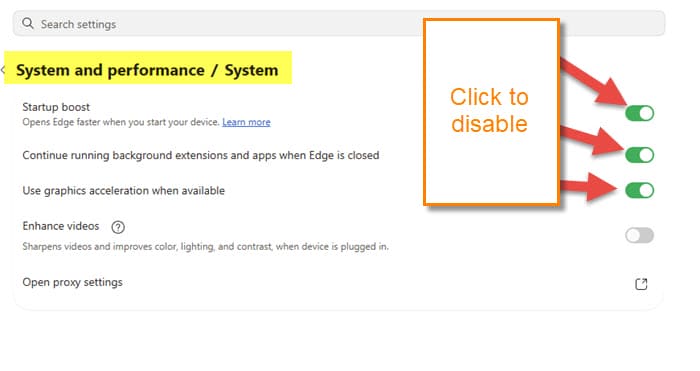
Now you all know how to keep Edge from slowing your system down. Time to share your knowledge with the world.
—

Do it faster, and more thoroughly: use Sordum’s Edge Blocker. It completely turns Edge, and optionally EdgeView2, off, and allows them to be run when absolutely needed (e.g., for H&R Block tax software).
Since Edge submits all page requests to Bing, pipes other PII to Microsoft, and pipes ads to the user, it’s not my choice for browsing.
THANK YOU for helping me remove edge.
Thank you for the Edge browser tip.
The recommended disabling of the 3rd Setting (=”Use Graphics acceleration when available”) appear to be a setting which should not be disabled for those who use a separate plug-in graphics cards.
Within the same topic; there is also an additional Setting (#4) which allows the use ‘Video Enhancements’ (color/lighting/contract), possibly only for those who have an add-on FX card.