

Last week we covered how to Turn Off Scheduled Maintenance in Windows 11. If you missed that lesson, you can find it here:
How To Turn Off Scheduled Maintenance – Windows 11
I’m going to stick with the Windows subject and teach you something new. You might be wondering what bit of wisdom I will be sharing this time? If you are like me, you get distracted by the notifications and app alerts that pop up on your screen. This always seems to happen when I’m trying to focus on an important task. This could be for work, play, or even school; whatever it is, Windows has your back. They have a feature that you can turn on that is called Focus Sessions. What does that do? Great question, let me tell you!
We’ll turn off notification and app alerts during each session. For longer sessions, we’ll add a short break so you can recharge.
That is what it will do, and I’m going to show you how to set it up. Before we get this lesson started, make sure to check out these other articles I have written for you:
- How To Copy And Paste Faster
- How To Stop AI on Instagram
- How To Use TikTok Accessibility Features
- How To Clear TikTok Search History
- How To Find TikTok Comment History
Time to pull out those Windows Laptops and learn something new.
How To Use Windows Focus Sessions
This will be shown on my Windows 11 Laptop.
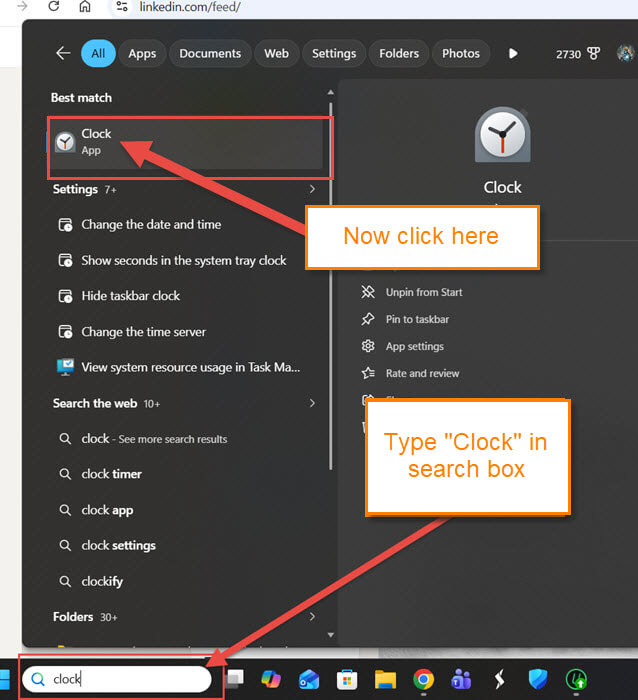
Step 1: What you want to do is look to the Search Box at the bottom left. Type in Clock and then click on the Clock app at the top.
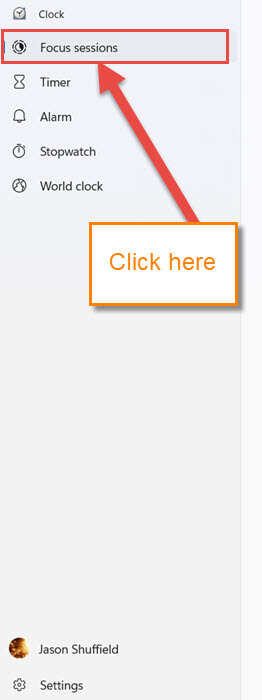
Step 2: Once on the Clock app screen, look to the left menu. Find the Focus sessions option and click it.
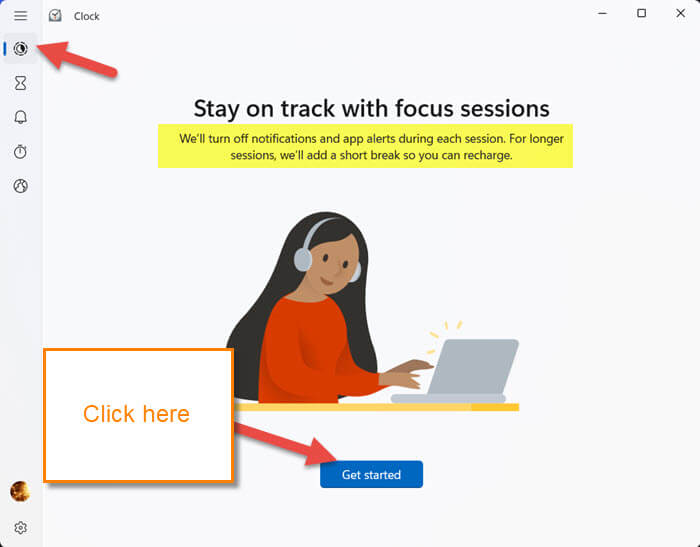
Step 3: Now we are on the Focus Sessions screen.
Stay on Track with focus sessions: We’ll turn off notifications and app alerts during each session for longer sessions, we’ll add a break so you can recharge.
You saw this message at the start of this article. It is time to click on the Get Started button.
Step 4: Here is where all the magic happens. They give you some choices here to help you get all set up:
- Time section
- Daily Progress
- Task section
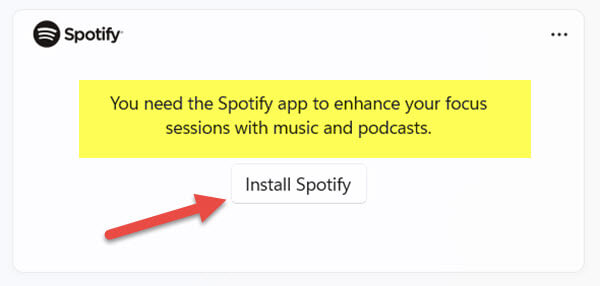
- Spotify
The first two are the important ones. Let us look at the Time section first.
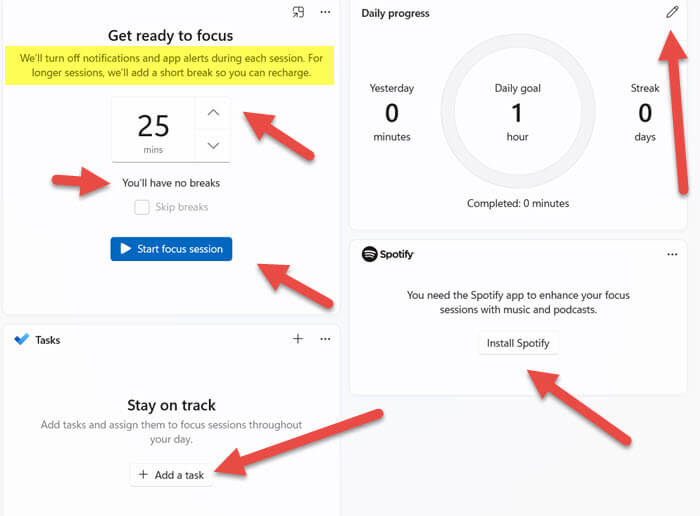
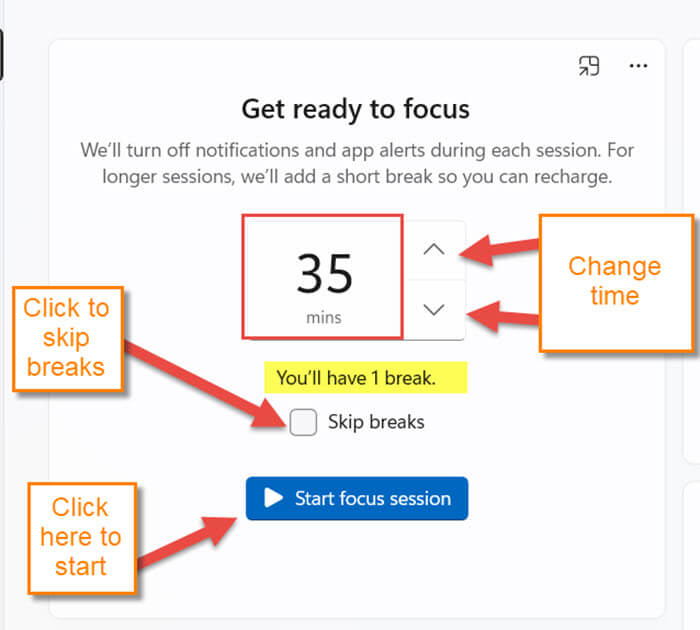
Step 5: As you can see, they give you a few choices to work with:
- Change the time of the session (Click the up or down arrow next to the time to adjust)
- Skip Breaks (Check the box if you want to skip the breaks)
- Start focus session button (Click this when you are ready to start)
That is the main part that you need to fill out to get this started. I want to show you one more section that is to the right of this one.
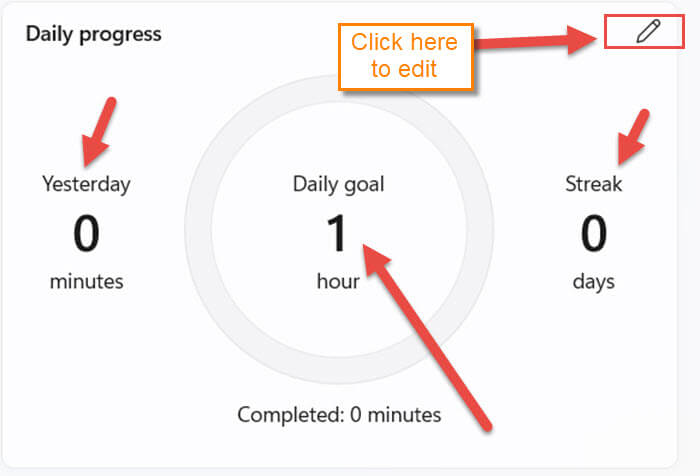
Step 6: This one is called Daily progress, and you can see how you are doing. Click the edit pencil at the top right.
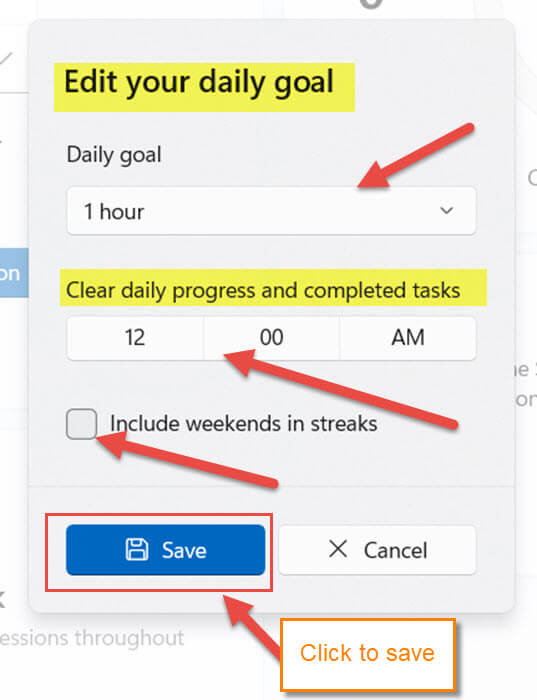
Step 7: The edit your daily goals window will appear:
- Daily goal time (Set this to how long you want your goal to be)
- Clear daily progress and completed tasks time. (Set this when you want this to happen)
- Include weekends in streak check box
If you have it all set, click the Save button at the bottom. Done. Let me briefly go over the last two options:
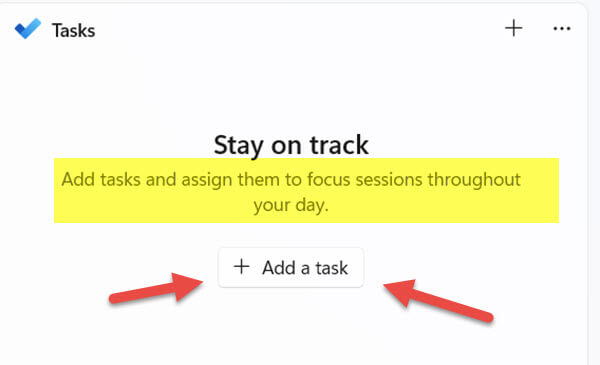
Step 8: The Spotify and Tasks you can mess with yourself. I never used these when testing this out, but you can. Spotify will give you some music to listen to while focusing. The Task option is for adding tasks for you to do during your focus session. That is all you have to do to get this working for you.
You now know how to set up the Focus session on Windows. Time to start focusing on your goals.
—
