

If you were in class last week, you would have learned how to Improve Mouse Pointer Visibility. You can find that lesson here:
How To Improve Mouse Pointer Visibility
This week we are still working in Windows 11 and talking about another privacy issue. You might not know this feature is on automatically. When you are typing on your Windows system, it is learning and sharing this with Microsoft. Here is what they say it does for you:
The Inking & typing personalization feature in Windows 11 builds a custom dictionary of unique words, names, and writing patterns from what you type or write using a stylus or touch keyboard. This helps Windows improve text suggestions, auto-correction, and handwriting recognition accuracy.
But I like my privacy, so in this article you will learn how to turn it off. Before we start class, make sure to check out these other lessons I have written for you:
- How To Turn On Screen Tint In Windows 11
- How To Auto-Clean Windows 11 Storage
- How To Check Performance Score Of Your PC
- How To Stop Edge From Slowing Your PC
- How To Quickly Find Your Mouse Pointer
The bell has rung, so take a seat and get ready to learn.
How To Stop Windows Learning Your Typing
This will be shown on my Windows 11 laptop.
Step 1: Turn on your Windows computer.

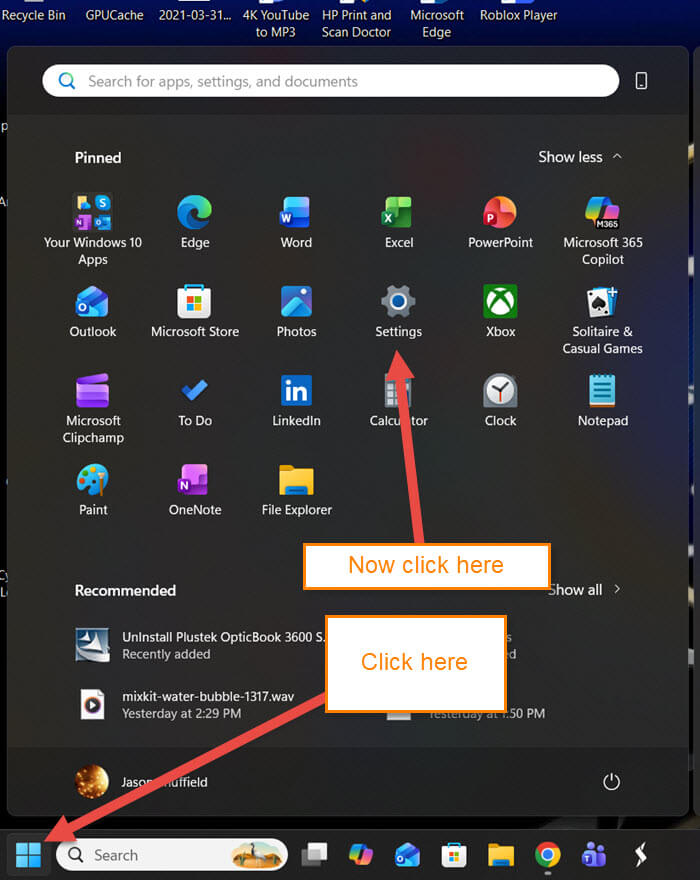
Step 2: Once it is on, look for the Start Menu icon (looks like the Windows logo) and click it. Then, from this menu, look for the Settings icon (gear) and click it.
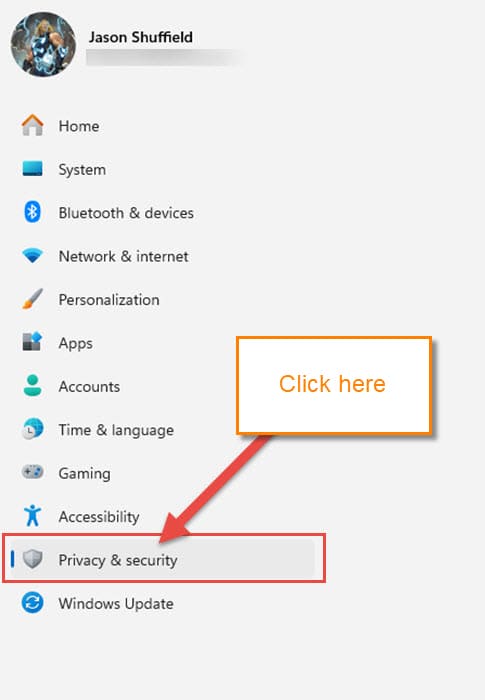
Step 3: In this window, look at the left menu and find the Privacy & security option. Click it.
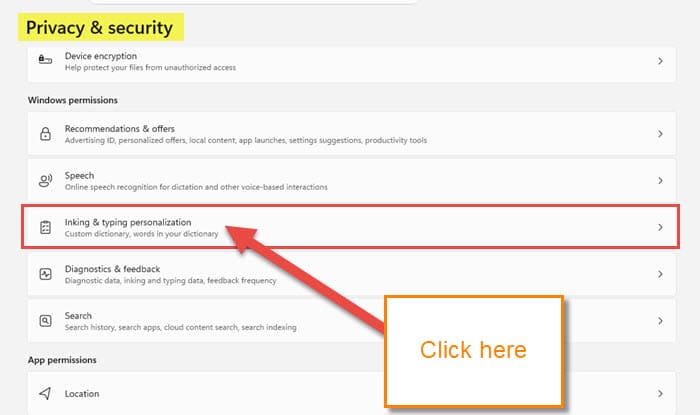
Step 4: Here, in the Privacy & security window, you are given some options in the middle of the screen. Under the section called Windows permissions, find Inking & typing personalization and click it.
SIDE NOTE: This looks like they moved it with an update. If you do not see it, go here:
- Look under the section called Your Info. Under that, find Custom dictionary. Click that.
Step 5: Here are the settings we are looking for. What does this do?
Get better suggestions by creating a custom dictionary using your typing and handwriting info. If you turn off this setting, your dictionary will be cleared and your suggestions won’t be personalized.
Now that you know what it is doing, here are a few options they offer here:
- Custom inking and typing dictionary (use my typing history and handwriting patterns to create a custom dictionary)
- Custom Dictionary
- Privacy resources
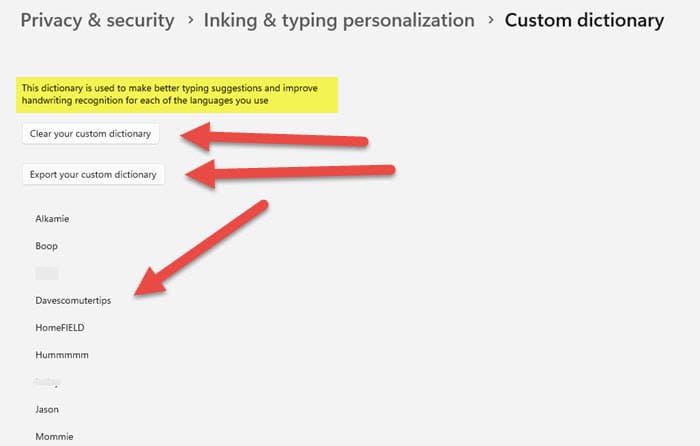
The one at the top is the one that will turn for good. All you need to do is click the switch to the right. Now Windows will not report your typing to the company. You could look at what your dictionary has right now by clicking the Custom Dictionary option.
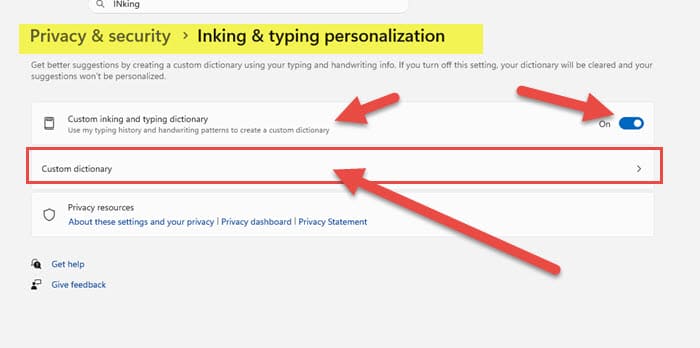
This will show you the words and offer you the option to clear them or export them. But we want to turn it off so they no longer get your data. DONE!
You have now learned how to turn off this feature and protect your privacy. Time to share this knowledge with everyone.
—
