

In last week’s class, we covered how you can turn on Screen Tint in Windows 11. This can help reduce eye strain when you use your computer. If you missed that lesson, you can find it here:
How To Turn On Screen Tint In Windows 11
I’m staying on the Windows subject and going to teach you something useful. As with last week’s article, I want to show you something that will help those eyes of yours. It is on that little mouse pointer on your screen. One of the most common complaints I get from computer people is that the mouse cursor is hard to find and see. I have touched on the mouse before, trying to find it on a multi-screen setup. You can read up on that article here: How To Quickly Find Your Mouse Pointer. This time, I will teach you that you can change the colors and size of this cursor easily on your Windows 11 computer. Before we start, make sure to check out these other articles that I have written for you:
- How To Auto-Clean Windows 11 Storage
- How To Check Performance Score Of Your PC
- How To Stop Edge From Slowing Your PC
- How To Quickly Find Your Mouse Pointer
- How To Clean Up Your Desktop
Now that you are all caught up, it is time to start this lesson.
How To Improve Mouse Pointer Visibility
This will be shown using my Windows 11 laptop.
Step 1: Open up Windows on your computer.

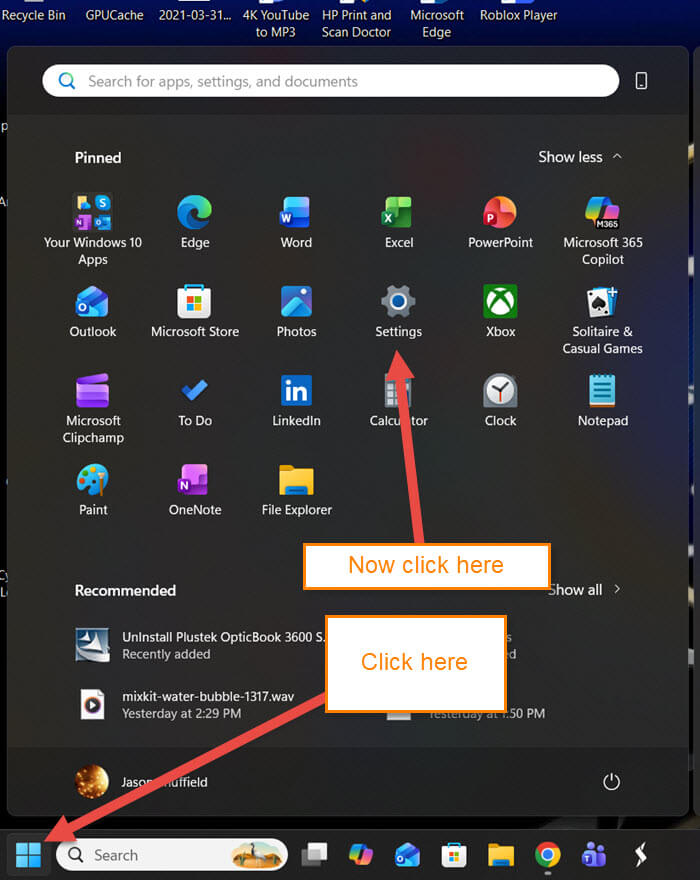
Step 2: Click on the Windows Start Menu Link. Once that is open, look for the Settings icon (gear) and click it.
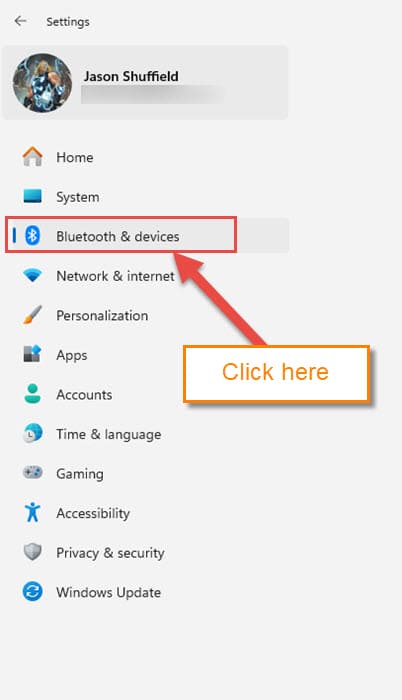
Step 3: After you click that, look at the left menu and find the Bluetooth & devices option. Click it.
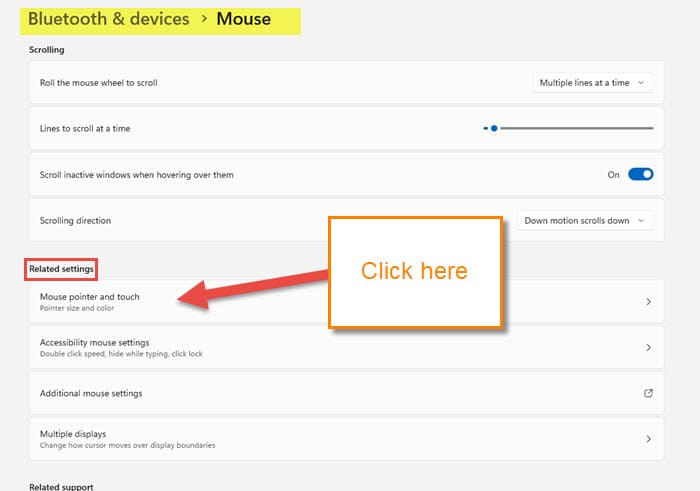
Step 4: On this screen, look for the section called Related settings. Under that, you will see Mouse Pointer and touch (Pointer size and color).
Click that option.
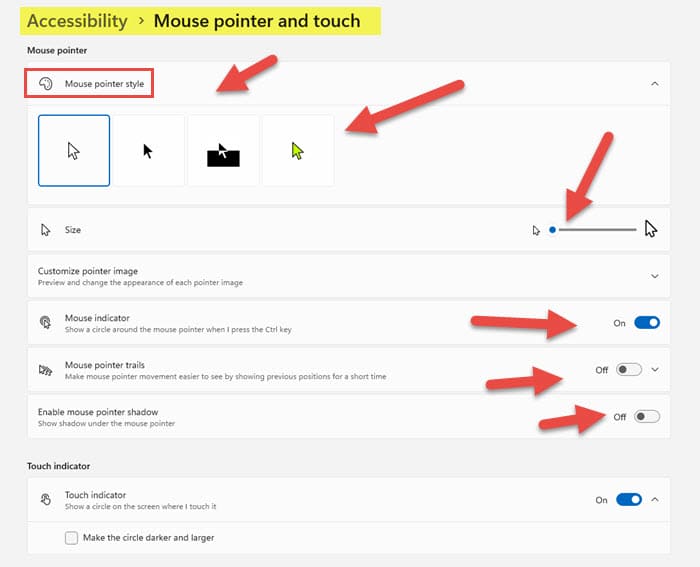
Step 5: You are now on the screen that will help you improve the visibility of your mouse cursor. They offer you some settings that will help out:
- Mouse Pointer Style (change the look, which includes coloring the pointer)
- Size (need the mouse pointer to be a little larger? Drag the dot on the right to the desired size)
- Customize pointer image (preview and change the appearance of each pointer image)
- Mouse Indicator (this one I went over in a past article. You can find that here: How To Quickly Find Your Mouse Pointer
- Mouse pointer trails (not my favorite but does work)
- Enable mouse pointer shadow (show shadow under the mouse pointer)
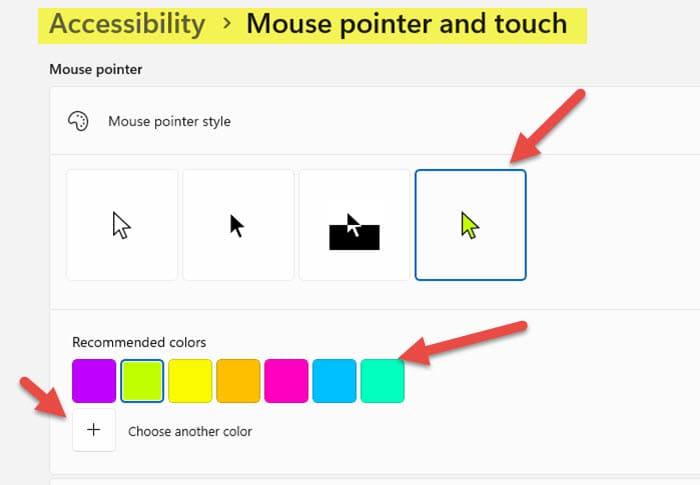
There are enable switches to the right of some of these. Click those to turn them on. Most of these are self-explanatory, but the one I want to talk about here is the Mouse Pointer Style. As you can see, you have four choices:
- Normal look is the first one
- Black Mouse pointer
- Inverted
- Custom
Let us click on Custom and show you what it does.
Step 6: Once you click it, you will be given color options. Click the one you like. Right below those, you have a + (Choose another color). That would bring up a color wheel, and then you can pick from that. I like this option the most since the white pointer is always lost and having a yellow one is easier to find. DONE.
Now you know how to improve the mouse pointer visibility. Time to take this new knowledge and share it with the world.
—

It seem the Daves Computer has abandoned win 10. For us hold outs the newsletters are gettiing more and more useless. I should be nice to let us know what works and how works with win 10 also.
Thanks
Hey Chris,
Here’s the thing; everything that can be written about Windows 10 has already been written.
In fact, we have literally hundreds of Windows 10 related articles in our own archive. All you need do is click the search icon (magnifying glass) in the menu across the top of the screen and enter the term “Windows 10”.
Here’s something for you to check out: Everything you need to know about Windows 10