

Last week we talked about how to use Windows Focus Sessions. If you missed that, you can find it right here:
How To Use Windows Focus Sessions
This week I’m going to jump over to one of my favorite subjects, Gaming. If you have followed me for any length of time, you know that I’m a gamer. My kids and I used to play games together often, and now we are getting back into it. One of the systems we used for our gaming sessions was Steam. After playing some practice games, I noticed that my games were not running smoothly and my Frames Per Second (FPS) was not looking good. This got me thinking, there must be something I could do to fix it. So I did some research and found out some of the Steam settings were hurting my FPS and slowing down my system. Since I know how to adjust these, it is my duty to teach all of you. Before we get into our new lesson, make sure to check out all these other how-to articles I have written:
- How To Turn Off Scheduled Maintenance – Windows 11
- How To Copy And Paste Faster
- How To Stop AI on Instagram
- How To Use TikTok Accessibility Features
- How To Clear TikTok Search History
Guess we need to sit down and start this class.
How To Stop Steam From Stealing FPS
This will be shown on my laptop using my Steam account.
Step 1: There are three options I’m going to show you in this article. First thing is to open your Steam account on your computer.

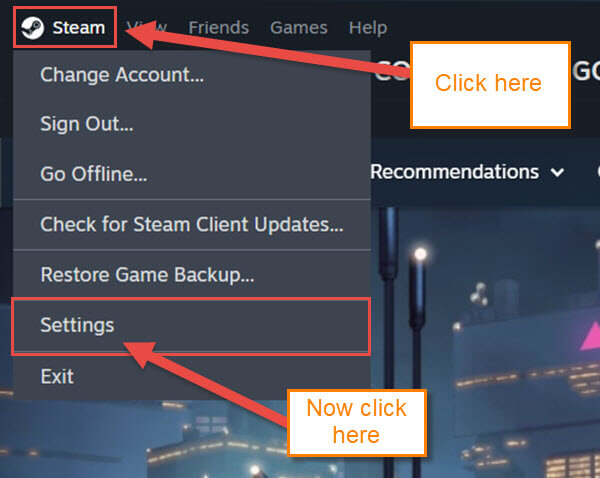
Step 2: Once Steam is open, look to the top left for Steam. Click the Steam icon, and a menu will appear. On that menu, click on Settings.
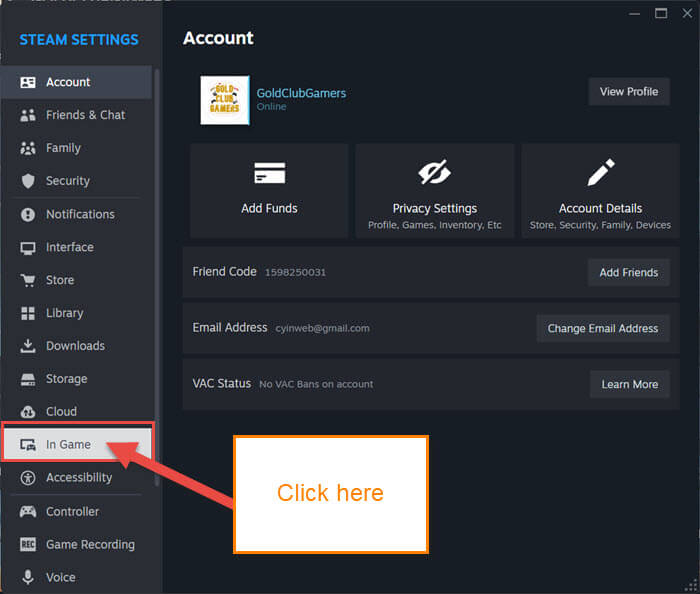
Step 3: The Steam Settings menu will open, and on the left menu, find In Game. Click on that.
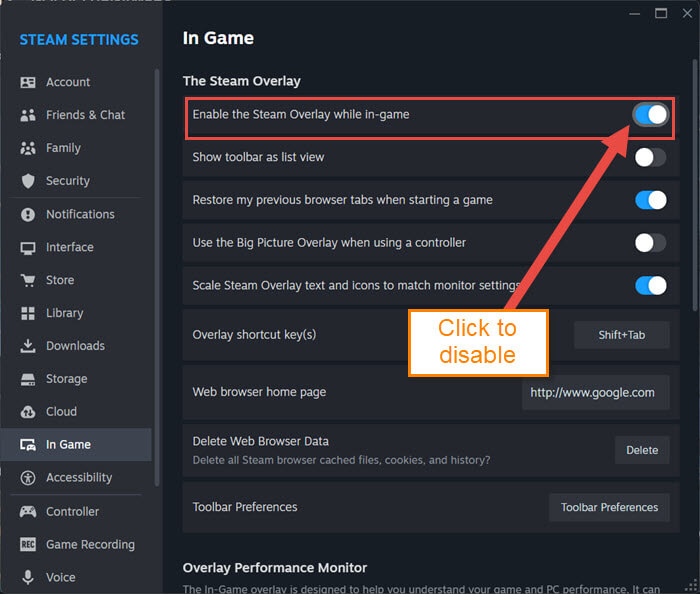
Step 4: The In Game settings will show in the middle. Here you want to find, at the top under The Steam Overlay, the option called “Enable the Steam Overlay while in-game.” We do not want this on, so click the switch to the right of it. This will turn that feature off. Time to move on to the next option.
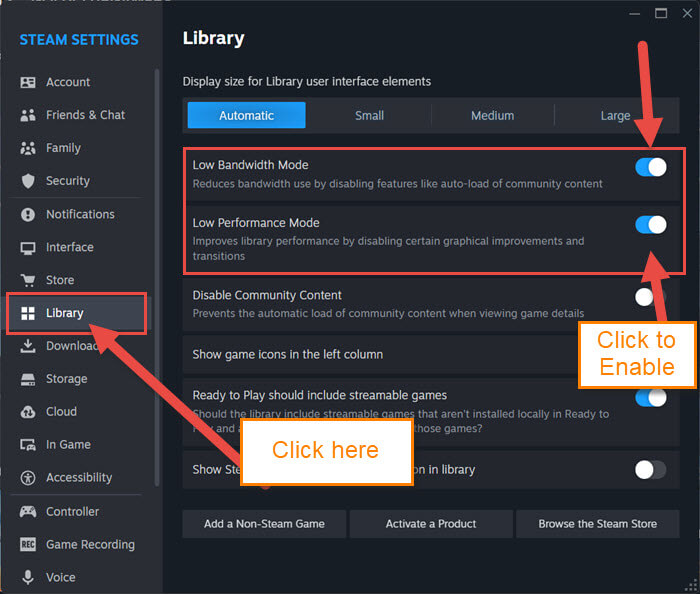
Step 5: Look to the left menu and find Library. Click on that, and the Library settings will show in the middle. Here you want to enable the first two options:
- Low Bandwidth Mode (Reduces bandwidth use by disabling features like auto-load of community content)
- Low Performance Mode (Improves library performance by disabling certain graphical improvements and transitions)
All we need to do is click the switches to the right of these two options. Now for the final one on this list.
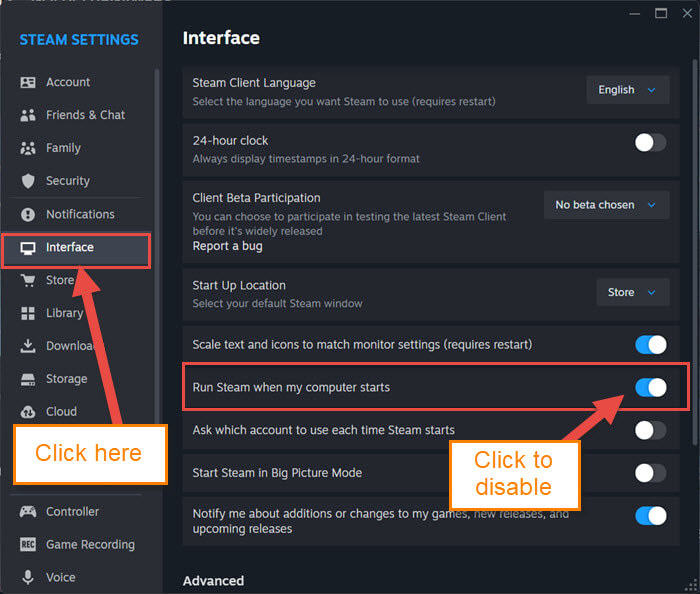
Step 6: Look again to the left menu and find Interface. Click on that and look to the middle for Run Steam when my computer starts. Click the switch to the right of it to disable that. Turning this off keeps Steam from working in the background when it is not needed. All done!
This should help you with performance on your game and keep your computer happy. Plus, that FPS should be a little better now. I hope that helps you out and you can start enjoying your games again. Time to share all this new knowledge with your friends.
—
