

If you were here last week, you learned how to clear hidden junk files in Windows. If you missed that one, you can find it here:
How To Delete Hidden Junk Files In Windows
I’m going to stick with Windows this week and teach you something new. “What are you going to teach us this week?” Great question! This time I want to show you how you can fix the thumbnails. Have you ever had your thumbnails only show the icon and not an image? I like to see the thumbnail image rather than only seeing the icon that Windows uses. Due to a recent update, my thumbnails were all changed to the default icon and not the image itself. So I did my research and found out what happened and how to fix the issue. Before I start the new lesson, make sure to read these other articles I have written for you:
- How To Stop Steam From Stealing FPS
- How To Use Windows Focus Sessions
- How To Turn Off Scheduled Maintenance – Windows 11
- How To Copy And Paste Faster
- How To Stop AI on Instagram
Guess it is time for all of us to pull out that Windows computer and start class.
How To Fix Missing Thumbnail Images In Windows
This will be shown on my Windows 11 laptop.
Step 1: Turn on your Windows computer and sign in.
Step 2: Once on, look to the bottom of your screen. You want to find the File Explorer icon. Click on that.

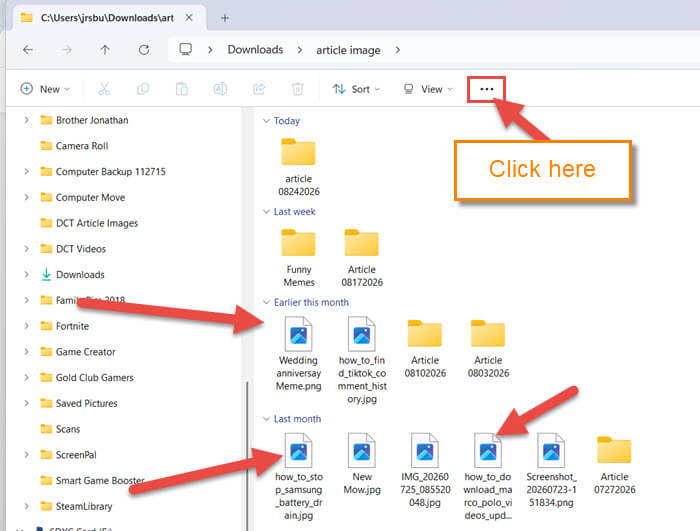
Step 3: On the File Explorer window, you will notice the image thumbnails are not showing. To fix that issue, look to the top and find the 3 dots. Click on those.
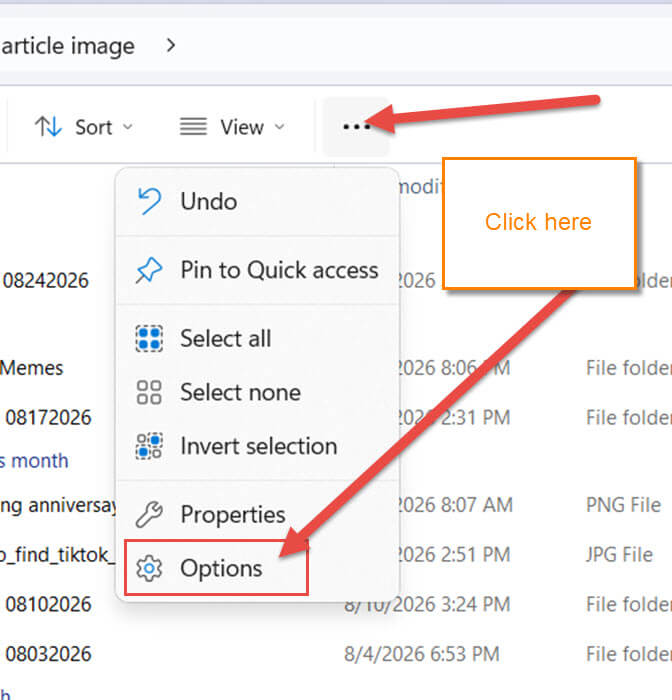
Step 4: A menu will pop up for you with some options. We are looking for the bottom one called Options. Click it.
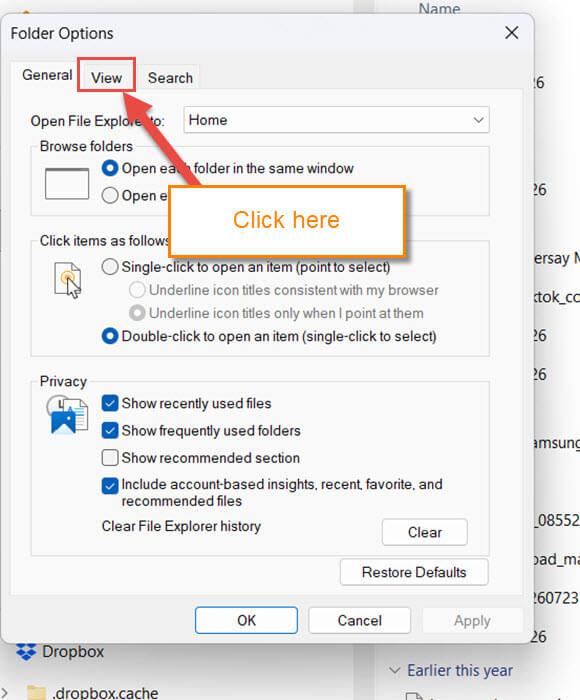
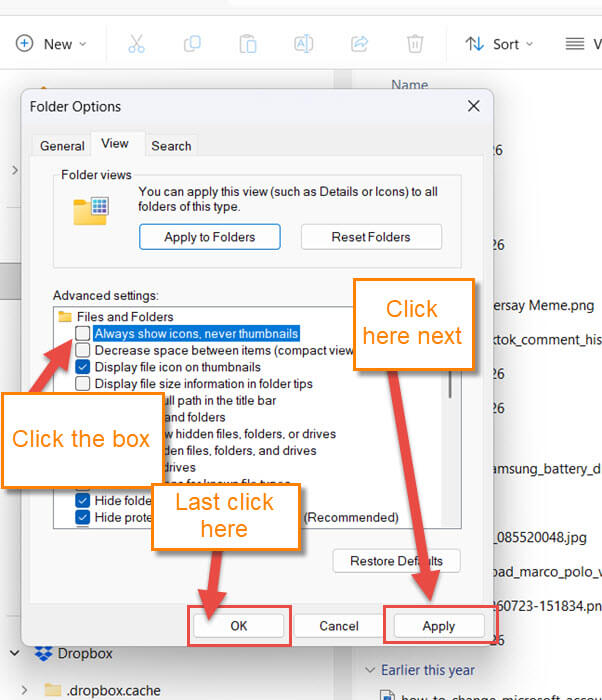
Step 5: The Folder Options will appear, and we need to click on the View tab. Click it.
Step 6: On the View tab, look at the Advanced section in the middle. You will see under Files and Folders an option called Always show icons, never thumbnails. Make sure to uncheck that box to the right of it. After that, click the Apply button at the bottom. Then click the OK button last. DONE!
Step 7: Now you should see that all those thumbnails will show the image and not the default icon.
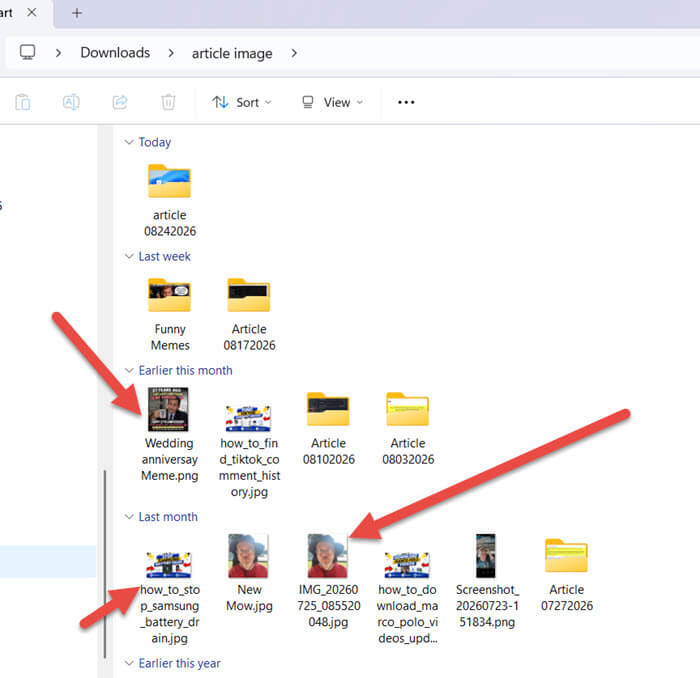
You now have the knowledge of how to bring back the Thumbnails on your Windows computer. Time to share this with your family and friends.
—

Ooooo! This was very helpful! Images are so much quicker to recognize rather than reading the description.