

Last week we learned how to fix missing thumbnail images in Windows. If you missed that article, you can find it here:
How To Fix Missing Thumbnail Images In Windows
This week we are jumping subjects and will be talking about Facebook. I have covered this before, but there is always something new you can learn about this Social Media platform. ‘What are you going to teach us this time?’ Great question! If you have signed in to Apps with Facebook or connected your account to this platform, you might not know that those apps have access to your information. Also, you might not be using those apps anymore. I will show you how you can disconnect those from your account. Before I start this new lesson, make sure to check out some of the other articles I have written recently:
- How To Delete Hidden Junk Files In Windows
- How To Stop Steam From Stealing FPS
- How To Use Windows Focus Sessions
- How To Turn Off Scheduled Maintenance – Windows 11
- How To Copy And Paste Faster
Now that we are all caught up, it is time to start our class. Pull out those pencils and notebooks, and let’s get started.
How To Disconnect App From Facebook
This will be shown using the website and then bonus quick steps for the Facebook app.
Step 1: Open up your Facebook account and log in.
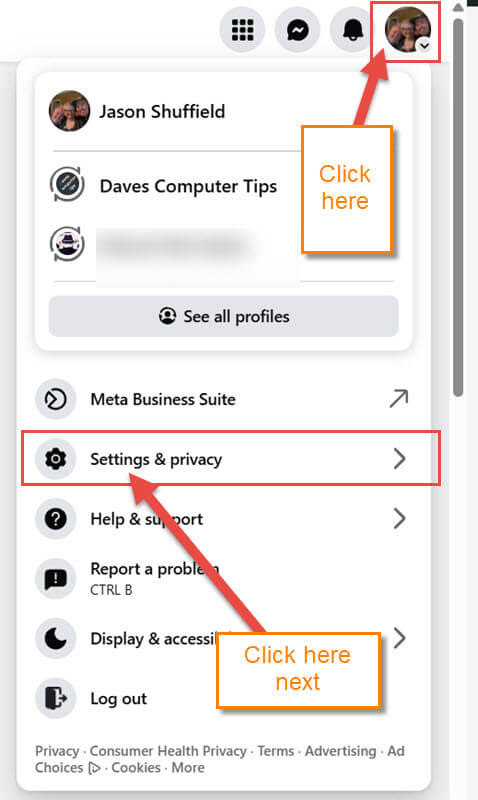
Sep 2: Once you are signed in, look to the top right for your Profile image. Click on that, and a menu will appear. From this menu, find Settings & privacy. Click it.
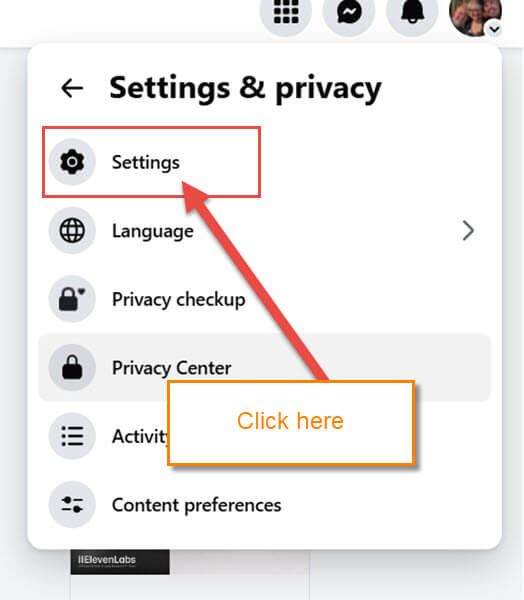
Step 3: Under the Settings & privacy menu, look for the Settings option. Click it.
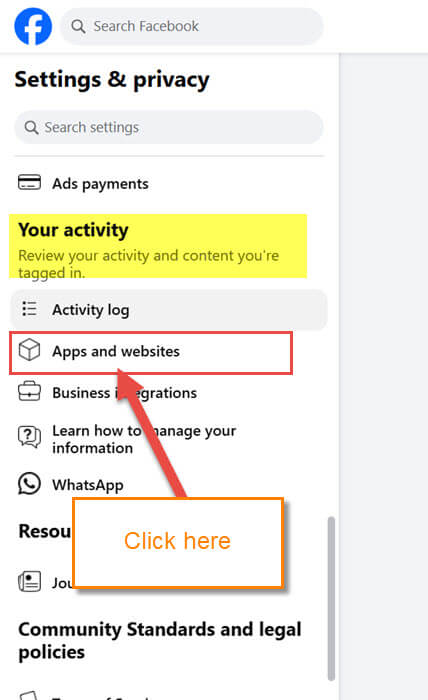
Step 4: On this screen, look to the left menu. Under the section called Your activity, look for Apps and websites. Click it.
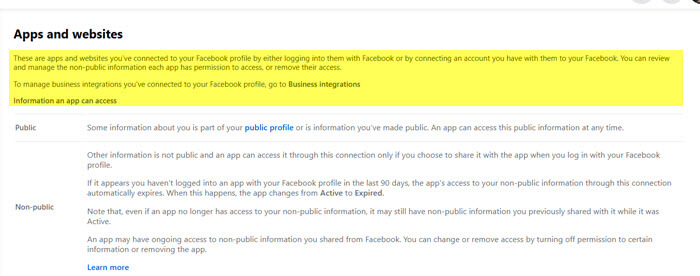
Step 5: The Apps and websites screen will appear.
These are apps and websites you’ve connected to your Facebook profile by either logging into them with Facebook or by connecting an account you have with them to your Facebook. You can review and manage the non-public information each app has permission to access, or remove their access.
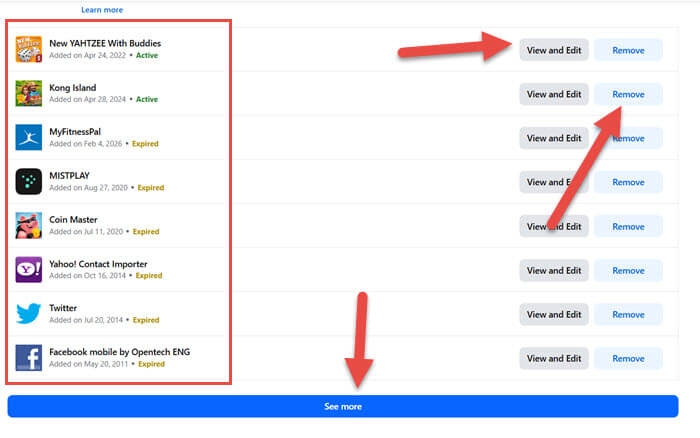
Here you will see all the apps and websites that are connected to your Facebook account. They offer you some options to work with:
- View and Edit
- Remove
For this article, I want to show you the first option so that you can see what they show you. Find the app you want to disconnect and click the View and Edit button to the right of it.
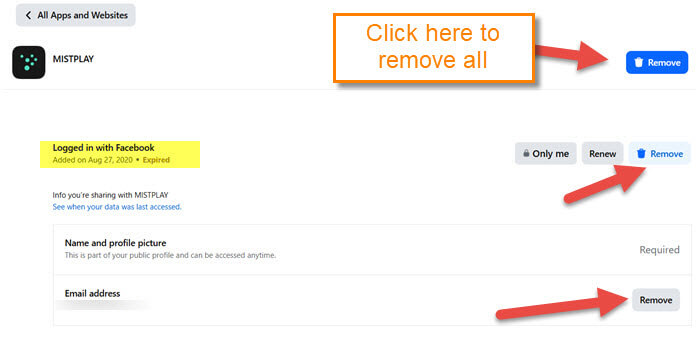
Step 6: The next screen will show you more details on the app. There are a few options on this screen:
- Logged in with Facebook (Remove button)
- Name and profile picture (This is a required option)
- Email address (Remove button)
As you can see, you can remove your email address, and then the button at the top would remove all connections. Let us click the top Remove button.
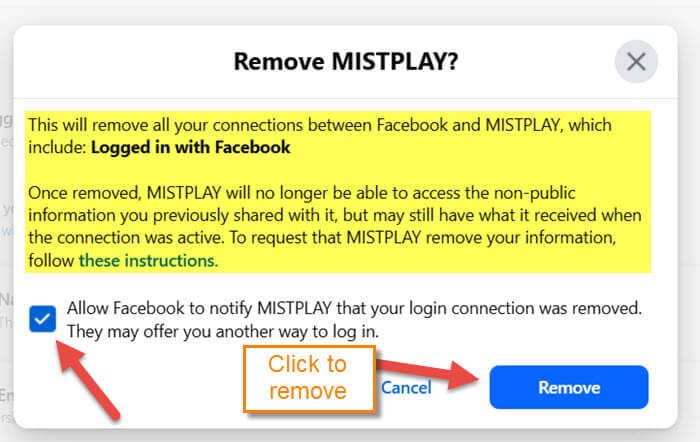
Step 7: The confirmation window will pop up.
This will remove all your connections between Facebook and MISTPLAY, which include: Logged in with FacebookOnce removed, MISTPLAY will no longer be able to access the non-public information you previously shared with it, but may still have what it received when the connection was active. To request that MISTPLAY remove your information, follow these instructions.
Bonus Quick Steps for The Facebook App
- Open the App
- Now tap the three horizontal lines at the top right
- From this menu, find Settings and privacy. Tap it
- Next tap Settings
- Scroll down to the Your Activity section. Under this, find Apps and websites. Tap it
- Here is the screen that shows all the apps and websites connected to your account. Tap the one you want to disconnect
- At the very top is the REMOVE button. Tap it
- Now tap Remove again. DONE!
Now you know how to remove these on the website and the app. Time to share your new knowledge with the world.
—
