

If you were in class last week, I covered how to stop Windows from learning your typing. You can find that one here:
How To Stop Windows Learning Your Typing
This week I want to teach you another Windows tip. Yes, we are going to continue learning Windows. I’m going to show you how to clear up blurry text on your screen. Your eyesight is very important, especially since we stare at a screen most of the day. It is nice to know you can clear up that text so you can see it more clearly. Before I start, make sure you read these other lessons I have taught you:
- How To Improve Mouse Pointer Visibility
- How To Turn On Screen Tint In Windows 11
- How To Auto-Clean Windows 11 Storage
- How To Check Performance Score Of Your PC
- How To Stop Edge From Slowing Your PC
Time to open up that Windows computer and learn something useful.
How To Make Windows Text Clearer
This will be shown using my Windows 11 laptop.
Step 1: Start up your Windows laptop.
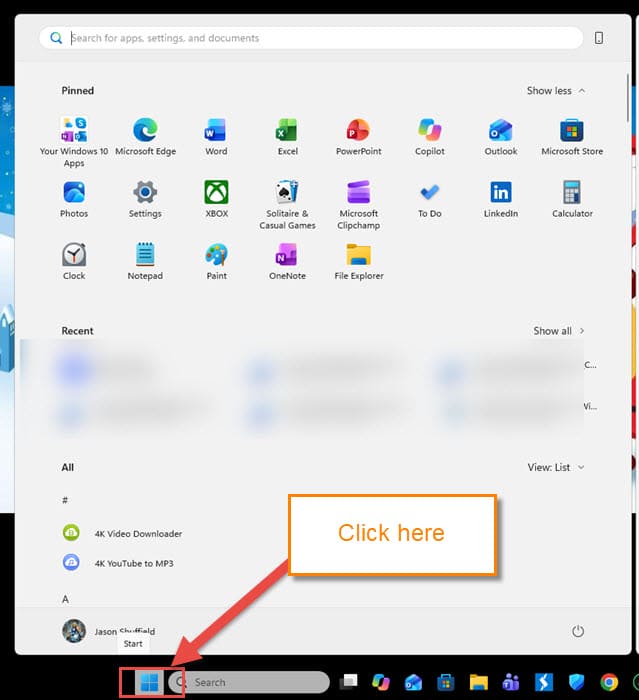
Step 2: Look for the Start menu icon and click it.
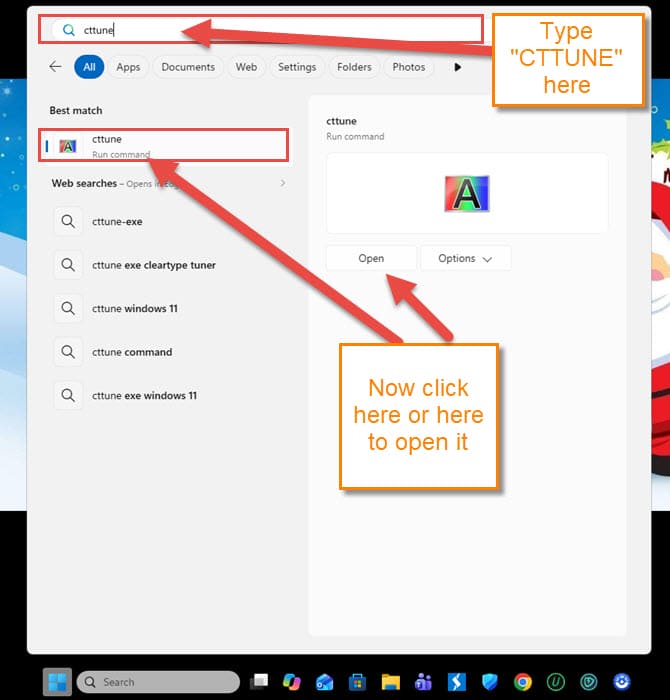
Step 3: In the search box at the top, type in “CTTUNE”. Now you can click on this option from the best matches or click the Open button on the right.
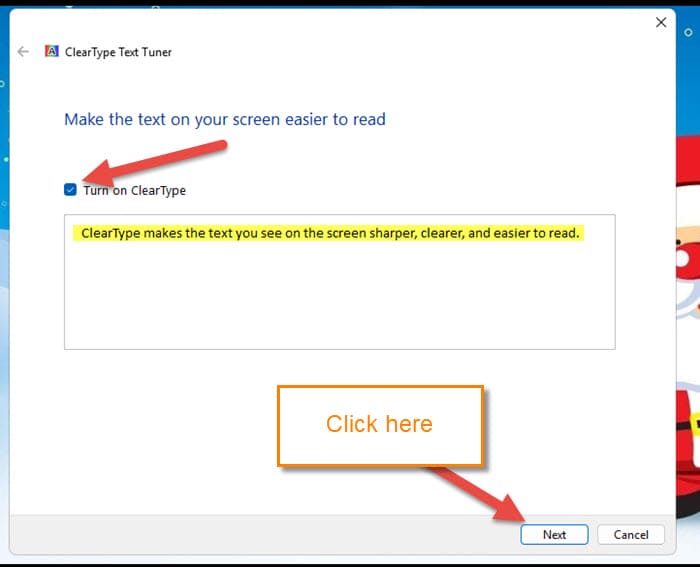
Step 4: This will start the CTTUNE app, and a window will appear:
Make the text on your screen easier to read
The box to the left of Turn on ClearType should be checked. If it is not, make sure to check it. Now click the Next button at the bottom.
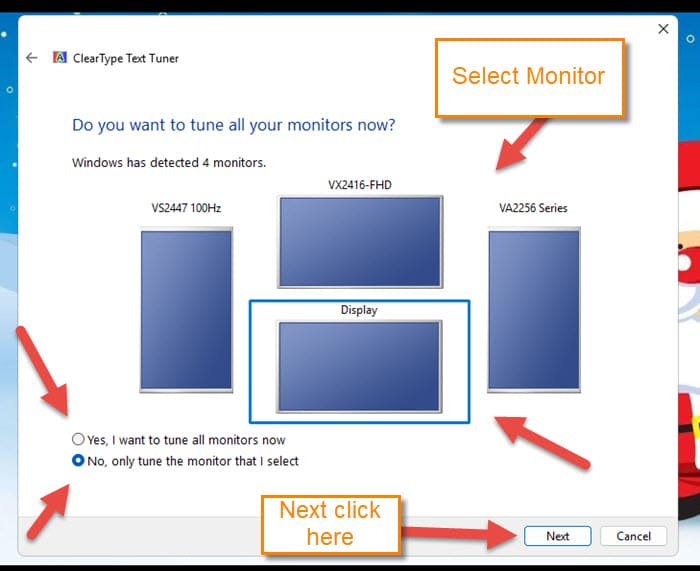
Step 5: On the next screen, it will show you all the monitors you have connected. It asks if you want to tune all the monitors, but for this article I will choose my main one. At the bottom, you are given two choices:
- Yes, I want to tune all monitors now
- No, only tune the monitor I select
Since I only want to choose one, we need to click on the NO option. Click on the monitor you want and click the Next button at the bottom.
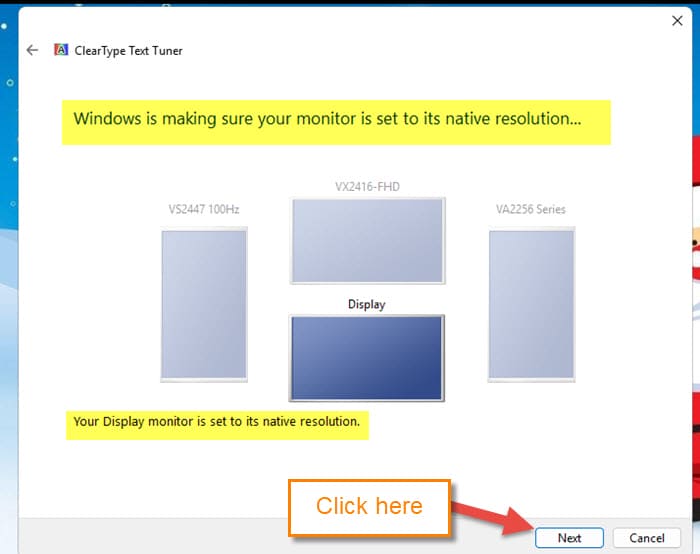
Step 6: Your monitor will be highlighted, and Windows will make sure your monitor is set to native resolution. Click the Next button at the bottom.
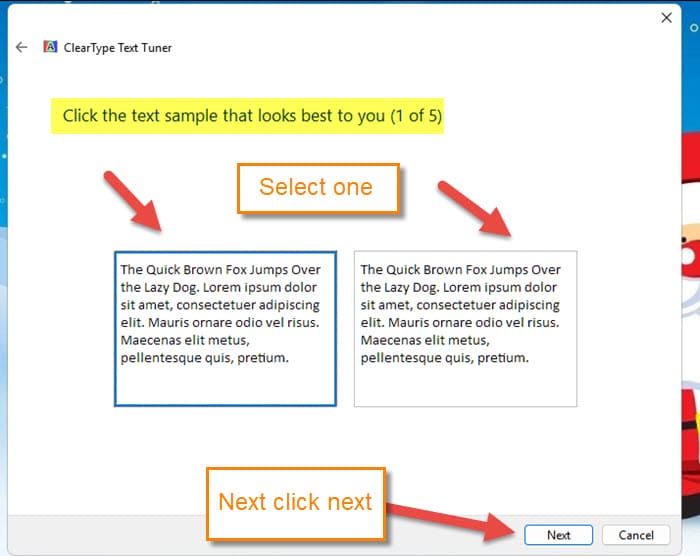
Step 7: Here, in step one, they are going to show you two different versions of text. This is like the eye test you take at the eye doctor (Number 1 or Number 2). Click on the one that is clearer to your eyes. Now click Next.
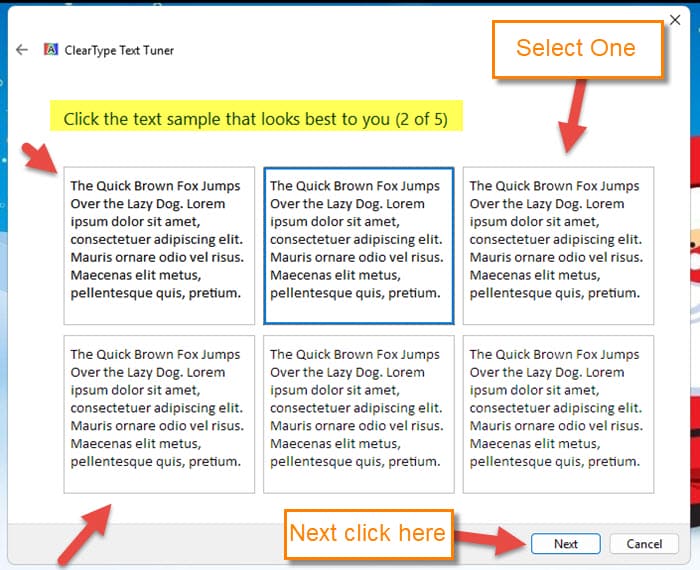
Step 8: Step 2, same process; click on the one that looks better to your eyes. You will go through the next steps the same way. Click Next again.
Step 9: After all the steps are completed, you will have this screen. Since you are all done, click the Finish button at the bottom. DONE!
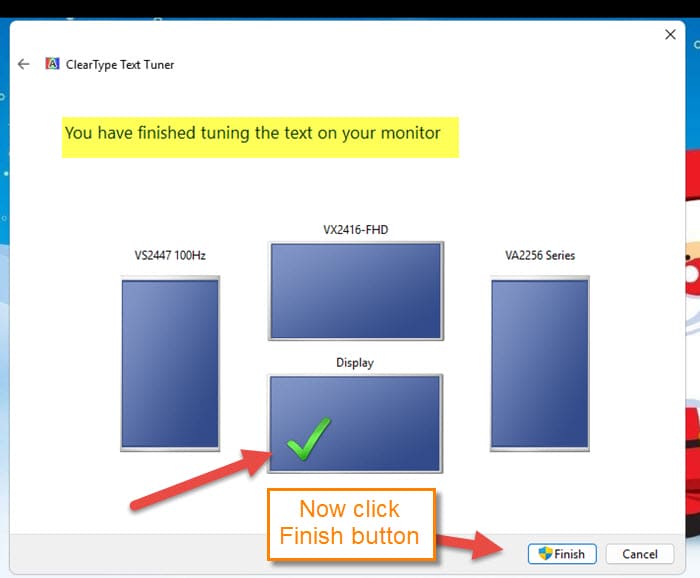
You have now set up your monitor to be easier to read. Time to share this new knowledge with your family and friends.
—
