

If you have been reading my weekly How To articles, you saw last week’s on how to disconnect apps from your Facebook account. If not, you can find that one here:
How To Disconnect App From Facebook
This week I wanted to change gears again and move back over to our Windows laptop. During the week, I was playing some Roblox games with my little ones. While playing, I had a hard time seeing some wording on my screen (old age, it happens). That got me thinking that I should hook my laptop up to my Smart TV. I realized I didn’t have another HDMI cable to do this. After some research, I found out how I could do it without a cable. Before I start the lesson for today, make sure to check out these articles I have written:
- How To Fix Missing Thumbnail Images In Windows
- How To Delete Hidden Junk Files In Windows
- How To Stop Steam From Stealing FPS
- How To Use Windows Focus Sessions
- How To Turn Off Scheduled Maintenance – Windows 11
The bell has rung, and it is time to start our class. Pull out those laptops and go sit next to your Smart TV.
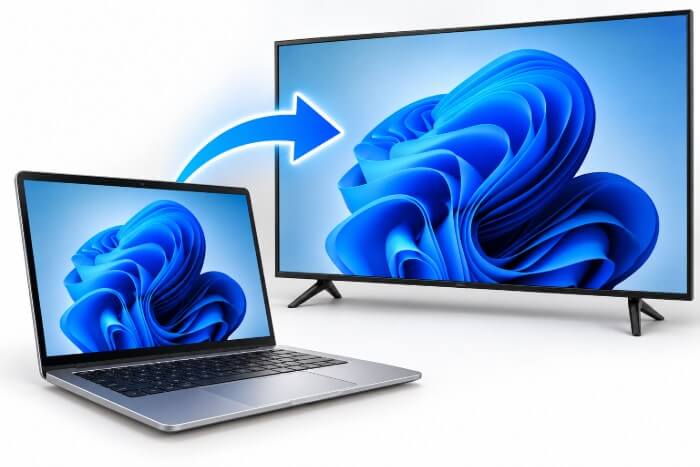
How To Cast Your Computer To TV Wirelessly
This will be shown using my Windows 11 laptop and my Roku Smart TV.
Step 1: Take your laptop to the room with your Smart TV. Make sure the TV is on.
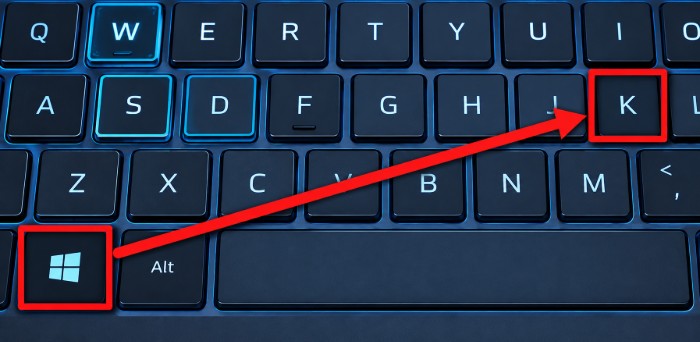
Step 2: Once that is done, you will want to tap the Windows key + K.
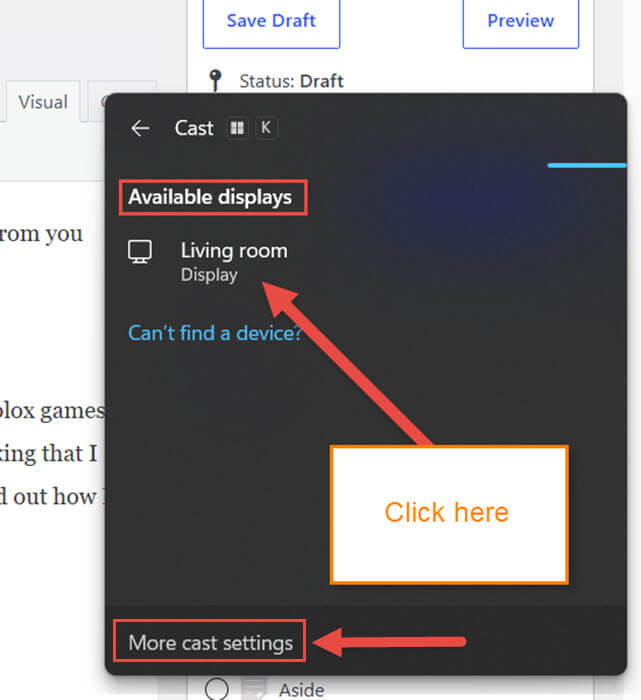
Step 3: The Cast app window will appear on your screen. It will search for available displays near you. If you do not see any, make sure you have the Bluetooth option turned on your computer. I will give you some quick steps to do that if it is not showing.
Quick Steps: Turn on Bluetooth:
- Click the Windows icon at the bottom left.
- Find the Settings icon and click it
- On the left, click the Bluetooth & devices option
- Near the top, you should see the Bluetooth option. Click the switch to the right of it to turn it on. DONE…
Now all you need to do is click on the one you wish to cast to.
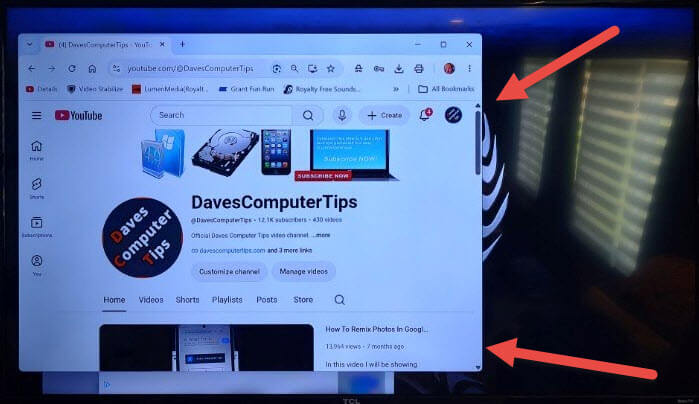
Step 4: Looking up at your Smart TV, you should now see your screen. This will be considered a second or third monitor, so remember that.
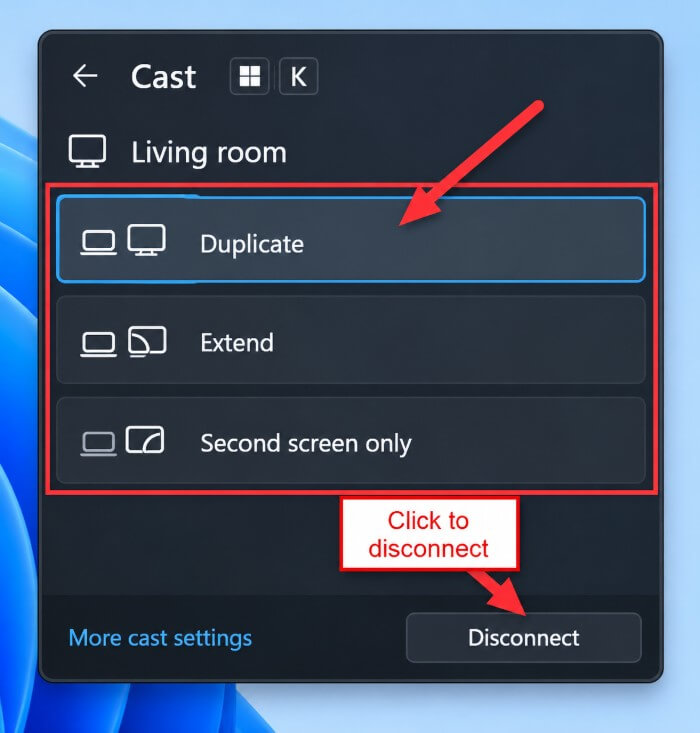
Step 5: If you press Windows + K again, you will see it offers some extra Settings:
- Duplicate
- Extend
- Second Screen Only
Choose the one you wish to use. I usually pick Extend for my display. If you wish to disconnect the screen, there is a Disconnect button at the bottom of the Cast window.
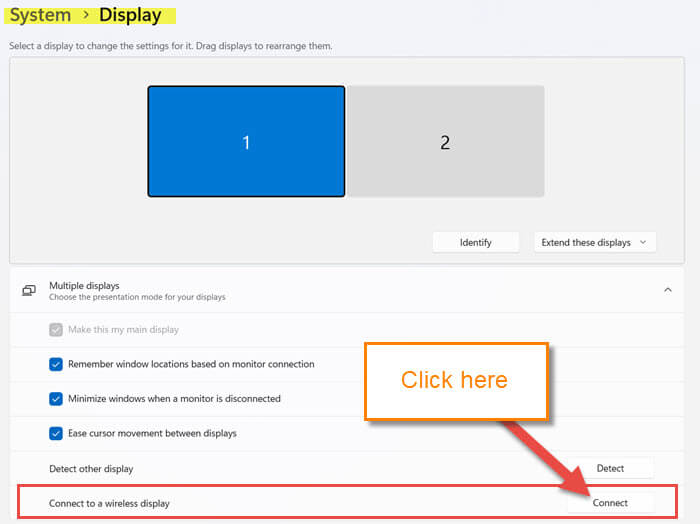
Step 6: You might have noticed the link that says More Cast Settings. Click on that, and it takes you to System-Display Settings. Here you can adjust how your monitors are set up. Plus, you can click the Connect button on this screen, which will open the Cast window. Another way to open the Cast window instead of the Windows + K key. Done!
You now know how to connect to your Smart TV without that pesky cord. Time to share this new knowledge with all your friends and family.
—

Thank you for the Win+K shortcut.
Doesn’t this procedure make the assumption that your SmartTV has BlueTooth connectivity?