
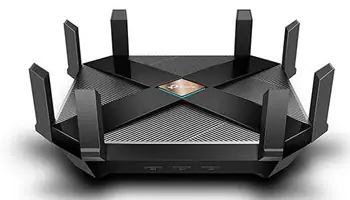
In this three-part series, I will explain how I set up my new router to strike a balance between security and performance in my particular circumstances. While individual circumstances and settings may vary by manufacturer and router, the basic principles should remain the same.
Upgraded Firmware
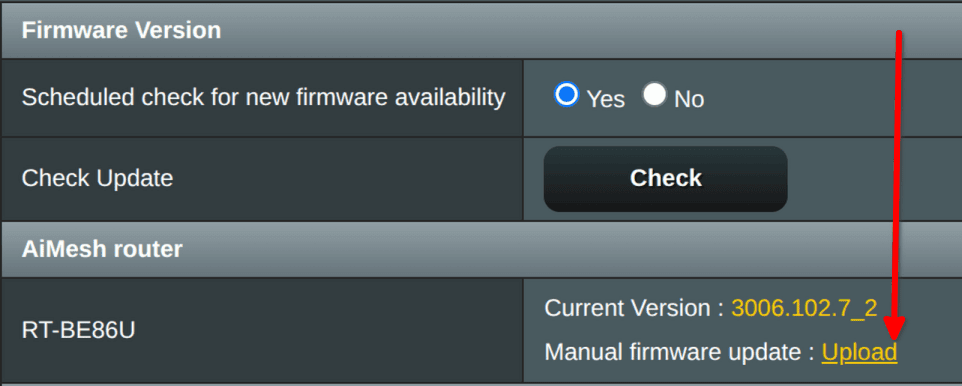
The first thing I did was update the router’s firmware. It is essential to update router firmware to patch critical security vulnerabilities, fix bugs, and optimize performance. Even new devices require firmware updates. I upgraded my router’s firmware to the latest version. Although I bought an Asus router, I actually run an alternative, customized version of the Asuswrt firmware – Asuswrt-Merlin on my router.
Changed Router Credentials
I changed the name and password of my router from the defaults. Common ones that I have seen are ‘admin/blank’, ‘admin/admin’, and ‘admin/password’. Many users keep the default settings when they set up their routers. If you do this, hackers could easily access your network.

Restrict Remote Access & SSH
Enabling remote access exposes the router’s administrative interface to the internet, creating a significant attack surface for hackers. To protect my network, I have therefore disabled remote access.

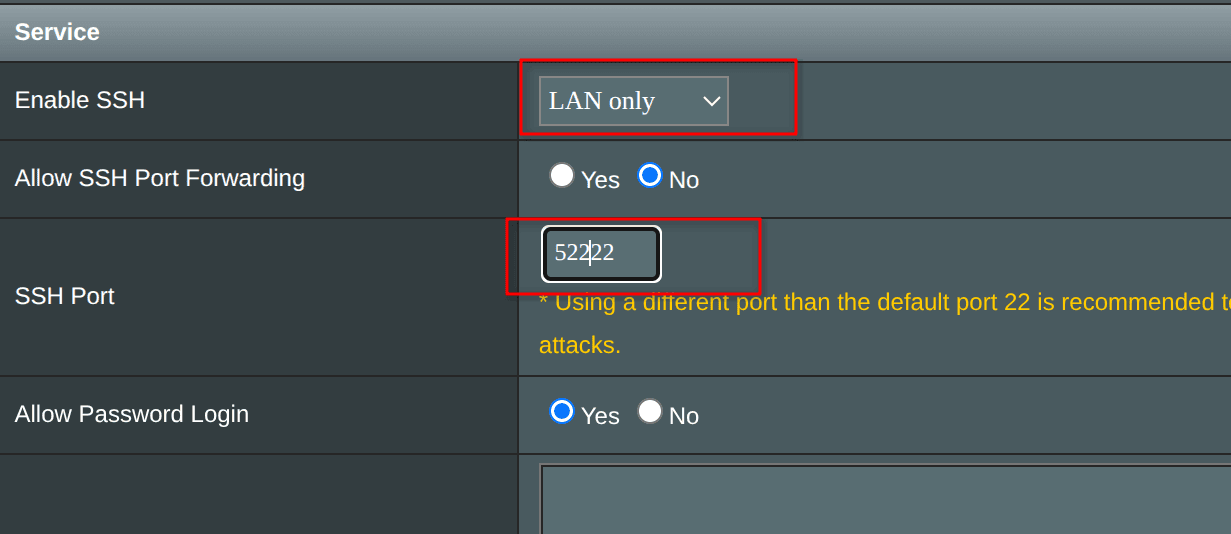
In addition, I have changed the router’s Secure Shell (SSH) port from the default setting of 22. This means that an intranet logger (i.e., me) would be unable to access my router without knowing the non-default port.
Enable Firewall & Disable WAN Ping
I have enabled the firewall on my router. This is essential for blocking unsolicited inbound connections from the internet. Without a firewall, devices on the local network are vulnerable to direct access attempts by hackers, malware, and unauthorized users.
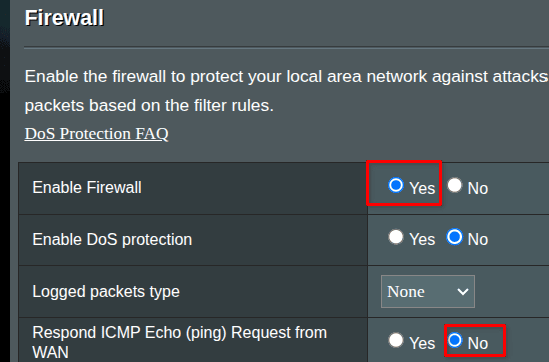
Additionally, to make my router less visible to external scanners, I disabled ping (ICMP echo) from the WAN (Internet).
UPnP & WPS
I have disabled Universal Plug and Play (UPnP), a protocol which enables devices on a local network to discover each other. When enabled, UPnP requires no configuration. Connections are automatically established. Clearly, this poses a security risk!

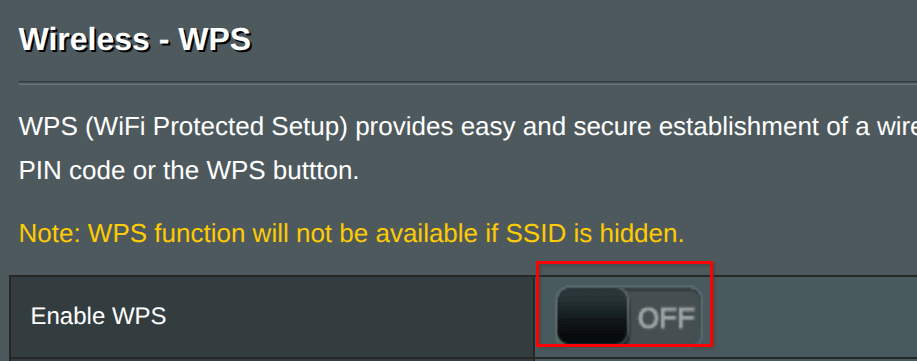
For similar reasons, I have also disabled WiFi Protected Setup (WPS). WPS allows devices to connect to a wireless network without the need to enter a password manually. PINs are very easy to ‘brute force’ by guessing different combinations. In fact, a WPS PIN can be brute-forced in less than a day.
Change LAN IP
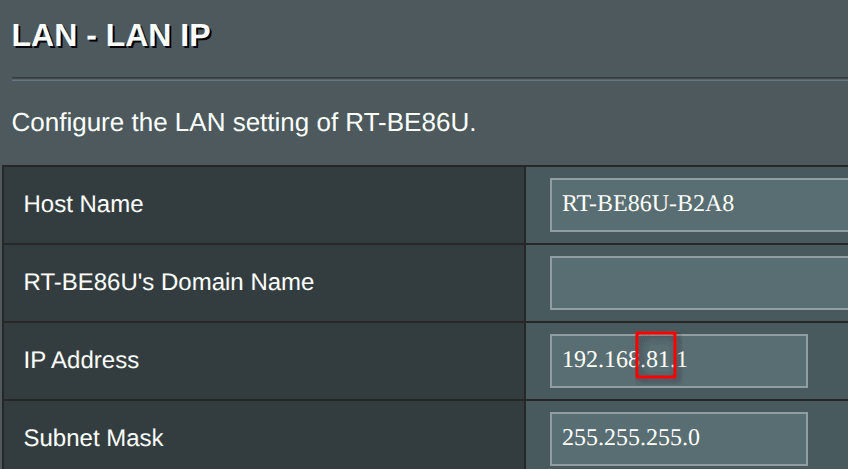
I changed the Internet Protocol (IP) of my local area network (LAN) from its default setting. This makes it harder for an attacker to scan for my network, providing a little more security.
Bottom Line
This is the first of a three-part series that discusses the decisions I made when setting up my new home network router. Be sure to view parts two and three.
Please feel free to ask in the comments why I did something a certain way. Alternatively, let me know how I could improve the setup.
- How To Set Up Router – The Right Way – Part 1 ⬅ You are here
- How To Set Up Router – The Right Way – Part 2
- How To Set Up Router – The Right Way – Part 3
—

John, I really appreciate this article as I, too, purchased an Asus router, specifically so that I could use the Asuswrt firmware. However, I am definitely NOT as computer savvy as I would like to think I am. After reading how I could brick my router if I messed up, I got intimidated by the suggestion and haven’t made the change yet.
I don’t know what you might include in the additional parts to this series, but if not in this, could you possibly write a short tutorial on making that Asuswrt firmware change in the Asus? My router is the #1 piece of equipment that makes me nervous to experiment with 🙂
Also, when you changed the default settings of the SSH port and IP address, are there specific numbers that one can or cannot use for the changes?
Thanks so much. As you can see, I am router illiterate.
Hi Pat j,
First, what model Asus Router do you have?
Second, it is very hard to brick a router as long as you only make changes in the browser interface (defaults are usually http://192.168.1.1 or http://192.168.50.1). That said, if you are changing the firmware (using the web browser) make sure that you get the firmware from an official Asus site and that you get the correct firmware for your router model.
To make a change in the browser interface, just make the channge on whatever tab you are in. At the bottom on the page is an Apply button. No changes are made until you click that button. Depending on what you changed, the router may reboot.
Concerning SSH port. The default SSH port is 22. However, you can change this to any unused port between 1024 and 65535. However, choose a port within the range 49152–65535, as these are less likely to be targeted by automated scanners.
John, thank you for the response. While reading, I was wondering what I was missing – then realized I had left out an important distinction – I want to update my router to Merlin. When I got my Asus RT-BE86U BE6800 in January, I had intended to load Merlin right away and got chicken. If I remember correctly, I think the browser interface even had a link to Merlin. However, I went ahead and updated the Asuswrt firmware. Now, I don’t see a Merlin link in the interface.
This is the source I had intended to use.
https://sourceforge.net/projects/asuswrt-merlin/files/
Pat
Hey Pat,
That’s the same router I have. The link I had in the post, was a link to main Merlin site, that has all download and documentation links in it. Merlinwrt is a sanctioned fork of Asuswrt, as the software is based on ASUS’s own open-source GPL code so it will not void your warranty. Loading Merlin is the same as loading any firmware. Download your file, uncompress it, then go to the Administration section in the browser interface. Firmware Upgrade tab. Select the upgrade tab next to your router and select the file you just downloaded and uncompressed. Note, before this, you should make a backup of your current settings (Restore/Save/Upload tab). Do two, Save Settings & Backup JFFS partition. Store those files somewhere.
Another note. When you upload over current settings, that’s called a “Dirty Upgrade”. Works 99% of time. A clean upgrade is when you restore to a factory default settings and enter new settings by hand. Good luck.
thanks John! I will update this week and let you know how it goes.
Appreciate your time.