

Smart App Control in Windows 11 is a security feature that prevents the download of suspicious apps. However, unlike most security measures, Smart App Control does not include a whitelist/exception option, nor does it include any options to circumvent the block.
I recently tried to download an application I know from experience is perfectly safe, but Smart App Control blocked the download. So I went into Smart App Control’s settings and was surprised to see there are no options to override the block.
Most security measures can be prone to false positives, and Smart App Control is no exception. So, if you are 100% certain that an app is perfectly safe but it is being blocked by Smart App Control, what to do?
How To Allow Apps Through Smart App Control
The solution is very basic:
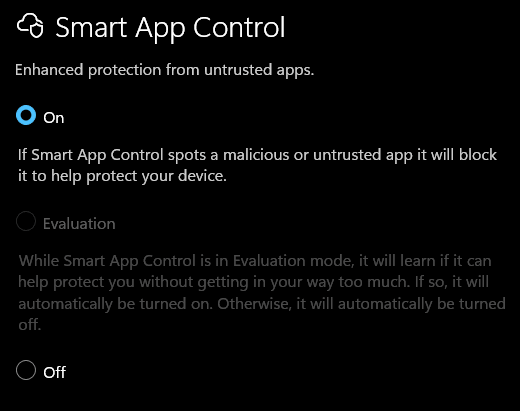
- Turn Smart App Control OFF
- Download your app
- Turn Smart App Control back ON again
To access Smart App Control:
- Open Windows Security and click App & browser control
- Click Smart App Control settings
BOTTOM LINE:
The solution is not ideal, but to the best of my knowledge, it is the only way to override Smart App Control’s block. Honestly, in this day and age, a security feature that blocks apps without any provision for overcoming false positives is a joke; some sort of whitelist option should always be included.
NOTE: Please make sure you are 100% certain that an app is 100% safe prior to allowing it through. And make sure to turn the Smart App Control feature back ON after.
—

You learn something everyday if you keep your eyes open. Never heard of Smart App Control before. Upon checking I found it turned “OFF”. I turned it back on on your recommendation.
Thanks for that bit of information.
You’re welcome Tom.
In Windows 10 it’s known as “Potentially unwanted app blocking” and there is an option for overriding the block. Why Microsoft eliminated that option in Windows 11 is a mystery.