

When setting up a new Windows 11 system, Microsoft has been insisting that a Microsoft account be used. Many Windows 11 users want to skip the Microsoft account requirement and set up a local account. Local accounts enhance privacy, provide offline access, and avoid mandatory cloud integration.
Last month, Jim Hillier wrote about a new simple method to do just that. Unfortunately, the “Learn more” trick for bypassing Microsoft account logins during Windows 11 setup no longer works. Microsoft has closed just about all methods to set up Windows with a local account.
But there are still two options.
Method 1
If you insist on not using a Microsoft account at setup, then you will need to use a program called Rufus. Download the latest Rufus executable and an official Windows 11 ISO (version 22H2 or later).
Insert an 8 GB or larger USB drive, select it in Rufus, choose the ISO, and click Start.
In the Windows User Experience dialog that appears, check the box for Remove requirement for an online Microsoft account. Optionally, you can specify a username in the Create a local account with username field to automate account creation.
After Rufus creates the bootable drive, boot your PC from the USB and proceed with the installation. Disconnect from the internet (unplug Ethernet or disable Wi-Fi) before reaching the account setup screen to ensure the local account option appears. Enter your desired username and password to complete the setup.
Method 2
The easier method is the officially Microsoft-sanctioned method. But it has a downside. You will need to create a Microsoft account (this will be a temporary account), install Windows using the Microsoft account. Then switch to using a local account.
How To Switch To A Local Account
In the Settings app on your Windows device, select Accounts > Your info.
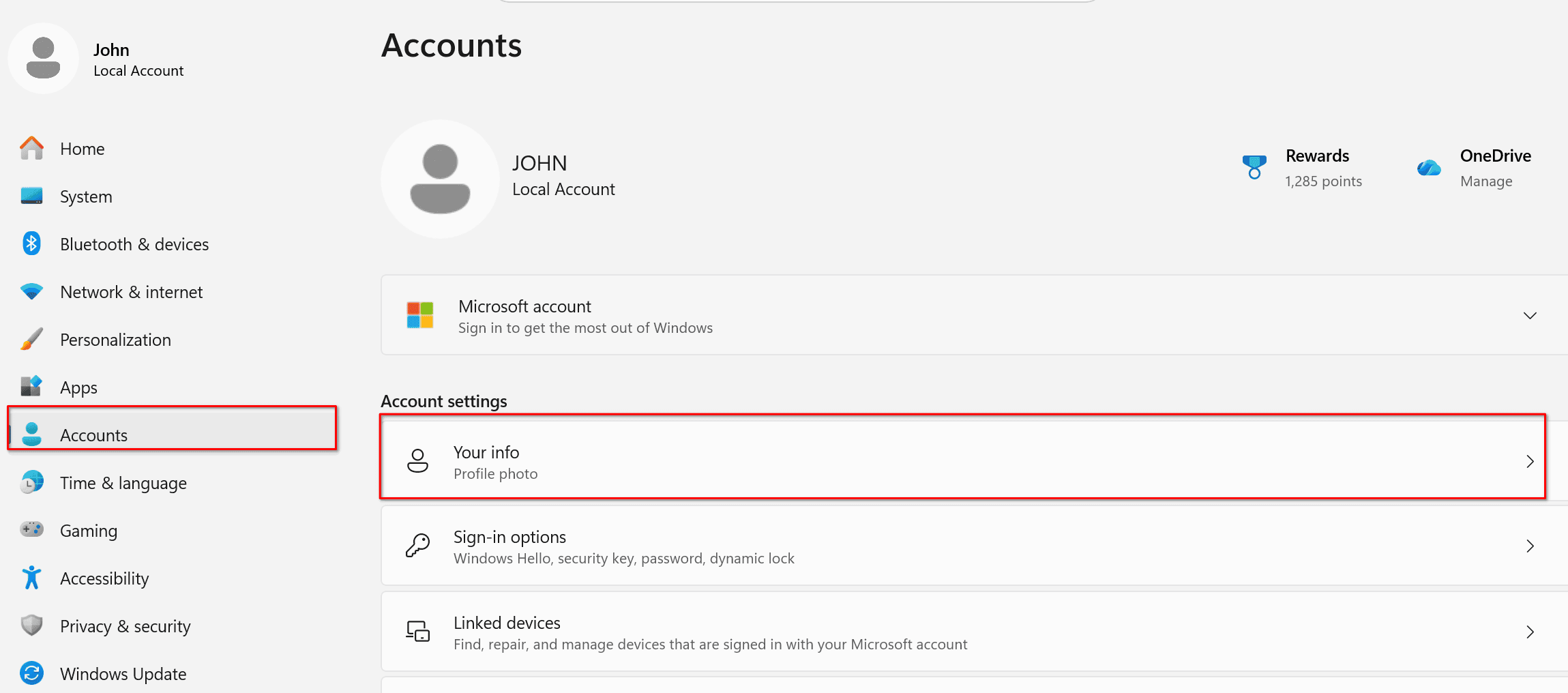
Select Sign in with a local account instead. You’ll see this link only if you’re using a Microsoft account. Note: My computer is already set to a local account.

Type the username, password, and password hint. The username must be different than any others on the device.
Select Next, then select Sign out and finish. Sign back in with your new local account.
Microsoft is going to plead with you not to switch to a local account. They will try to convince you that a Microsoft account is better. Note: If you use BitLocker, back up a copy of your recovery key and store it somewhere safe before switching, or shut BitLocker off if you do not need it.
If you ever want to go back to using a Microsoft account, repeat the procedure, but select “Sign in with a Microsoft account instead” in the step above.
Bottom Line
Microsoft keeps removing methods to skip setting up Windows 11 with a Microsoft account. The easiest method is just to use a Microsoft account at setup. Then, switch to using a local account in the settings.
—
