

Point-In-Time Restore is a new feature in Windows 11 that, when enabled, automatically creates system restore points. Point-In-Time Restore does not replace the legacy System Restore but is as well as rather than instead of.
What’s The Difference Between System Restore & Point-In-Time Restore?
There are two key differences between System Restore and Point-In-Time Restore:
- System Restore points save only the current system state, not the current state of installed programs and personal data. Whereas Point-In-Time Restore saves everything in its current state
- System Restore Points can go back for weeks, whereas Point-In-Time Restore points go back only 72 hours
Check Your Point-In-Time Restore Settings
Point-In-Time settings are very similar to those in System Restore. You cannot adjust the frequency or number of restore points, which are set to every 24 hours and a maximum of three, respectively, but you can adjust the amount of disk space allocated.
Allocated disk space is set to maximum by default. In my case, that’s 21.1% or 50 GB. Bear in mind that it’s “allocated” space, not reserved space. Still, I adjusted mine down via the provided slider.
To view Point-In-Time settings, you need to navigate to Settings > System > Recovery > Point-in-time restore
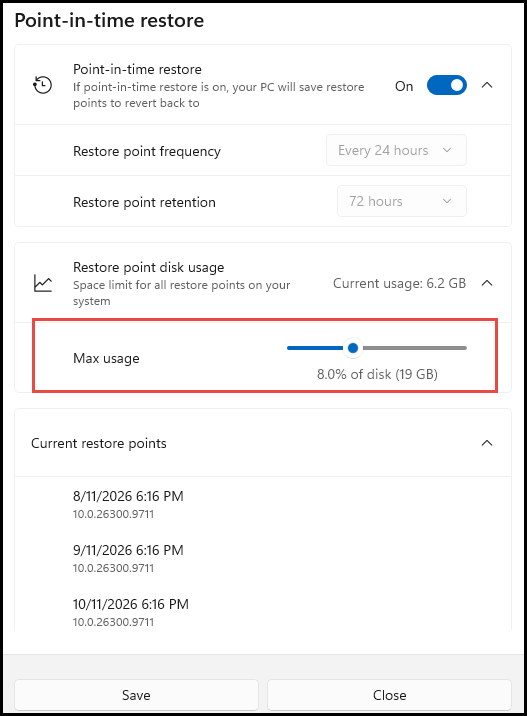
As you can see, the amount of disk space currently occupied by the three restore points is displayed (mine’s at 6.2 GB). Mine is a very new system, so when I set the allocated space, I allowed for system growth.
Should Both System Restore & Point-In-Time Restore Be Enabled?
That is a personal decision, bearing in mind that Point-In-Time Restore saves the current state of installed programs and personal data as well as the current system state, but only goes back 72 hours.
In my case, because I create regular image backups, I’ve always disabled System Restore, and I’m on the fence when it comes to Point-In-Time Restore.
I’ve left Point-In-Time Restore enabled for the time being, just to see if it might come in handy for a quick restore when I’ve inadvertently done the wrong thing, but I’ll be revisiting that decision in the future.
What about you, have you left both System Restore and Point-In-Time restore enabled, one or the other, or neither? Let us know in the comments.
—

Yes Jim, I recently used Point in Time and it saved me from a disaster, Mindblower!
I show four point in time saves, I must be special. Only kidding.
I’m with you Dave, I’ll continue to do images as my main means of recovery and for now leave point in time enabled. Thanks for the article.
My go-to is Macrium Reflect, have 8 and works flawlessly. When things go belly up it puts it back like it WAS earlier