

Device Encryption Can Cost You All Your Data
Recently, I have had several customers receive a BitLocker recovery screen. Unfortunately, none of the customers had knowingly enacted the BitLocker Encryption, and all were unaware they had one. Many didn’t know they had a Microsoft Account.
This article is aimed at explaining everything you need to know to protect yourself against the complete loss of data if a BitLocker recovery screen appears, and you do not have a recovery key.
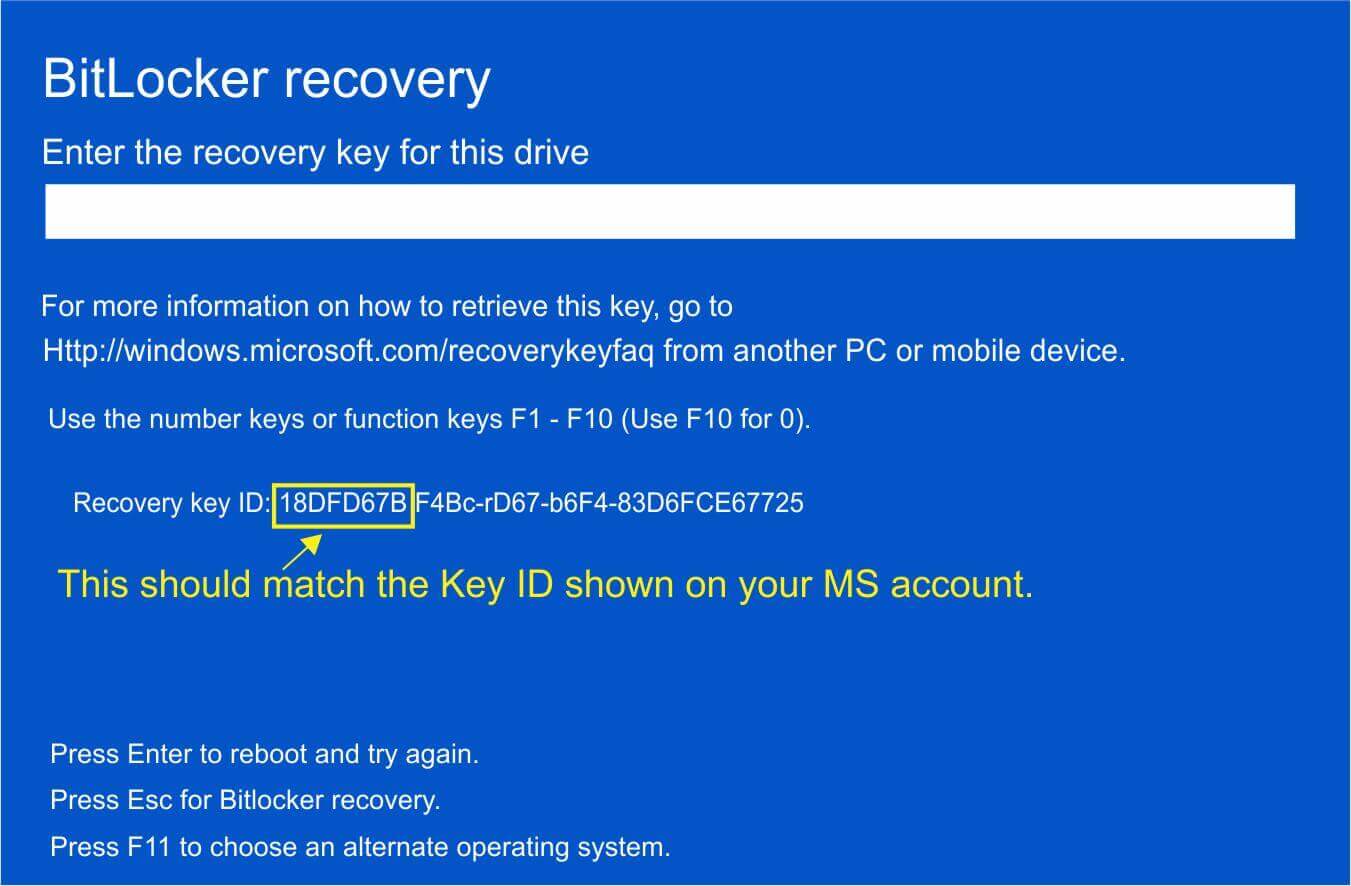
What Is BitLocker And Device Encryption?
BitLocker and Device Encryption are both built-in Windows security features that protect your data by scrambling it (Encryption). While they use the same underlying security technology, they differ in how they are managed and which edition of Windows supports them:
- Device Encryption: This is a simplified, automatic version of drive encryption. It functions without requiring any initial user configuration. It triggers automatically on compatible hardware when you sign into a Microsoft account. This is the version causing most of the problems
- BitLocker (aka: BitLocker Drive Encryption): This is the full-featured, manual version of Microsoft’s encryption tool. If you have Windows Pro, you have BitLocker. You can manually activate BitLocker. Windows Home versions did not come with BitLocker; it came with Device Encryption, which is automatically enabled when you create and sign into Microsoft or by using your Microsoft account on a new PC
Normally, Device Encryption should not be an issue. However, there are several key reasons why your PC might display a window asking for your BitLocker Key if Device Encryption was enabled:
- Any changes to Secure Boot in BIOS, including changes to TPM 2.0, and modifying the UEFI firmware
- Reinstalling Windows
- Hardware changes: hard drive and memory changes
- Power Outage, including a dead battery, a failed Windows Update, or a bad shutdown
- Automatic Repair sometimes corrupts boot data, and any boot-path change triggers BitLocker recovery
This is an issue because:
- Windows 10/11 auto-encrypts silently so the user never sees a warning or prompt
- The recovery key should be automatically uploaded to your MS account, but Microsoft has a known issue where this sometimes does not happen
You most likely have a Microsoft Account, even if you don’t remember creating one specifically, because Microsoft pushes users into creating a Microsoft Account (just by asking you for an Email and password during Windows Setup).
How To Protect Yourself
Fortunately, you can prevent this from happening to you. There are several steps that you can take, and you need to see if you have a BitLocker recovery key. First, check if you have a Microsoft Account. If you signed in with a local account on this PC, you won’t have Device Encryption enabled. If you have an MS account you used on another PC, it won’t help you here.
If this PC has an MS account, open your browser and enter: https://aka.ms/recoverykey in the address bar. This will prompt you to enter your Microsoft Account Information (Username and password). If you have a recovery key, it will look like the image below. Print it out or put it on a USB for safekeeping. 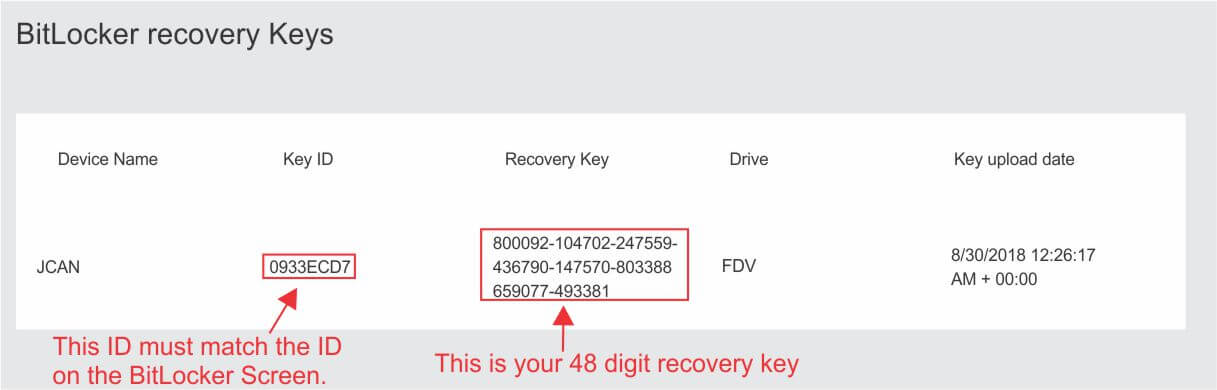
Do not store it on your PC. If your PC displays the BitLocker recovery screen, you must use another PC to access your Microsoft account and obtain the key.
If you have multiple PCs with an MS account, you will have multiple recovery keys, one for each PC. You must make sure that the 8-Key ID matches the one shown on the BitLocker recovery screen.
Why It Is A Problem Now!
Before the release of 24H2, only Device Encryption was auto-enabled on Windows 10, but since the release, ALL VERSIONS of Device Encryption and BitLocker itself are auto-enabled on supported hardware. This is the new rule:
If the hardware supports TPM + Secure Boot, and the user signs in with a Microsoft account, Windows enables encryption automatically — regardless of edition. On Pro/Enterprise, that means full BitLocker, not Device Encryption.
This means that if you signed into Microsoft on your new PC, you have a recovery key. If you wish to keep your Drive Encryption, it is recommended that you get the key and store it safely. Most people do not need Device Encryption or the full BitLocker encryption, and the safest way to protect yourself is to disable it.
Removing BitLocker
Device Encryption and BitLocker can be disabled in Windows, depending on the version you are using.
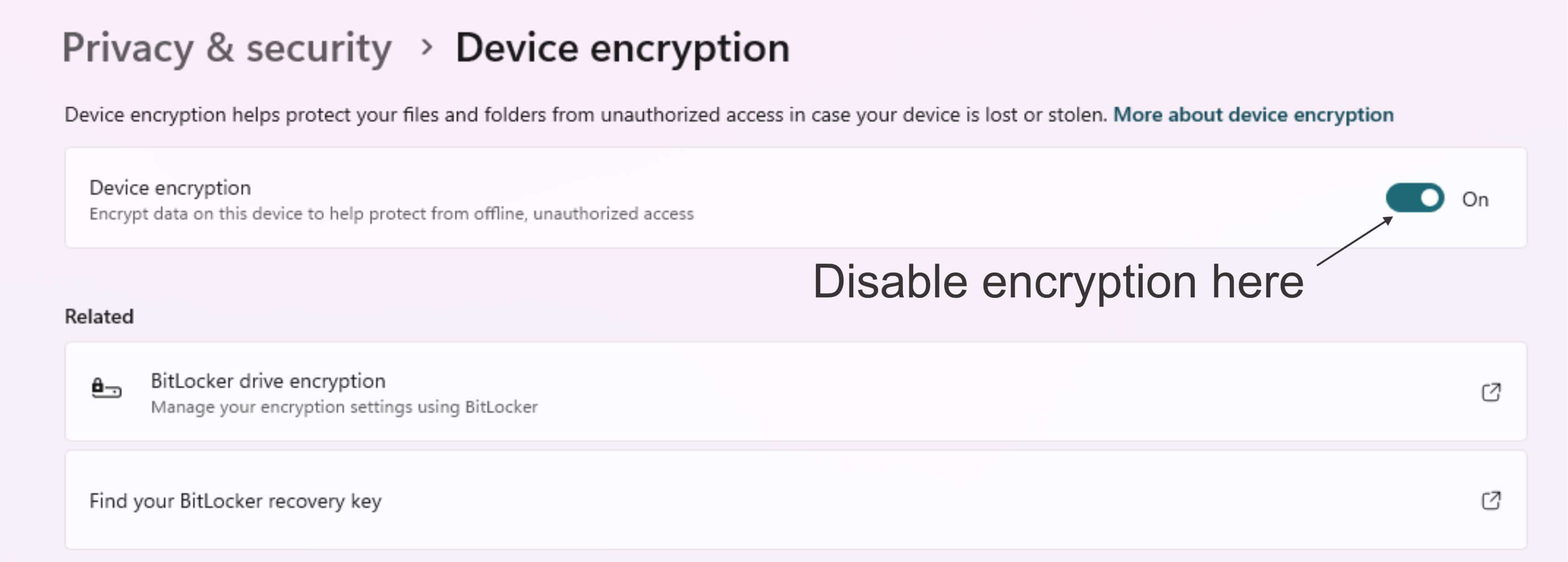
Device Encryption (Home)
- Settings → Privacy & Security → Device Encryption. Disable Device encryption
- No advanced controls
- No Group Policy options

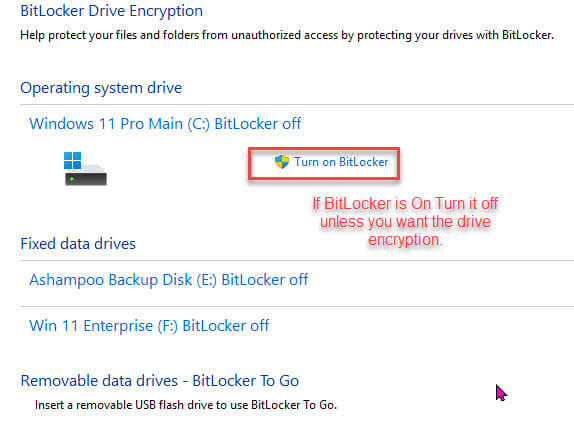
BitLocker (Pro/Enterprise)
- Control Panel → BitLocker Drive Encryption Disable BitLocker
- Group Policy options
- Can suspend, resume, manage keys, etc

Then…
- The PC was set up with a local account
- The wrong Microsoft account was used
- The manufacturer enabled encryption before setup
- The Microsoft account was closed
If the key cannot be found anywhere, and the BitLocker recovery screen appears, there is no way to bypass BitLocker—the only option is reinstalling Windows on a new drive; your existing drive will not function without a key. It can’t be fixed. Not by a repair shop, not by Microsoft, not by anyone. This is why it should be disabled NOW.
Summary
Most people do not need their drive encrypted. If you do, be aware of how to obtain a recovery key. If you do not, disable it.
—

Not only have I seen numerous requests for help when BitLocker was deployed without the user’s consent, or accidentally deployed, completely and, apparently irreparably, destroying all data, software and the OS itself, but but there is another issue with BitLocker: a backdoor.
A back door has been left open by Microsoft in BitLocker, termed the YellowKey exploit. Anyone with physical access to the drive can unlock it through that exploit, though a legitimate user might have been stymied.
If one needs encryption, check cryptographic standards, such as NIST SP 800-175B,
Guideline for Using Cryptographic Standards in the Federal Government: Cryptographic Mechanisms, or just encrypt selected data manually with audited tools such as VeraCrypt.
Adelaide, you are correct. YellowKey can bypass the BitLocker Recovery Key on Windows 11, Servers 2022 and 2025 but the backdoor part is speculation. The Researcher who discovered it claims it “feels” like a backdoor. No one has confirmed intentional behavior by MS. I believe it is a hack of a previously thought un-hackable encryption. GreenPlasma is a more dangerous exploit to BitLocker. MS recommends disabling the WinRE component (autofstx.exe) until they release a patch. Frankly, I find it hard to believe any casual user needs drive encryption but if they did, they would already be aware of how BitLocker works and know how to obtain the recovery key. The fact that you brought this up gives me a chance to show users how to disable WinRE until a patch is made.
In CMD as administrator, enter reagentic /info. If the reply states “windows RE enabled” type reagentc /disable. The reply should be Operation Successful. YellowKey cannot run without WinRE. Unfortunately you will loose the ability to “Reset this PC” as well as Automatic Repair /Startup Repair and if your machine had a factory restore image that won’t work anymore . However, if a patch is made to block YellowKey enabling WinRE would re-enable all functions. Thanks for the feedback.
The key here is that, in order to exploit the backdoor, any attacker would require physical access.
For the sake of accuracy you don’t need a new drive. You can wipe the BitLocker-encrypted drive and reinstall Windows on it. You of course will just lose all the data on it permanently. The drive itself works fine; it’s the encrypted data that’s unrecoverable, not the physical drive.
Also 24H2 only applies to Windows 11 as Windows 10 went EOL and didn’t get that feature update.
Cheers
Reg