


With the revelation that Google Chrome silently downloads a 4GB AI model to your PC without consent, many are wondering how to prevent this. Yes, it looks like Google is crossing into illegal territory here, at least as far as EU GDPR, UK, California, and other laws are concerned – consent is required before downloading.
How To Prevent Browser AI Model Downloads
I discovered two methods, and for Google Chrome, it’s not as simple as unchecking a box in settings. In fact, I could find nothing related to AI and/or Gemini in Chrome settings, which, of course, could be intentional, seeing as these corporations are hell-bent on ramming AI down our throats, like it or not.
Open Chrome and paste this into the browser: chrome://policy/
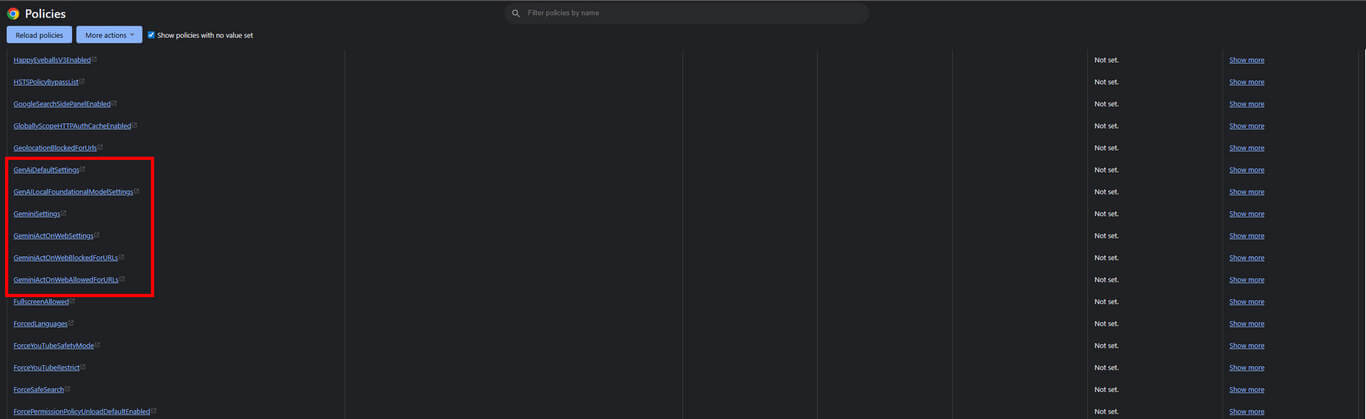
On first opening this policy page, if no values are set, it will appear empty. However, if you tick the “show policies with no value set” option, you see all the policies. In my case, none are set, so I assume no AI model has been downloaded. I also checked the Chrome file/folder location, which is well under 1GB anyway.
For Microsoft Edge, there is a method of preventing an AI model from downloading, as described on this German site, but since this has not yet been initiated by Edge, this initiative is described by the author as prophylactic, an adjective that describes it very well. Also, I’m not a fan of registry hacks if a simpler and less risky method is available.
Personally, I don’t use Chrome or Edge daily, preferring Opera, which loves to inform me of AI in its latest updates, but I know for sure that no AI model has been downloaded.
Just The Browser

Just the Browser claims to rid Chrome, Firefox, and Edge of all those features that you don’t want, leaving you with just the browser. Written by Corbin Davenport, the fellow who managed to get Windows 95 running on his smartwatch, the project has been well-received.
How Do I Know If Chrome Has Downloaded An AI Model To My PC?
You probably won’t know if there’s no notification, but if you wander of to Chrome’s installation folder, usually found at C:\Program Files\Google\Chrome\Application\chrome.exe, you won’t find anything related to AI models because it downloads to a different location which is incredibly sneaky on Google’s part – Users > [your username] > App Data > Local > Google > Chrome > User Data > OptGuideOnDeviceModel. Thanks to Jim Hillier for pointing me there, but even if you delete the download, it reappears automatically, and it seems that the only ways to prevent this are by using Just the Browser or a registry hack.
I will monitor the situation regarding non-consensual downloads such as this and update as necessary.
—

So, is the registry hack a work in progress?
I do see this when listing policies: Software\Policies\Google\Chrome\AIModeSettings
Another reason to stick with Brave and Firefox. No hidden surprises, Mindblower!