

How to back up your system drivers using only the “Command Prompt” or “Windows PowerShell”.
First, select or create a folder for your driver’s backup. I created “D:\CyberPC Drivers May 15 2026”. It includes the name of my computer and the date, as of this writing.
Open “Command Prompt” or “PowerShell” as administrator and type the following and hit Enter.
dism /online /export-driver /destination:”D:\CyberPC Drivers May 15 2026”
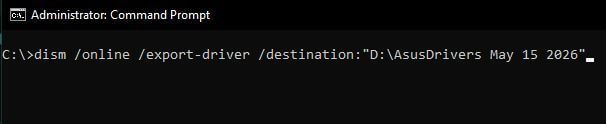
Your destination will be your own backup folder. Now you have a backup of all your drivers for your system. Save them somewhere else, just in case.
If you want to restore your drivers:
dism /online /Add-Driver /Driver:”D:\CyberPC Drivers May 15 2026″ /Recurse
Remember to replace my backup folder name with your own.
I did the same thing for my Asus, but this doesn’t work on my Acer desktop with Windows 7. DISM on Windows 7 only allows you to scan for errors, but not fix them.
Note: To open Command Prompt or PowerShell as administrator, type command, or cmd, or powershell in the search bar. If you don’t see the “Run as administrator” option automatically, right-click on Command Prompt or Windows PowerShell in the search menu. Then select “Run as administrator.”
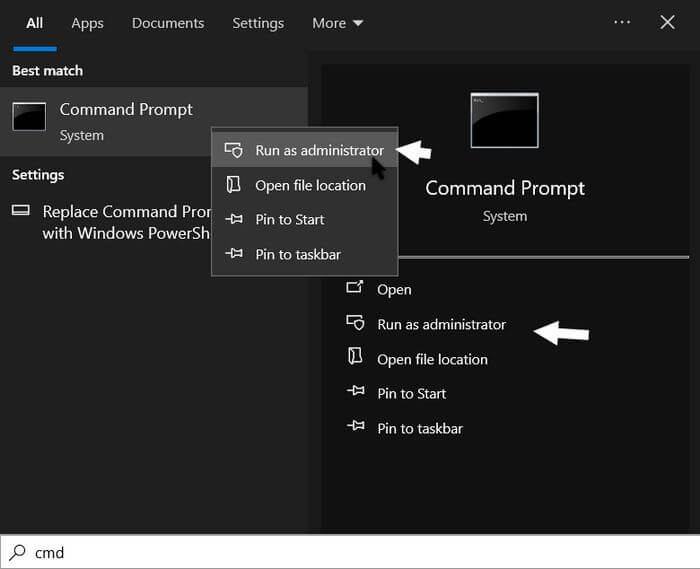
You will see the words “Administrator: Command Prompt” or “Administrator: Windows PowerShell” in the top left-hand corner of the appropriate window when done right.
Speaking of backups, don’t forget to back up your data as well. Online, External hard drives, flash drives, CDs, DVDs, any backup is better than none at all.
More backup articles, click here.
—

I’m assuming this is really only for older operating systems as Windows 11 is good at installing all drivers as needed.