

I recently received a notification informing me that my Bitwarden subscription is about to expire. My password manager contains some of my most sensitive data. As readers of my article on the possible enshittification of Bitwarden know, there is a chance that Bitwarden is preparing to sell out. Not knowing what this would entail, I decided to be proactive and switch to 1Password. What follows is the method I used to import my data, an audit I performed to check that the data had been imported correctly, and some things to be aware of regarding the migration procedure.
Transfer Vault Procedure
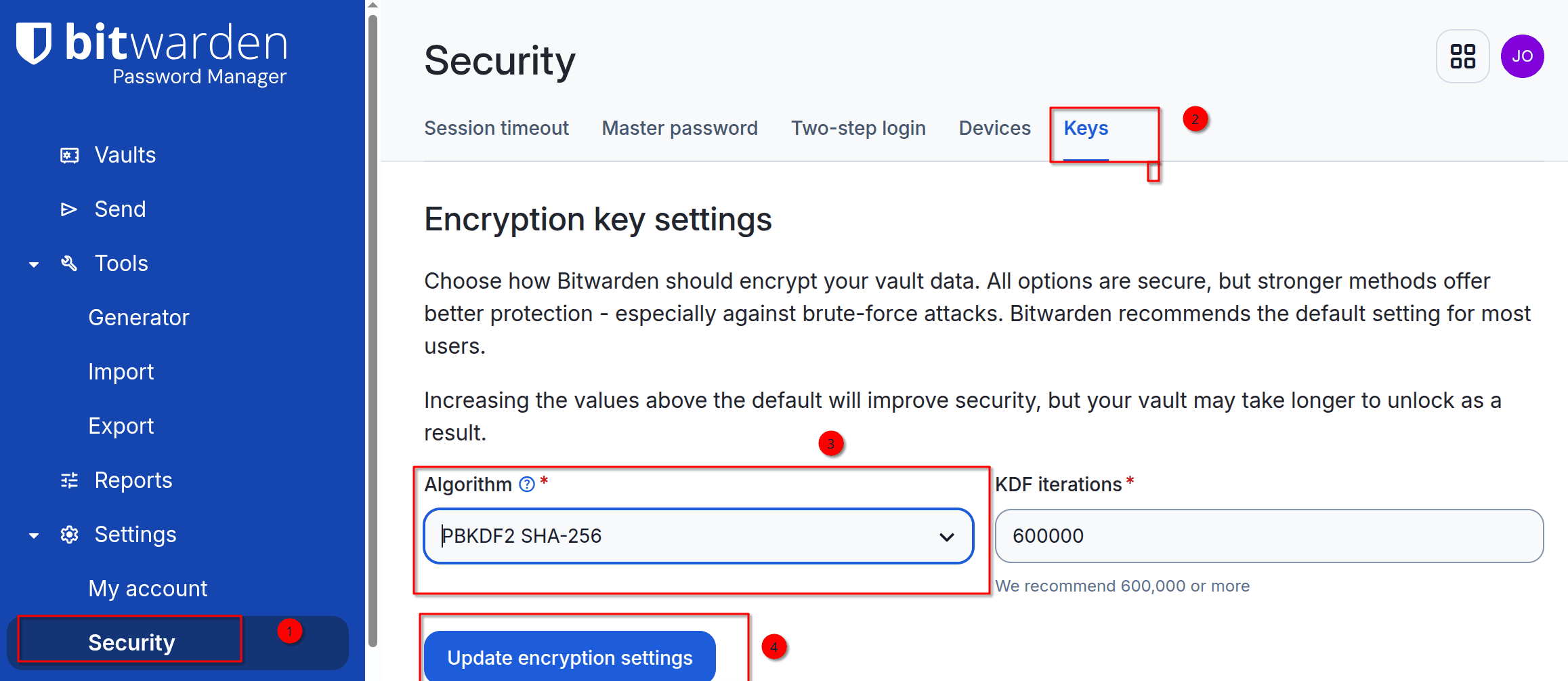
To transfer your password vault from Bitwarden to 1Password, you will need to export an encrypted .JSON file from Bitwarden. You can then import this file into 1Password. However, one preliminary step must be taken first. The Bitwarden Key Derivation Function (KDF) must use the PBKDF2 SHA-256 algorithm. If you followed my article on improving Bitwarden’s security by changing the KDF to Argon2id, you will need to revert to the PBKDF2 KDF. Follow the procedure in the article.
Export Bitwarden .JSON file
Using the Bitwarden Web Vault:
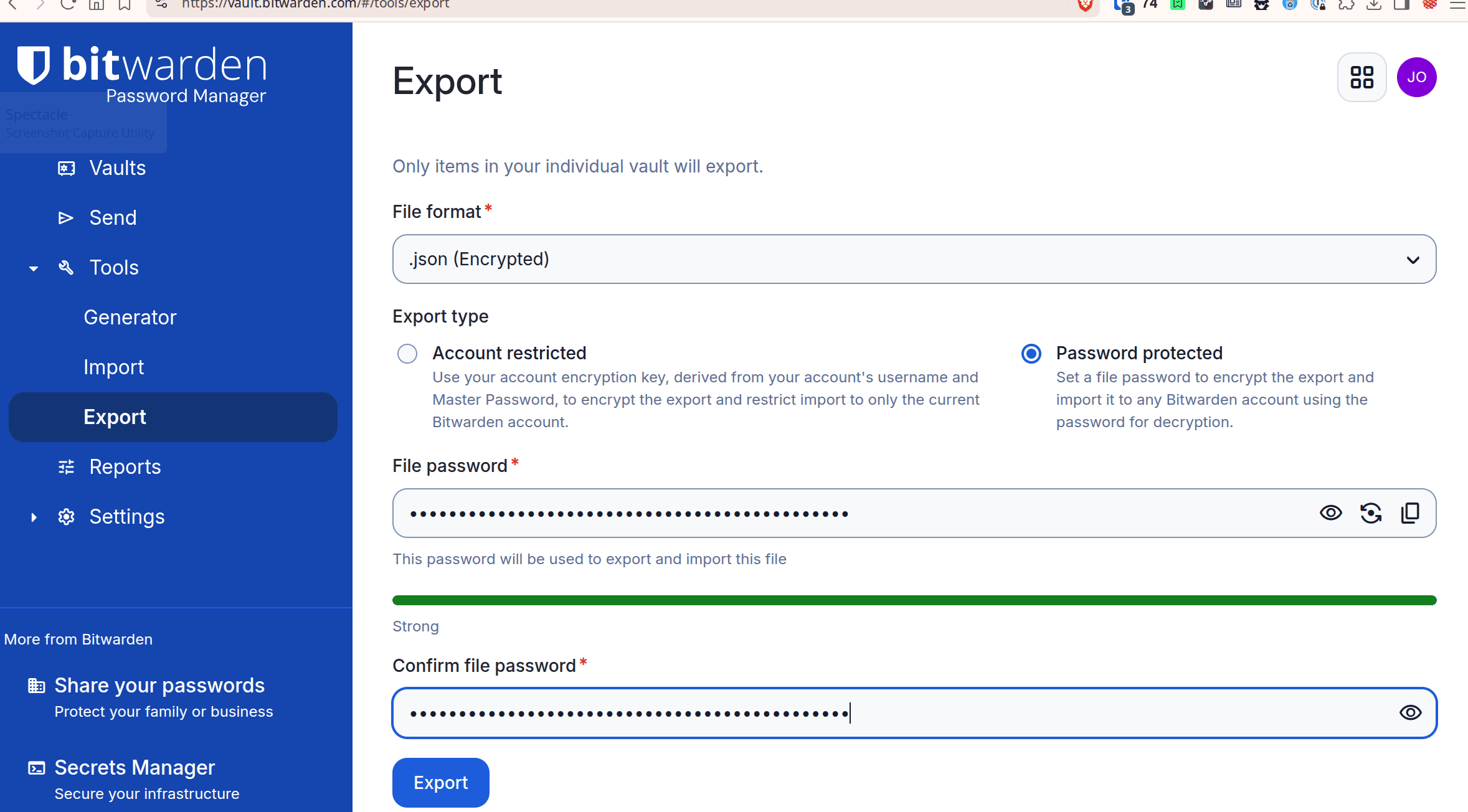
- Go to Tools → Export.
- Under Export from, select My vault.
- For File format, select .json (Encrypted).
- For Export type, select Password protected.
- Enter a password for the export and confirm it.
- This is a separate password from your Bitwarden master password
- Click Export.
- When prompted, authenticate with your Bitwarden master password.
- Bitwarden will download a file similar to:
bitwarden_encrypted_export_YYYYMMDDHHMMSS.json
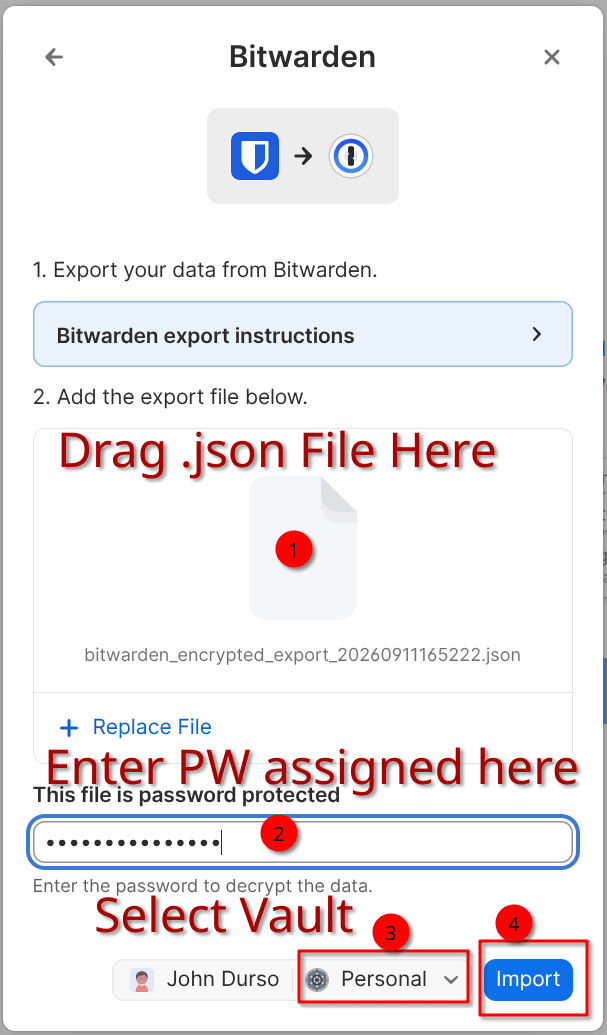
Import the .json file into 1Password
Note: I used the desktop app, but you can use the website.
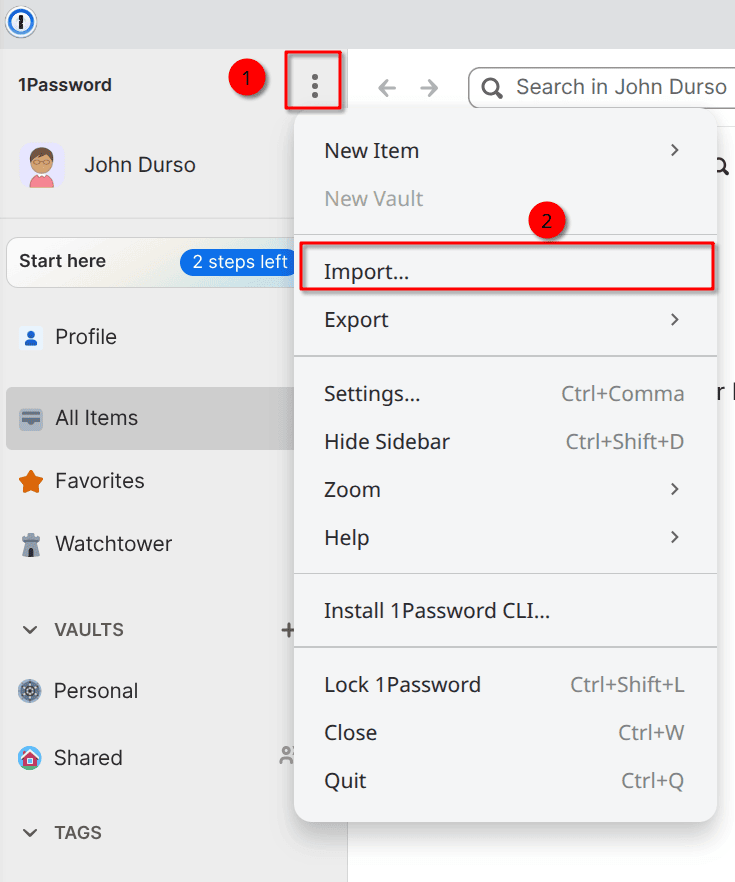
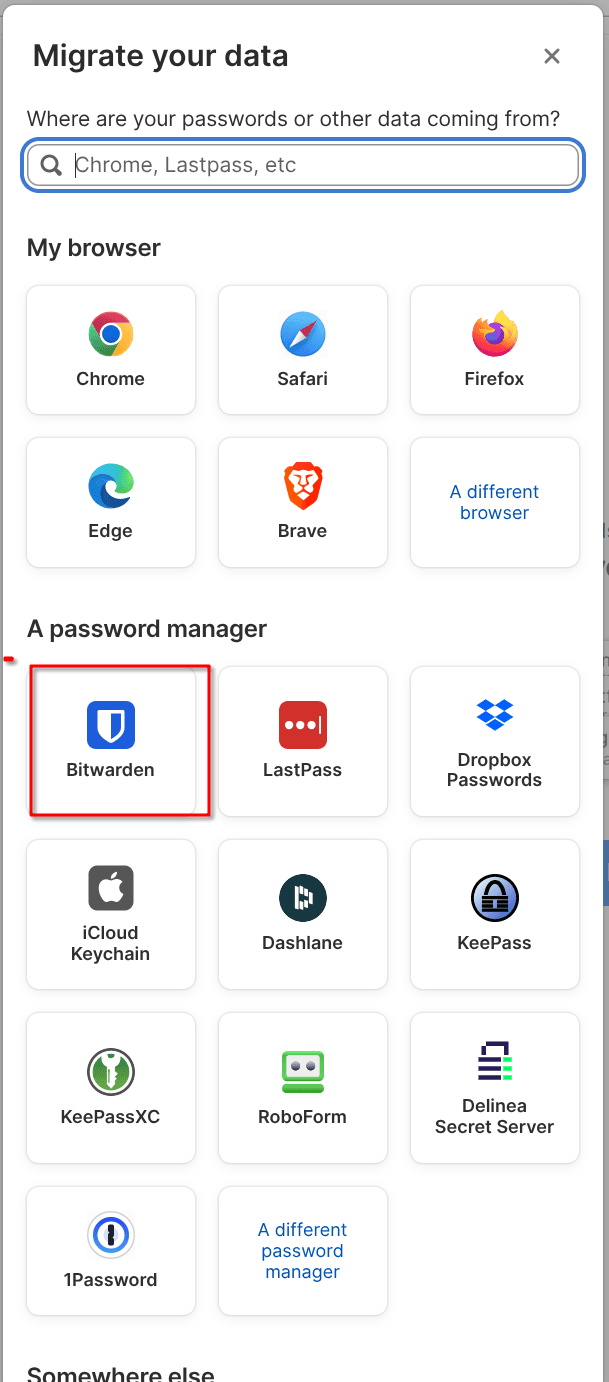
- Select File → Import.
- Select Bitwarden.
- Choose the 1Password vault in which to import the items.
- I used the Personal vault
- Click Add File (or drag).
- Select your Bitwarden file from above.
- Enter the password you created when you exported the Bitwarden vault.
- This is not your Bitwarden master password
- Click Import.
Audit Procedure
To ensure the transfer was successful, I audited the results on my Linux computer, but it should be similar on Windows. This step took the most time.
First, in Bitwarden, I exported an unencrypted .JSON file. Second, in 1Password, I exported a .1PUX file. Note that these two files are essentially text files. Keep them locally on your machine and dispose of them when you have finished with them.
Finally, I used ChatGPT to create scripts to compare the two items. If there were any discrepancies, I investigated them further to see if they were meaningful until I was satisfied with the results.
Results
My Bitwarden vault contained 560 items, whereas my 1Password vault contained 562. These consisted of logins, secure notes, credit cards, IDs and time-based one-time passwords (TOTPs). Checks showed that the numbers and data matched.
| Check | Bitwarden | 1Password | Result |
| Total imported items | 560 | 562 | 560 imported + 2 existing |
| Logins | 542 | 543 | +1 existing |
| Secure Notes | 5 | 5 | Exact |
| Cards | 11 | 11 | Exact |
| Identities | 2 | 3 | +1 existing |
| Username fields | 503 | 504 | +1 existing |
| Password fields | 462 | 463 | +1 existing |
| TOTP | 59 | 59 | Exact |
| Secure Note data | 5 | 5 | Exact |
| Card data | 11 | 11 | Exact |
| Identity data | 2 | 3 | +1 existing |
Custom Fields
I had custom fields and wanted to ensure that these transferred correctly. 84 items in my vault contained 282 custom fields. 281 transferred exactly; one was blank in Bitwarden (null) and was a “” in 1Password.
- 84 Bitwarden items with custom fields
- 282 custom fields checked
281 exact matches
Folders/Tags
Bitwarden uses tags to create hierarchical folders, such as Finance and Finance/CC. Each item can only belong to one folder. Similarly, 1Password uses labels such as Finance and Finance/CC, which can be combined into a hierarchy. However, unlike Bitwarden, an item can have multiple labels, allowing it to appear in multiple categories at once.
As organization is important to me, I wanted to check these. In Bitwarden, I had 56 folders, but 5 were empty. 18 items were not in a folder.
| Bitwarden folders | 56 |
| Bitwarden folders actually used | 51 |
| 1Password migration tags | 51 |
| Bitwarden items without folders | 18 |
| 1Password without tags | 18 |
Where To Be Careful
Passkeys
I don’t have any passkeys, but a normal Bitwarden vault export does not provide passkeys in a format that can be migrated by 1Password. 1Password’s current documentation explicitly warns that traditional file-based imports do not include passkeys. Note that they do support Credential Exchange.
Therefore, treat the passkeys as a separate migration. After the migration of the above data:
- Make a list of the sites where Bitwarden has passkeys.
- For each site, sign in using the Bitwarden passkey and create a new passkey in 1Password.
- Verify the new 1Password passkey works before deleting the old Bitwarden passkey.
Attachments
Bitwarden’s .JSON export does not include the actual attachment files, meaning they cannot be imported into 1Password. To preserve attachments, use Bitwarden’s .ZIP export to export the attachment files separately. Then, add those attachments to the corresponding items in 1Password. I transferred my attachments this way.
Bottom Line
Only time will tell if Bitwarden will ultimately do anything that would justify my concerns about its future. For now, switching to 1Password eliminates that uncertainty and gives me greater confidence that my password manager data is secure.
Overall, I’m satisfied with switching from Bitwarden to 1Password. Migrating my 560 items went smoothly, and auditing them confirmed that the data transferred correctly. However, passkeys and attachments require separate attention. Because a password manager contains so much sensitive information, I felt it was important to verify the migration now rather than discover months later that something important was left behind or wrong.
As always, if you have any helpful suggestions, comments, or questions, please share them with us.
—

Should not this “My Bitwarden vault contained 560 items, whereas my 1Password vault contained two.” be “My Bitwarden vault contained 560 items, whereas my 1Password vault contained an extra two.” or “My Bitwarden vault contained 560 items, whereas my 1Password vault contained 562.”
Hey Aussie,
I fixed it, Eagle-Eye, Thanks,
Richard