

A lot has been written about Microsoft Windows Secure Boot certificates expiring. But how do you check if your certificates are up to date?
What Is Secure Boot?
Secure Boot was first introduced in Windows 8. Secure Boot is a firmware-level security standard that ensures a computer boots using only trusted, digitally signed software, thereby preventing malicious code like rootkits or bootkits from loading before the operating system starts. It works by verifying the cryptographic signatures of UEFI firmware drivers, EFI applications, and the OS bootloader against a database of trusted keys stored in the system’s NVRAM; if a signature is invalid or missing, the firmware halts the boot process.
While the Secure Boot specification was created by the UEFI Forum and is an open industry standard, Windows 11 requires Secure Boot support and defaults to trusting Microsoft keys. Secure boot is not generally needed for Linux, but some Linux distributions (such as Ubuntu, Fedora, and Debian) support Secure Boot out of the box. If dual-booting Windows 11 and Linux, secure boot can be added.
So, What’s The Deal With Expired Certificates?
Windows 11 will still boot and run normally if Windows 11 Secure Boot certificates expire, but the system will enter a permanently degraded security state. The PC will continue to install regular Windows updates and operate as expected. But security protections will cease, Microsoft will stop sending boot-critical updates, including new versions of the Windows Boot Manager and DBX revocation lists, leaving the system exposed to future bootkit malware. Furthermore, there could be future compatibility risks because the system will lose the ability to install new Windows feature updates or run Secure Boot-dependent software, since it can no longer validate new cryptographic signatures. Microsoft explains more about this in this document.
How To Check?
Windows 11 now includes a simple and direct method for checking the Secure Boot certificates.
To get there, open
Settings
and navigate to
Privacy & security -> Windows Security -> Device security.
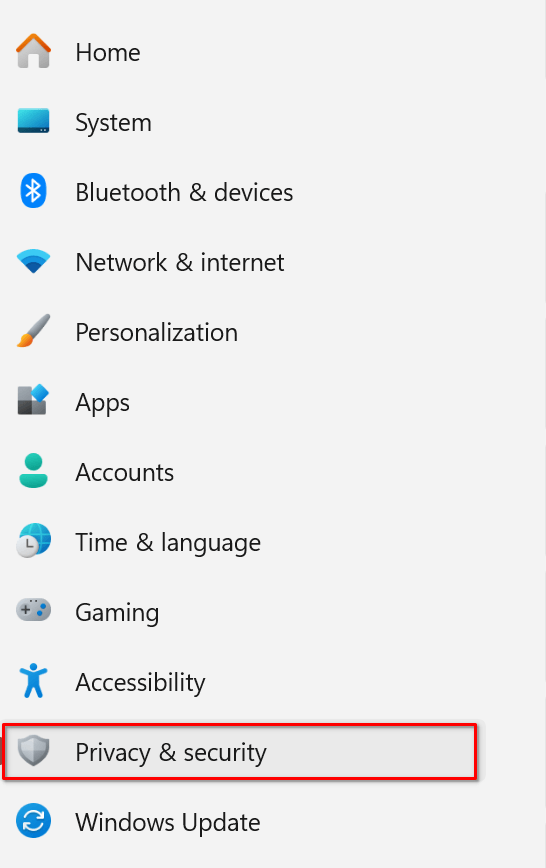
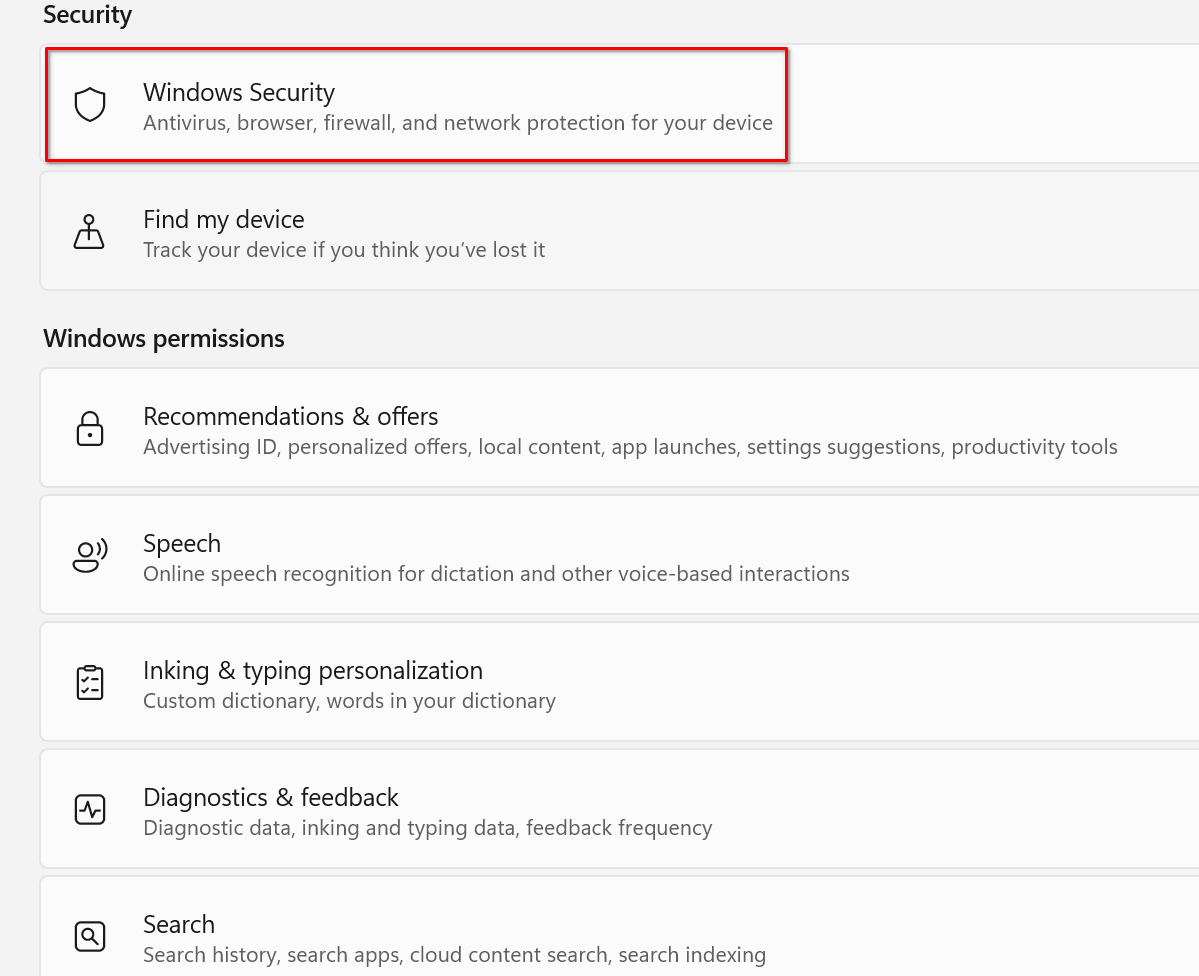
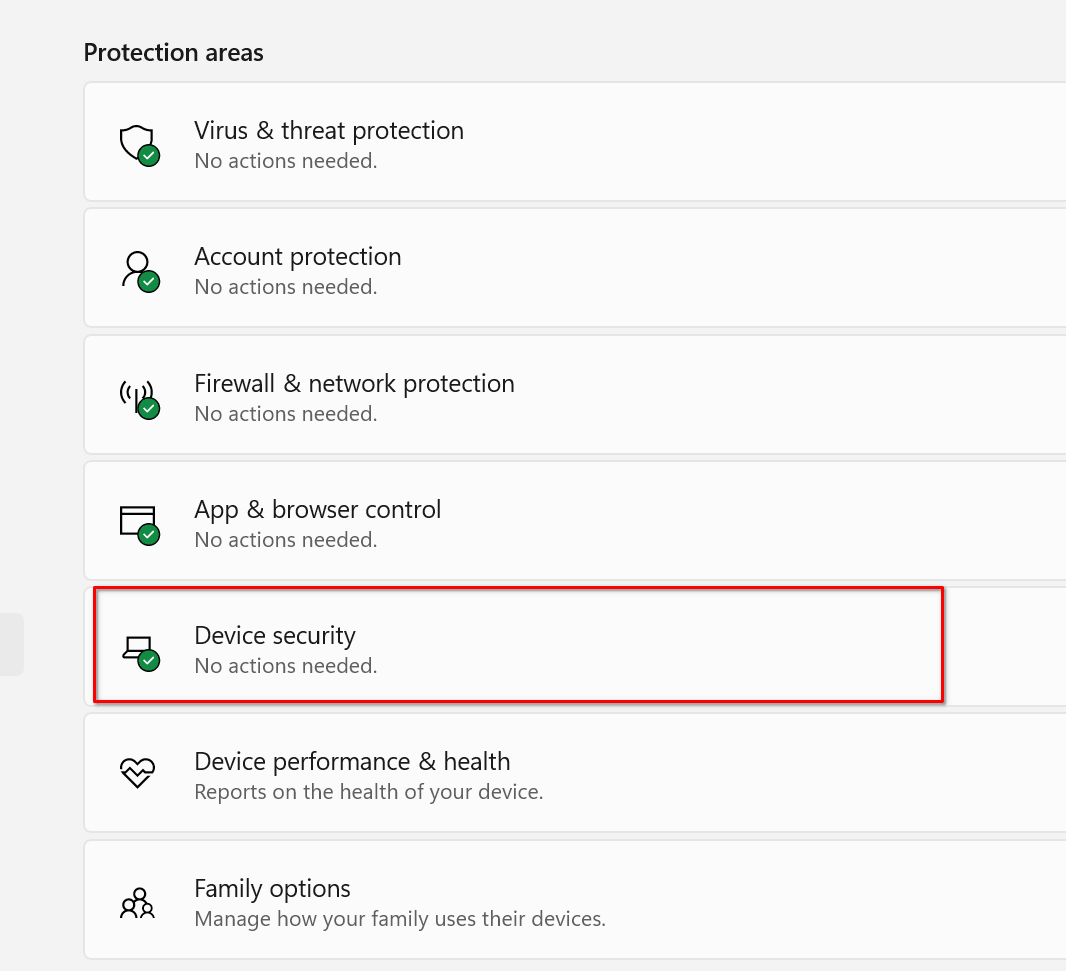
This opens the Device security panel. Scroll down to the Secure boot section.
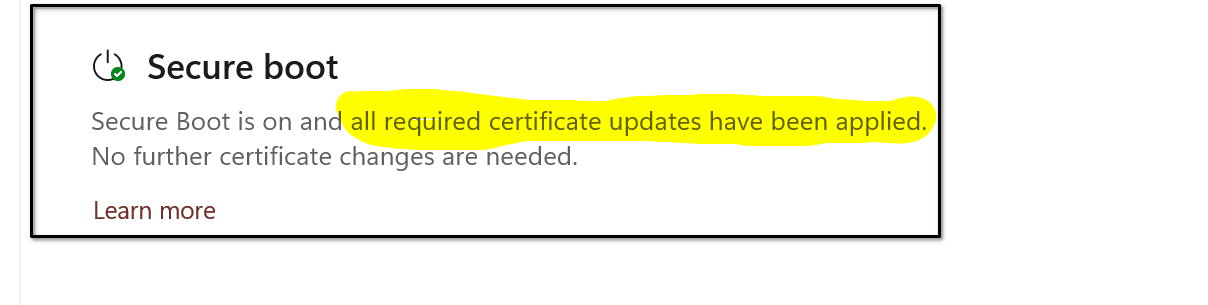
This section is strictly informational, but it does provide the answer to whether the certificates are current.
—

I am running Windows 11 Pro 25H2. But there is no “Secure boot” section in the “Privacy & security -> Windows Security -> Device security” .path! Why?
Hey Elliott,
I’m running Windows 11 Pro 25H2 also. I have no idea why it is not there for you. Mine is the 3rd item down, BTW.
However, this is typical Microsoft quality control.
(with apologies to John for jumping in here)
The most likely reason for the Secure Boot section to be missing is (1) if you are running with a hybrid BIOS (Legacy + UEFI) or (2) if Secure Boot is disabled in BIOS.
1) Check to see if your BIOS is in Legacy mode or UEFI mode. If it’s running in Legacy mode change it to UEFI. If you change it to UEFI make sure to also disable CSM (Compatibility Support Module)
2) Check Secure Boot’s status in BIOS, if it’s disabled enable it
I have since discovered that Secure boot is disabled in the BIOS (grayed out), with no apparent way to enable it. Since my laptop (HP 255 G10) appears to be running normally, I will leave well enough alone.
I also have Windows 11 Pro 25H2 on an ACEMAGIC mini computer, and do not find the “secure boot” section under “device security”. Was the given example from Windows 11 Home edition?
The most likely reason for the Secure Boot section to be missing is (1) if you are running with a hybrid BIOS (Legacy + UEFI) or (2) if Secure Boot is disabled in BIOS.
1) Check to see if your BIOS is in Legacy mode or UEFI mode. If it’s running in Legacy mode change it to UEFI. If you change it to UEFI make sure to also disable CSM (Compatibility Support Module)
2) Check Secure Boot’s status in BIOS, if it’s disabled enable it
Thanks for part of the answer John in finding the boot security section. But what if it says that my system isn’t secure? Then what do I do to remedy that? Because I’m sure that will be the case with some systems, right?
Hi Jerry,
M$ is suppose to manage the update process for these new certificates on Windows devices. Refer to the link I posted in the 4th paragraph of the article.
Checking on one computer running Windows 11, I receive the following ” Secure Boot is on, but your device does not support the automated Secure Boot certificate due to hardware or firmware limitations”. What should I do, Mindblower!
Hey Mindblower,
This sounds like a hardware specific issue keeping Win 11 from updating the certificates.
I suggest pressing Windows + R.
Type msinfo32
In the System Summary, note the:
System Manufacturer
System Model
BIOS Version/Date
BIOS Mode
Secure Boot State
Then plug that data into Chatgpt or similar and see if it can find if the manufacture has solution
Thanks John. Just checked and I have two units with this problem. Will act on your advice this weekend, Mindblower!
Good luck!
Hi John. Both desktop and laptop are Acer. According to their website, they are rolling out the upgrades, and to keep checking. In the meantime, keeping Windows up-to-date as well as security software should keep you safe., Mindblower!