

The other day, I bought a couple of TP Link security cameras – Tapo C500 and C310 – because I had recently fitted and configured a couple of excellent ones for a client. Naturally, this brought on Shiny Thing Syndrome (STS) again.
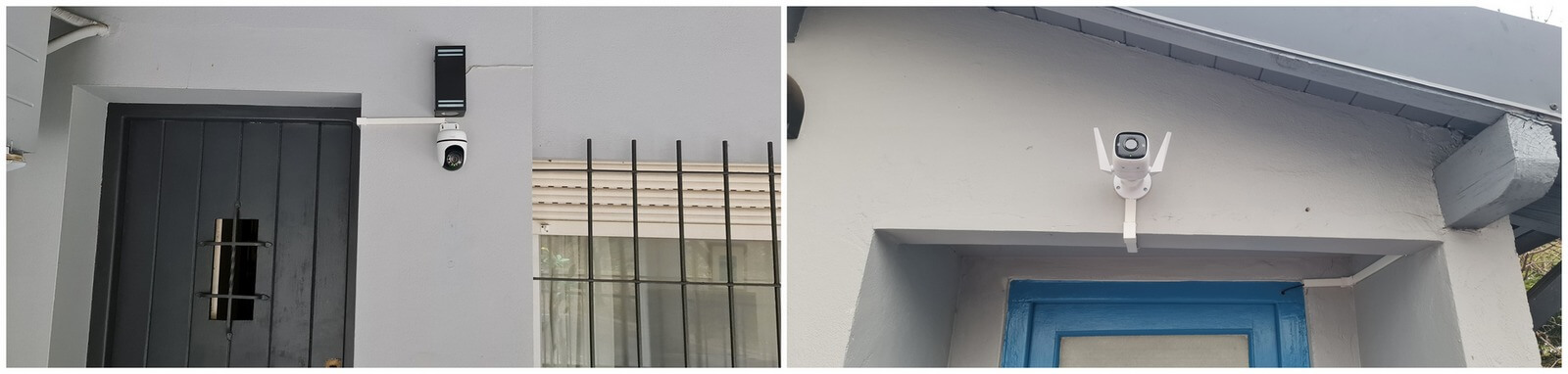
Both are Wi-Fi cameras and are controlled through an app on my phone in exactly the same way as the two cameras I set up for my client, so I thought my setup would be a breeze. The physical fitting was easy, following which I installed the Tapo app, which found the cameras but would not connect to our Wi-Fi access point. The error message suggested I check the password, to ensure that WPA-3 wasn’t activated, and to place the camera closer to the router. Well, I knew the signal was fine, so was the password, but I wasn’t sure about WPA3 because the ISP customer portal is so useless that it limits customers to only changing the name of the access point and password, and that’s it. In other words, you don’t need to know anything else because you’re an idiot.
Check Windows Settings For Wi-Fi Properties
Since the crappy customer portal didn’t tell me anything useful, I right-clicked on the Wi-Fi icon in the taskbar, hit properties, and found what I needed to know.
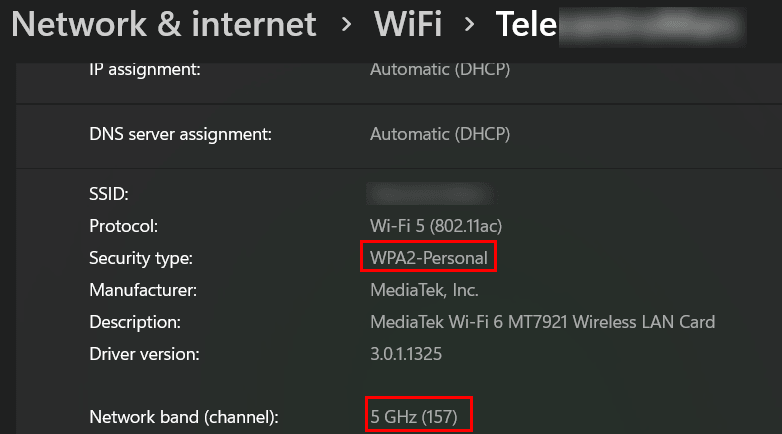
So, I could discount distance because the signal was 100%, the password also, and the cameras are compatible with WPA2, so that only left the network band, which is mentioned nowhere in TP Link’s leaflets. Last year we changed ISPs, and casting my memory back, I remembered that our previous ISP had set up the router to broadcast both 2.4 and 5GHz channels, allowing us to choose. This had to be the issue, and further digging told me that smart devices can only connect to the 2.4GHz channel. My problem was that the router had been set up to ONLY broadcast on 5GHz and the crappy customer portal is far too basic for that kind of information.
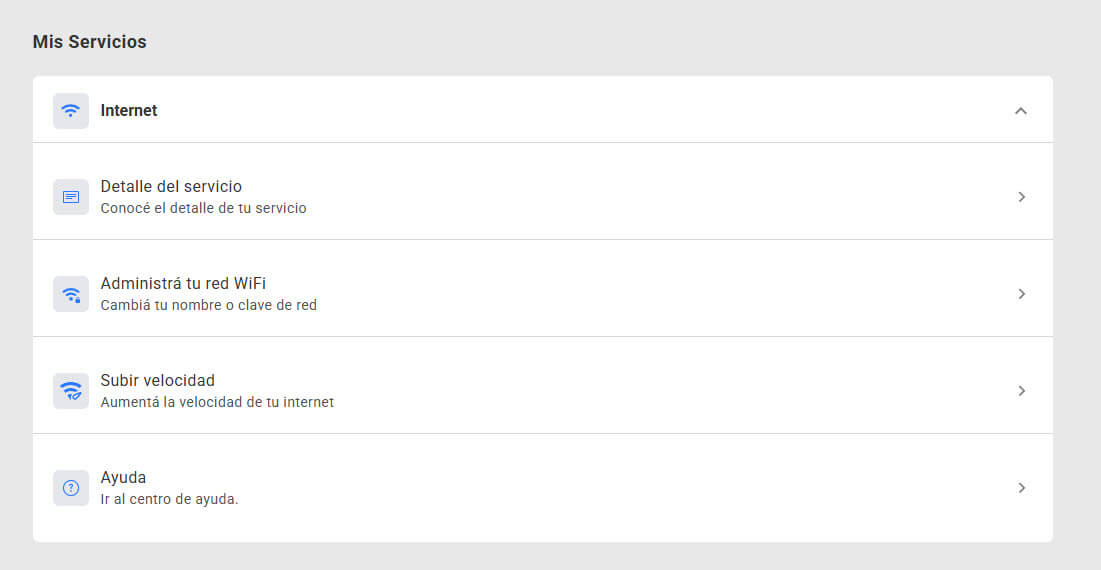
That’s it, that’s all you get, and knowing how nauseating it is to phone a helpline nowadays, I did at least try, spoke to a robot, which then restarted the router, and that was that. I then made an attempt to get help on the ISP’s WhatsApp service, which was even worse and left my problem open for them if they felt like replying. I then knew that the only way to get both channels broadcasting was to get into the router, a Sagemcom cable modem, which has a handy sticker on the side with a username (admin) and alphanumeric password printed, which was very kind of the ISP, even though the last thing ISPs want you to do is to mess with their kit.
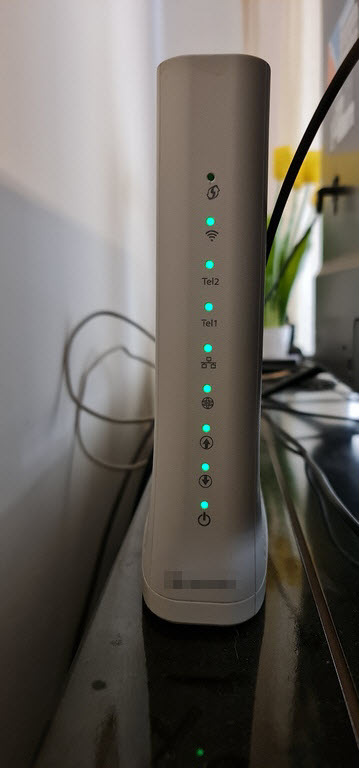
Once into the router software, I went to Wi-Fi mesh and disabled band steering, which separated the two channels and renamed the 2.4GHz channel so it’s easy to recognise. The cameras then connected straight away, and I was up and running.
Five hours later, I received a WhatsApp message from the ISP telling me that the 2.4GHz channel was in fact available, but I didn’t have the heart to reply and tell them that it was I who made it so!
—

To precisely avoid these types of issues I never pay for the ISP’s “budget router” bundled into the price. I always bring my own so I have “the control” – for the same reason I don’t let the wife have the TV remote – because in just a few minutes she’ll have it on a different video input, turn off the sound system off and start re-scanning already-set TV channels. Then she’ll complain that the TV doesn’t work and that we need a new one…..sigh
Bringing my own router to the internet party also means I get a far better router and of my choice not the ISP’s. I always set the router up myself so I know exactly what settings I have applied and why.
Cheers
Reg
Reg, fortunately my wife has no interest in the remote control and in 20 years living in Argentina, I’ve lost count of the ISPs we’ve been subjected to. In all cases they provide the modem/router and that’s non-negotiable.
But if I can get into the device, that’s another story, lol.
Well Reg, not all IP’s are bad. When I was upgraded from Cable to Fibre, they provided me with the proper preset-up router which has both 2.4G and 5G, (using 5G everywhere). They also remotely made an adjustment for me for free, Mindblower!
No apologies – I didn’t mean to be seen as criticising ISPs Mindblower. I have had mostly positive experiences from those I have contracted with over the years but I carefully always research their “customer reviews” and read the fine print first before signing up. In most cases giving customers a router that just works straight out of the box with their own ISP settings locked down makes a lot of commercial sense. I can only imagine the grief the poor tech support staff would have trying to manually talk many of their customers through several pages of router settings to get them online !
However as I use the more expensive high-speed fibre internet plans I am one of those customers will switch immediately to a better ISP “deal” – having my own router makes that very easy. In many cases ISPs offer introductory plans that increase in price at the end of the term. By having my own router I am never locked in and can immediately switch to another ISP at will. I’ve noted that the clock also resets with that same introductory “deal” if you decide to later return to the former ISP. So you can play two ISP’s off against each other – well at the moment you can until they wise up ! Bit like walking away from your Bank and putting your mortgage elsewhere offering a better interest rate – but unlike a house you don’t need to go through a load of bank admin, fees and valuation guff. I can switch ISPs with a few clicks !
Cheers
Reg
All of a sudden my robot vacuum began giving me problems and during a conversation with the manufacturer I was told the device needs to run on 2.4 ghz. I phoned my ISP and they set me up to have availability to both systems. Problem solved