

The Fast Start feature was first introduced in Windows 8 as a means for faster loading and has been carried over to Windows 10 and 11 as “Fast Startup“.
What Does Fast Startup Do
Fast Startup saves your operating system’s kernel state in a hiberfil.sys file, and when the system loads again, it is loading from that file rather than from scratch, which means it should, technically, make for faster loading.
However, the feature was first introduced when HDDs were the norm, and with the advent of much faster SSDs and advanced CPUs, its value has been largely diminished.
Why You Should Disable Fast Startup
Most issues caused by Fast Startup come about because the system is loading from a previous state rather than from a clean state, and this can cause problems with Bluetooth and Windows Update, among others.
In my opinion, Fast Startup is redundant on modern machines, can potentially cause way too many issues, and is best disabled.
How To Disable Fast Startup
Firstly, it should be noted that Fast Startup relies on hibernation, so if hibernation is disabled, then Fast Startup is also disabled.
To check if hibernation is active or not, run the following command in an elevated PowerShell (admin):
powercfg /availablesleepstates
If the command returns “Hibernation has not been enabled“, you are all done; Fast Startup is disabled.
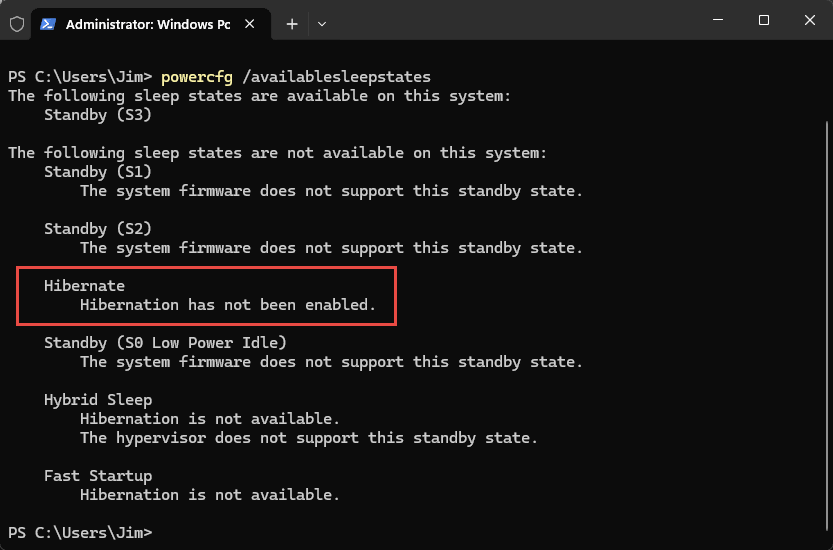
If not, you can disable Fast Startup by running the following command in an elevated PowerShell (admin):
powercfg /h off
That will disable hibernation and, by association, it will also disable Fast Startup.
—

Followed your advice Jim, and now I see under Hibernation – “Hibernation has not been enabled.”
Also I see under Fast Startup – “Hibernation is not available.”
When I first tried that, neither of the mentioned were showing. So I ran the “powercfg /h off” then I got the both showing up.
But I had unchecked “Turn on fast startup (recommended)” within the Control Panel. Wondering why “Hibernation has not been enabled” or “Hibernation is not available” were not showing up to begin with.
Hey Nicke,
I have no idea mate. It sounds as though hibernation was already disabled but, if that was the case, no idea why the query command didn’t return “Hibernation has not been enabled”.
Anyway, you got there in the end.
I guess I may have disable Fast Startup some time in the past. Thanks for the info and a quick way to check.
This is one of those switches available to those using the Winhance program, Mindblower!