

In version 1.92, Brave introduced Brave Containers, a new feature that gives users a convenient way to organize and isolate different parts of their online activity. This feature is designed to keep different browsing activity separate without having to create multiple browser profiles. Whether you’re managing work and personal accounts, testing websites, or simply looking to browse more efficiently, Brave Containers provide a lightweight solution.
What Are Brave Containers?
Brave Containers are isolated browsing environments that keep cookies, site data, and active login sessions separate from each other within the same browser profile. Each container acts as a separate browsing space, enabling users to sign in to multiple accounts on the same website simultaneously or to keep activities such as work, shopping, banking and social media separate. Because containers share the same settings, extensions, bookmarks and saved passwords as the profile they belong to, switching between them is quick and seamless, while still maintaining session isolation.
What Are Brave Profiles?
A Brave Profile provides a completely separate browsing environment, including its own settings, extensions, bookmarks, browsing history, saved passwords, and preferences. Profiles are intended for situations where users need to keep different browsing environments completely separate, such as when they want to maintain distinct work and personal setups, or when they want to allow multiple people to share the same browser on a single device. Each profile functions independently, providing complete isolation across nearly every aspect of the browsing experience. This article discusses more about how to create and use browser profiles.
Containers vs Profiles
The main difference between Brave Containers and Brave Profiles is the degree of separation they offer. Containers isolate website sessions and storage while sharing the same browser configuration. This makes them ideal for managing multiple accounts or organizing browsing activities without duplicating browser settings.
Profiles, on the other hand, create entirely independent browser environments with separate bookmarks, extensions, settings, and browsing data. In short, containers offer session isolation within a profile, while profiles provide full, browser-level separation for users who need completely independent workspaces.
| Feature | Brave Profiles | Brave Containers |
| Purpose | Separate entire browser environments | Separate browsing contexts within a profile |
| Bookmarks | Separate | Shared |
| Extensions | Separate installation & settings | Shared across containers |
| History | Separate | Can be isolated by container |
| Cookies | Completely separate | Separate per container |
| Passwords | Separate by profile | Shared via the profile’s password manager |
| Tabs | In separate browser windows | Can coexist in the same window |
| Resource usage | Higher | Lower |
| Best for | Different people or distinct identities | Multiple accounts on the same sites |
Containers Setup & Use
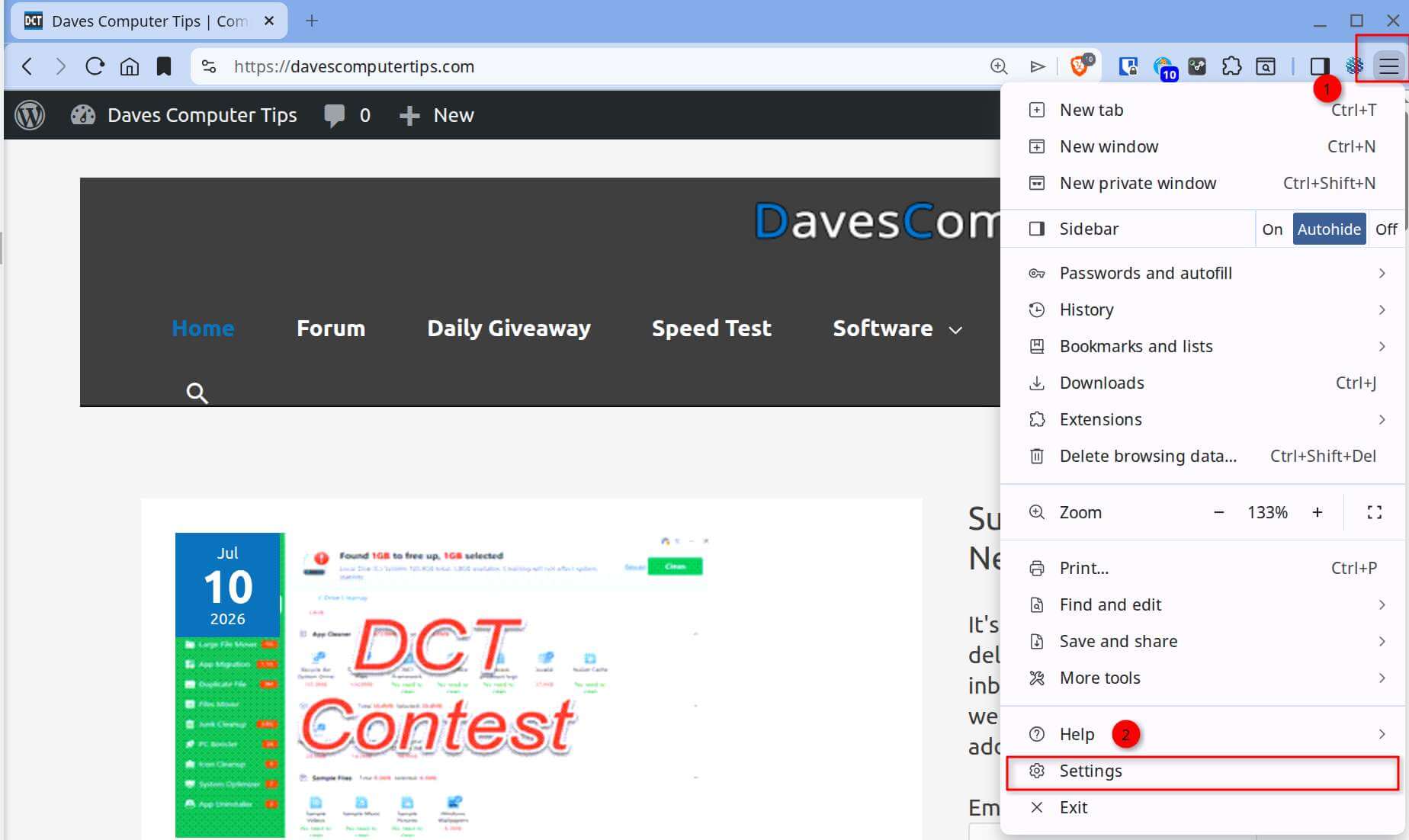
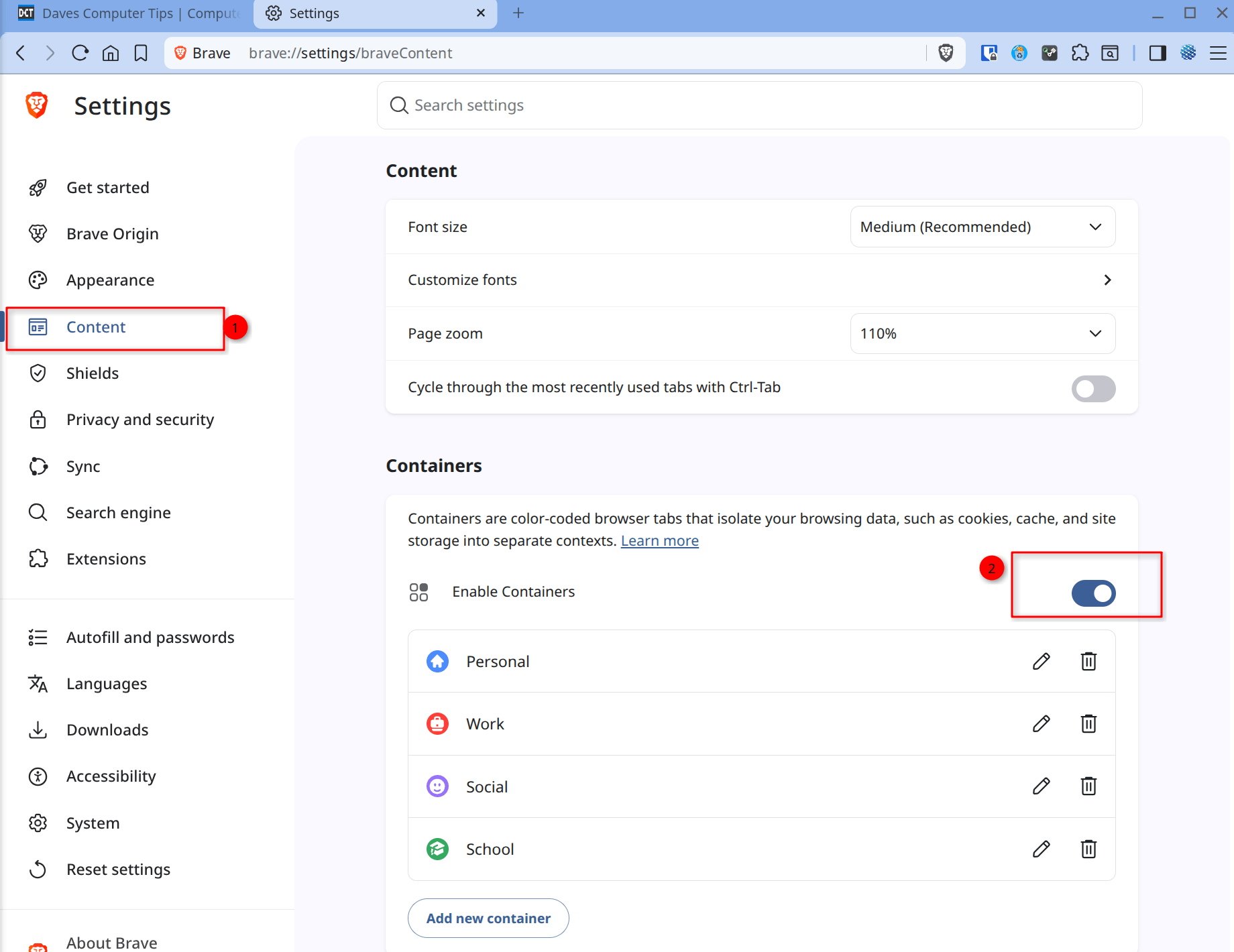
To enable Brave Containers, open the Brave browser and go to Settings. Navigate to the Content tab and under the Containers section, toggle the Enable Containers switch to ON. Brave includes four preset containers: Personal, Work, Social, and School.
To create a new container, select Add New Container. Give the container a name, select a color or icon, and save your changes.
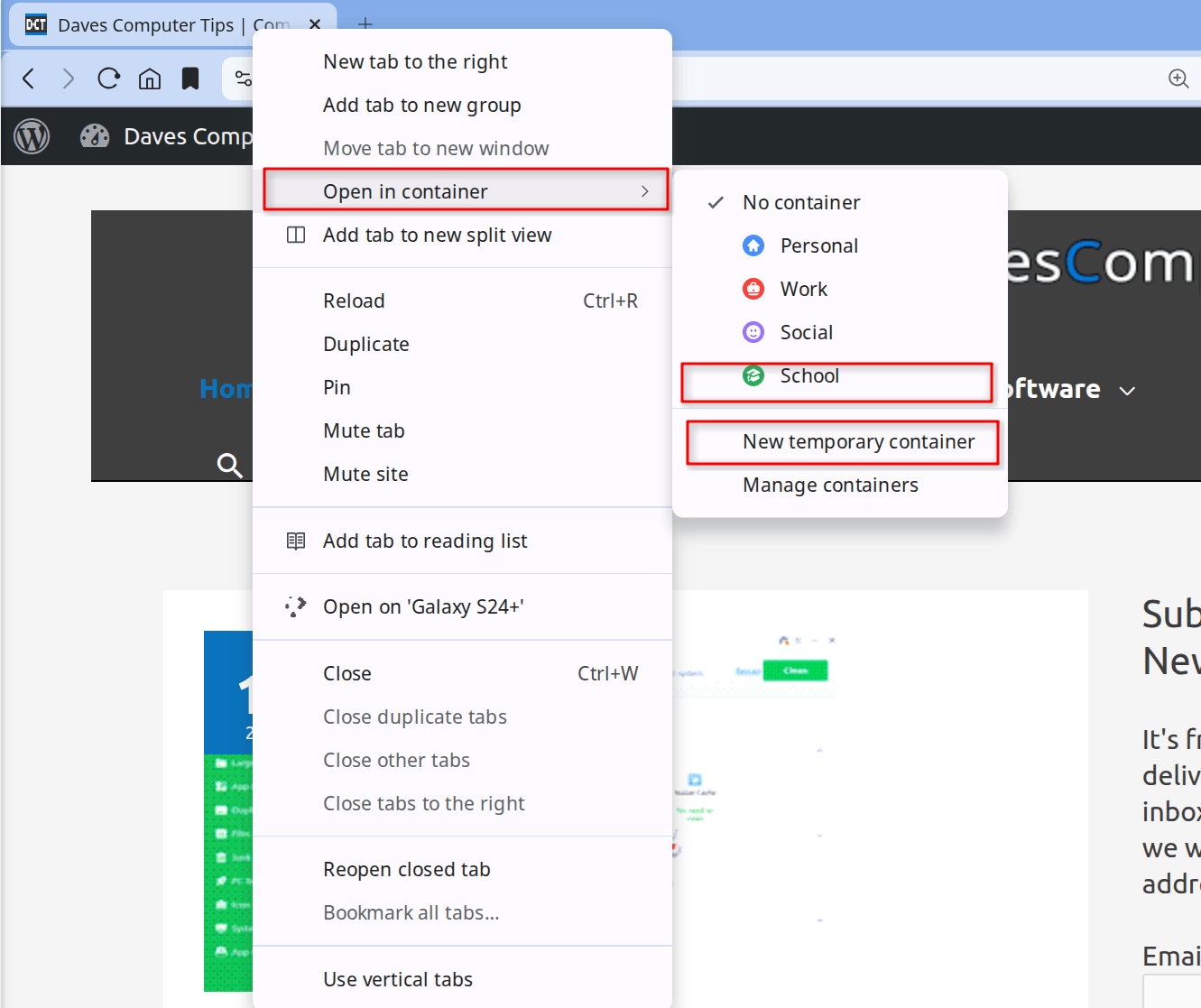
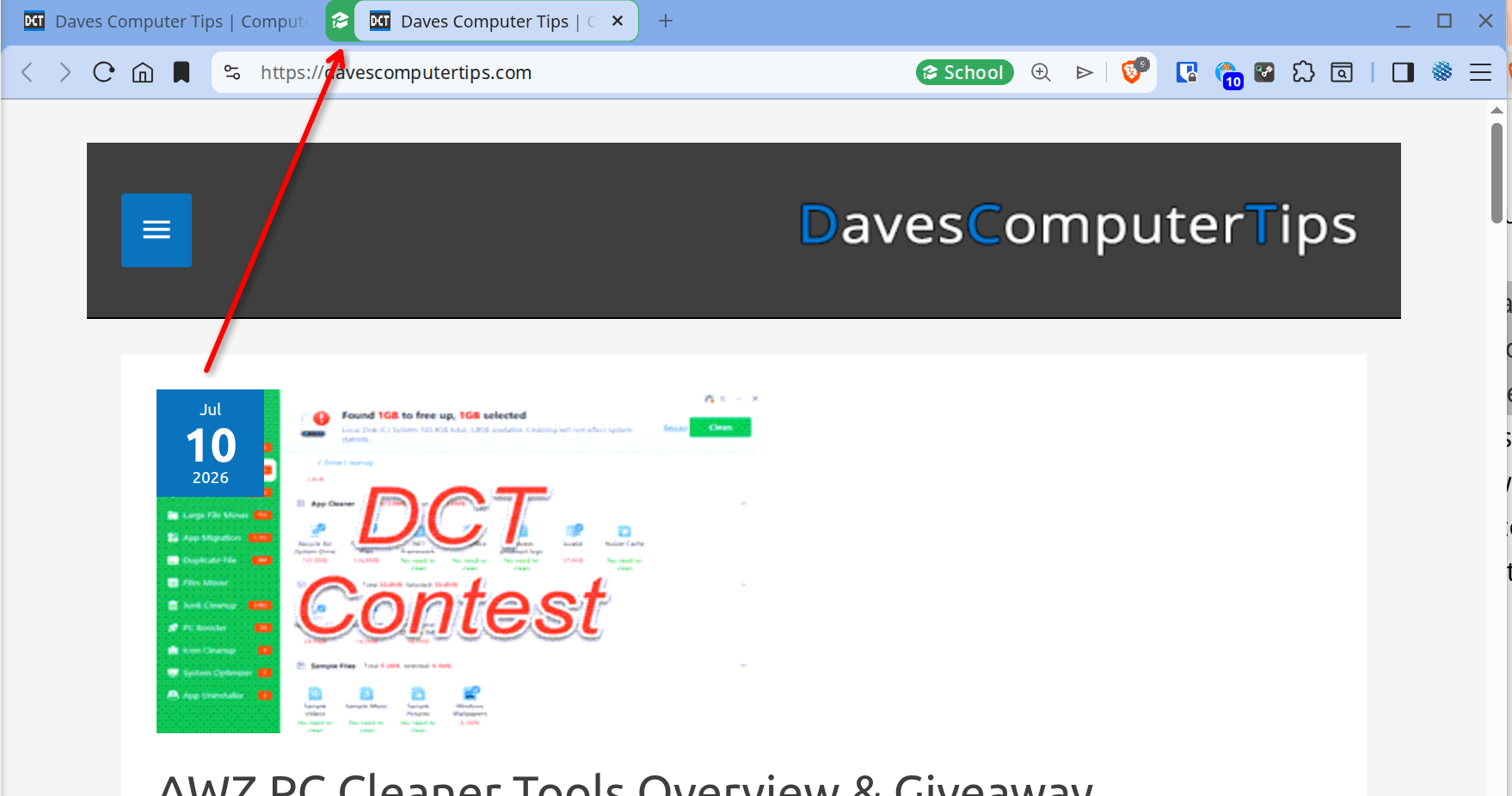
To open a site in a new container, right-click on the site’s tab and select Open in Container. Select one of the existing containers. The site will open in a new tab displaying the container’s color.
Alternatively, you can select to open the site in a New temporary container. A new temporary container is a short-lived, isolated browsing session that automatically deletes its cookies, site data, and other session information when it is closed.
Bottom Line
Brave Containers complement Brave Profiles, offering users an additional way to organize their browsing. Those who need to separate website sessions can use containers instead of creating additional profiles. Those requiring complete independence between browsing environments can use profiles. These two features work together to provide different levels of isolation and allow users to choose the approach that best fits their workflow, privacy, and browsing needs.
Let me know in the comments whether you will use the new container feature.
—
