

You’ll all be aware of the “HTTP” and “HTTPS” prefixes for URLs. HTTP (Hypertext Transfer Protocol) was the standard for many years, but these days HTTPS (Hypertext Transfer Protocol Secure) is the new standard.
As the name suggests, HTTPS adds a layer of security via encryption, which protects the privacy and integrity of data exchanged between the web browser and a website. Most sites these days employ the HTTPS protocol, but there remains a surprising number of websites that are still using the old, insecure HTTP protocol.
However, with a simple browser setting, you can avoid those insecure/shady sites by enforcing HTTPS connections only. While the advent of HTTPS was perceived as a major security upgrade, surprisingly, browsers do not currently force HTTPS connections by default.
How To Force HTTPS Connections
In Chrome:
- Go to Settings > Privacy and security
- Click Security (in the center panel) to expand
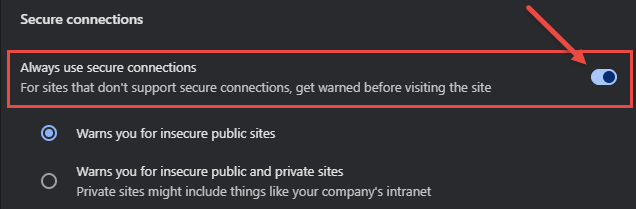
- Under “Secure connections”, enable (turn on) the option to Always use secure connections
In Edge:
- Go to Settings > Privacy, search, and services
- Click Security (in the center panel) to expand
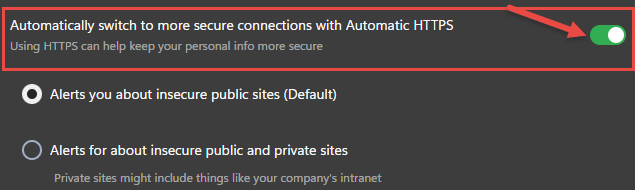
- Enable (turn on) the option to Automatically switch to more secure connections with Automatic HTTPS
In Firefox:
- Go to Settings > Privacy & Security
- Scroll down the center panel and locate HTTPS-Only Mode
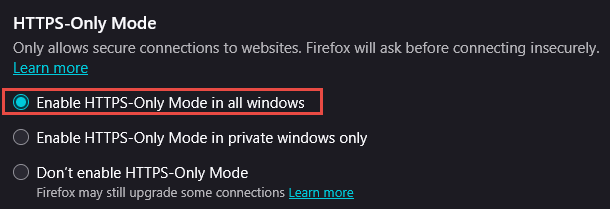
- Enable the option to Enable HTTPS-Only Mode in all windows
BOTTOM LINE:
Because it’s always connected to the Internet when in use, the browser represents your greatest vulnerability, and any steps to harden the browser’s online security will help keep you safe.
—

How about SAFARI? How is it done there?
Safari doesn’t include a HTTPS-only setting but it does provide something similar.
Go to Settings > Safari > Security and turn on the Not Secure Connection Warning option. This will not force HTTPS only connections but it will issue a warning when you are attempting to access non-secure HTTP sites.
You said you use Brave as your go-to browser, but no mention of it in this article.
How about Brave instructions?
Brave’s built-in shields already support HTTPS only connections by default. However, if you want to strengthen that feature even more; go to Settings > Shields > Upgrade connections to HTTPS and change the default from “Standard” to “Strict”.
As usual, Jim, very helpful advice! Always appreciated sir!