

If it’s more convenient for you to have information on a website read to you, then this “text-to-speech” extension may be what you are looking for. I’m going to test this on the first article that appears on DavesComputerTips as I write this.
And the winner is… AWZ Media Player Toolkit Overview Giveaway
The extension, “Read Aloud: A Text to Speech Voice Reader”, is available for (click the link for your browser):
It looks and operates the same way in all browsers.
Here is the control layout.
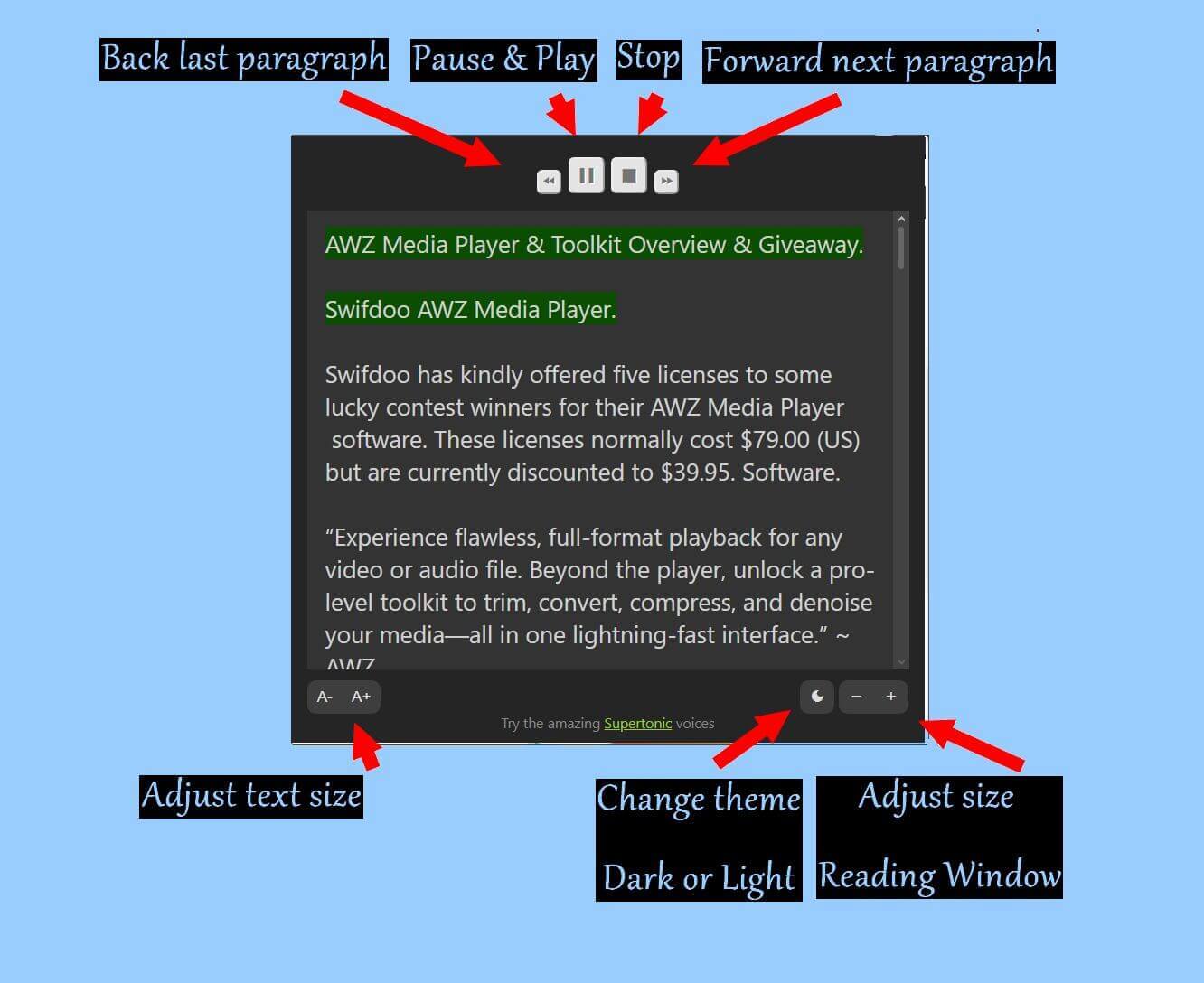
Across the top, from left to right: You can move back to the last paragraph read, pause or play it, stop, or jump forward to the next paragraph.
At the bottom, starting on the left, you can adjust the text size. On the right, you can change the theme from dark to light by clicking the moon symbol. Or adjust the size of the reading window.
To adjust any other settings, you would need to go to your browser’s extensions manager.
To Manage In Opera…
Go to: opera://extensions/
Or click the “Cube” icon and then “Manage Extensions”.
Then find “Read Aloud: A Text to Speech Voice Reader” in the list and click “Options”.
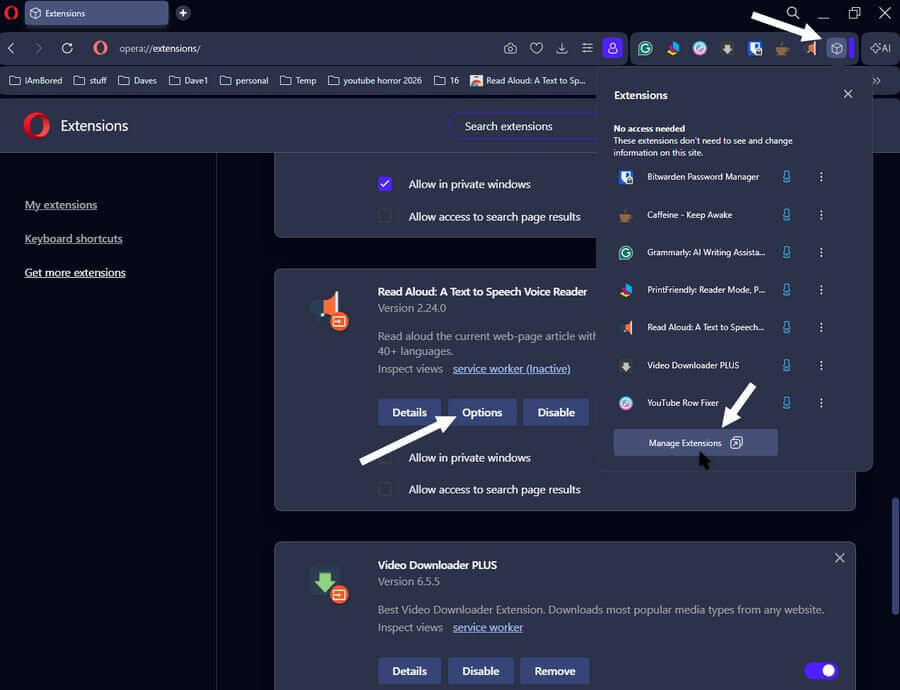
The box that opens is the same, no matter the browser.
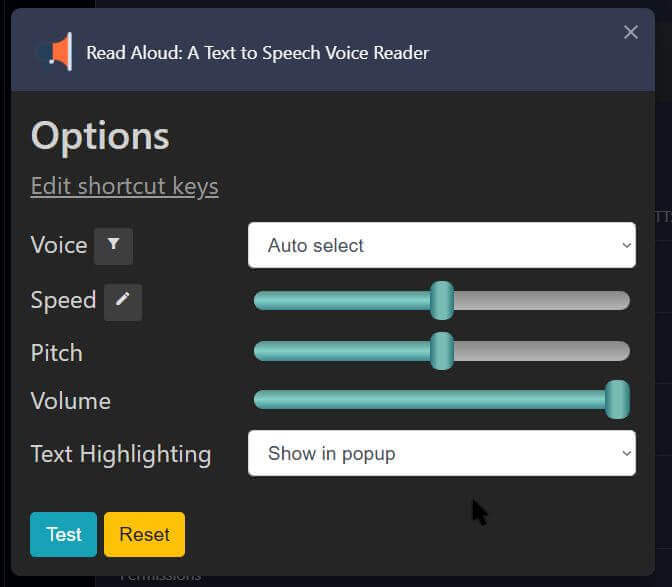
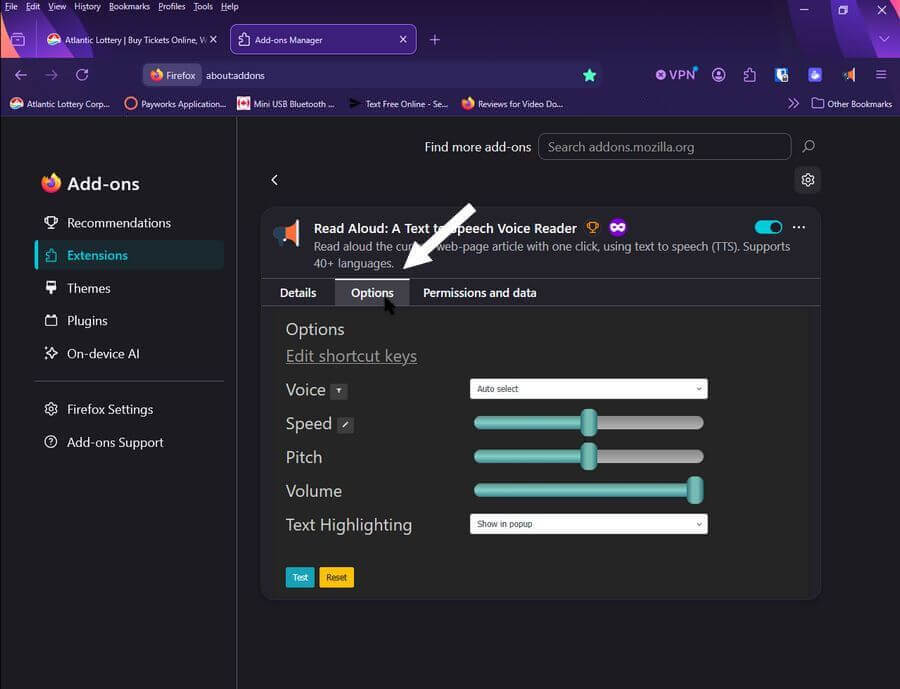
You can change the voice from male to female. Or change the language if the right one is not automatically selected. You can change the speed, pitch, and volume.
If you don’t want the window highlighting the text box to open, you can disable it or open it in a browser window.
To Manage In Chrome…
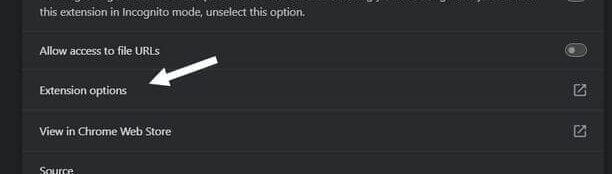
Click the puzzle piece, then “Manage extensions”. Then “Details”…
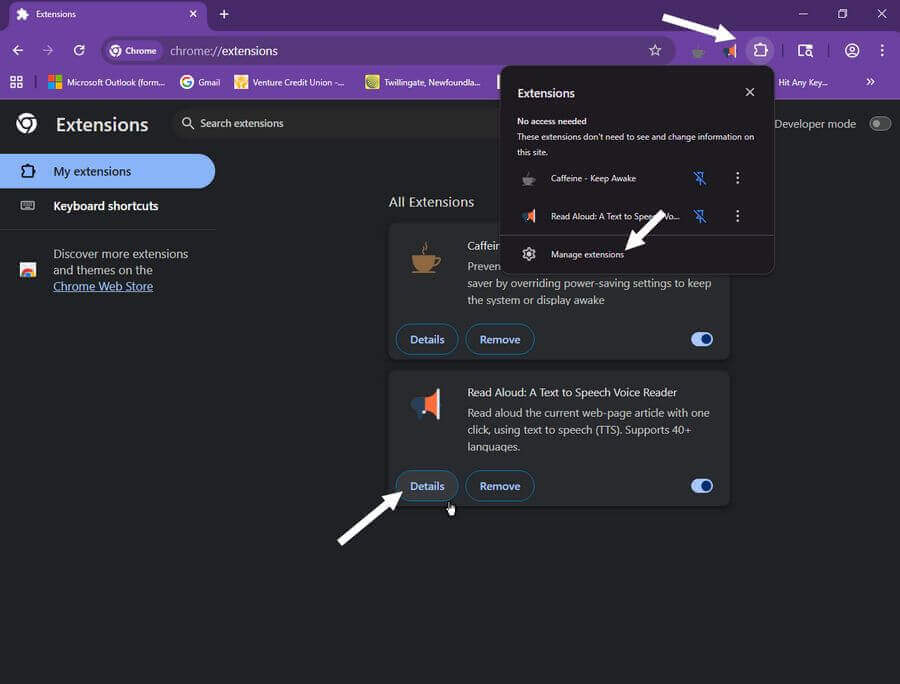
and then scroll down to find “Extension options”.
To Manage In Edge…
Click the puzzle icon. Then “Manage extensions”. In the Read Aloud box, click “Details”.
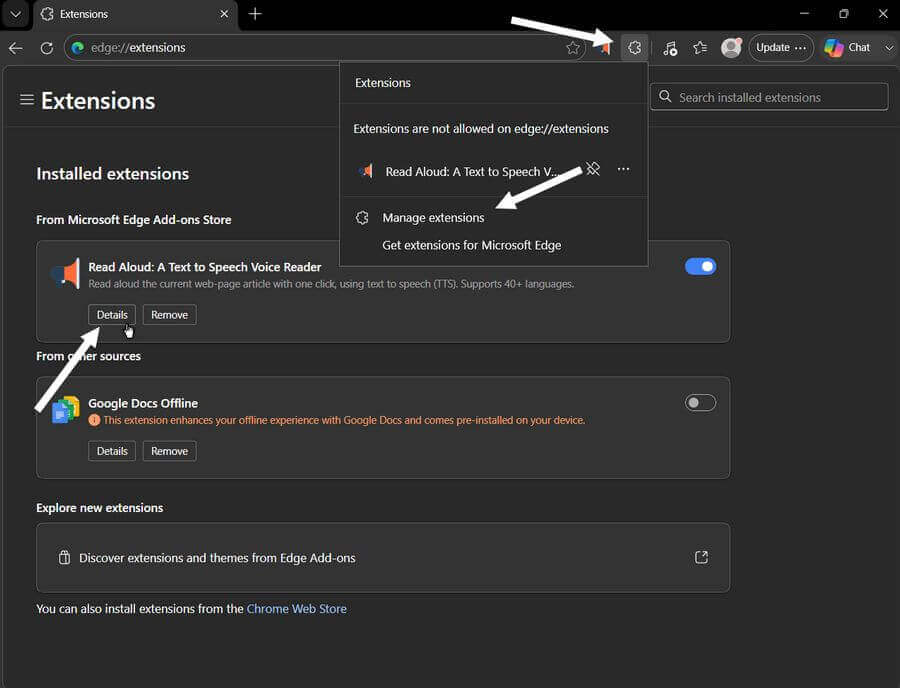
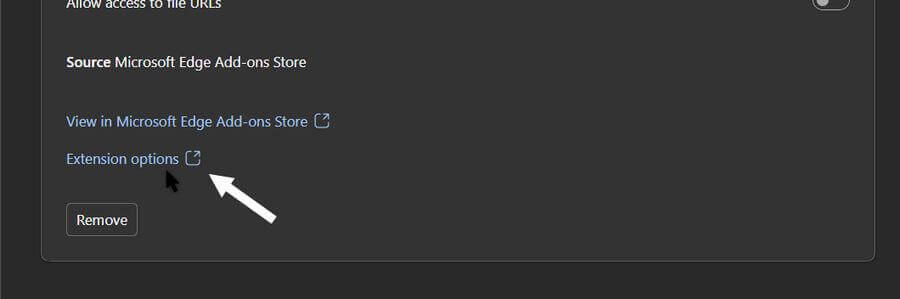
Then scroll down to “Extension options”.
(Ed note: Edge has a built-in text-to-speech option. This offers a second choice for those who want to try something different.)
To Manage In Firefox…
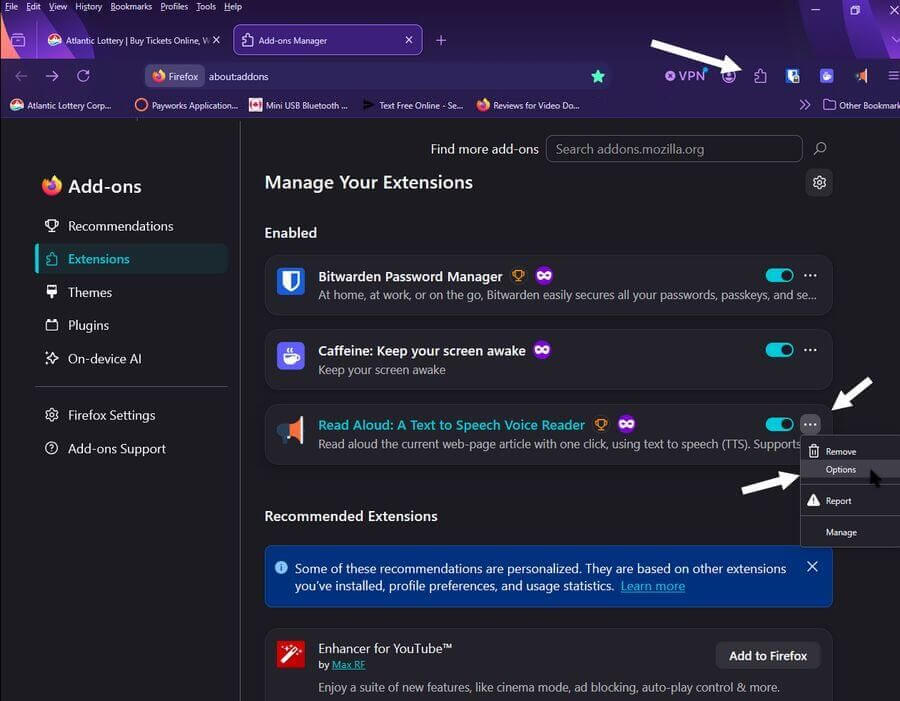
Click the puzzle icon, then the three dots at the end of the extension information section. Then click on “Options”.
Or
Click the name of the extension. Then click the “Options” tab.
So, would you use this? Or do you use this? What are your suggestions for similar programs/extensions? Let us know in the comments.
For more text-to-speech articles, click here.
—
