

This article will show you how to install a browser extension in developer mode created for the new Manifest V3 standard, when one is not available in the Chrome Store.
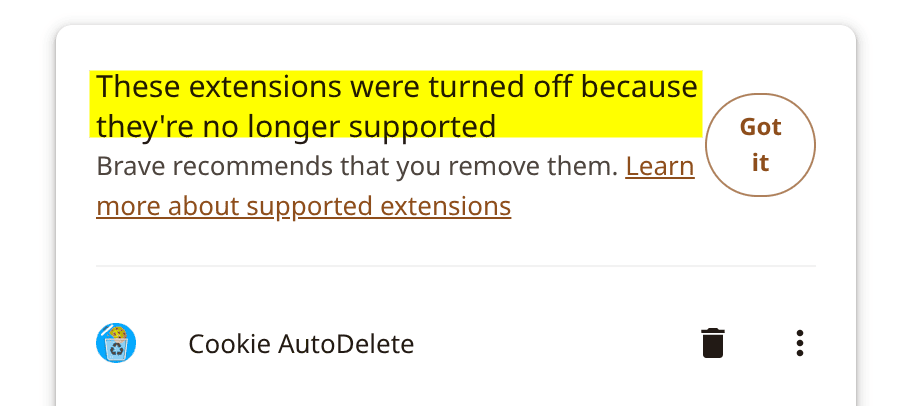
After upgrading to Brave v1.92, I discovered that some of my extensions had stopped working. One of these was Cookie AutoDelete (CAD) 3.82. The extension itself is not defective; instead, the browser has moved on to a newer extension standard. In this article, I will demonstrate how to install an extension in developer mode in Brave. However, the process applies to any Chromium-based browser.
What Changed?
Cookie AutoDelete 3.82 was developed using Manifest V2 (MV2), the extension framework used by Chromium-based browsers for years.
With the Chromium version powering Brave 1.92, support for Manifest V2 has been removed. Now, Brave only accepts Manifest V3 (MV3) extensions (except for four MV2 extensions Brave is supporting, brave://settings/extensions/v2). As a result, MV2 extensions such as Cookie AutoDelete 3.82 are marked as unsupported and are disabled.
Unfortunately, without an official MV3 release from the original project, it is not possible to make version 3.82 work simply by changing a browser setting.
Community Solution
There is not currently an official MV3 version available on the Chrome Store. Fortunately, a developer has created a version of Cookie AutoDelete that is compatible with MV3. The project is available on GitHub:
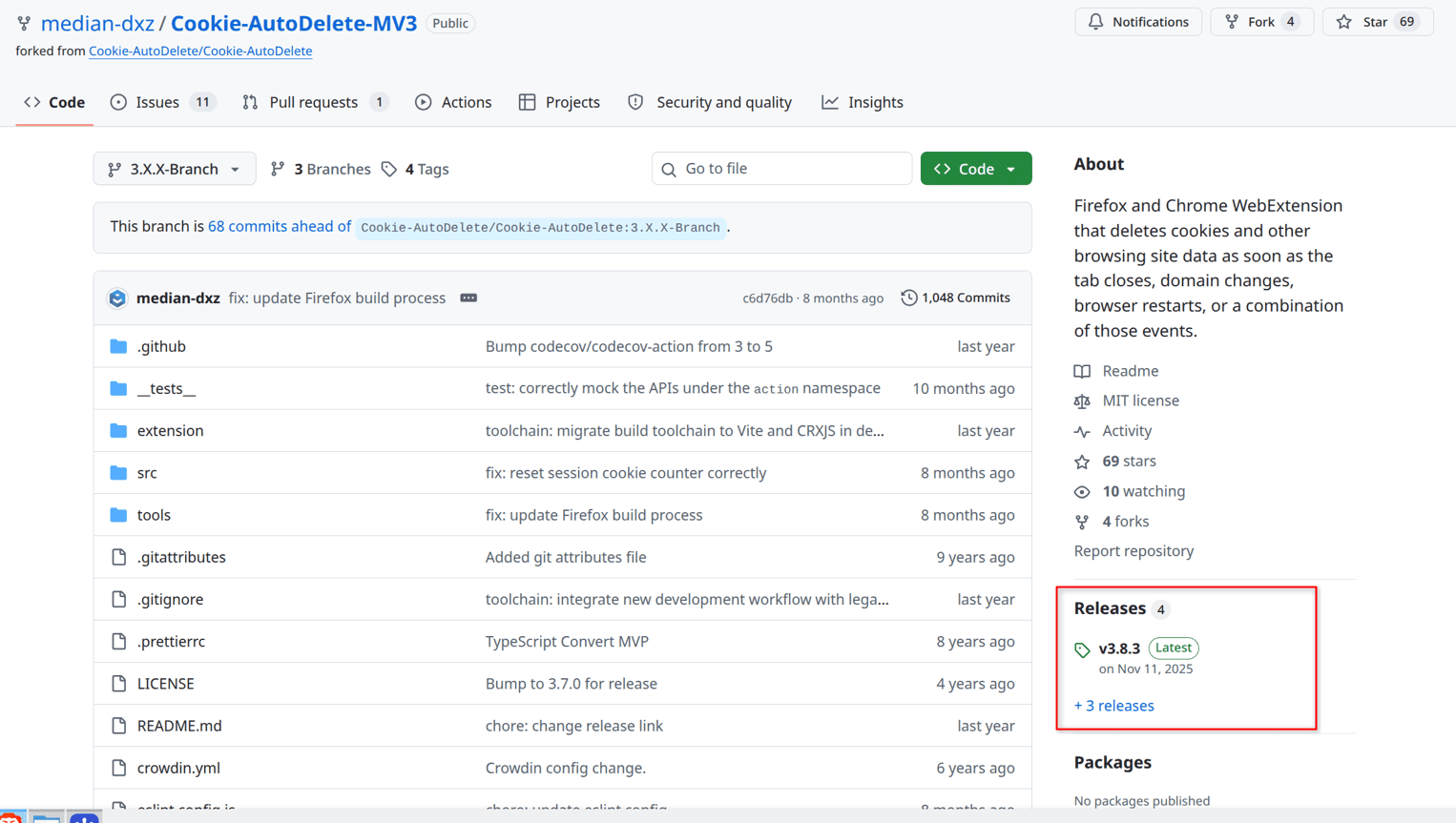
Cookie-AutoDelete-MV3 https://github.com/median-dxz/Cookie-AutoDelete-MV3
This extension looks clean, and many users report that it works well. However, as with any community-maintained software, you should review the repository before installing it.
To download:
Step 1: Click on the Release section.
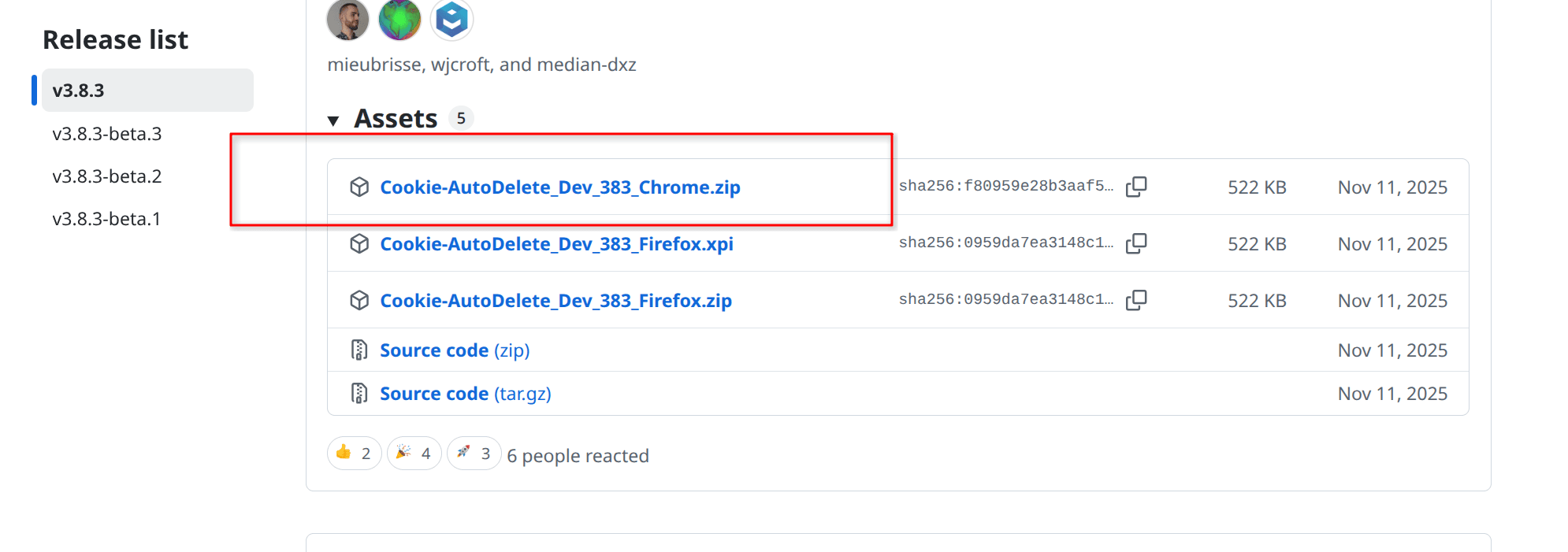
Step 2: Select the latest version.
Step 3: Download the Code….Chrome.zip version (not the source code ZIP or TAR.GZ).
Installing the MV3 Version in Brave
How to install the extension in Brave using the developer mode.
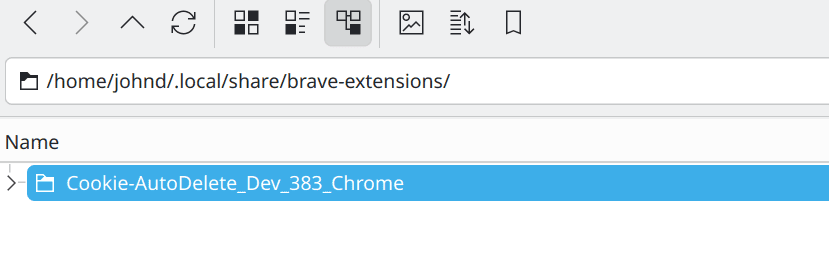
Step 1: Extract the ZIP file to a permanent folder. Avoid using a temporary location such as the Downloads folder.
In Linux, I used:
~/.local/share/brave-extensions
In Windows, I used:
C:\Users\<YourName>\Documents\BraveExtensions\CookieAutoDelete
Step 2: Open Brave and enter:
brave://extensions
Step 3: Enable Developer mode using the switch in the upper-right corner.
Step 4: Click Load unpacked.
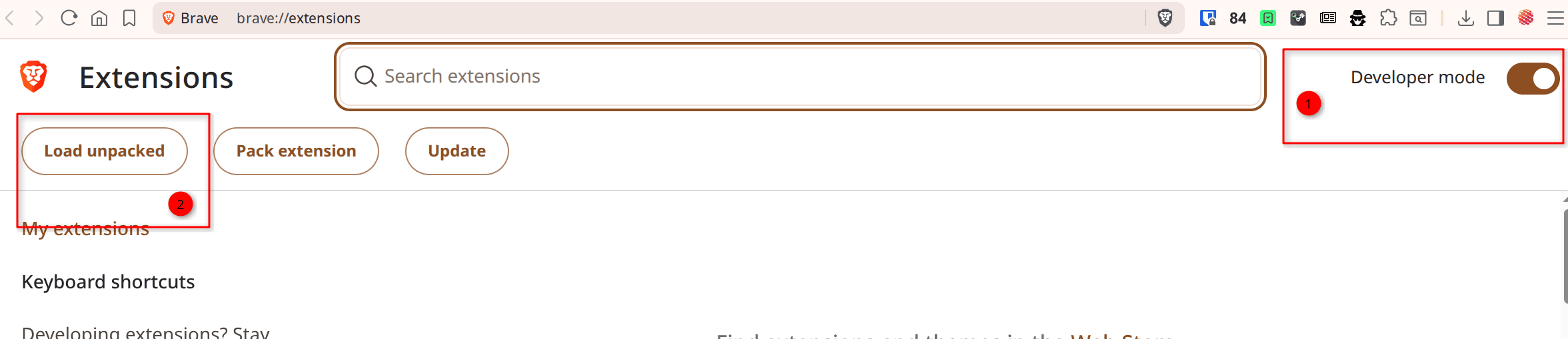
Step 5: Browse to and select the extracted Cookie-AutoDelete-MV3 folder.
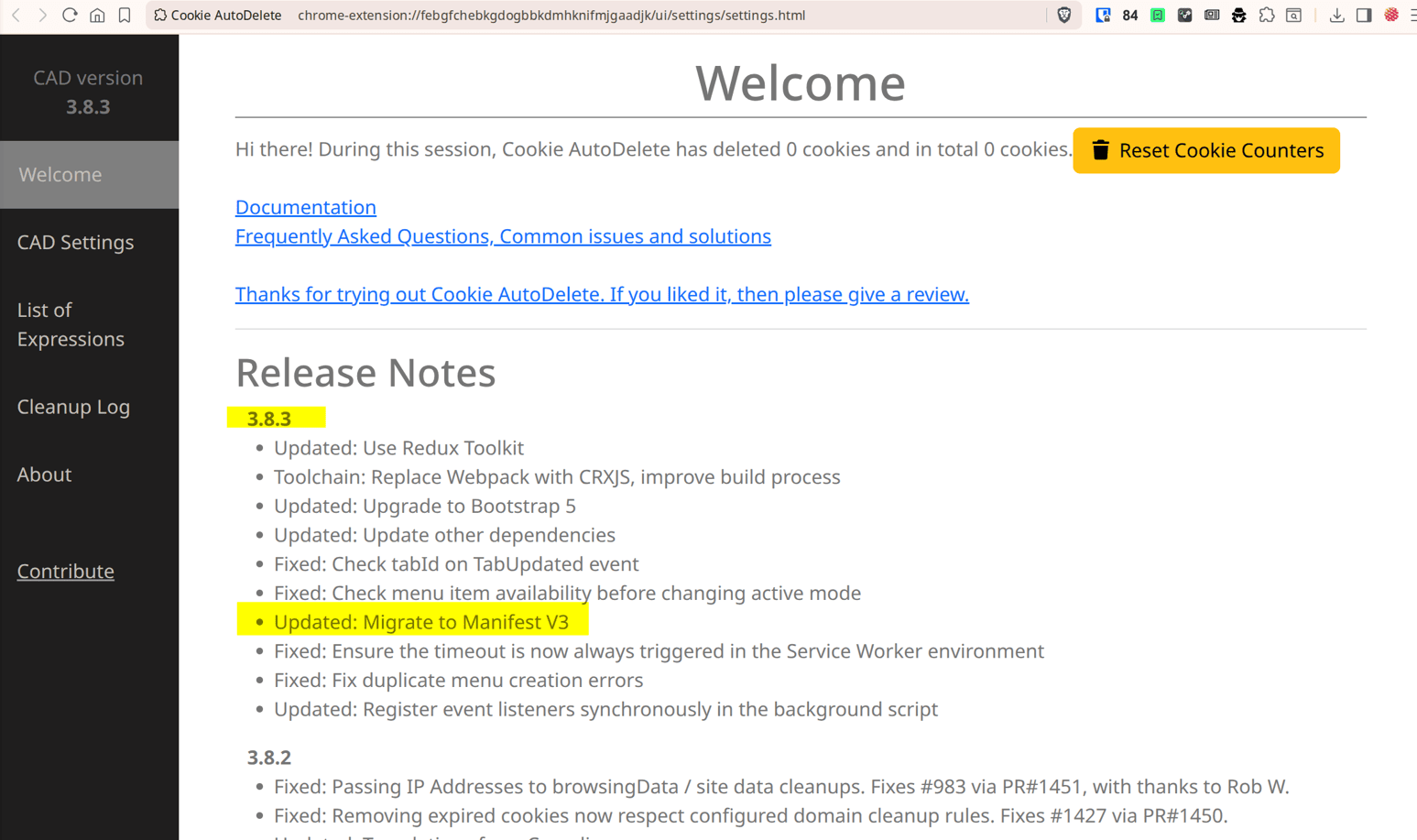
The extension should load immediately. If desired, pin it to the Brave toolbar for easy access.
Updating the Extension
Extensions installed through Developer Mode do not update automatically.
When a new version of the GitHub project is released:
- Download the latest files.
- Replace the contents of your existing extension folder.
- Open brave://extensions.
- Click the Reload button for Cookie AutoDelete MV3.
The update will become active immediately.
Bottom Line
The disappearance of Cookie AutoDelete 3.82 is not unique to Brave. It is part of Google’s decision to retire Manifest V2 across Chromium-based browsers. As browsers continue adopting Manifest V3, older extensions that were never updated will stop functioning.
For users who relied on automatic cookie cleanup and used Cookie AutoDelete MV2, the MV3 fork is currently the most practical way to restore Cookie AutoDelete functionality in Brave 1.92+ until an official replacement is made available.
The above procedure shows how to install an extension that requires developer mode and manual installation.
—

Article – How To Install Manifest V3 Browser Extension
– I thought this setting on Brave would remove site cookies and site data after closing site.
“Shields / Forget me when I close this site /
Clears cookies and other site data when you close a site”
Hi Sam,
Brave’s builtin cookie controls are good, but CAD offers more granular automation. For example, can close cookies after close tab which is helpful if don’t want cookies lingering until you quit the browser.
Maintenance is also easier if you use multiple browsers and/or profiles and even O/S, and want to copy settings between them since CAD has import/export capabilities.