

I bought a Chromebook from one sister to give to another, but she didn’t like it because everything on the screen is too small. Here’s how to adjust it.
Chromebooks don’t have a right-click option on the desktop for changing the resolution. If it does, mine is not working. 🙂
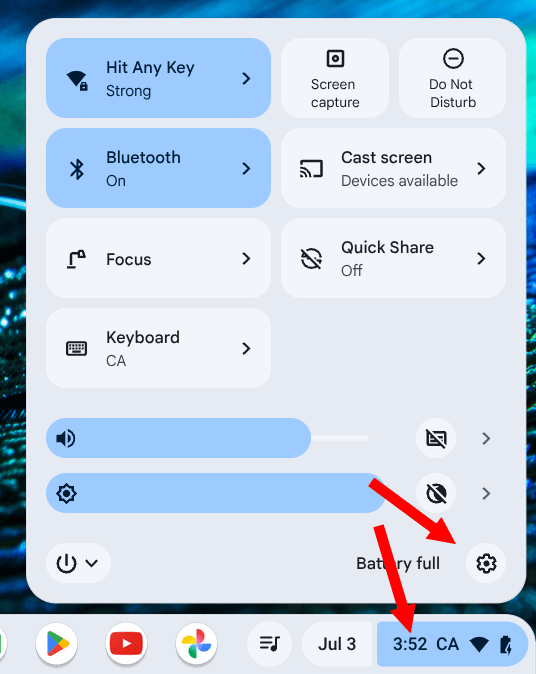
Click near the clock in the right-hand corner, and in the menu that opens, click on the “Settings” icon.
(Ed note: Click any image to enlarge.)
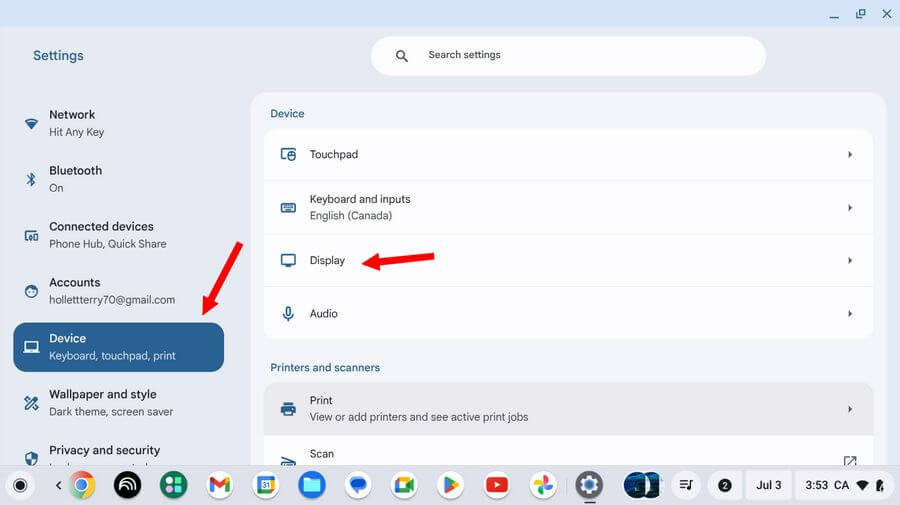
When the “Settings” opens, click on “Device” on the left-hand menu.
Then click on “Display” on the right-hand menu.
Now click and drag the slider in the “Display and text size” section.
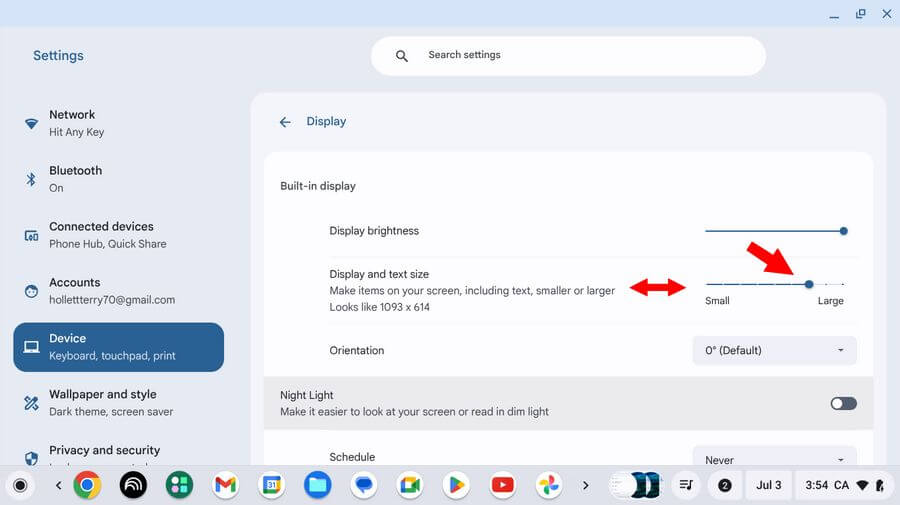
Keep in mind this makes everything bigger, including the icons. You may notice the icons in the taskbar, or as Chromebook calls it, a “shelf”.
For keyboard warriors:
“Ctrl + Shift + Plus” makes everything larger.
“Ctrl + Shift + Minus” makes everything smaller.
“Ctrl + Shift + 0” resets the zoom to default settings. (That’s a zero.)
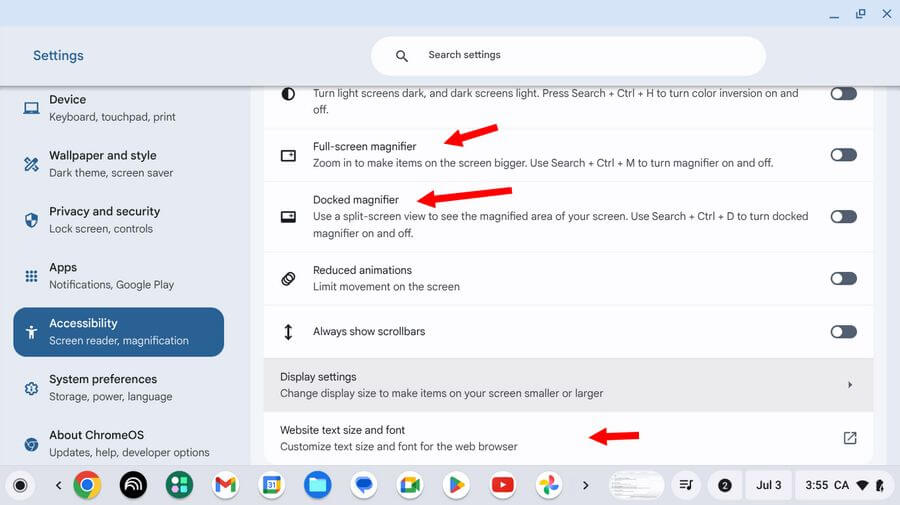
There are also “Accessibility” options, such as “Magnification,” that might help.
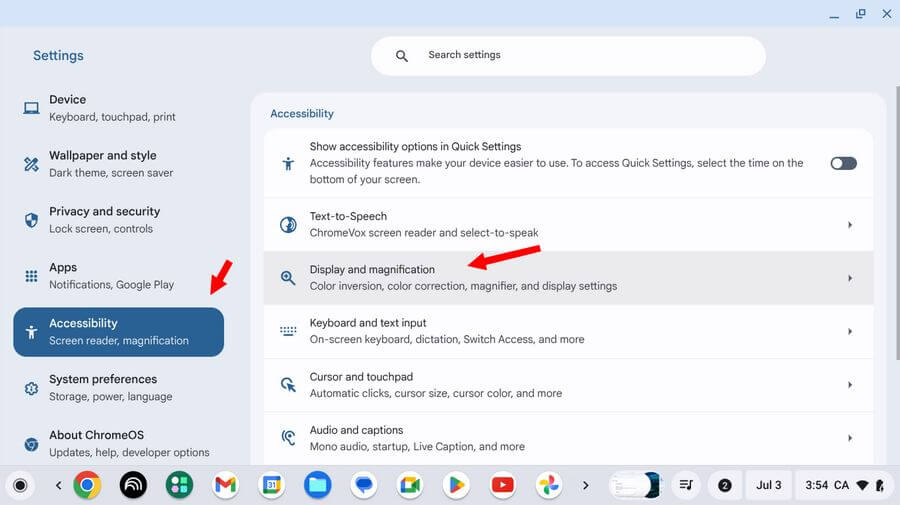
Use the switches to enable or disable a magnification option. There are also some website options. But for the browser, you can use its zoom options.
And if all else fails, you could always try hooking it up to a bigger monitor.
For more Chromebook articles, click here.
How To Zoom In Or Out Of A Web Page
—
