

After watching some YouTube videos, I discovered that Microsoft keeps a log of your activities in a file called “ActivitiesCache.db”. I thought it was only for Windows 11, but I also found the file on all of my Windows 10 computers.
The path to the file on my system is
C\Users\Terry\AppData\Local\ConnectedDevicesPlatform\L.Terry\ActivitiesCache.db
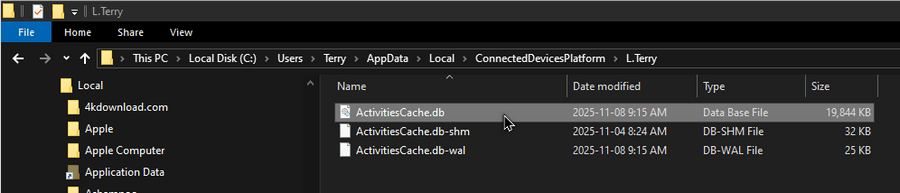
It’s a hidden file, so you have to show hidden files first. In the search bar, type “File Explorer Options”. Click the “View” tab and in the “Advanced settings” section, scroll down to the “Hidden files and folders” section. Select the “Show hidden files, folders, and drives” option and uncheck “Hide protected operating system files (Recommended)”. Accept any security prompts”.
You can disable this data collection by disabling the “Activity History”. Go to “Settings”. Then “Privacy”. Then “Activity History” (down the left-hand menu). Then remove the check mark from “Store my activity history on this device”. You can also click on the “Clear” button under the “Clear activity history” section.
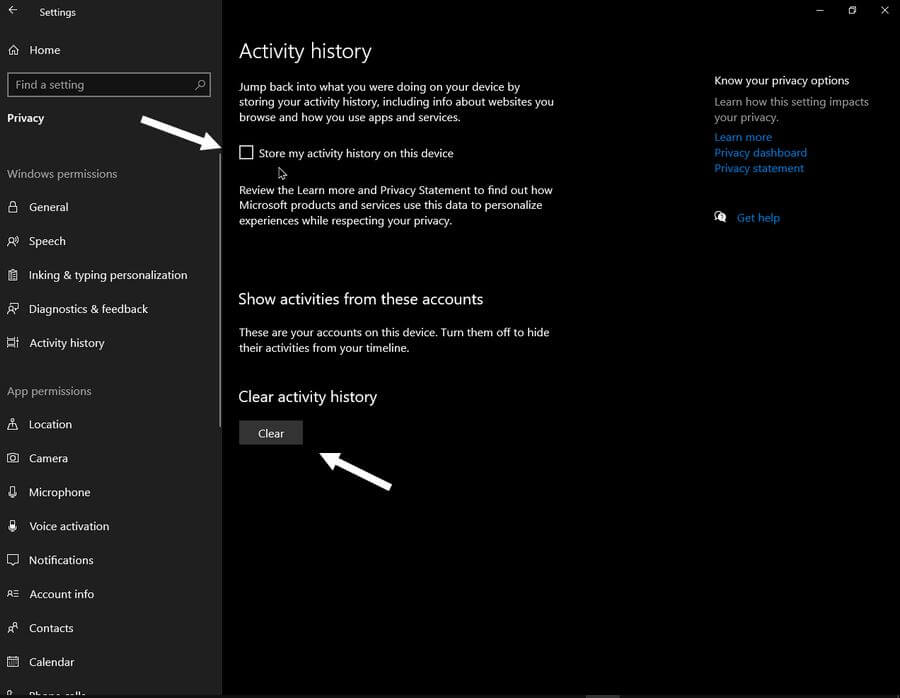
My file was 19 MB. Now it remains steady at 4 KB.
By the way, if you want to read the contents of the ActivitiesCache.db file to see what is being saved, you’ll need a program like “DB Browser For SQLite”.
—

Good read. But I’ve had that unchecked since I built this Win10 Pro desktop PC , finished in February, 2020, where three files so dated are in an \L.Administrator folder. I also have six files in two folders \L.MyUserName and \L.GUIDstring dated in August, October and November, 2025. They’re are chock full of data, including info on the third party firewall I use.
The “clear activity history” function seems to be valid only when there is an “your accounts on this device” account shown, which has its own toggle which I set to off back in February, 2020 when I first set things up as admin before creating the local. And I did hit that clear before setting it to off. Could be there’s a registry or gpedit setting(s) to tweak? Thanks.
Try here: https://www.thewindowsclub.com/how-to-disable-windows-10-active-history-permanently
Covers Windows 10 and 11; registry edits and GPedit.
Hi Terry. I am unable to do as you recommended, but I did locate that file in the registry. What if I just delete it there? Would it come back to life or cause me problems, Mindblower!
Try this site: https://www.thewindowsclub.com/how-to-disable-windows-10-active-history-permanently
It covers both Windows 10 and 11. It also covers using the registry editor.
Thanks Terry. Will try ’em out this weekend and report the results, Mindblower!
Is this just for Microsoft accounts? I have all my W11 computers set up with local accounts and I cannot find the “activity history” on any of them. Am I missing something? Thanks.
I have a local account.
For Windows 11, press Windows key + i, then click on Privacy & security, then scroll down to uncheck the Store my activity history on this device box under the Activity History privacy page.
Hi Terry,
I watch quite a bit of YouTube videos, and when I followed your instructions, SQLITE reported no history of anything recognizable in my ‘ActivitiesCache.db’ file.
I was hoping there would be a nice summary of YT videos I had watched, but there was nothing of interest that was displayed.
So, what is the purpose of SQLite in your article?
Thanks,
Dan
I just mentioned it in case anyone wanted to read the contents of that file properly.