

You can set up and use Linux on your Chromebook to expand your environment of potential programs and apps. Here is how to do it.
Note: This does not install a full desktop program. It’s like a Linux emulator with “Terminal” only. No Desktop GUI. Not my cup of tea. But you can still run full GUI programs like LibreOffice and GIMP.
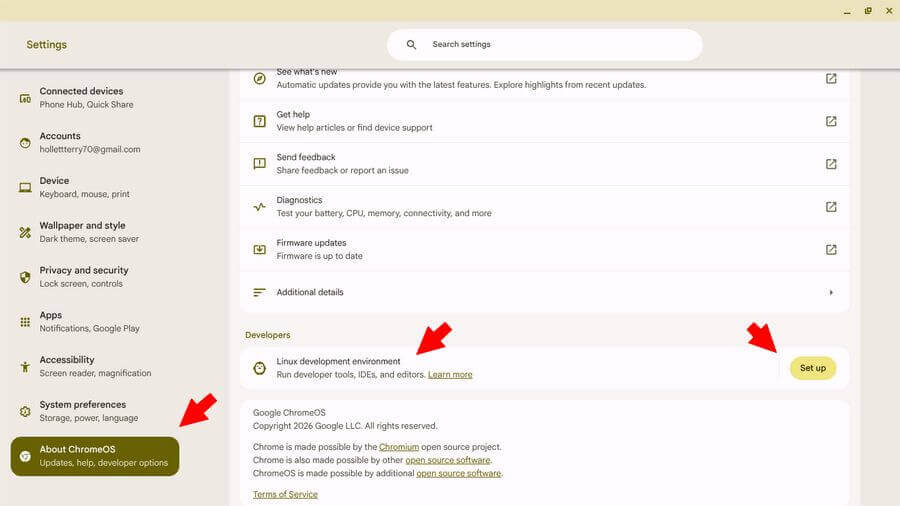
Go to Settings by clicking the clock and then the settings icon.
Down the left-hand side, in Settings, click “About ChromeOS”.
On the right-hand side, you should see “Linux development environment”. Click “Set up”.
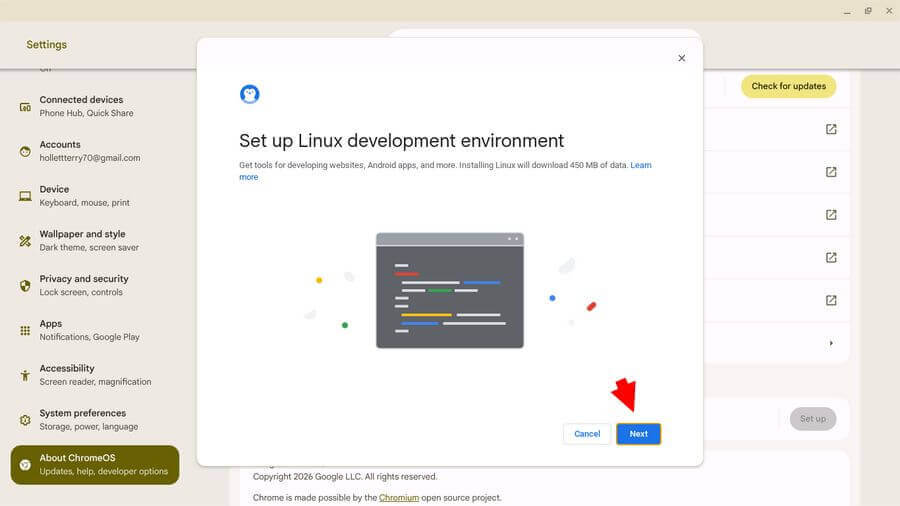
On the next screen, click on “Next”.
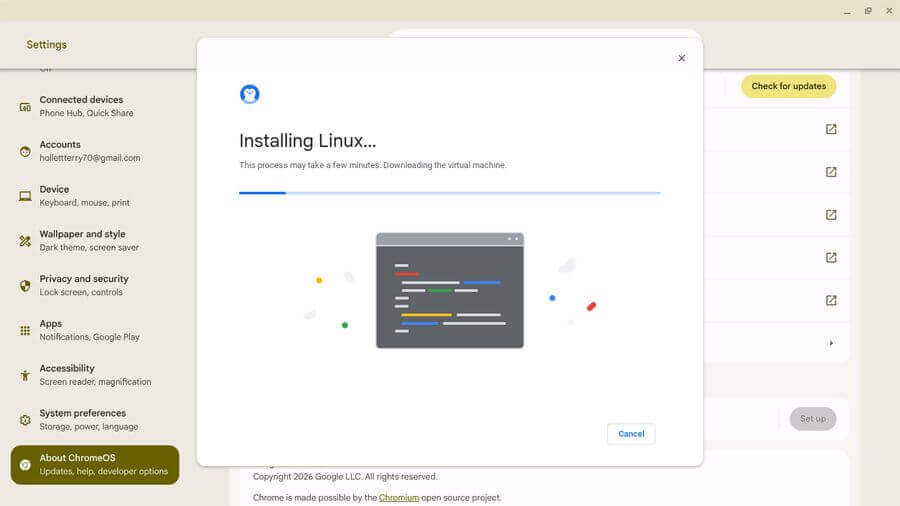
Then you should see the “Installing Linux…” screen. Wait. It’s downloading files from the internet, so the time to finish may vary.
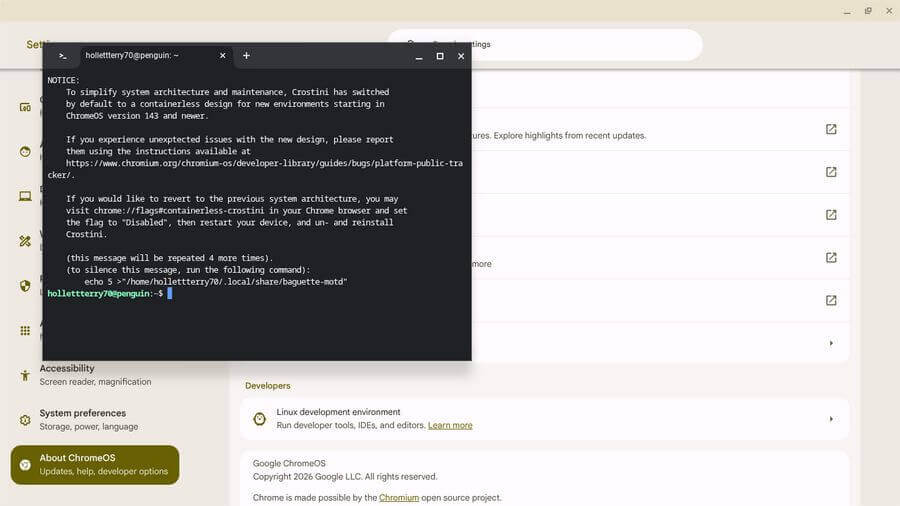
And it’s done. You should now be looking at a black terminal window. That’s your Linux installation.
You can then install the app package of your choice. Type the appropriate command, hit Enter, and wait. Accept any prompts. I selected Gnome.
For Gnome, type …
sudo apt install -y gnome-software gnome-packagekit
For Flatpak, type …
sudo apt install flatpak
Note: This version of Linux is based on Debian.
Now, let’s test and install LibreOffice on Linux.
First, it’s recommended to run an update.
sudo apt update
Then install LibreOffice.
sudo apt install libreoffice
You’ll be asked to confirm; type “Y” for yes and hit Enter.
To start LibreOffice, type libreoffice and hit Enter, and that’s it. It works.
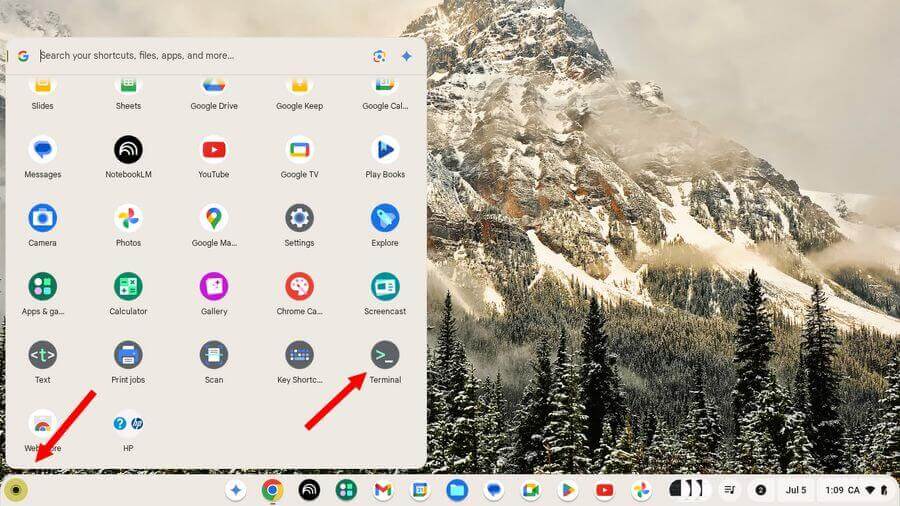
You can exit the Linux terminal by clicking on the “X” like any window. If you want to open it again, click the “Launcher” button (the black dot at the beginning of the “shelf”). Now look for “Terminal”. Click it.
The shelf is like the taskbar in Windows. The launcher button is equivalent to the Start button.
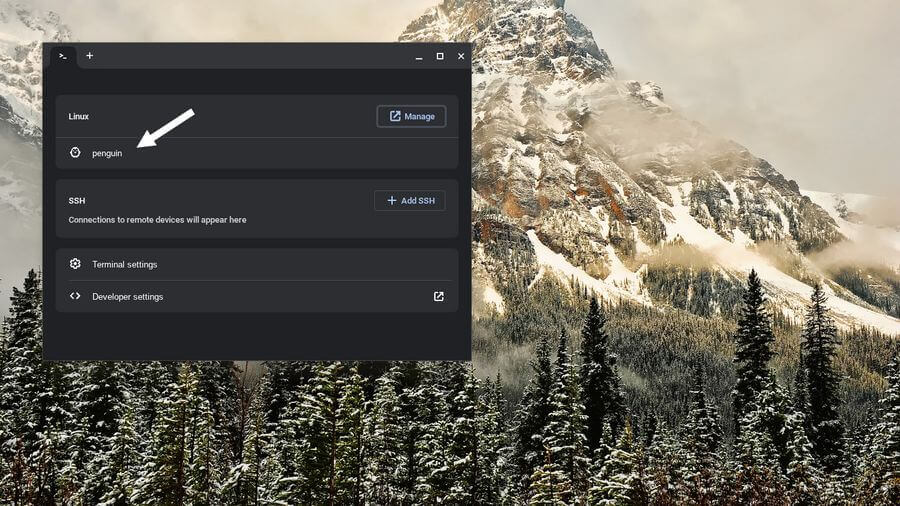
When the Terminal opens, click “penguin” to return to Linux.
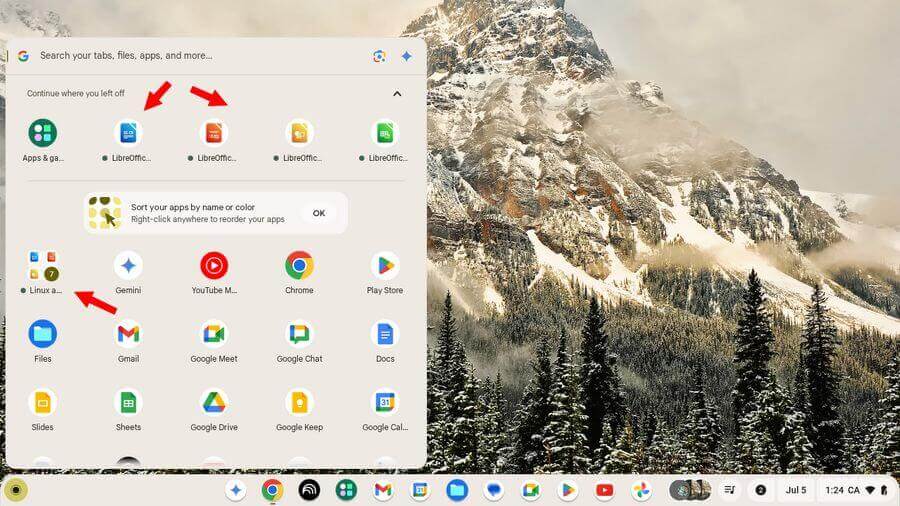
When you install a Linux app, it will display in the launcher like any other app; click on it to open. You don’t have to go to Linux first. You will also notice a special group called “Linux apps” in the side menu.
So, that’s the basics. How many Linux users are in our audience? Have you ever used it on a Chromebook? Let us know in the comments.
For more Chromebook articles, click here.
For more Linux articles, click here.
—

My Chromebook only accesses “Chrome” as the last choice at the bottom and not “ChromeOS.” “Linux development environment” is not posted anywhere. It’s no big deal, as I probably would not use it anyway.
If you are still interested, an online recommendation is to update your system, then reboot and check to see if it’s available. There’s also the possibility that your device may not be supported.