
Last week, we covered how to adjust Facebook Display Settings. If you missed that article, you can find it here:
How To Adjust Facebook Display Settings
This week, I want to cover something on privacy. Not on Facebook, but a Google AI feature called Gemini. I want to bring this up because I received a notification that Google turned on Gemini, and it would automatically capture information on my screen. This was alarming since I never asked it to do this. Seems like Google did an update and decided to turn this feature on. If I had not had my notifications turned on, I would have never known! Since I don’t want this feature active, I researched and found out where to turn it off. Before I start this important lesson, please make sure to check out these other articles I have written for you:
- How To Create Collage In Google Photos
- How To Create Cinematic Photos On Google
- How To Create Highlight On Google Photos
- How To Remix Photos In Google Photos
- How To Disable Google Photos Suggestions
Time to learn how to protect your information.
How To Stop Gemini From Reading Screen
This will be shown using my Motorola Edge Android phone.
Step 1: On your mobile device, look for the Google icon, not Chrome. You are looking for the Google G logo. Tap it.
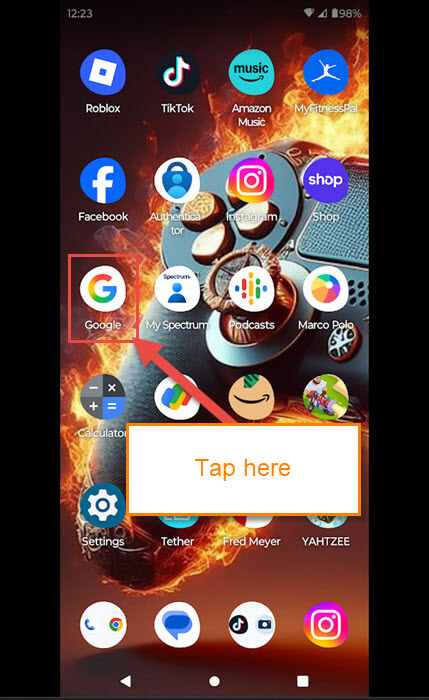
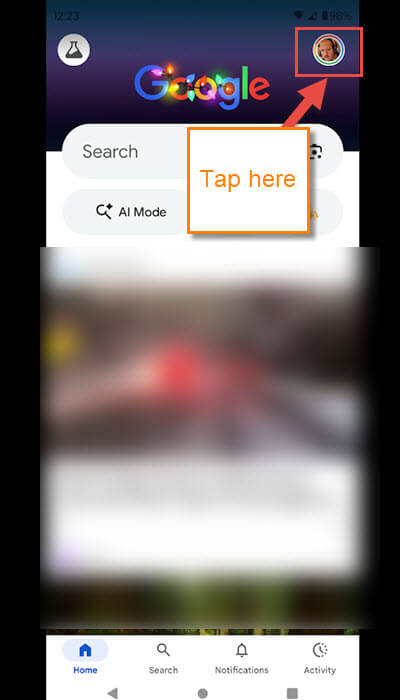
Step 2: Once here, look to the top right for your Profile image. Tap it.
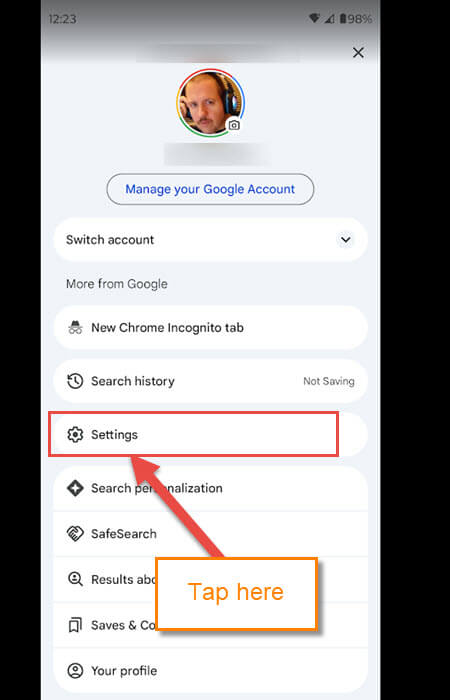
Step 3: On this menu, look for the Settings link. Tap it.
Step 4: The Settings menu will appear, and we are looking for the Gemini option. Tap it.
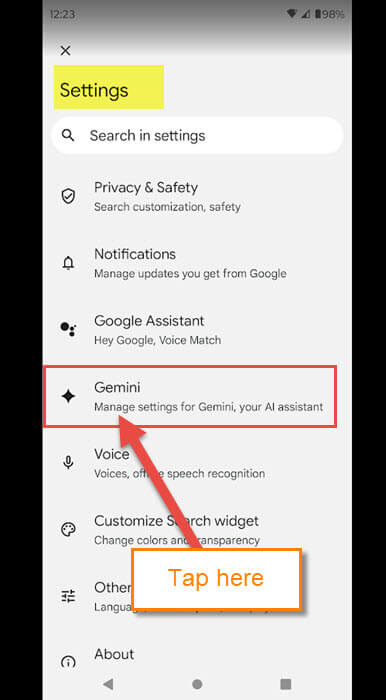
Step 5: Now we are on the Gemini Settings screen. The option that I want you to turn off is called Screen context:
- Screen context: (Allow Gemini to capture information on your screen.)
Scroll down until you find it. Tap this option.

Step 6: As I said, I do not want them to copy content from my screen. Here, they give you some choices:
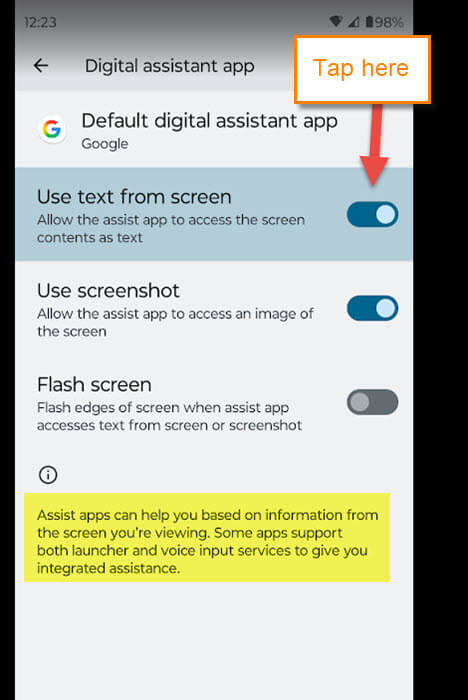
- Use text from screen (Allow the assist app to access the screen contents as text.)
- Use Screenshot (Allow the assist app to access an image of the screen.)
- Flash Screen (Flash edges of screen when assist app accesses text from screen or screenshot.)
Tap the switch to the right of the top option. This will turn off this feature, plus the other ones on this list that no one asked for. Tap it. DONE!
Now you are protected from Google taking information from your screen. Make sure to share your new knowledge with your friends and family. We want to keep everyone safe.
—

Excellent info.
Thank you so much!
You are very welcome! Glad you found it useful John.
Thanks for the information Jason.
Don’t know when our world became a “you are automatically signed in” or “automatic renewals”. Frustrating.
Thanks again
Lucio
You are welcome Lucio. It is very frustrating to know even if you opted out of it before they can still turn it back on with an update.