

Last week, we covered how to enable clipboard alerts on Samsung. If you missed that one, you can find it here:
How To Enable Clipboard Alerts on Samsung
This time, I wanted to show how you can remove third-party apps that you have connected to your Google account. You might not realize that when you connect an app to a website, it has access until you delete it from your Google account. I’m here to show how you can remove that access after you have stopped using the app. It is important to remove their access for your privacy and security. Before I start this new lesson, make sure to check out these other articles I have written:
- How To Blur House On Google Maps
- How To Disconnect App From ChatGPT
- How To Change Appearance Of ChatGPT
- How To Change ChatGPT Personality
- How To Stop ChatGPT Notifications
Pull out those computers and let us get this class started.
How To Remove Third-Party Apps From Google
This will be shown on my Windows laptop using Google Chrome.
Step 1: Find the Google Chrome browser and open it.
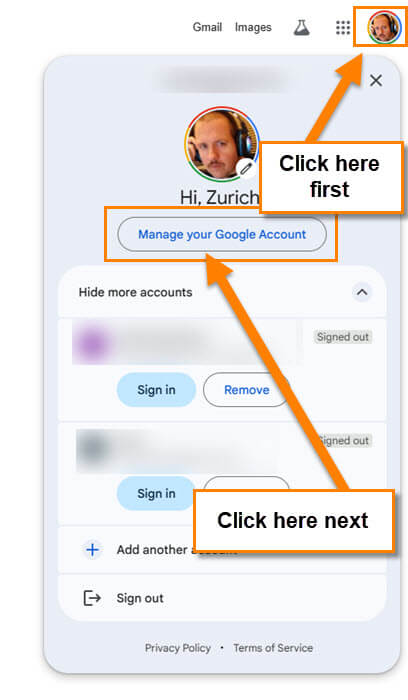
Step 2: Once on, look to the top right and click on your Profile Image. Make sure you are signed into the Google account you want to use for this.
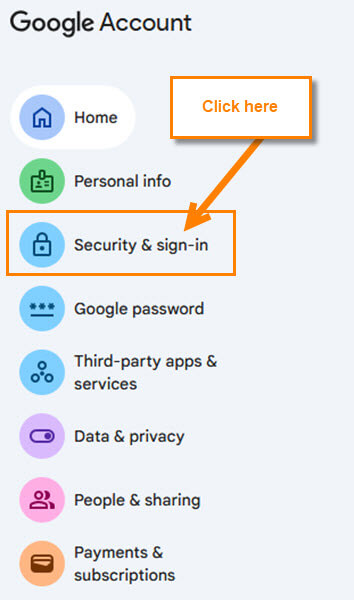
Step 3: On the Google Account screen, look at the left menu. You will want to find Security and Sign in. Click on it.
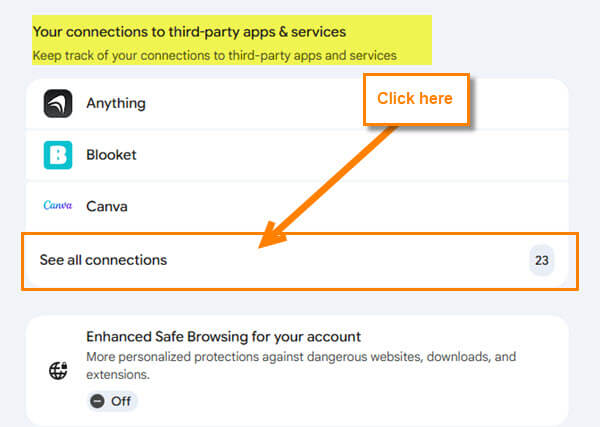
Step 4: In here, look to the middle and scroll down until you find the section called Your connections to third-party apps & services. Below that, you will see some of the apps you are connected to. Under those, you will see, See all connections. Click that.
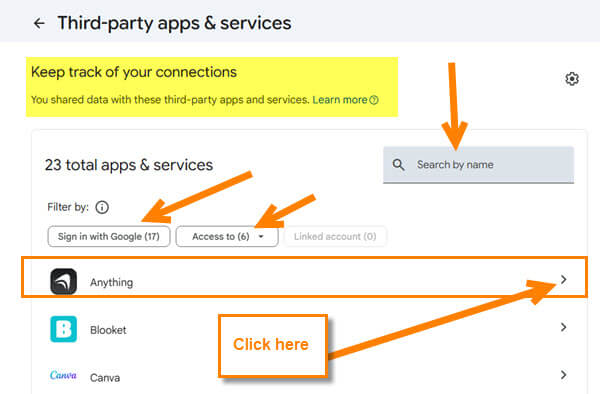
Step 5: Now we are on the screen that shows all the app connections. Look for the one you wish to remove. They do give you filter options at the top to find your app more quickly.
- Sign in with Google (Apps you use Google to sign in with)
- Access (Apps that are connected without Google login)
For this article, I’m going to choose the Anything app at the top. Click on it.
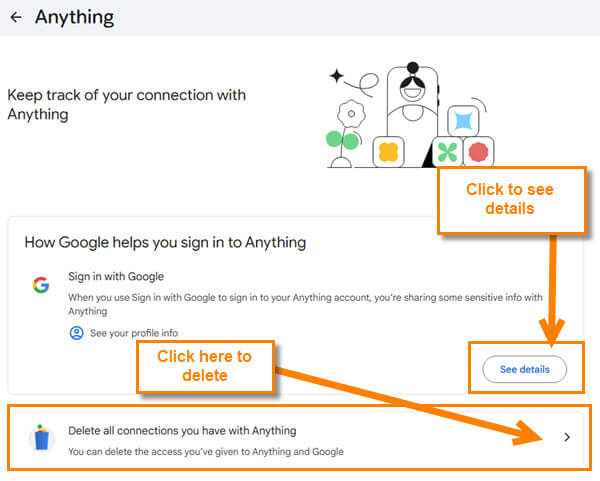
Step 6: Here on this page, you can see two sections that you can work with:
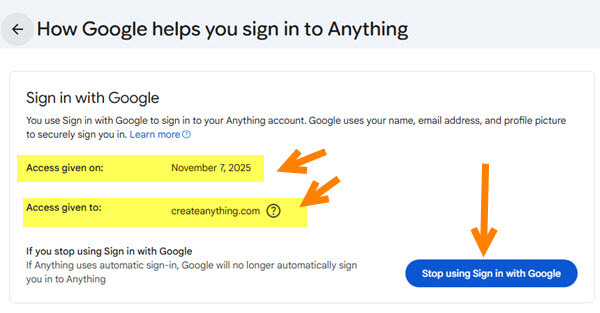
- See details (This shows when you gave access to the app and who you gave it to. See the image below.)
- Delete all connections you have with APP
For this, we will want to click on that last option.
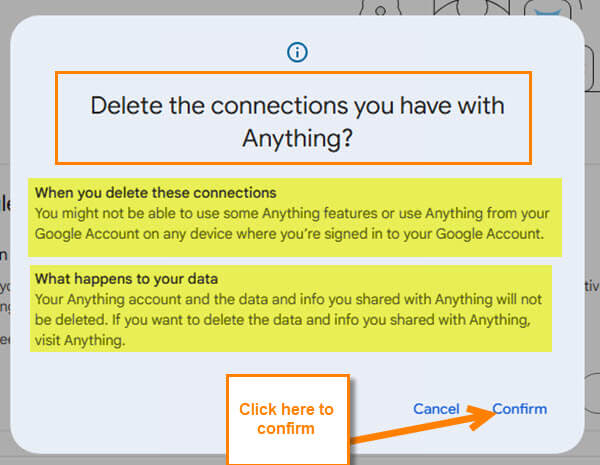
Step 8: You will get a confirmation window, making sure you want to delete this connection.
When you delete these connectionsYou might not be able to use some Anything features or use Anything from your Google Account on any device where you’re signed in to your Google Account.What happens to your dataYour Anything account and the data and info you shared with Anything will not be deleted. If you want to delete the data and info you shared with Anything, visit Anything.
Now you know how to remove those third-party connections from your Google account. Time to share this new knowledge with everyone.
—
