
If you were here last week, I talked about how to remove third-party apps from your Google account. If you missed it, you can find it here:
How To Remove Third-Party Apps from Google
This week, I want to stick with the Google subject and teach you more. What are you teaching us this week? Good question. I’m going to show you how you can manage who sees your Google profile. This will help protect you by not letting others see information about you and hiding it. Two examples are: your gender and your birthday. Here I will show you how to manage your information to keep you safe. Before we get going, make sure to check out these other articles I have written for you:
- How To Enable Clipboard Alerts on Samsung
- How To Blur House On Google Maps
- How To Disconnect App From ChatGPT
- How To Change Appearance Of ChatGPT
- How To Change ChatGPT Personality
Time to start the new lesson.
How To Manage Your Google Profile Visibility
This will be shown on my Windows laptop using the Google browser.
Step 1: Find your Google browser and open it up.
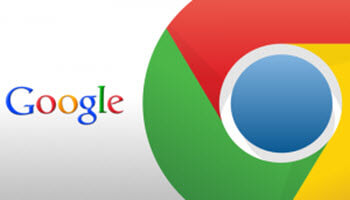
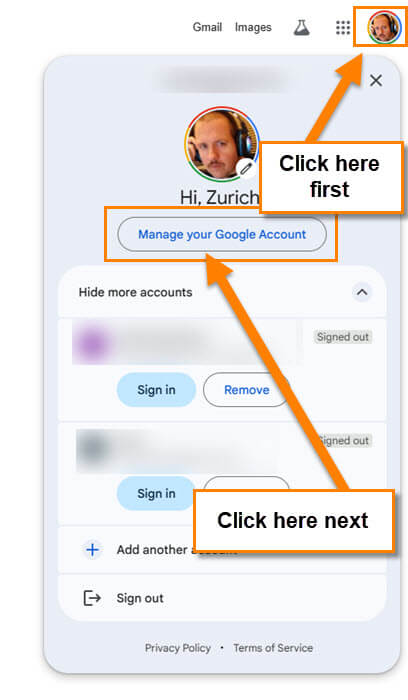
Step 2: Once on, look to the top right for your profile image. Make sure you are signed into your Google account to do this. Click on your image, and a menu will appear. On the menu, click on the Manage your Google Account button below your name.
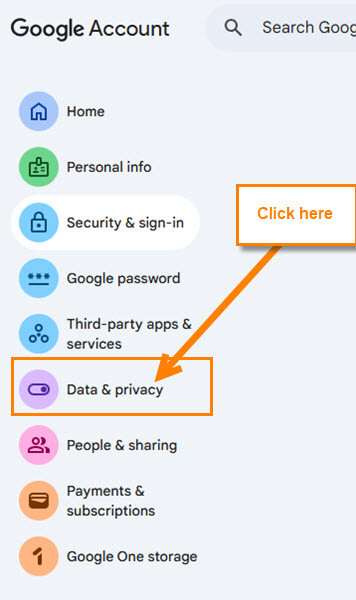
Step 3: On this next screen, look at the left menu. Find the option called Data & privacy and click it.
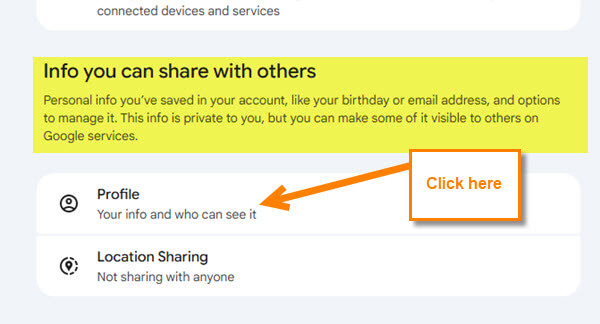
Step 4: In the middle of the screen, scroll down until you see the wording, “Info you can share with others.” Under that, you will see two choices:
- Profile (Your info and who can see it)
- Location Sharing (Not sharing with anyone)
We want to click on the top option called Profile.
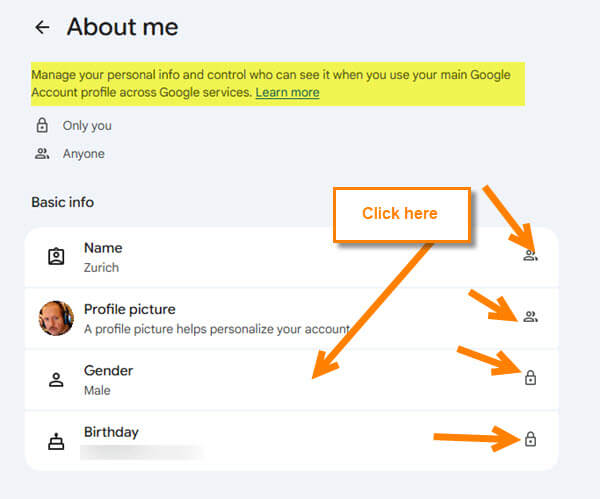
Step 5: You are now on the About me screen.
Manage your personal info and control who can see it when you use your main Google Account profile across Google services.
They give you a key at the top to show you who is seeing your information. A lock icon that only you can see, and a people icon that anyone can see. They give some options at the top to work with:
- Name (you can show a different name than your real one)
- Profile picture (you can change your image to something that is not your face)
- Gender
- Birthday
The one I will show you here is the Gender. Click it.
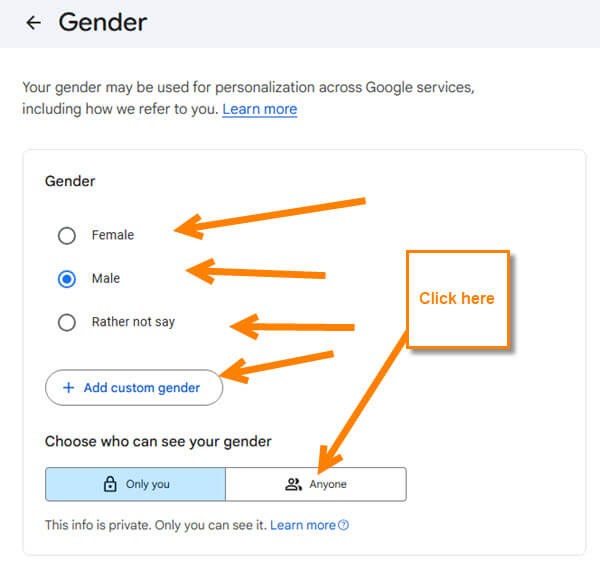
Step 6: Here, you can see that you can change the gender, but we are not here for that. Look down near the bottom, and you will see, “Choose who can see your gender.” Under that, you are given the two options: either let others see it or only you. Click on one. Head back to the previous screen.
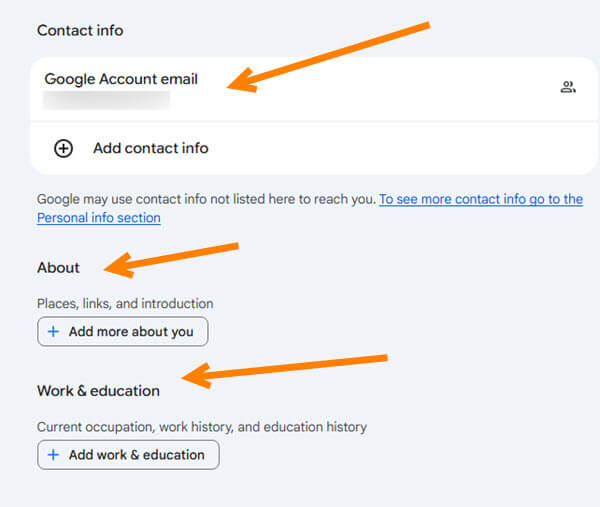
Step 7: A little further down this screen, you will see email (this can not be changed) and two other options if you want to share. You can mess with those if you wish. So looks like they only let you really change the Gender and birthday to not show. Now you know how to find this area.
I will suggest messing around in here to get it the way you want. Time to share this new knowledge with the world.
—

Can’t understand why there are so many pictures with a cell phone and advertising to put a paper clip in the charging port of a cell phone. Not a smart suggestion to be advertising on this site.. Have a pleasant week.