

Point-In-Time Restore is a new recovery option that Microsoft has introduced into Windows 11. This new feature was delivered to my Windows 11 systems as part of the July update package.
Point-In-Time Restore is an improvement over the legacy System Restore in that it captures the current system state, as well as the current state of installed software and personal data.
New Point-In-Time snapshots are created every 24 hours with a maximum of three restore points. Once the maximum number has been achieved, the oldest snapshot is deleted each time a new snapshot is created. So, the furthest you can go back in time for a restore is 72 hours.
Drive space allocated for Point-In-Time Restore is set at a default 2.0% of the drive’s total capacity. Importantly, this space is not pre-allocated; it is dynamic and only grows as snapshots are created.
Point-In-Time Restore is available in both Windows 11 Home and Pro editions and, provided the total capacity of the system drive is not less than 200 GB, it is enabled by default.
The feature is also available for users whose system drive capacity is less than 200 GB (128 GB, for example), but it is disabled by default. You can still choose to enable the feature, if you wish, but you need to be careful that you don’t overly eat into the drive’s free space.
How To Access Point-In-Time Restore
Navigate to Settings > System > Recovery and, under “Point-in-time restore“, click the View or edit button.
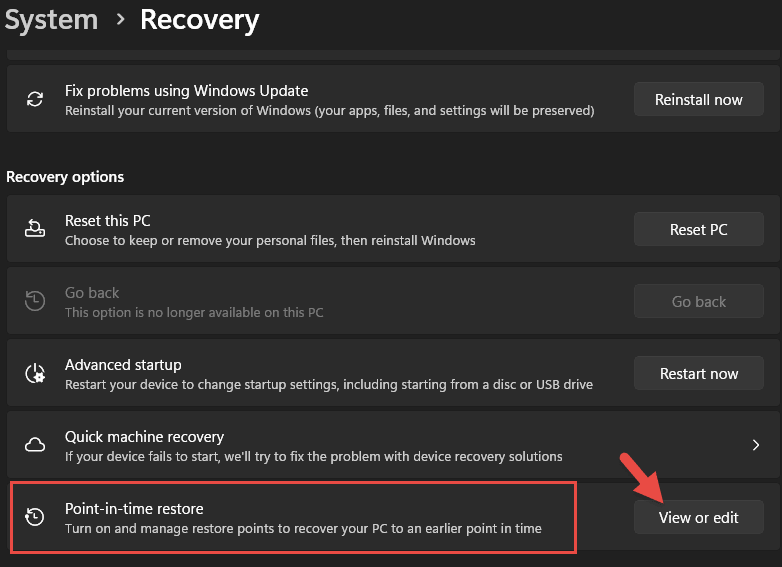
In the Point-In-Time Restore settings window, you can enable/disable the feature and view the details.
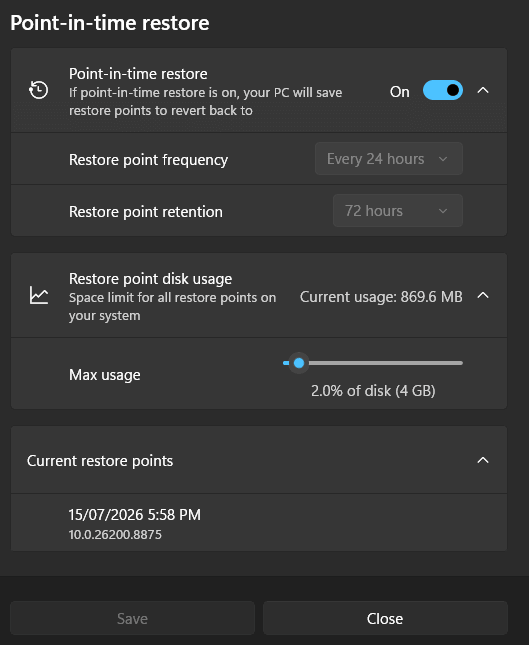
You cannot change the frequency or the retention period. You can, however, adjust the maximum amount of space allocated, but I’d recommend leaving it at the default 2.0%.
What Happens To System Restore?
The short answer to that question is… nothing. To my surprise, System Restore remains enabled. I anticipated that the legacy System Restore might be disabled once Point-In-Time Restore is activated, but it seems Point-In-Time Restore is currently as well as System Restore, rather than instead of. That situation might change in time, of course.
BOTTOM LINE:
It’s important to note that Point-In-Time Restore should not be viewed as a replacement for system image backups. Image backups always have and always will represent the optimum recovery option.
I’m keeping Point-In-Time Restore enabled for the time being with a view to testing it out at a later time. Will you be leaving Point-In-Time Restore enabled, or will you disable it? Let us know your thoughts via the comments.
—

I really don’t see the point if you cannot set the frequency or retention because as of right now it’s only a secondary System Restore, so now we have two restore programs both using disk space to store restore points.
Leave it to Microsoft to release something half working and half baked. I mean eventually one will probably replace the other but why bother putting it out before it’s even finished?
Thanks, Jim. I am following your suggestion on one computer. Do not mind keeping 2 restore programs as it is better just in case there is a problem, Mindblower!
Thanks Jim
Even as someone who reluctantly forks out for a Paramount Software UK “Macrium Reflect” subscription (given users have no choice any longer to buy Macrium outright any longer) I won’t be abandoning the payment anytime soon. I don’t know what Macrium did but the latest iteration, Reflect X, is super fast imaging compared to the Macrium of old. It also just works every single time I need it. In comparison whenever in the past I relied on the old “Windows Restore” to simply restore my PC after an issue (usually following a Microsoft update) it let me down with an unhelpful error message and couldn’t do what it was actually supposed to. I couldn’t trust it any longer and I know there are many others like me who simply switch it off as soon as they install or re-install Windows.
Whether this “Point-in-time Restore” will prove itself of use in future unlike “System Restore” remains to be seen. Something tells me that sooner or later something Microsoft will do in an update or some other unintended consequence will manage to bork it. So for safety’s sake that little slider button will be firmly staying to the left on my PC and, in any case as you stated Jim, nothing beats a full system-image backup !
Cheers
Reg
I would love to leave a comment, but having a hard time seeing the content for the almost half page adds presented on the page. Seems they are taking up more space on the page than the subject you guys are talking about. I will try later.
Hey Richard,
Trust me, we don’t like the ads either. However, without them DCT could not, would not, survive.
What bowser are you using? If you let me know what browser you are using I will explain how you can read a specific article without any ads or other distractions.