

Last week, we continued our lessons on ChatGPT, and I showed you how to disconnect it from apps. If you missed that one, you can find it here:
How To Disconnect App From ChatGPT
We are going to jump subjects again and talk about Google Maps. Like most people, I have looked up my address on Google, and I bet you have too. If you didn’t notice, this is a little invasion of privacy. It will show your home and give anyone wanting to break in all the ins and outs. Yes, I’m paranoid, but it is important to keep your family safe! So, to keep us all secure, I’m going to show you how to request that your house be blurred on Google Maps. Before I start this important lesson, make sure to check out these other articles I have written for you:
- How To Change Appearance Of ChatGPT
- How To Change ChatGPT Personality
- How To Stop ChatGPT Notifications
- How To Stop ChatGPT Using My Data
- How To Create Shortcut On Android
Time to show you how to protect your home.
How To Blur A House On Google Maps
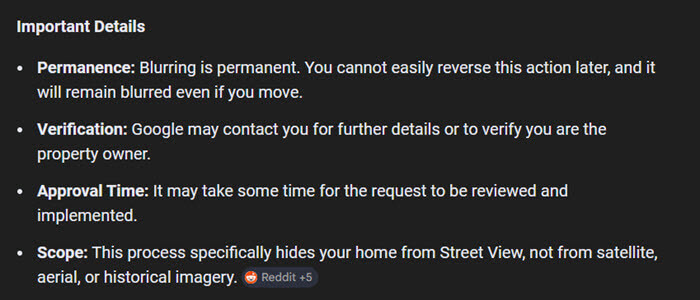
This will be shown on my laptop using Google Chrome. Here are some things you should know before we move forward.
WARNING – Permanence: Once blurred, the image cannot be reversed. If you sell your house, it will remain blurred for the new owners.
Step 1: Start your browser.

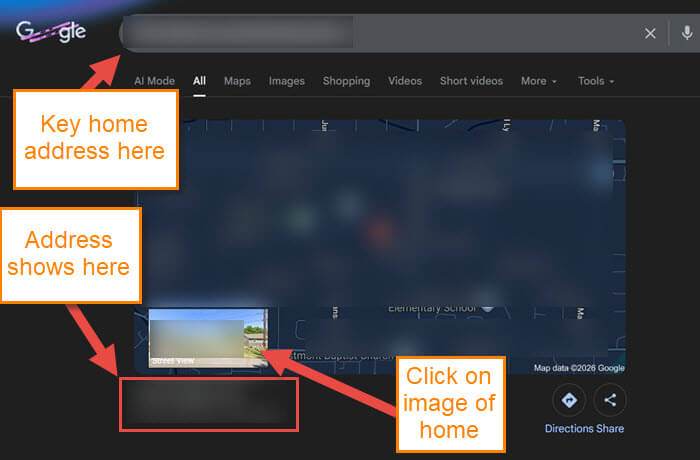
Step 2: Once in the browser, type your address in the search bar at the top. This will bring up a map and image of your home. Click on the image in the bottom left of the map.
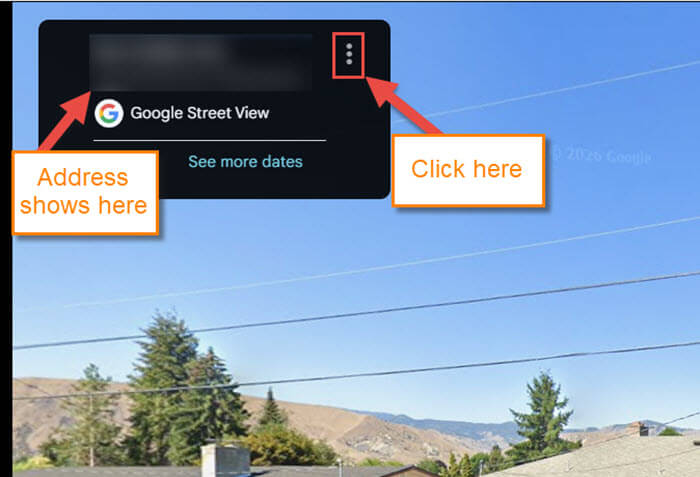
Step 3: This will bring up a larger image showing your home on Google Maps. Your address will be at the top left of the image. Click on the 3 dots next to it.
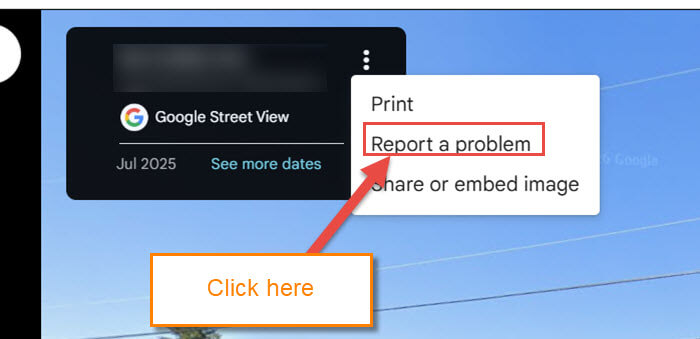
Step 4: A little menu will appear with some options:
- Report a problem
- Share or embed image
We need to click on report a problem.
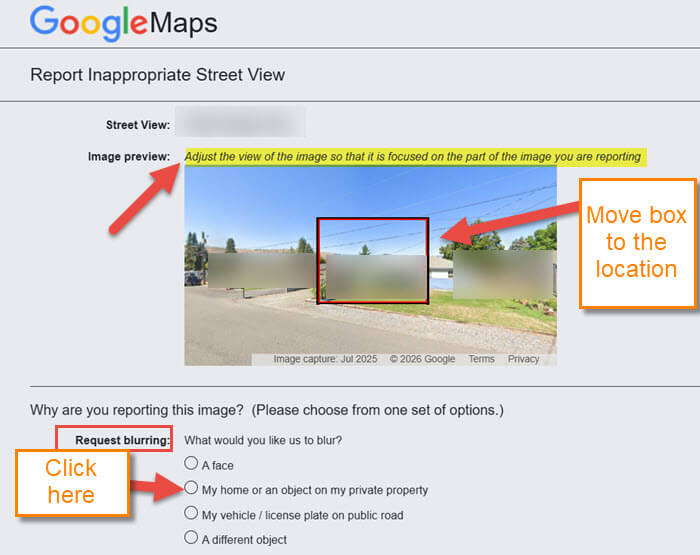
Step 5: The Report Inappropriate Street View screen will appear. Here you can see the view of your house at the top. You need to click and hold your mouse button down on the red box and drag it to the location you want to blur. After that, look down a little further, and next to Request blurring, there are some choices:
- A face
- My home or an object on my private property
- My vehicle/ license plate is on public property
- A different object
For this article, click the circle to the right of My Home.
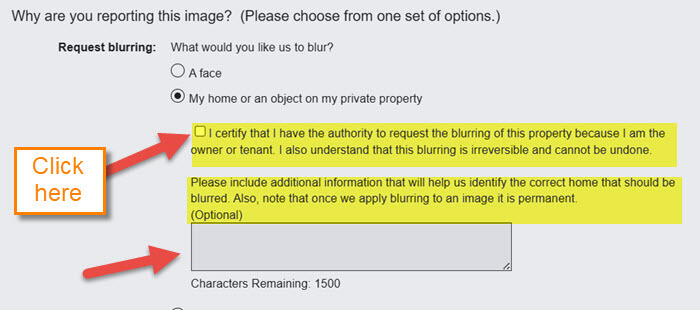
Step 6: Now, some more options will appear:
- I certify that I have the authority to request the blurring of this property because I am the owner or tenant. I also understand that this blurring is irreversible and cannot be undone
- Please include additional information that will help us identify the correct home that should be blurred. Also, note that once we apply blurring to an image, it is permanent(Optional)
Check the box next to the first one. Then they allow you to include additional info, but that is optional.
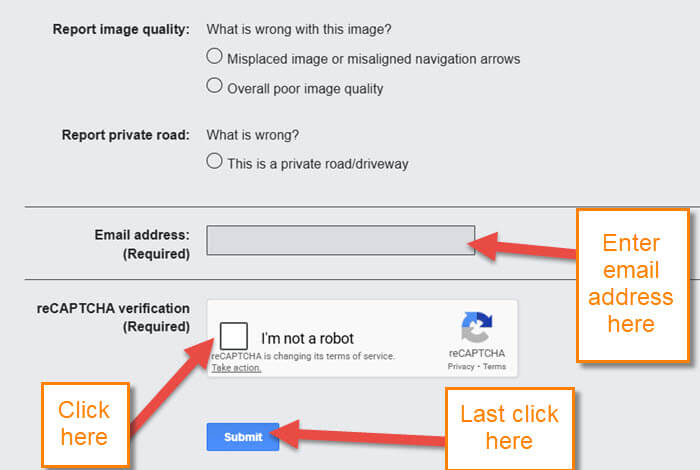
Step 7: Since that is done, you need to scroll down a little to the email box. This is required so they can verify that you are really the owner of the property. Then check the I’m not a robot box.
This usually takes a few days, but it can take longer.
Now you know how to request that your house be blurred. Time to share your new knowledge with everyone.
—
